On this page

Scott
Choose responsive breakpoints where the content needs a different arrangement. Start with the smallest useful layout, widen it, and change the structure when there is enough room for another column, a side panel or a fuller navigation. A phone, tablet and desktop frame can illustrate the result, but those three screenshot widths do not define how the layout behaves between them.
For a course directory, the important question is whether the cards and filters remain readable together. You can compare the arrangements in Pixso's responsive web design workspace, then hand over the width rules that connect them. Avoid choosing a familiar list of device sizes before checking the actual content.

A breakpoint is a rule; a frame width is an example
A breakpoint marks a condition at which layout behavior changes. A design frame is one sample of that behavior. If a two-column layout starts at 600px, a 768px frame is a useful demonstration of it, but 768px is not automatically the breakpoint.
Some properties can change smoothly without a breakpoint. A content region can grow until it reaches a maximum width, and an image can fill that region while preserving its aspect ratio. Other changes are discrete: a filter sidebar moves above the results, a card list gains a column, or navigation switches to a compact presentation.
Write those two kinds of behavior separately. “The results area takes the remaining width” is a sizing rule. “Show the filter sidebar only when two readable result columns still fit beside it” is a condition for a structural change.
Google's responsive design guidance recommends choosing breakpoints around the content rather than popular devices. That principle does not prohibit using a framework's existing thresholds. It means checking whether those thresholds actually work for this page.
Find the minimum useful width of the content
For this example, the directory contains a filter region and course cards. Each card shows a thumbnail, a title, a short description and a “View course” action. Use real-length course titles, including “Introduction to accessible interface design,” before deciding how narrow a card may become.
Suppose the team chooses 264px as the example card's minimum useful width after comparing its content. That number is a design decision for this card, not a universal minimum for cards. A dense product card with prices and badges might need more room; a short media tile might need less.
The example also uses a 224px filter sidebar, a 24px gap between the sidebar and results, 24px between cards and 24px padding on each side of the page. These assumptions let you calculate when a proposed arrangement can fit.
| Part | Example width | Reason for the constraint |
|---|---|---|
| Course card | At least 264px | The longest sample title and action remain usable |
| Filter sidebar | 224px | Labels and choices fit without excessive wrapping |
| Gap between adjacent regions or cards | 24px | Groups remain separate without consuming most of the available width |
| Outer page padding | 24px on each side | Content stays away from the viewport edges |
Use the actual container width in the calculation. A page inside an application shell may also have a permanent navigation rail or another panel. Those regions consume space even when the browser viewport is wide.
Calculate the layout transitions
Without the sidebar, two 264px cards need a 24px gap plus 48px of outer padding. The example threshold is therefore 264 + 264 + 24 + 48 = 600px. Below that width, use one card column. At or above it, two columns can fit under the current assumptions.
To show the sidebar beside those two columns, add its 224px width and the 24px separation from the results: 600 + 224 + 24 = 848px. Below 848px, keep the filters available above the results rather than squeezing the cards below their useful width.
A third card column adds another card and another gap: 848 + 264 + 24 = 1136px. If the design supports a three-column results area, 1136px is the next candidate transition. It is not a requirement to keep adding columns as the screen grows; a maximum content width may provide a better reading experience.
| Example viewport range | Results | Filters |
|---|---|---|
| Below 600px | One card column | A filter control above the results opens the filter options |
| 600–847px | Two card columns | The same compact filter entry remains above the results |
| 848–1135px | Two card columns | 224px sidebar beside the results |
| 1136px and wider | Three card columns, if the content container has enough room | Sidebar remains visible |
These calculations establish candidates to inspect, not proof that the page is finished. Border widths, scrollbar space, the final font and the surrounding application shell can affect available space. Designers and developers should check the implemented layout at the boundary rather than treating the arithmetic as a substitute for rendering it.
Keep filters and reading order consistent
When the sidebar disappears, the filters must remain discoverable. Place a clearly labeled filter control above the course results, show whether filters are active, and keep a way to remove them. Moving the controls should not clear the person's selections.
Decide how the compact filter interface works before drawing it. A panel or sheet may suit a substantial set of filters, but it needs an obvious way to apply or close it and a clear relationship to the results. The layout transition should not introduce an unexplained new filtering model.
Preserve a sensible reading order: page title, search or filter controls, result information, then courses. Avoid a desktop-only visual arrangement that contradicts the underlying sequence. A CSS layout can place elements far from their document order, so keyboard and screen-reader behavior must be reviewed in the implementation.
Do not remove essential descriptions or actions merely to fit more cards on a narrow screen. First reconsider the number of columns and the content hierarchy. A single-column layout with complete choices often serves the task better than two very small cards that hide the differences between courses.
Design both sides of the boundary in Pixso
Create reference frames at 390px, 768px and 1024px. For the rules above, these show one column, two columns without the sidebar, and two columns with the sidebar. Reuse the same course content so the comparison is about layout rather than different copy or images.
Use Auto Layout and reusable components to keep card internals consistent while comparing widths. Let titles and descriptions grow, and specify which elements fill the available space. Keep a note beside each arrangement explaining the threshold and the reason for it.
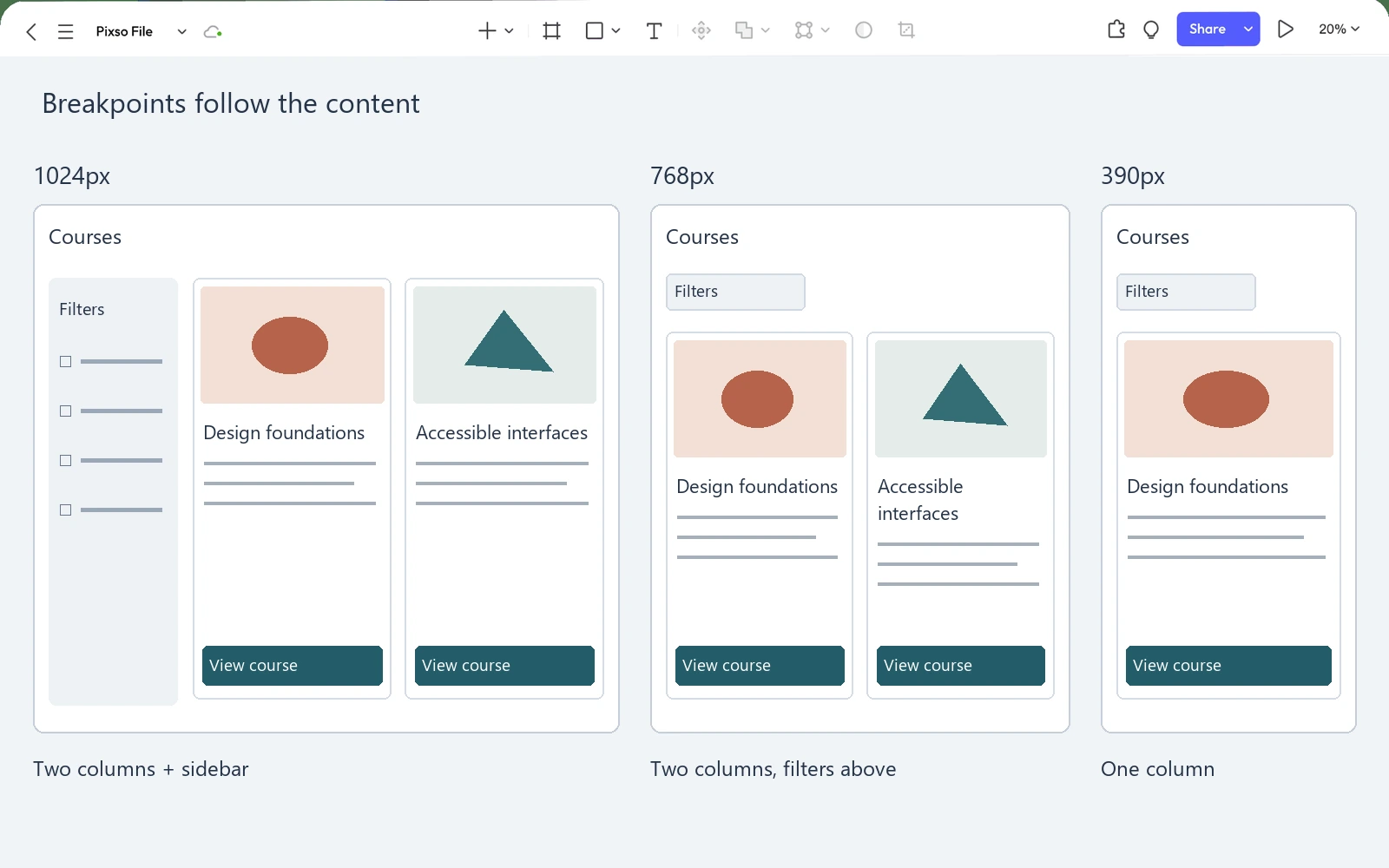
Then inspect 599px and 600px, 847px and 848px, and 1135px and 1136px. The last width before a change is often more revealing than a comfortable frame well inside a range. Check whether a heading wraps awkwardly, an action collides with other content, or a card becomes unusably narrow.
A design file can document these states and let the team review them together. It does not automatically establish media-query behavior in a production website. Include the intended rules in the handoff so developers do not have to infer them from three pictures.
Choose whether the page or the component owns the change
Viewport-based breakpoints are useful for page-level changes such as placing filters beside the results. A reusable card may need to adapt to the space it receives instead. The same card could appear full-width in a narrow page or inside a small panel on a wide screen.
Describe the requirement as “Use the compact card when its container cannot fit the horizontal arrangement” rather than “Use the mobile card on phones.” Developers can then decide whether container queries, flexible layout or another implementation suits the supported browsers and component architecture.
Do not give every component its own threshold without a reason. A small set of shared page transitions keeps the overall experience coherent; local adaptation is valuable where a component genuinely appears in different containers. Both can coexist.
Check more than the default language and text size
Repeat the boundary checks with longer course titles, translated labels, larger text and a visible validation or status message. If one longer label forces a new breakpoint, try improving wrapping, grouping or control layout before creating another narrow exception.
Browser zoom changes the amount of layout space available, while text enlargement can expose different problems. A layout that works in three static frames can still require horizontal scrolling or hide controls when someone enlarges the content. W3C's reflow guidance explains the accessibility expectation and its exceptions for content that inherently needs a two-dimensional layout.
Finally, hand over the minimum useful widths, the candidate thresholds, the changes at each threshold and the continuous sizing rules between them. For the course directory, the important result is straightforward: people can read the courses and use their filters at every width, not only at the widths chosen for a presentation.
![[NEW] How to transfer photo styles with an AI photo editor](https://pixso.net/assets/media/ai-image-style-transfer-9fe25f62d2130e50414c-b771b1704762f9a3.webp)

![[2026] The Best UI/UX Tools that Every Designer Should Use](https://pixso.net/assets/media/top-5-ui-ux-tools-872368e4bf4b4e3c.webp)