Scott
Have you ever found the perfect photo for a project, only to realize its visual theme completely clashes with your design system? Realistic photography can sometimes feel too literal, while creating custom hand drawn illustrations from scratch takes far too much time. Re-creating unique assets across blogs, social channels, ad banners, and websites often creates a major workflow bottleneck.
This is where leveraging an ai photo editor for style transformation becomes invaluable. By analyzing the primary subjects and composition of your original asset, AI can re-render the image into entirely new visual mediums, such as 3D clay, watercolor, pencil sketch, or minimal flat vector art. You do not need advanced digital painting skills to achieve a specific look; simple text descriptions allow you to explore diverse photo styles in seconds.
In this guide, we will break down how ai image style transfer works, explore practical design scenarios, and walk through how to execute style transformations in Pixso.
Part 1. What Is AI Style Transfer?
AI style transfer is a technology that recognizes the subjects, objects, and spatial depth within an image and reconstructs its colors, textures, and artistic rendering techniques into a new visual medium. Rather than simply tweaking surface lighting or color temperature, it translates the entire image into a new artistic language.
For example, you can convert a real-world coastal landscape photo into a warm watercolor painting, or re-render a product shot into a soft, tactile 3D clay object. Using a single source photo, you can generate multiple design options including pencil sketches, comic styles, or clean flat vector illustrations.
Key Attributes Transformed by AI
- Artistic Medium: Realistic photography, watercolor, oil painting, sketch, or animation
- Surface Texture: Paper grain, clay, metallic sheen, fabric, or brushwork
- Dimensionality: Converting 2D flat photos into dimensional 3D representations
- Color Palette: Pastel, monochrome, vivid, or custom brand color systems
- Level of Detail: High realism versus simplified vector shapes
Unlike static filters that overlay color tweaks onto existing pixels, an ai image generator interprets the contextual contents of your photo and generates a new output. Because this process is generative, fine details can shift during rendering. Critical brand assets, such as facial features, specific product silhouettes, and corporate logos, should always be inspected after generation.
Standard Photo Filters vs. AI Style Transfer
While both techniques alter the look of an asset, their underlying processing methods and results differ significantly.
Standard Photo Filters
Filters apply pre-configured mathematical overlays directly on top of an image. They adjust surface parameters like contrast, saturation, highlights, and color balance across the entire frame equally.
Filters are ideal for quick color grading or converting photos to black and white, but they cannot alter forms, textures, or artistic mediums.
AI Style Transfer
AI style transfer evaluates the subjects, foregrounds, and backgrounds within an asset, reconstructing them in a chosen artistic medium. It goes beyond simple color adjustments to re-render textures, light diffusion, and structural forms. This allows you to turn photos into 3D art, watercolor paintings, or flat vector illustrations, making it ideal for visual prototyping and creative exploration.
Part 2. Practical Use Cases for AI Style Transfer
Style transformation is far more than a fun visual gimmick. It is a powerful workflow strategy for product designers, marketers, and design teams who need to repurpose visual assets efficiently across multiple platforms.
1. Producing Diverse Ad Creatives
Generate multiple visual variations of a product or portrait without scheduling additional photo shoots. Re-rendering a product photo into a 3D style creates a friendly visual for promotional banners, while a hand drawn look provides a warm touch for social graphics.
2. Creating Web and Blog Illustrations
Realistic photos can sometimes feel cluttered or distract from instructional copy. Converting busy photos into clean flat vector illustrations or simple line art creates clear, readable visuals for landing pages and articles.
3. Exploring Early Visual Directions
In the early phases of a design sprint, deciding on a visual direction can be tough. Using an ai photo editor allows you to generate multiple art directions from a single source image, making it easy to compare color schemes, textures, and moods with stakeholders.
4. Unifying Brand Visual Consistency
Combining stock photos from different sources with varying lighting and backgrounds can make a website or app look fragmented. Converting disparate assets into a unified illustration medium with consistent brand colors establishes a clean, professional aesthetic.
5. Polishing Presentation Decks
Complex photography can overcrowd presentation slides. Shifting detailed images into clean vector illustrations helps maintain focus on your message while keeping pitch decks visual and engaging.
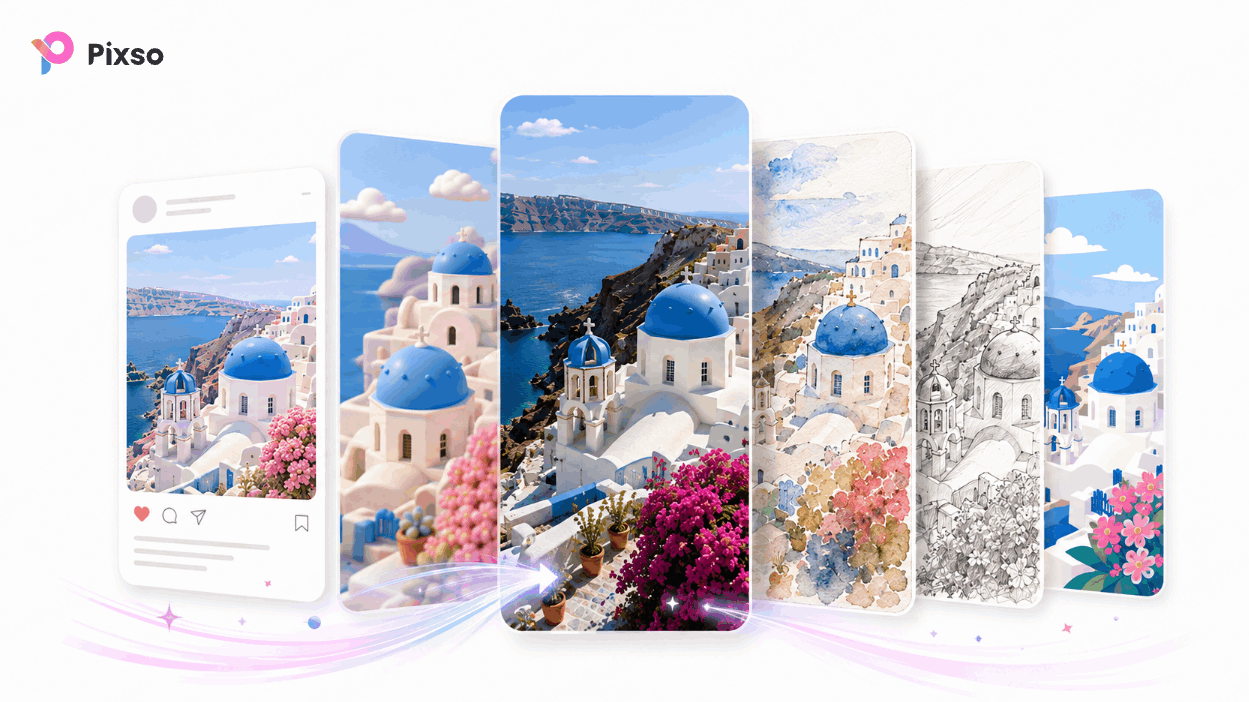
Part 3. Pixso AI Style Transfer Examples
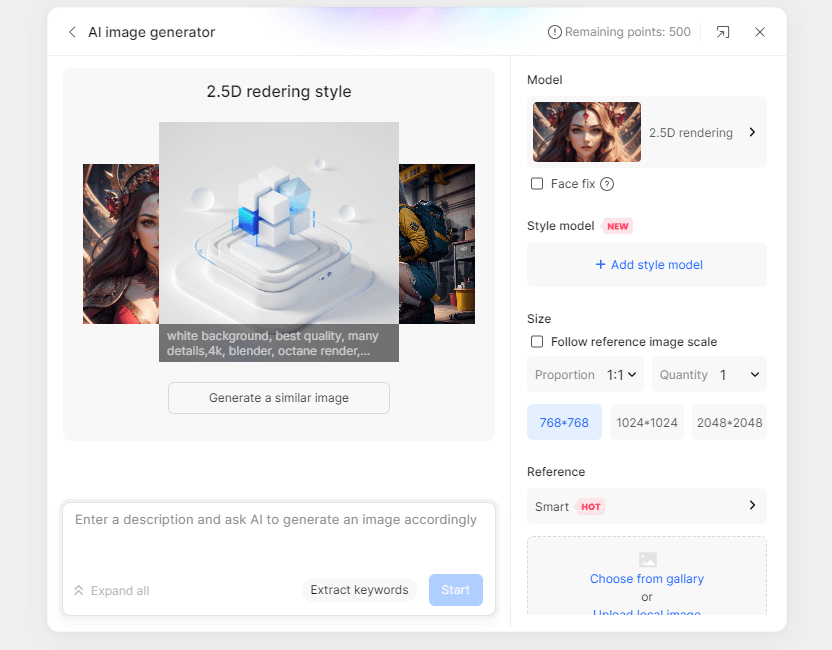
Pixso is a collaborative UI/UX design tool built for team workflows. In Pixso, you can convert photo styles and apply the generated visual outputs directly to your banners, app frames, and web pages on the same canvas.
Example 1. Converting a Landscape Photo to a Flat Vector
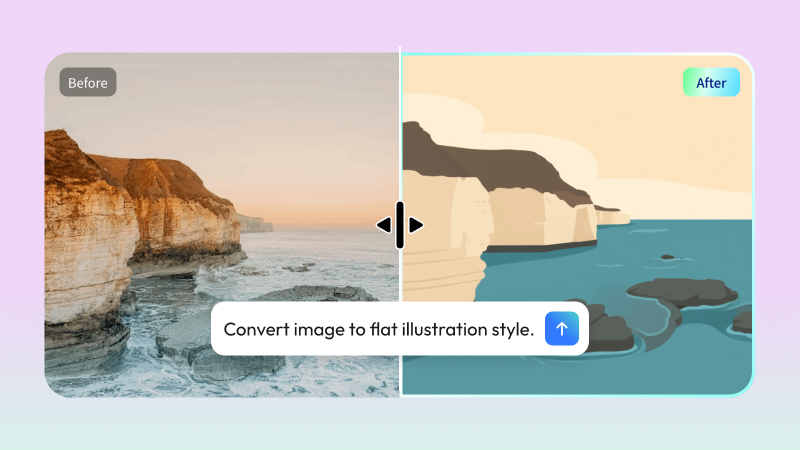
In this example, a photograph of a coastal cliff is transformed into a clean flat vector illustration. The AI removes complex noise and granular textures, rendering the cliff, sky, and ocean as smooth color blocks. This minimal graphic style works exceptionally well for:
- Travel blog feature images
- Website hero section backgrounds
- Presentation slides
- Social media carousels
- Onboarding screens
Sample Prompt:
"Maintain the composition of the coastal cliff and sea, but convert it into a flat vector illustration using warm tones. Simplify complex shapes and keep shadows minimal."
Example 2. Generating Multiple Art Styles from One Source
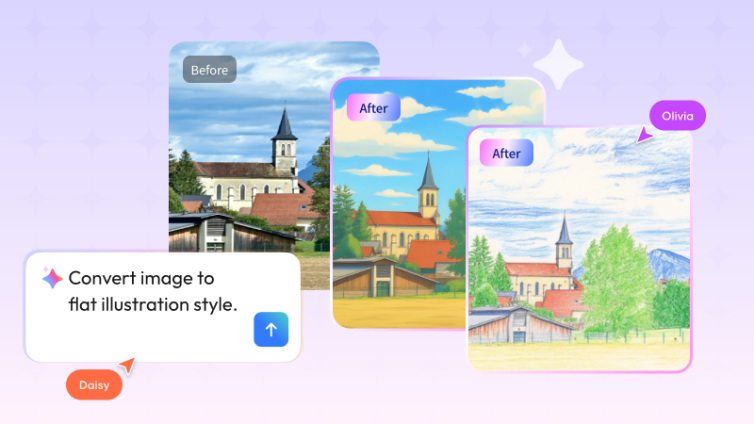
You can also generate and compare multiple artistic directions from a single source image. By re-rendering a photo of a building into animation art, a colored pencil drawing, or an oil painting, design teams can quickly determine which visual direction aligns best with their project goals.
Sample Prompt:
"Keep the building architecture and camera angle from the original photo, and generate three distinct illustration style options: a vibrant anime style, a colored pencil sketch, and a soft oil painting."
Part 4. How to Transfer Photo Styles in Pixso
Executing style transformations in Pixso takes place directly in your design workspace.
Step 1. Log in to Pixso and Open a Canvas
Sign into your Pixso account and open an existing project file or start a new design canvas.
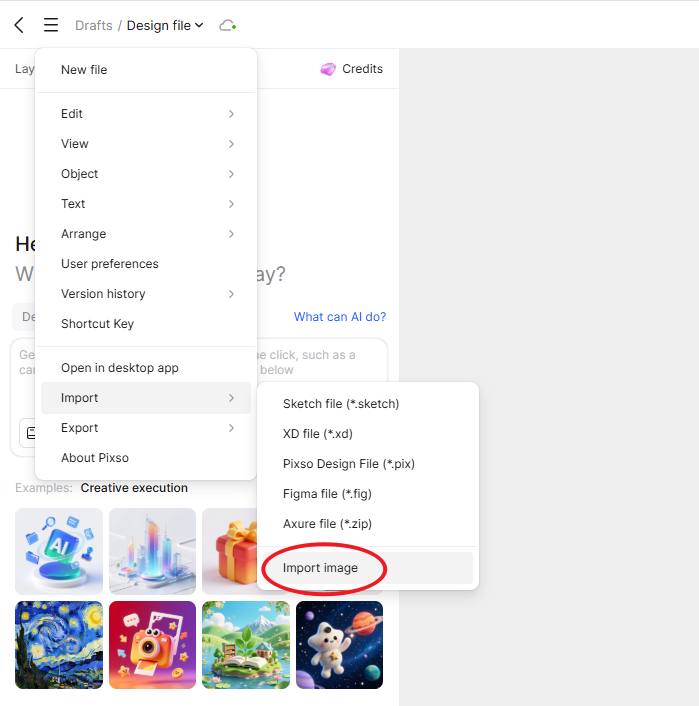
Step 2. Import Your Image Asset
Place your source image onto the workspace. You can edit a standalone photo upload or select an image layer positioned inside an existing UI design frame.
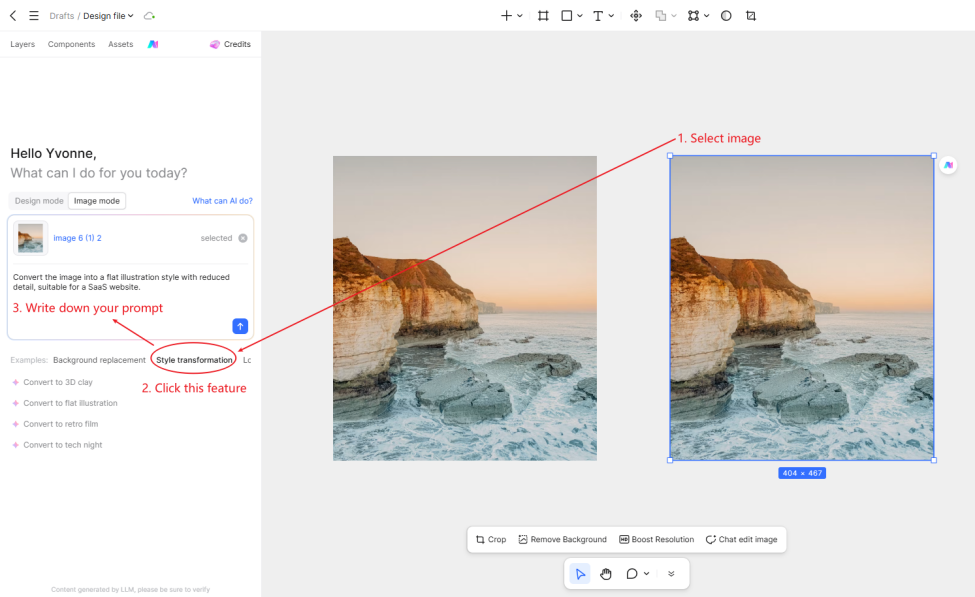
Step 3. Access AI Image Tools
With the image selected, open the AI image editing menu on your toolbar and choose the style transformation feature.
Step 4. Define Your Desired Style
Select a style preset or enter custom prompt instructions. For best results, include these four structural elements:
- Subject to Keep: Key focal subjects, framing, or spatial composition
- Target Style: 3D clay, watercolor, pencil sketch, or flat vector
- Color and Mood: Pastel, warm, bright, or muted
- Negative Constraints: Avoid text overlays, extra objects, or distorted proportions
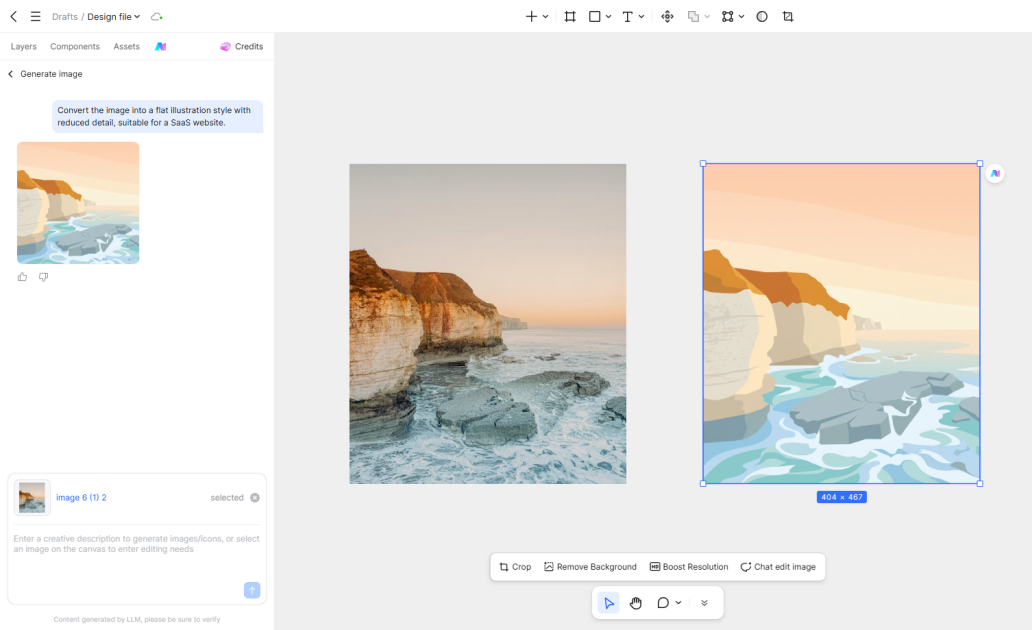
Step 5. Compare and Refine Outputs
Review the generated asset alongside your original photo. If the output needs tweaking, adjust single parameters such as color palette or texture density rather than rewriting the entire prompt.
Step 6. Apply Directly to Your UI Designs
Resize and position your transformed asset directly on your Pixso canvas. Add typography, buttons, vector icons, and layout components around the graphic to complete your web banner, mobile screen, or ad creative.
Part 5. Writing Effective Style Transfer Prompts
The accuracy of your style transformation depends on the clarity of your prompt structure. Providing explicit visual parameters helps the ai image generator render accurate results.
Basic Prompt Formula
"Maintain [Subject and Composition], and convert the image into [Target Style]. Apply [Color Palette and Mood], and preserve [Key Features to Retain]."
Specialized Prompt Examples
3D Clay Style for Ads:
"Keep the product silhouette and logo placement intact, and transform it into a smooth, tactile 3D clay style. Use bright studio lighting, soft shadows, and leave clean background space around the product."
Flat Vector for Blogs:
"Maintain the core structure of the landscape photo, and convert it into a minimal flat vector illustration. Reduce texture noise and leave empty space on the left side for overlaying headlines."
Warm Watercolor:
"Keep the arrangement of the flower vase, and render it in a warm pastel watercolor style. Include natural paint bleeds and subtle paper grain textures."
Pencil Sketch for Materials:
"Maintain the positions of objects in the frame, and convert the photo into a soft colored pencil drawing suitable for educational graphics. Use smooth lines and avoid heavy dark outlines."
Unified Brand Asset:
"Keep the product form and camera perspective unchanged, and transform the image into a minimal vector style using our brand colors, orange and cream. Maintain consistent stroke weights across all elements."
💡 Pro Tip
Need to improve source image clarity before applying a new artistic medium? Read our companion guide on enhancing photos with Pixso:
🔗 [NEW] How to unblur images & sharpen portrait photos with AI
Key Considerations for AI Style Transformations
- Inspect Core Subject Accuracy: Ensure critical elements such as faces, product shapes, and brand logos remain true to the original file after transformation.
- Audit Small Text and Branding: AI generative engines can distort fine typography or subtle logotypes embedded inside photos. Re-apply crisp vector text or logos manually on your Pixso canvas if necessary.
- Recognize Low Resolution Limits: If a source photo is extremely tiny or pixelated, the AI engine may struggle to infer structural depth accurately. Use clearer source assets when possible.
- Maintain Original Asset Files: Always keep a copy of your original photo on the canvas alongside your generated artwork for easy comparison and iteration.
FAQ
Q1. What is ai style transfer?
It is an AI driven technique that analyzes the subject matter and spatial composition of an image and re-renders it into a new artistic style, such as 3D clay, flat vector illustration, watercolor, or pencil sketch.
Q2. How is AI style transfer different from photo retouching?
Photo retouching enhances existing pixels by tuning contrast, sharpness, and brightness while retaining the photo medium. Style transfer completely reconstructs the image using a new artistic language and texture medium.
Q3. Do I need design or illustration experience to use these features?
No. You can choose from visual presets or type natural language prompts, allowing anyone on a product team to experiment with photo styles without specialized illustration skills.
Q4. What types of images work best with style transfer?
The technology works well across portraits, product shots, food photography, architecture, and landscapes. Photos with clear focal subjects and distinct depth produce the cleanest outputs.
Q5. Can I edit transformed visual assets directly in Pixso?
Yes. Generated graphics render directly onto your Pixso workspace, enabling you to resize, layer, and combine them with UI frames, layout grids, buttons, and typography seamlessly.
Conclusion
Leveraging ai style transfer allows design teams to reimagine visual assets to suit any channel, campaign, or user interface. Converting realistic photography into 3D clay visuals or clean flat vector graphics saves valuable time while keeping visual communication fresh and engaging.
By integrating an ai photo editor into a unified design workspace, Pixso allows you to convert styles, build app screens, and create ad graphics all on one collaborative canvas. Experiment with style transformation in Pixso today to streamline your team's visual asset workflow.
![[Full Guide] Filter UI Design](https://pixso.net/assets/media/filtering-ui-61ba100ed07d6af6.webp)