On this page

Scott
A user scenario describes who is trying to do something, what triggered the need, and what could make the task difficult. Write the goal and context before describing screens. Then use the scenario to decide what the interface must support, rather than treating a made-up story as evidence of what users want.
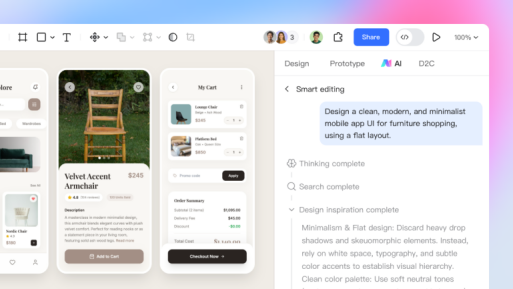
A scenario becomes useful when it leads to something the team can try. With interactive prototyping in Pixso, you can connect the screens needed for that task and review whether the proposed route fits the situation.
What are User Scenarios in Design
1. Definition of User Scenarios
User scenarios, in the context of design, are detailed narratives that describe how users interact with a product or service. They paint a vivid picture of the user's actions, goals, and the context in which they are using the product. For example, consider a scenario where a freelance graphic designer is using a design tool to create a logo for a client. The designer's goal is to produce a unique and professional-looking logo within a tight deadline. This simple example encapsulates the essence of a user scenario, which is about understanding the user's journey with the product.
In addition, when exploring different examples, we can find that they vary widely across different industries. In the healthcare sector, a patient using a telemedicine app might have the goal of quickly consulting a doctor and getting a prescription while being in a remote location. Another example is a student using an e-learning platform to study for an upcoming exam. The student wants to access relevant study materials, take practice quizzes, and get instant feedback.
2. Key Elements
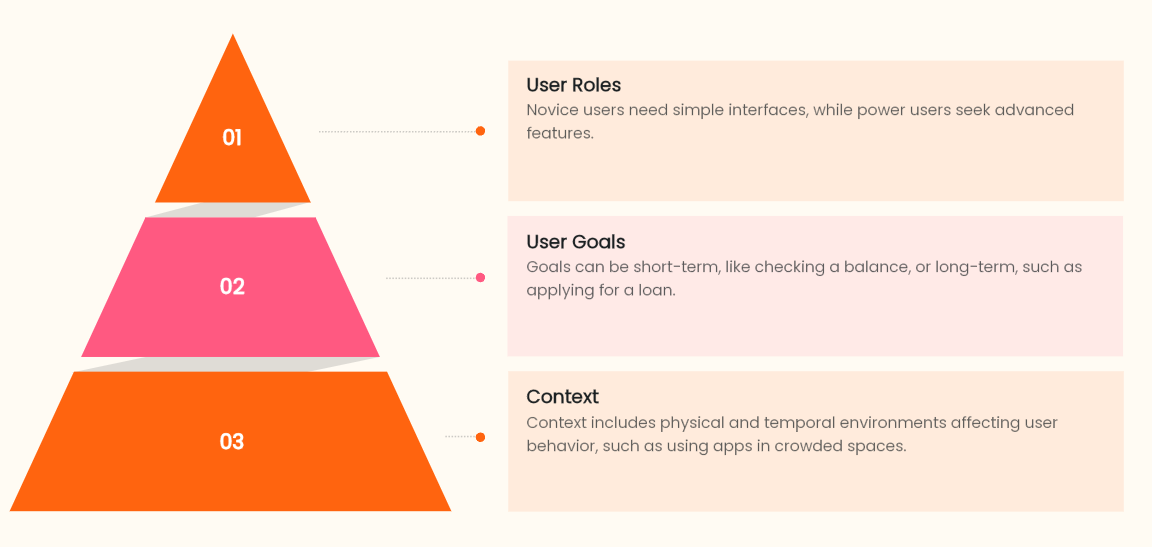
User roles
There are different types of user roles. Novice users, for instance, are new to the product and may need more guidance and simple-to-understand interfaces. Power users, on the other hand, are more experienced and might look for advanced features and shortcuts. In the case of a design tool, a novice designer might be intimidated by complex design functions, while a power user could be eager to explore advanced vector editing capabilities.
Goals
Goals can be short-term, such as quickly finding a specific tool in an application, or long-term, such as completing a project. For a mobile banking app, a short-term goal could be checking the account balance, and a long-term goal might be applying for a loan.
Context
Context includes the physical environment (e.g., using a mobile app on a crowded subway) and temporal context (e.g., using a productivity tool during work hours). For example, a user using a fitness tracking app while jogging in the park needs quick-glance data display due to the physical activity and the outdoor environment.
Example: move an appointment without losing the existing booking
Consider this scenario: “Maya has a repair appointment on Tuesday morning, but her work shift has changed. On her phone during a short break, she needs a later appointment this week. She wants to know the replacement time is available before giving up the booking she already has.”
The goal is not “tap the reschedule button.” It is to leave with a confirmed appointment she can attend. The short break and phone are constraints. The risk of losing the current booking is a concern to investigate, not a fact established by writing the story.
| Scenario detail | Design implication | Question still to answer |
|---|---|---|
| An existing appointment is already booked | Keep its date and time visible while the customer chooses another slot. | When does the service release the original slot? |
| The customer has only a short break | Show relevant availability before asking for information the service already holds. | Which choices are necessary to find a usable appointment? |
| The customer needs confirmation | Distinguish the selected replacement from the confirmed booking. | What happens if someone else takes that slot before confirmation? |
A practical scenario note can contain five short fields: person and relevant experience; trigger; desired outcome; context or constraint; evidence and unresolved assumptions. Keep demographic details only when they change the task. A job title or age does not explain a behavior on its own.
Why User Scenarios Matter in Design
The user scenario holds a crucial position in the design process as it brings multiple benefits. It acts as a bridge between designers and users, enabling designers to deeply understand the user's perspective. By visualizing how users interact with products, it offers valuable insights that drive the design in the right direction.
1. Understanding User Needs
Scenarios organize what research has revealed and expose assumptions that need checking. A fitness scenario about a short lunch break, for example, may suggest that workout duration matters. It does not establish that people want high-intensity exercise or have no equipment. Return to interviews, observations or other relevant evidence before turning that suggestion into a feature requirement.
2. Guiding Design Decisions
A research-backed scenario can help prioritize a design problem. If observations show that people repeatedly struggle to find formatting commands, describe the task and the point of confusion before choosing a new location. In a design tool, a scenario about organizing a complex file may lead the team to compare layer names, grouping and navigation. Writing the scenario does not establish how common the problem is; that judgement depends on the evidence behind it.
3. Facilitating Communication
User scenarios serve as a common language among designers, developers, and stakeholders. When presenting a new product idea, a well-crafted scenario like "A small business owner is using an e-commerce platform to manage inventory and process orders" can make it easier for non-technical stakeholders to understand the product's functionality. It also helps in gathering feedback from all parties involved in the design process.
How to Master User Scenarios in Design Practice
Mastering the user scenario in design practice requires a series of steps. From researching users to creating personas and visualizing scenarios, each stage is crucial. Pixso features such as prototyping help designers understand user interactions and improve designs based on the scenario.
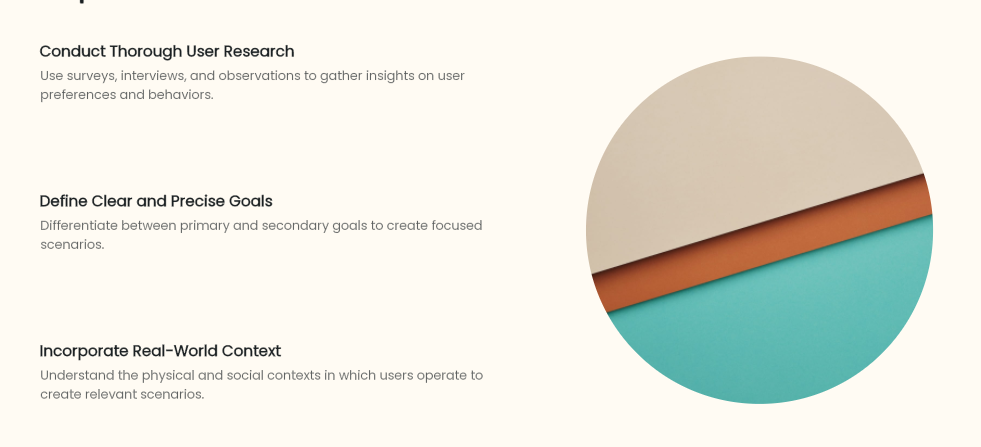
1. Conduct Thorough User Research
Use a combination of surveys, interviews, and observations to gather data from a wide range of users. Surveys can provide broad insights into user preferences, interviews allow for in-depth exploration of user experiences, and observations reveal real-world usage patterns. For example, when researching a design tool, surveys can ask about desired features, interviews can dig into pain points, and observations can show how users actually interact with existing tools in their work environment.
2. Define Clear and Precise Goals
Separate the result the person needs from the actions a design happens to offer. For Maya, “have an appointment I can attend this week” is the goal; opening a calendar is one possible action. A useful goal also has a boundary. If keeping the same technician is essential, record it. If it is only a preference, do not make it a condition that prevents other useful options from appearing.
3. Incorporate Real-World Context
Take into account the physical, social, and technological context in a user scenario. When designing a navigation app, consider the physical context of a driver in heavy traffic, where clear and concise instructions are crucial. In a social media app, understand the social context of users sharing content with friends and family, which leads to features like privacy settings and group sharing options. For a mobile app, account for the technological context of different devices and network speeds, such as a video-streaming app adapting to slow network connections without sacrificing too much on video quality.
4. Create Diverse User Personas
Use research-backed differences that affect the task. Someone changing their own appointment and a coordinator changing bookings for several people may need different information and permissions. Those differences are more useful than assuming that people of the same age want the same interface. If existing personas include relevant behaviors, connect the scenario to them; a new fictional biography is not required for every flow.
5. Use Visualization Techniques
For the appointment example, sketch four moments: current booking, available replacement times, confirmation of the selected change, and the confirmed result. Add an unavailable-slot route only if the service can reject a choice at confirmation. In Pixso, place a short scenario note beside these frames and connect the actions the participant will need. Do not hide the original booking simply because the replacement screen is open.
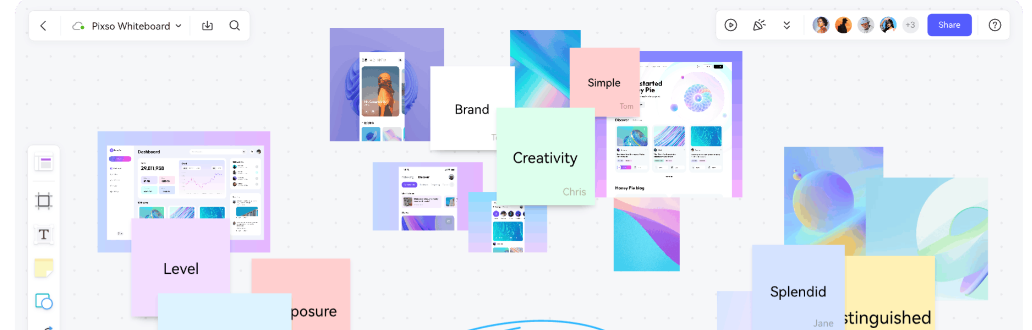

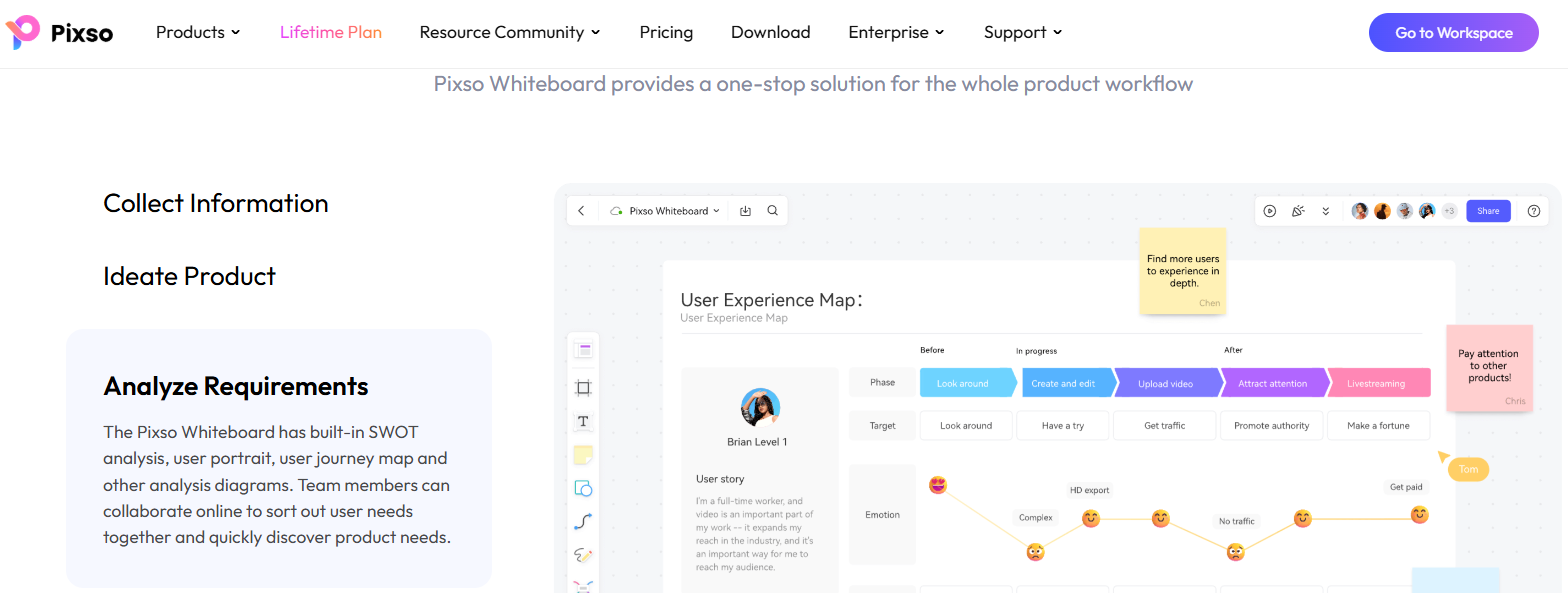
Leverage storyboards and flowcharts to visualize user scenarios. Storyboards can show the step-by-step process of a user from opening an app to completing a task, like in the design of a new software interface. Flowcharts can map out the flow of actions in a user scenario, such as in an e-commerce checkout process from adding items to the cart to making the payment. Pixso offers a range of features for creating visualizations. Its prototyping feature allows designers to create interactive prototypes based on user scenarios. Designers can create a click-through prototype of a mobile app's user interface, simulating how a user would navigate through different screens, which helps in better understanding the user journey and identifying potential usability issues.
6. Validate and Refine the Scenario
Use a neutral task such as: “Your Tuesday appointment no longer fits your schedule. Find a time later this week that you can attend.” Do not name the button or tell the participant which screen to open. Observe whether they understand what happens to the existing booking and can tell when the change is confirmed.
Separate a mismatch in the scenario from a problem in the design. If the participant is confused by a date selector, improve the selector rather than rewriting the scenario to make the confusion disappear. If the real service does not let people reschedule during a short break, revise the assumed context or service constraint. Record the observation that led to either decision.
7. Continuously Update the Scenario
Update the scenario when new evidence changes the task or its constraints. If the booking service introduces a cancellation fee, for example, the customer needs to know whether rescheduling triggers it before committing to a new time. If the task has not changed, a different button color is not a reason to rewrite the scenario. Keep a short note of the changed constraint and revisit the screens that depend on it.
Turn the scenario into the next design decision
For the appointment flow, the next decision is concrete: when should the original booking be released, and how should the interface explain that moment? Keep the scenario beside the screens while the team resolves it. A useful scenario survives changes to the layout because it describes the person’s task, not a preferred sequence of clicks.