On this page

Elodia
Designers can use AI to find assets and develop a first draft before spending time on detailed layout work. The useful question is which part of the task it helps with. Searching for an existing component calls for a different input from generating an unfamiliar screen. This guide follows both workflows in Pixso, using a booking interface as an example.
1. Start with the design task
Suppose you need a booking screen with a date selector, available times, and a confirmation action. Before opening an AI tool, write down the required information and the states the screen must support: no date selected, available slots, no availability, and a confirmed booking. Those requirements give you something concrete to judge the result against.
Separate work you can reuse from work you need to explore. An approved button or calendar component may already exist in the team library. Search for it first. Generate a new layout when the arrangement is still uncertain, then compare the draft with the task and existing components.
2. Choose between finding an asset and generating a draft
AI Search helps you look for design resources using the inputs available in the search panel. Design generation starts from a written brief and produces a draft to refine. Both are starting points for design work: the result still needs to fit the content, component rules, and interaction you are building.
For the booking screen, begin by searching for a calendar or time-slot pattern. If none fits the task, describe the screen and explore a draft. Keep the required states beside the design so a visually appealing result does not distract from a missing error or confirmation message.
3. Find relevant components and assets with AI Search
Use a selected layer, an image, or a text description where the search panel supports that input. A useful query describes the object and its role: “compact weekly calendar for a booking screen” is more specific than “beautiful UI.” Start with the closest result and inspect its structure before using it.
Compare the result with the space and content it must hold. Does the calendar include a selected date? Can the time-slot label fit when translated? Is the resource editable, or is it an image? These differences determine how much work remains after the search.
Reuse an approved team component when one already serves the task. For a community resource, check its usage terms and adapt the text, styles, and states to your product. Search can shorten discovery; the designer still decides whether the resource belongs in the interface.
4. Turn a specific brief into an editable design draft
Describe the screen’s purpose, audience, required content, and layout constraints. For example: “Create a booking screen for a mobile fitness app. Show the selected date, instructor, available times, duration, and price. Include an unavailable state and a clear confirmation button.” A concrete brief makes missing information easier to spot.
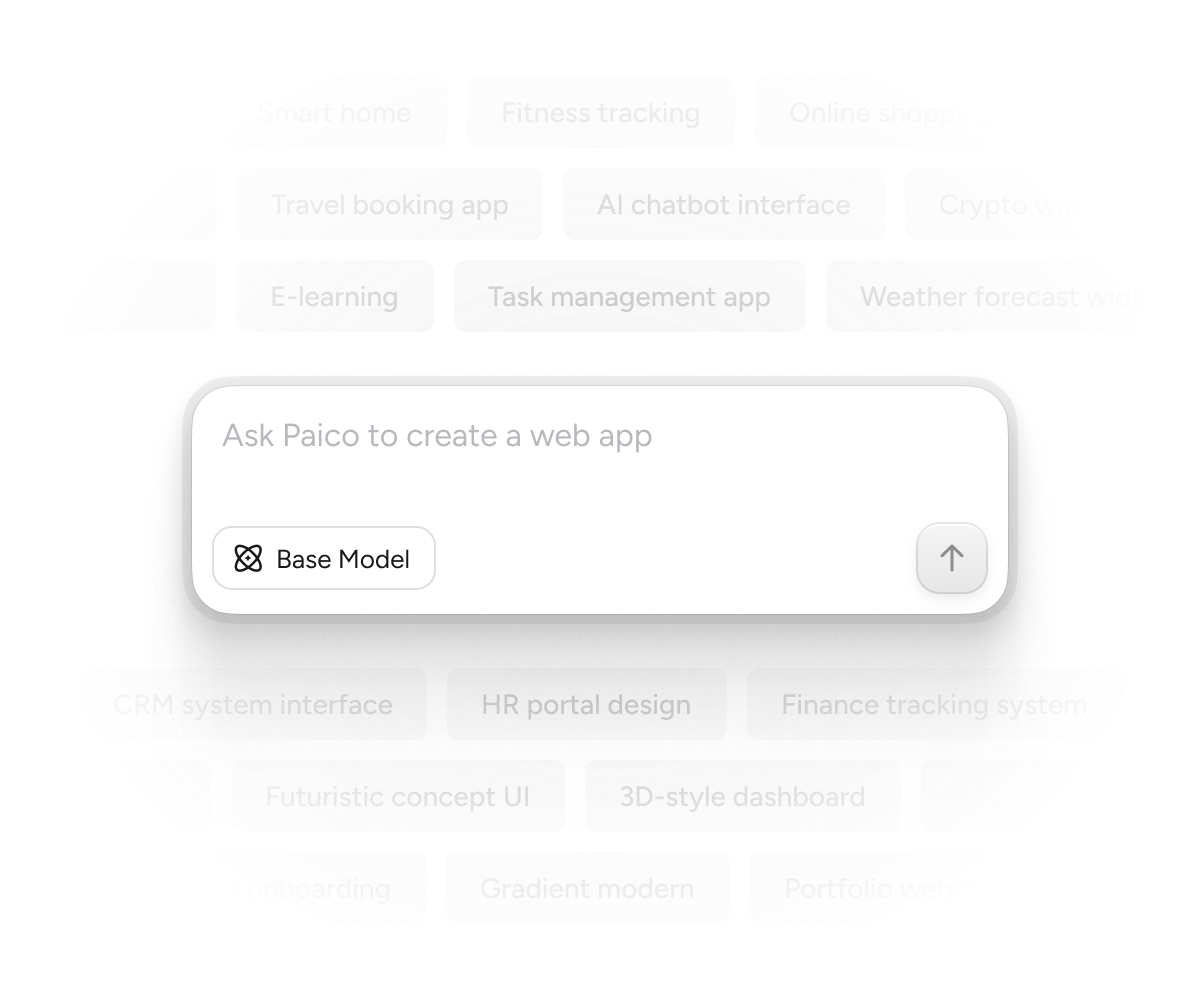
Bring the generated draft into the design file using the available workflow, then work on it as a layout. Replace placeholder information, adjust spacing, and use the product’s components and text styles. Test a long instructor name and a fully booked day before polishing the default state.
Ask for a targeted change when the structure is close: move the date selector above the time slots, simplify the summary, or make the next action clearer. Keep the useful parts of the draft instead of regenerating the whole screen for every small adjustment.
5. Judge the result by the work it saves
A faster first image is useful only if the draft can become a usable design. Compare these outcomes on a real task:
- Discovery: the search result supplies a relevant, editable starting point instead of requiring you to rebuild a familiar pattern.
- Exploration: alternative layouts make a meaningful choice visible, such as showing dates as a list or a weekly strip.
- Consistency: the draft can use the team’s components, spacing, and typography without extensive reconstruction.
- Iteration: a focused change improves the required task without breaking adjacent states or losing content.
Record the time spent correcting the draft as well as the time spent generating it. If most of the screen needs rebuilding, narrow the prompt or reuse an existing component. The best workflow depends on the task, not on the number of generations.
6. Refine the screen with your team
Once the structure works, move the discussion to the actual screen and its states:
- Use the intended content. Replace generic labels and sample amounts so reviewers can judge the information hierarchy.
- Apply shared components and styles. Review their behavior with longer text and different amounts of content.
- Connect the relevant states. A booking prototype should show how someone selects a slot, confirms it, and recovers from an unavailable choice.
- Discuss specific decisions in comments. Ask whether the price, selected time, and next action are clear before reviewing decorative details.
Pass the reviewed screens, component states, and interaction notes to development. A generated layout helps explain the interface; implementation still needs its own behavior and accessibility checks.
Use AI where it helps the next design decision
Use search when the right resource may already exist. Use generation when you need to explore a screen from a brief. In both cases, judge the result against real content, component rules, and the task a user needs to complete.
For the booking example, a useful outcome is a coherent set of screens for selecting, confirming, and changing a time. The number of AI-generated drafts matters less than whether the team can explain and implement that flow.
Start with one bounded task in Pixso, keep the strongest result, and refine it with the same care you would give a manually built design.