Scott
To make a scrolling prototype, use a frame as the visible viewport, place content beyond its bounds, and enable scrolling in the direction you need. Keep only the controls that must remain visible fixed in place. The crucial distinction is between the height of the viewport and the height of the content: a very tall frame that fits everything has nothing left to scroll inside it.
Build a long activity-booking page as an example: a compact header, a photo and overview, an itinerary, reviews, and a date-selection action. Pixso’s interactive prototyping tools support scrollable content and fixed elements, so you can review the complete page before deciding how much navigation should stay on screen.
Start with the viewport, not a screenshot of the whole page
Create a frame with the dimensions of the screen you want to review. For this exercise, use a 390 × 844 layout. These are example dimensions, not a requirement for mobile design; repeat the review at the sizes relevant to your project.
Inside the frame, arrange the activity’s content in reading order: photo, title, practical details, itinerary, reviews, and booking information. Let that content extend below the visible viewport. Use enough realistic copy to expose the length of the page. A title and three placeholder rectangles will not tell you whether the itinerary can be read comfortably.
Keep the viewport frame at the intended screen height. Extending it until every section is visible changes the design into a long canvas rather than a screen with overflowing content. A preview may then scale the entire page down, making the text tiny instead of producing the scrolling experience you expected.
Check the layer structure as well as the visual positions. The itinerary and reviews need to belong to the intended scrolling container, not merely sit below it on the canvas. A layer can look aligned with a frame without being one of its children.
Set the scroll direction on the right frame
Select the viewport frame and use the Prototype tab’s overflow behavior setting for vertical scrolling. Pixso’s official frame documentation identifies horizontal, vertical, both-direction, and no-overflow behavior. For this activity page, vertical scrolling is the appropriate starting point.
Do not enable both directions simply because it appears more flexible. A mobile page that can drift sideways may be revealing a misplaced layer or an unexpectedly wide text block. Inspect the right edge of the content before treating horizontal movement as part of the design.
Preview the selected flow and scroll through the page. Confirm that the first screen has a useful amount of content, that the itinerary appears in order, and that the final booking information can be reached. If the page stops early, inspect the container boundaries and the placement of the last section rather than immediately adding a navigation link to another frame.
Keep the header fixed only if it earns the space
For the booking example, a compact header can keep Back and the activity title available while the visitor reads. Select the header within the scrolling frame and configure it to remain fixed during scrolling. Keep the page content in the scrolling area; fixing a large parent group can accidentally pin the whole page.
Give the fixed header a suitable background so moving content does not collide visually with its text. Set the layering deliberately: the itinerary should pass behind the header, not appear on top of its controls. Reserve space at the beginning of the page so the first title is not already hidden underneath it.
The same principle applies to a fixed “Choose dates” bar at the bottom. It can keep the next action available, but it reduces the area left for reading. Try the prototype with the header alone, then with both fixed areas. If the visible middle becomes a narrow slot, remove or simplify one of them.
Add sufficient space after the final content so it can scroll fully above the bottom action bar. The last review and booking details should remain readable; stopping the page exactly behind the bar is a common mistake that a canvas overview does not reveal.
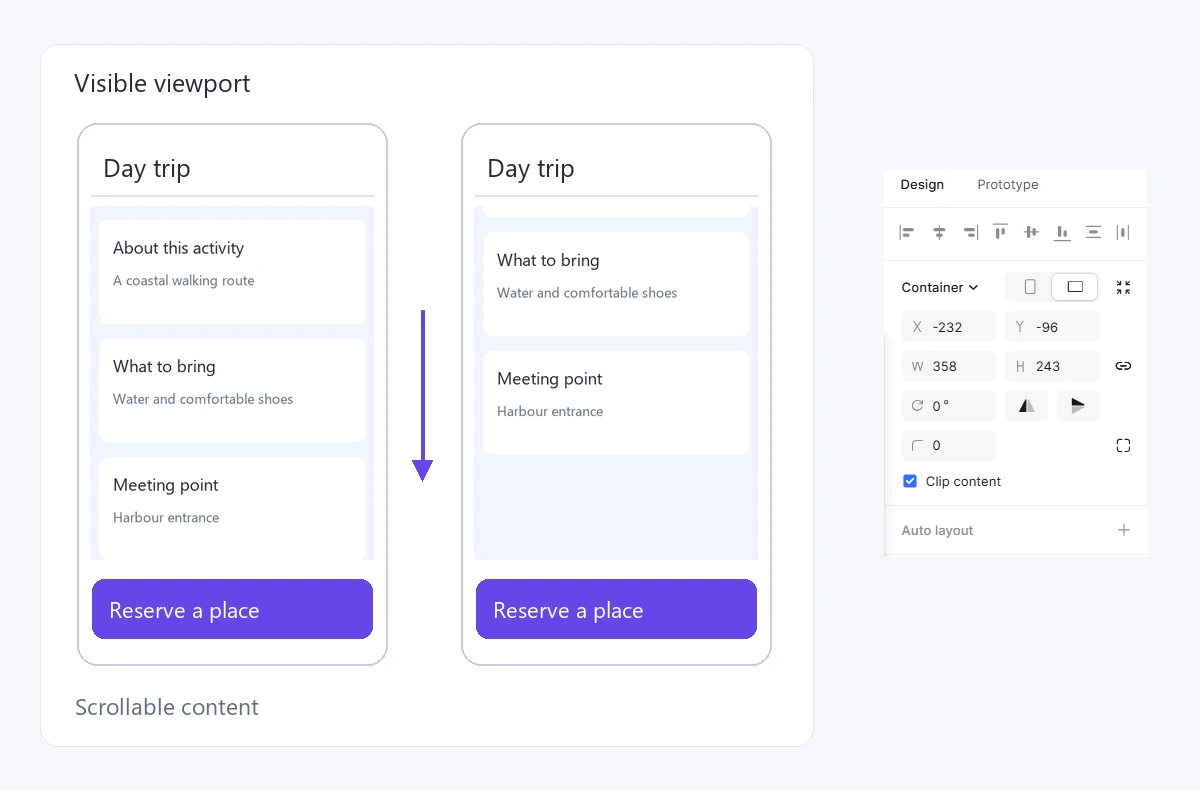
Fixed and sticky are different behaviors
A fixed header remains in the same visible position throughout the scroll. A sticky section header normally moves with the document until it reaches a specified boundary, then stays against that boundary within its container. Those behaviors can look similar in one screenshot but differ during the journey.
For a web implementation, MDN’s position reference explains the difference between fixed and sticky positioning and the role of the containing and scrolling elements. Describe the intended behavior precisely in handoff instead of writing “sticky” beside every persistent control.
This exercise uses a fixed header. If your design needs a section title that becomes sticky halfway down the page, show where the transition should happen and confirm how it will be represented and implemented. Do not assume that a fixed-element prototype setting proves the behavior of CSS sticky positioning.
Use nested scrolling only for a separate task
A horizontal photo gallery inside the vertically scrolling activity page can make sense: horizontal movement browses photos, while vertical movement continues through the activity. Give the gallery its own visible boundary and enough of the next photo to suggest that more content is available.
A second vertical scroll area is less straightforward. Putting the reviews inside a short vertical box means the same gesture may scroll either the reviews or the page, depending on where the pointer begins. Unless independent review browsing is essential, let those reviews flow with the page.
When independent scrolling is necessary, review the handoff between containers. What happens when the inner area reaches its end? Can a keyboard user reach and leave it? Can someone tell which region moved? Document the intended result and verify the built interface; nested scrolling is not solved by drawing a scrollbar.
When the prototype does not scroll as expected
Use the visible symptom to narrow the problem. Changing several settings at once makes it harder to understand what fixed it.
| What you see | What to inspect first |
|---|---|
| The whole page shrinks into the preview | The viewport frame may have been enlarged to include the full page. Restore the intended screen dimensions and keep the long content inside it. |
| The page does not move | Confirm that content extends beyond the selected frame and that scrolling is enabled on that frame, not a different container. |
| The header moves with the content | Check which layer has the fixed setting and whether the header belongs to the correct scrolling frame. |
| The page moves sideways unexpectedly | Inspect outlying layers and the selected scroll direction. A wide element is not automatically an intentional horizontal region. |
| The final content disappears under the action bar | Provide bottom clearance and test the actual last scroll position, not just the frame on the canvas. |
Also confirm that the preview starts from the frame you are editing. A duplicate screen in another flow can make a correct change appear ineffective. Name the activity screen and its preview starting point clearly enough that reviewers can open the same version.
Review scrolling with a reading task
Ask a reviewer to find the activity’s meeting point, read a review, and choose dates. Do not tell them where each section is. Watch whether the header helps them remain oriented, whether they notice the final action, and whether any fixed element obscures the information needed to decide.
Repeat with a longer activity title and more review text. Fixed regions that work at the default text size can become much taller after localization or text enlargement. Compare a narrow screen with a wider one rather than simply scaling the mobile frame.
Include keyboard behavior in the implementation review. WCAG’s Focus Not Obscured criterion addresses focused controls being entirely hidden by author-created content. A fixed header or booking bar must not leave someone tabbing to an invisible action.
Keep the final prototype and a short behavior note together: what scrolls, what stays fixed, where the content ends, and how the page behaves when the visitor returns from date selection. These are the decisions a developer needs, beyond the height of the long frame.
Build a scrolling prototype in Pixso and review the page from its first screen to its last meaningful action.