Scott
A useful search bar tells people what they can search, lets them express a query in their own words, and makes the next action predictable. Its job is not just to display a magnifying glass. The field, suggestions, submit action and return path must agree about whether someone is searching a collection or opening one known item.
Start with the collection and the task. In a project library, a designer may remember a project's name, a client, or only a phrase used in a design review. Search supplements the categories and paths covered in our navigation design guide; it should not compensate for categories that nobody understands. Here, we will design a library search that helps someone find a project called “Spring launch” without losing the text they entered.

Make the search scope visible before people type
“Search” is enough when the surrounding page makes the collection obvious. It is not enough when the same header can search projects, people, files and help articles. Put the scope in a persistent label, a nearby heading, or an explicit selector. A placeholder can provide a useful example, but it disappears as soon as the user types and cannot carry the whole explanation.
For the library, use the label “Search projects.” A placeholder such as “Project name or client” tells readers which remembered details are useful. Do not promise to search comments if the search service only indexes names. If archived projects are excluded, state that near the results or provide an “Include archived projects” filter. Silent exclusions make a correct search feel broken.
Global and local search should look related but not identical. A field above an invoice table should say “Search invoices,” while a workspace-wide command may search several types. When a person opens an invoice from the global search, preserve the distinction between leaving search and filtering the current table. Otherwise, the same visual control appears to change its rules from page to page.
Give typing, clearing and submitting separate jobs
Make the input wide enough to inspect a realistic query, not just the word “Search.” Test a short name and a longer phrase such as “Spring launch — client review.” A long value can scroll within the field; it should not move the submit button or hide the clear control. The field needs a visible focus state, a stable accessible name and a contrast level that does not depend on the placeholder alone.
For this library, pressing Enter with no suggestion selected searches the complete query. The search button performs the same action. Clearing the field removes the text and closes the suggestions, but does not navigate away from the page. These are product decisions worth settling before drawing the polished component: a button labeled “Search” should not unexpectedly open the first project.
Decide what happens to an empty submission. Leaving the library in its default browsing state is often clearer than presenting an error that says a search is required. If the page genuinely cannot work without a query, explain what to enter. Do not create an empty results page that looks like the system searched for something and failed.
Distinguish query suggestions from direct destinations
Suggestions can help people finish their wording or bypass a search by opening a known item. Both can be useful, but the rows need to reveal their action. In our library, typing “spring” produces a group labeled “Suggested searches,” with “spring launch,” followed by a group labeled “Projects,” containing the exact project “Spring launch.” Selecting the first submits a query. Selecting the second opens that project.
The matching words are not enough to distinguish the rows. Add the type and a small amount of disambiguating context: “Project · Studio team,” for example. Keep that context stable when results arrive. A user reaching for the second item should not accidentally choose a different row because the list reordered beneath the pointer.
| Action in the library | What the interface does | What remains visible |
|---|---|---|
| Type “spring” | Offer relevant suggestions without opening anything | The typed query and “Search projects” scope |
| Select “Search for spring launch” | Submit that query and show a results page | The selected query in an editable field |
| Select the project “Spring launch” | Open the identified project | A clear way back to the previous search |
| Press Enter with no row selected | Search the current typed query | The original wording, not an unchosen suggestion |
| Dismiss suggestions | Close the popup without submitting | The query so it can be edited or submitted |
A long suggestion menu can be worse than none. Favor a compact, relevant set over filling a fixed number of rows. Do not mix help articles into a project-only search because they are available from another service. If suggestions are not reliable enough to reduce effort, a clear search field with explicit submission is a better starting point.
Design for a keyboard and an imperfect connection
For an editable suggestion field, the W3C combobox pattern describes keyboard and accessibility behavior. Down Arrow can enter the suggestion list, Enter accepts the selected suggestion, and Escape dismisses the popup. Keep ordinary text editing available. The accessible name identifies the search field; it is not the query itself.
Those interactions still need a concrete choice in the design. Here, the first suggestion is not silently selected just because results appeared. A visible highlight means the user has moved to a row. When no row is highlighted, Enter submits what was typed. A prototype can show this distinction to reviewers, while keyboard and assistive-technology behavior must also be tested in the implemented component.
Now imagine “spring” is still loading when the user changes it to “summer.” The old response must not repopulate the list as if it answered the new query. Annotate this requirement beside the design. For a brief delay, leave the input usable; for a noticeable delay, show a restrained loading message inside the suggestion area. Do not replace the whole page with a spinner for a background suggestion request.
If suggestions fail, keep explicit search available when its service still works. “Suggestions are unavailable. Press Enter to search” explains a recoverable problem. If all search is unavailable, preserve the query and give a retry action. A loading row, a failed request and a genuine lack of suggestions are different states, even when all three initially contain no selectable result.
Give mobile search enough room to be useful
A compact search icon can open a dedicated search view on a narrow screen. The icon needs an accessible name; the opened view needs a visible field, a clear exit and room for the keyboard. Move focus into the field when opening search deliberately, not on every visit to the library. Unexpected keyboard activation hides content before the user has chosen to search.
Keep the same scope and action meanings as desktop. A mobile suggestion that opens a project should not become a query merely because there is less room for its label. Shorten secondary context before removing the distinction. Check the longest realistic project name, not only “Demo.”
When the user opens a project and returns, restore the submitted query and useful result position. When they cancel an unsubmitted mobile search, return them to the library state they left. These two exits represent different intentions. Preserving both prevents search from feeling like a one-way detour.
Prototype the complete query in Pixso
Build three connected views in Pixso: the default project library, the same library with the “spring” suggestion popup, and the submitted results for “spring launch.” Keep the field and its labels consistent across frames. Add a fourth view for an opened project only when you need to review the direct-destination behavior. Pixso's interactive prototyping tools let you connect these screen transitions and discuss the route with your team.
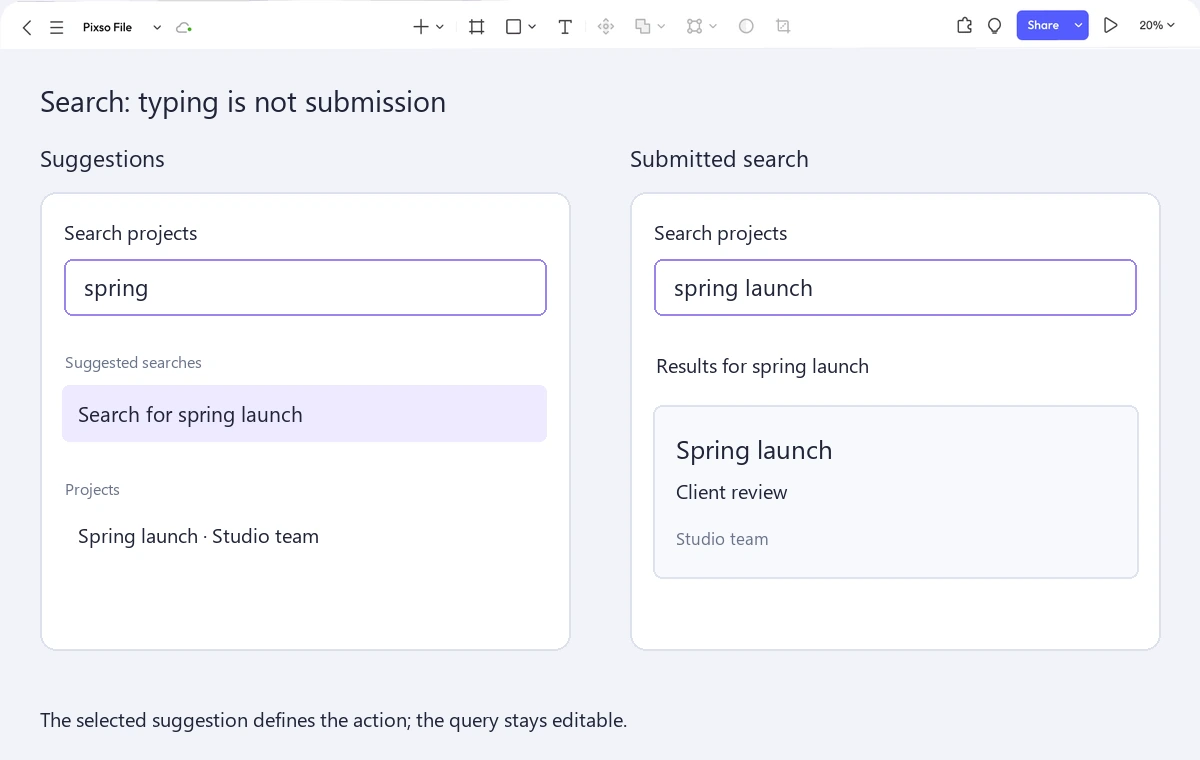
Give a reviewer a task, not an instruction to use search: “Find the client-review project for the spring launch.” Watch whether the field's scope is understood, whether a suggestion's action is predictable, and whether returning from the project preserves their place. Then try a query with no useful suggestion and a longer project title on mobile. These cases reveal different problems from asking whether the component looks clean.
Keep the handoff concise: specify what Enter does, how a selected suggestion is indicated, what clearing changes, and which state is restored on return. Search succeeds when the reader can keep refining an intention without losing it—not when the popup contains the most rows.