On this page

Elodia
This guide separates selection criteria from interface trends and compares tools by the tasks they support. Plans, pricing, integrations, and third-party service status can change, so verify current details before adopting a tool.
Define the UI design work first
1. List the screens and states
Write down the screens, user tasks, loading and error states, breakpoints, and content constraints the project must support. A tool should be tested against a representative flow rather than a blank canvas.
2. Check components and layout rules
Check how the tool creates reusable components, styles, variables, and responsive layout rules. Record what can be reused across screens and what still needs manual correction.
3. Test prototyping and review
Connect the main states in a prototype, invite a reviewer, and ask them to complete the task without verbal help. Note whether comments stay close to the relevant screen and whether changes are easy to trace.
4. Confirm handoff and operating constraints
Review developer inspection, asset export, permissions, platform access, file limits, and version history. Confirm the current plan and support conditions for every role before moving a project.
Tools to compare by task
1. Pixso
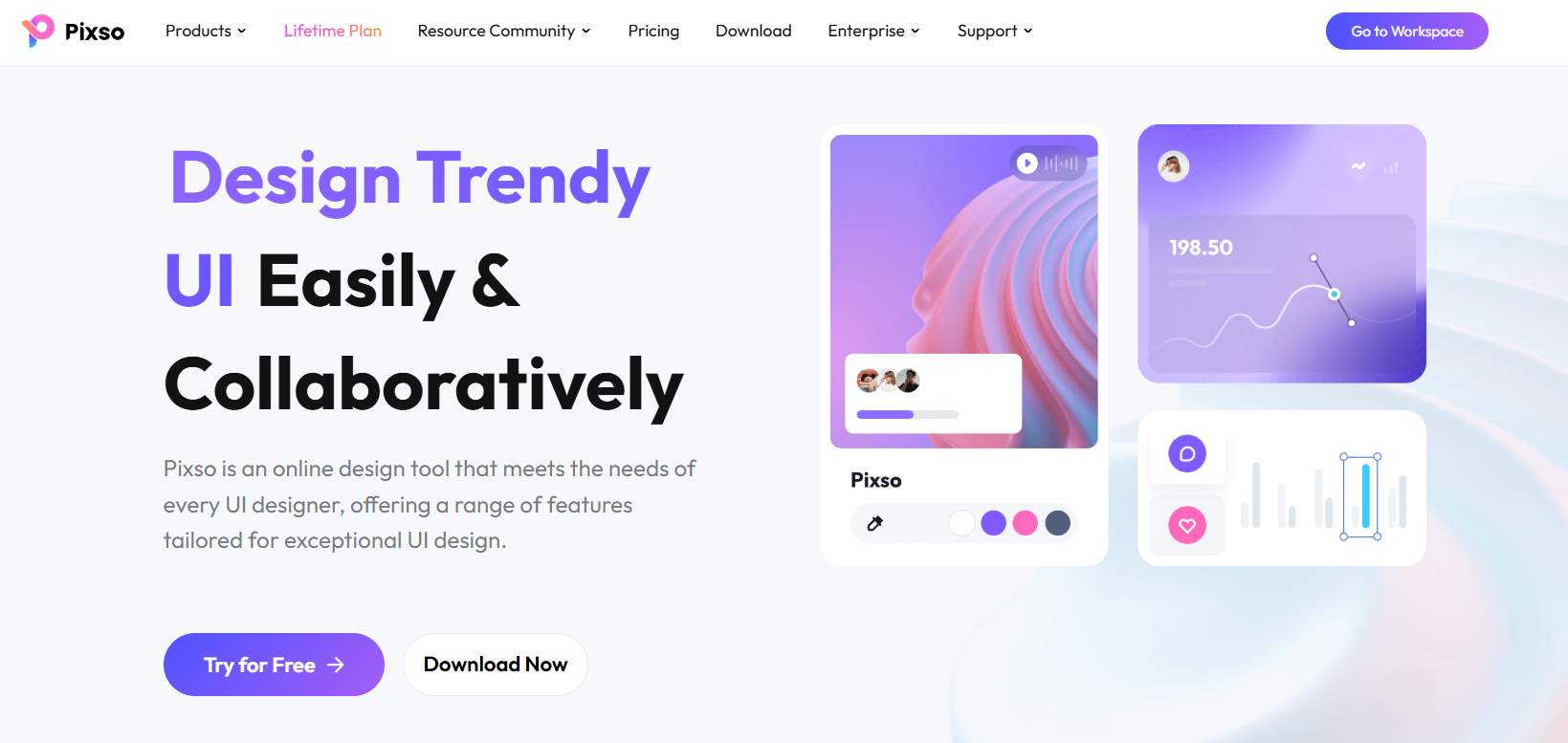
Pixso is a remarkable online tool that focuses on UI design and supports multi-person collaboration. This promising UI design tool allows for easy transitions from other software by supporting various mainstream file formats.

Easy to get started
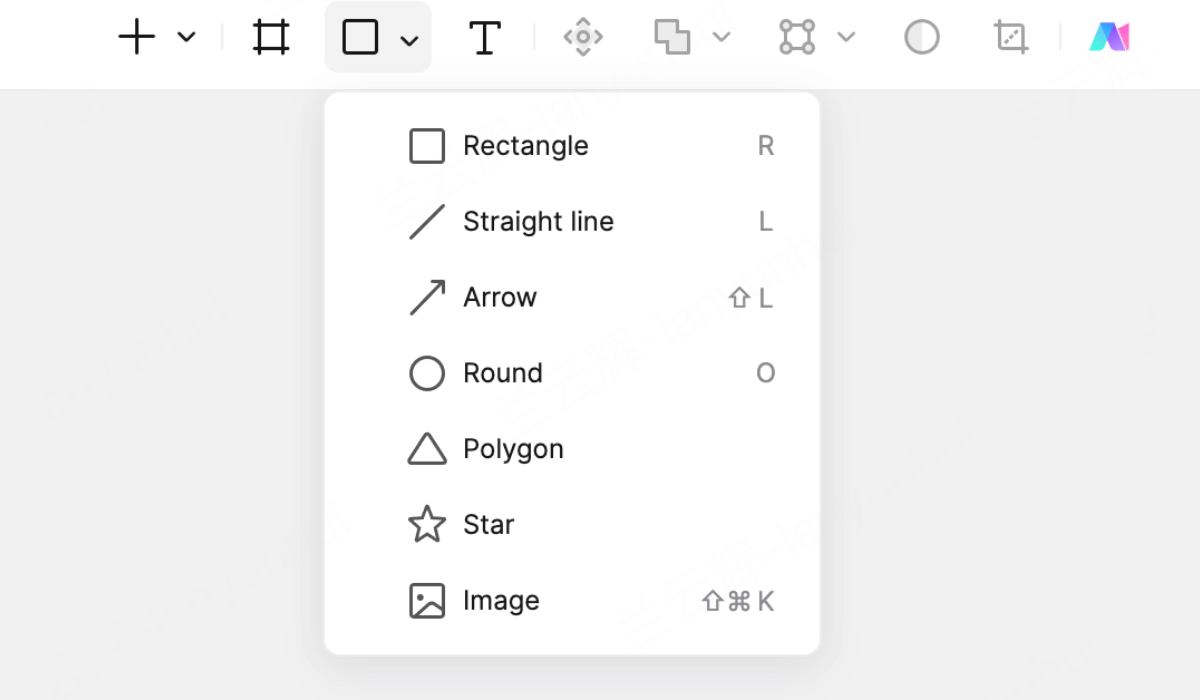
It's a breeze to get started with Pixso. The tool provides beginner guides, and the community includes UI design tutorials that can be checked against the current product workflow. The user-friendly interface, with its integrated toolbar and property panel, makes it simple and distraction-free, allowing designers to focus solely on the UI design itself.
Efficient design
Pixso can support several steps in one project, including UI design, prototyping, review, collaboration, and delivery. Check the current workspace settings and plan conditions for the roles involved. Tools like vector graphics, paint bucket, and mask make it easy to color different areas, and the automatic layout feature is a real time-saver.
Abundant resources
What's more, Pixso has a wealth of built-in design materials and rich design plugins. This means every UI designer can say goodbye to repetitive basic work and focus on more valuable things. Just click to enter the Pixso resource community and find free resources for creating mockups.
Quick collaboration
For collaboration, test comments, file access, review permissions, and the handoff path with the people who will use the project. Pixso can connect product, design, and development work around the same file, but the exact access and export conditions should be checked for the current plan. It's ready to use right away, significantly enhancing the team's design collaboration efficiency.
Fast operation
Pixso also considers different usage scenarios. Pixso runs in a browser, while supported devices, downloads and storage usage depend on the current configuration. It supports multi-terminal and multi-person real-time collaboration, and is ready to go with just a click on the web browser. Plans and limits can change; check the current pricing page for personal and team access before starting a project. Give it a try now!
2. Sketch
Sketch’s design editor runs on macOS. Browser-based viewing and handoff are separate workflows; confirm the current requirements for each team member’s task.
3. Adobe XD
Adobe XD is a UI design and prototyping application in maintenance mode. Existing users can evaluate its documented design and prototype capabilities, but should confirm access and service availability before choosing it for new work.
4. Figma
Figma is an integrated UI design tool for product research and development. Just like Pixso, it supports online use, cloud collaboration, and automatic layout for responsive design. It can seamlessly connect products, design, and R & D, and can be used for sketches, wireframes, prototyping, and even managing design systems. However, it does have the drawback of lacking proper vector tools. Figma's real-time collaboration features are especially useful when working on projects that incorporate the latest trends in micro-interactions and shared design systems.
5. UXPin
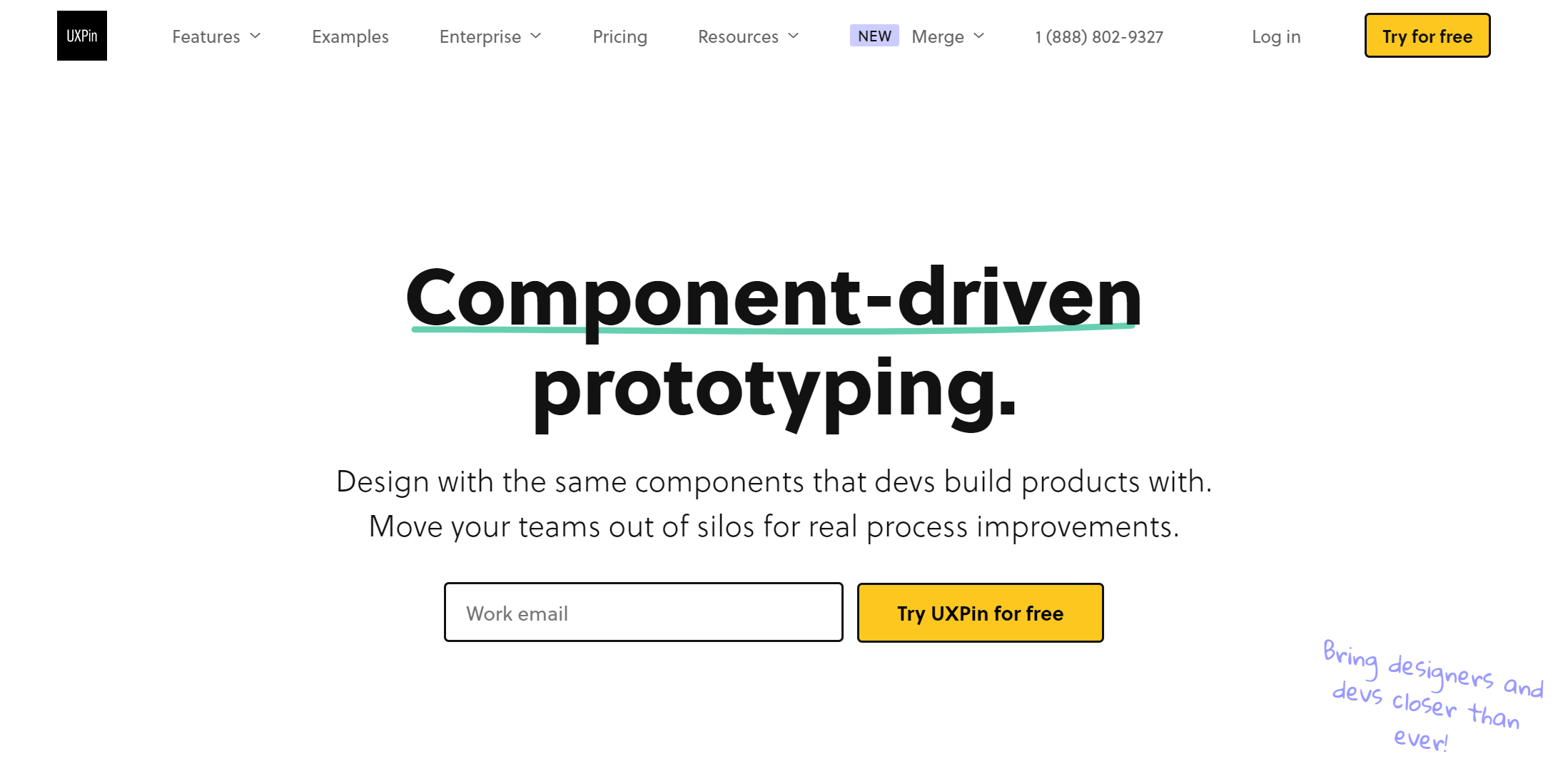
UXPin is a one-stop design tool that can assist you from design to interaction and even to code. The editor of UXPin is divided into four parts: the top editing bar, the canvas, and two sidebars with various menus. Its controls are similar to those in Photoshop and Sketch, making it familiar to UI designers with some design experience. With UXPin, designers can create minimalist interfaces with distinctive visual details, adding unique elements to a clean and simple layout.
6. InVision Studio (historical reference; service ended)

InVision Studio is included for historical context. InVision’s design collaboration services ended on December 31, 2024. Its former vector, animation and collaboration features should not be treated as a currently available workflow; use an accessible, supported tool for new work.
7. Zeplin
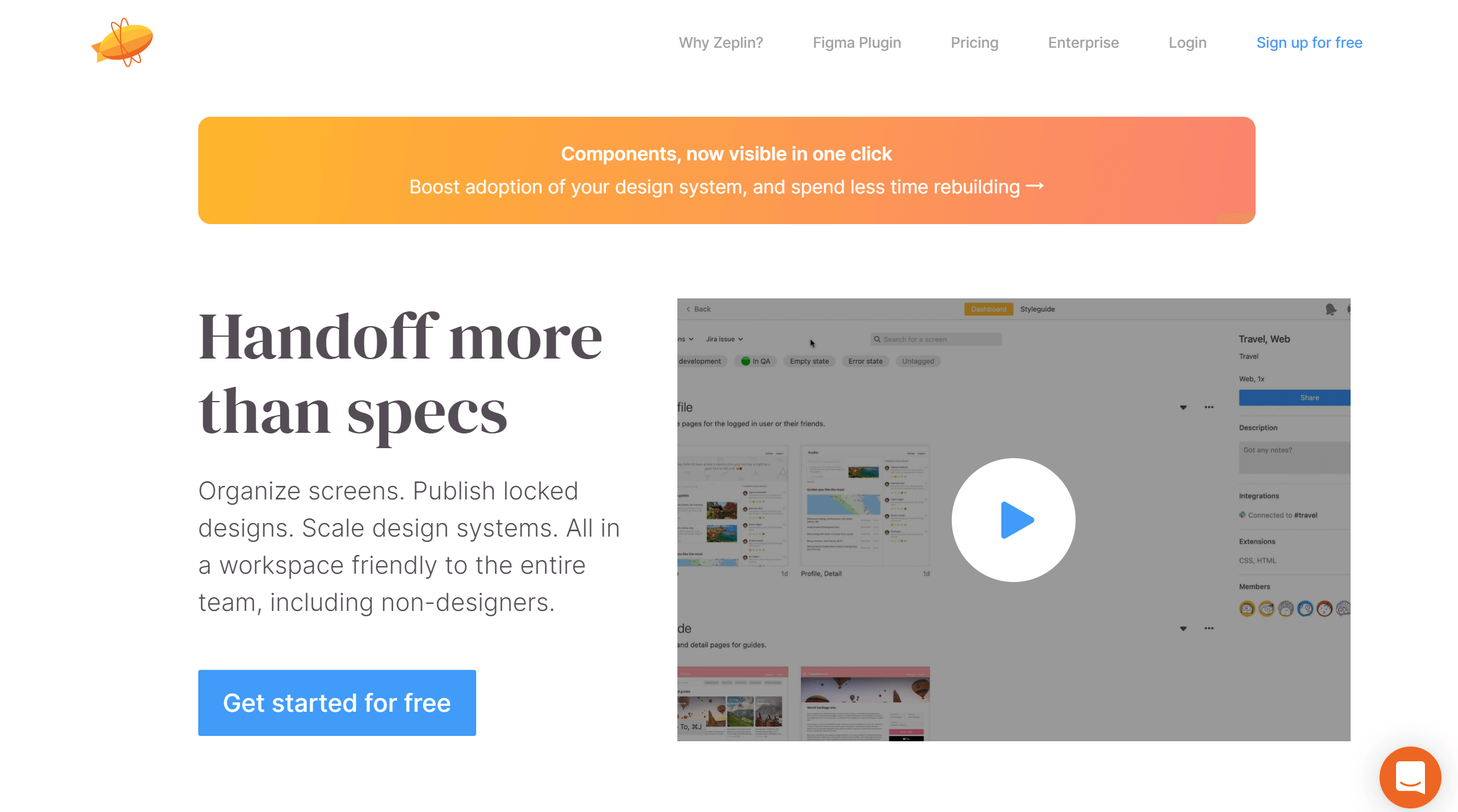
Zeplin is an efficient platform for design handoff and communication between designers and developers. Its core function is design annotation, and it integrates with many UI design tools such as Adobe XD, Sketch, and Figma. Additionally, communication tools like Slack and Trello can also be integrated into it. Zeplin helps ensure that the latest UI design trends are accurately implemented during the development process, bridging the gap between design and code.
8. Marvel
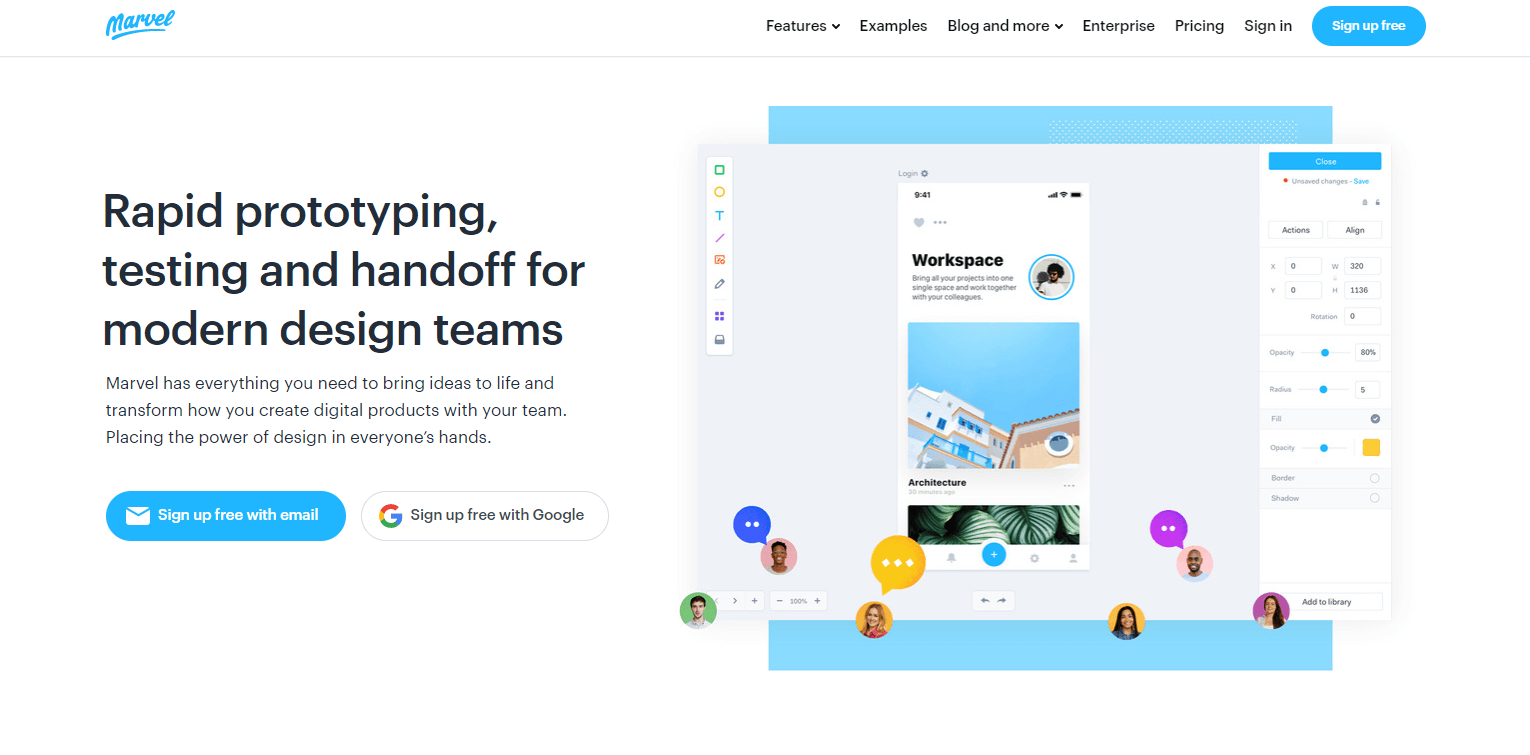
Marvel is another cloud-based collaborative design tool. Similar to online collaborative UI design tools like Pixso, it simplifies the communication between designers and developers through features like design annotation and code-switching. Another great feature of Marvel is user testing, which can help manage your designs and come up with more creative design solutions. Marvel can be used to test the usability of designs that incorporate the latest trends, ensuring that they meet the needs of users.
9. Origami Studio
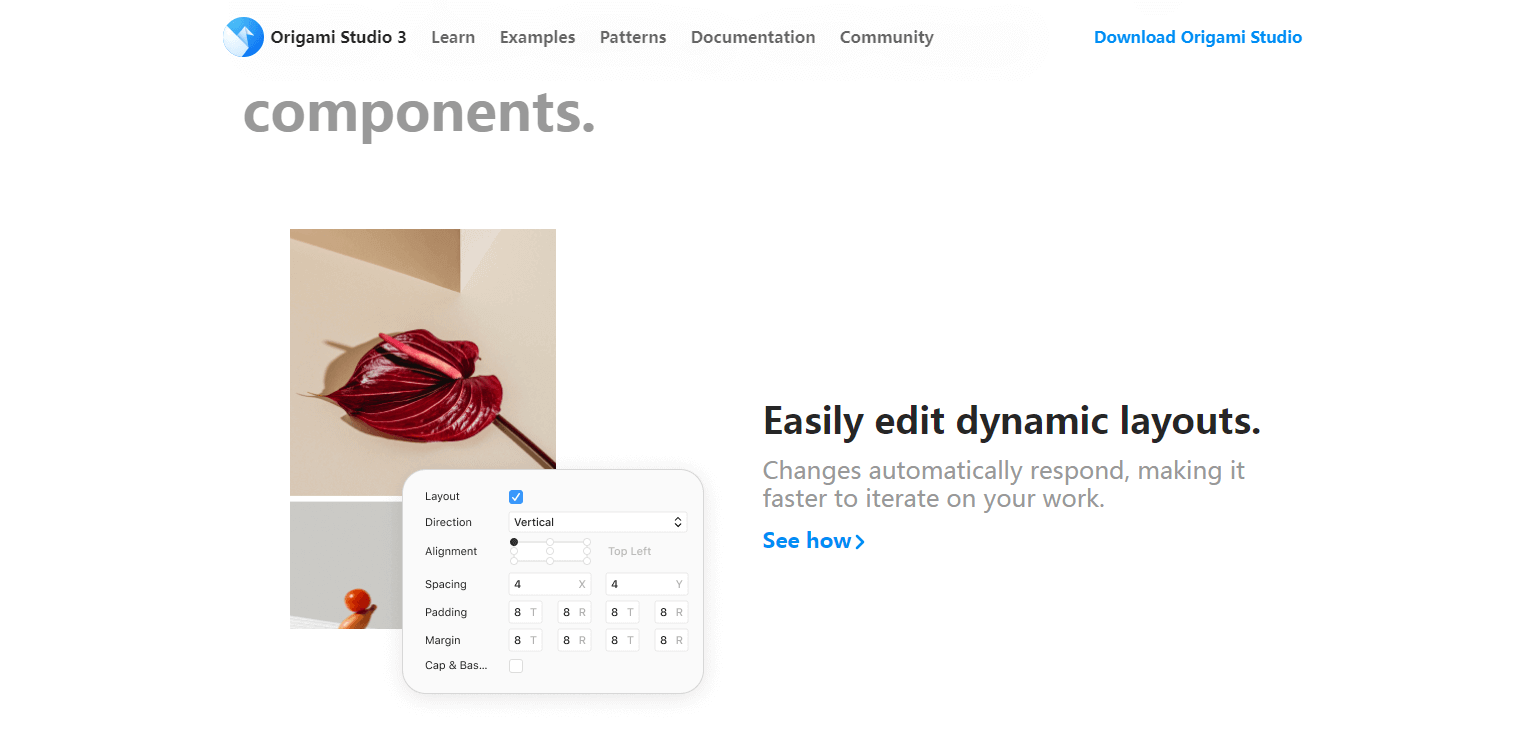
Origami Studio, a free design tool created by the Facebook team, can be used for free on iOS and Android. It has similar functions to InVision and Sketch, with a core patch editor that allows designers to build logic, behaviors, animations, and interactions. Each patch is like a building block of a prototype, helping with rapid design iterations. However, its learning curve is slightly steeper than those of other tools. Origami Studio is perfect for designers who want to explore the full potential of micro-interactions and animations in their UI designs.
10. Uizard
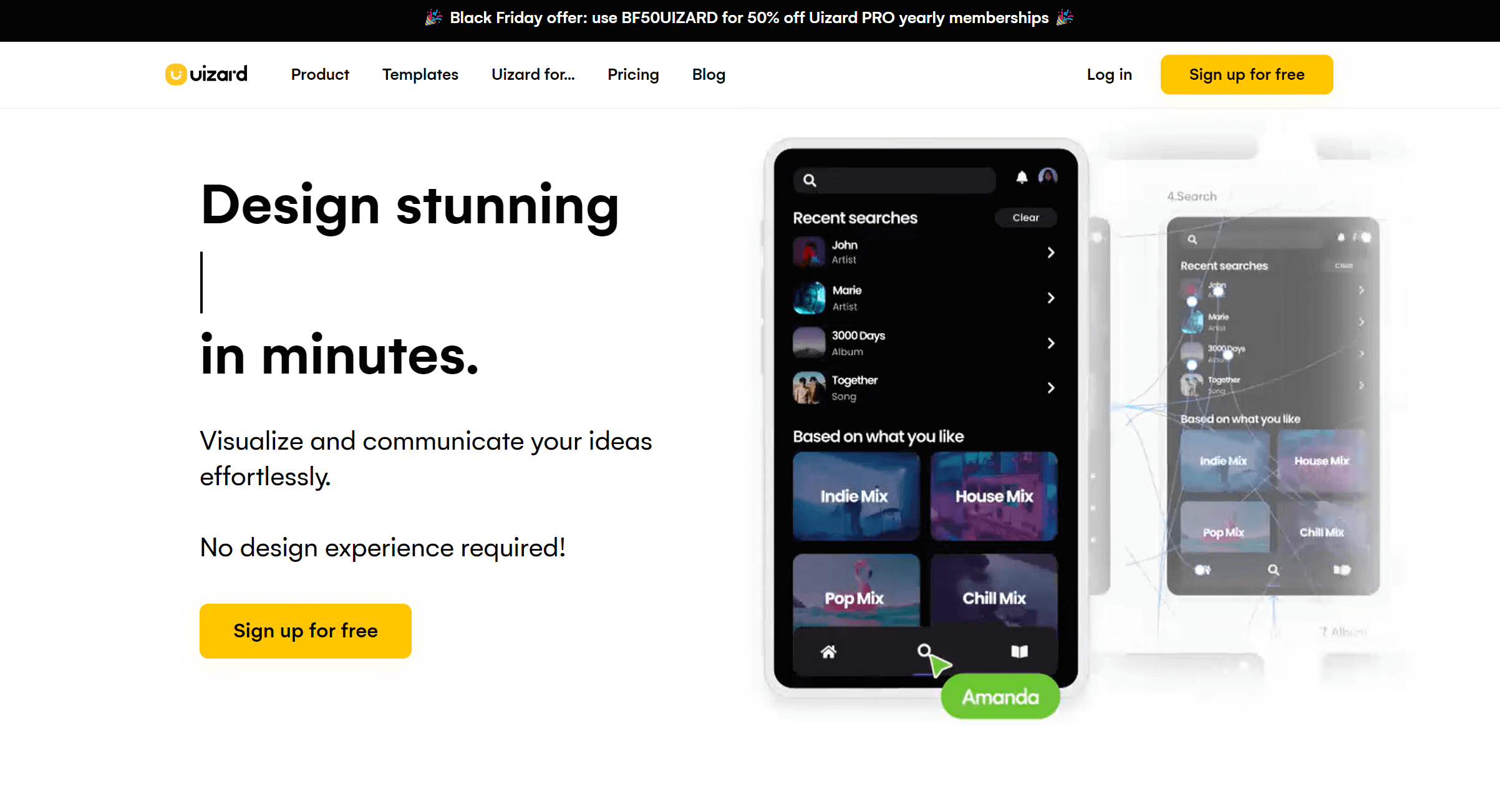
Uizard is a UI design tool with a low learning curve, making it extremely suitable for beginners. Even without a design background, you can design mobile applications, web applications, websites, and software interfaces. One of its interesting features is that you can use the Uizard AI design assistant to scan your sketches and automatically convert them into editable drafts. Uizard can help beginners quickly get up to speed with the latest UI design trends and start creating drafts that can be reviewed and refined.
Final thoughts
There is no universal best UI design tool. The right choice depends on the screens, states, components, prototype behavior, reviewers, handoff needs, platform access, and plan conditions your project requires.
Use one representative file to compare the shortlisted tools. Record what works without manual repair, what each role can access, and what the developer receives at handoff. Then review the result with the people who will maintain the product.
A practical UI design tool checklist
Choose the tool around the complete workflow, not a single feature. Check whether the team can create screens, reuse components, connect prototypes, review changes, inspect specifications, and export the assets developers need.
Run a small pilot with one real project. Record what happens to fonts, variables, components, interactions, permissions, and version history. For a short list of independently reviewed tools, see UI design tool comparisons; for a shared workspace, see Pixso UI design collaboration.