Scott
A UI state matrix maps what a person sees and can do as a task changes. It helps a team design loading, empty, error, partial, and success states before those cases become bugs in production.
Use Pixso UI design collaboration to keep the matrix, frames, and review decisions together while the flow is refined.

1. Start with the task and its signals
Write one sentence describing the user goal, then list the signals that change the interface: data availability, request status, permissions, connectivity, viewport, and user input. This keeps a state matrix tied to a decision rather than a collection of generic component names.
2. Separate similar-looking states
An empty list may mean there are no records, a filter hides all records, or the request returned no results. A disabled control may reflect missing permission, an unmet prerequisite, or a temporary request. Give each cause its own row when the next action or message differs.
3. Connect rows to reviewable frames
Create frames for the baseline, loading, empty, error, partial, and success states of the same task. Use consistent sample data and label the condition inside the file. Connect the meaningful transitions in the prototype so reviewers can test behavior instead of comparing unrelated screenshots.
4. Design recovery and preservation
Every non-success state needs a useful next step or a clear reason why no action is available. Retry a transport failure; explain how to add the first item to a genuinely empty collection; preserve filters, typed values, and scroll position when a request fails. For partial results, show what is confirmed and what is still pending.
5. Validate across width, input, and content
Review the matrix at the smallest supported width, with long labels, slow responses, keyboard navigation, and different permission levels. Record which states are covered by automated checks and which need a manual review. A row is complete when its visible hierarchy, action, owner, and acceptance evidence are known.
| State | Question to answer | Design evidence |
|---|---|---|
| Loading | What can the person understand or do while waiting? | Progress signal, preserved context, and cancel or retry rule |
| Empty | Why is there no content and what is the next useful action? | Cause-specific message and add, clear, or change-filter action |
| Error | What failed and what can be recovered safely? | Specific explanation, preserved input, and recovery path |
| Partial | Which information is reliable right now? | Known rows, pending indicator, and refresh behavior |
| Success | How does the person know the task is complete? | Confirmation, saved state, and follow-up action |
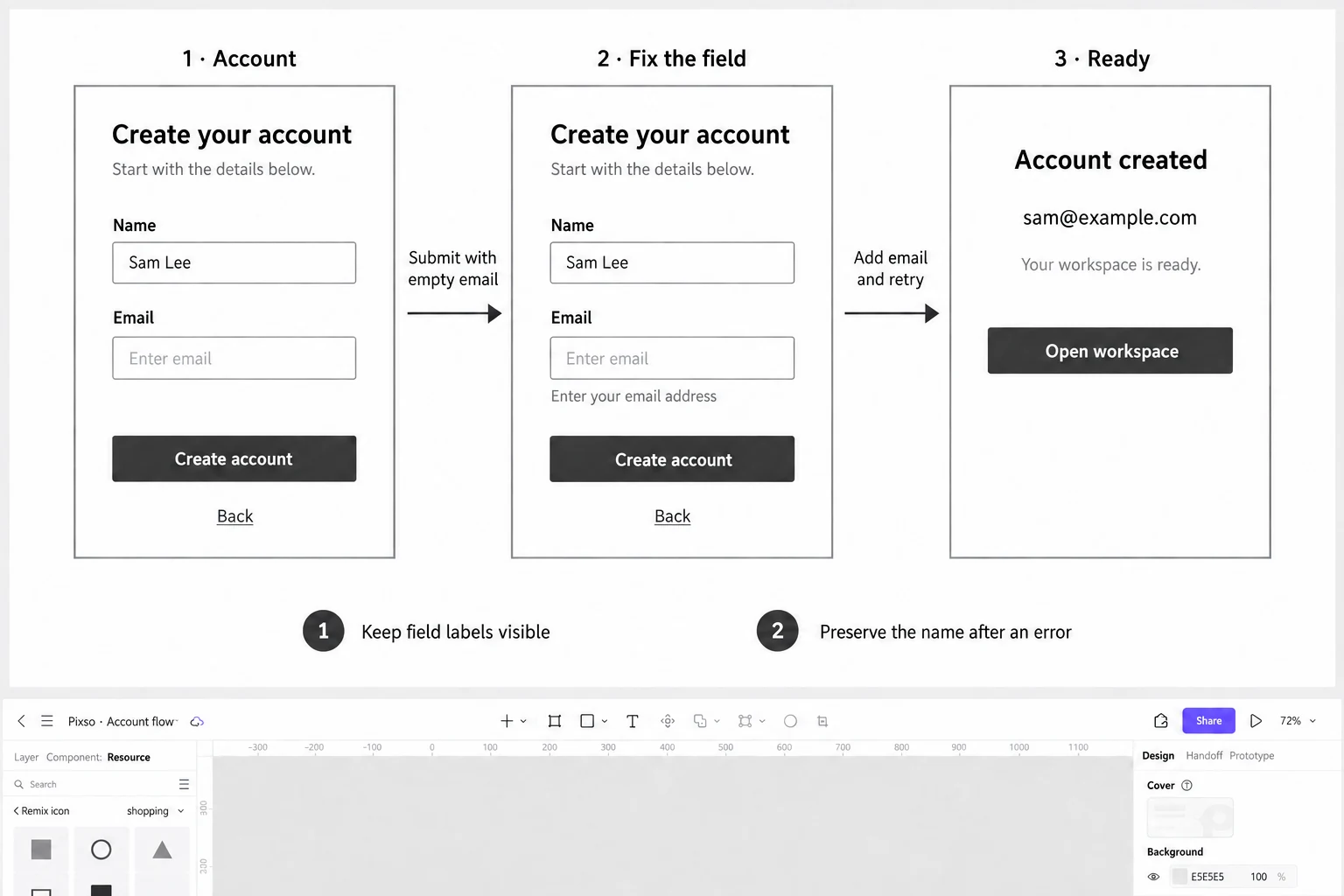
Turn the matrix into a shared decision record
Keep the matrix next to the frames and link each row to a transition or component. When a requirement changes, the team can see which states, copy, and tests need another review instead of silently preserving an outdated assumption.