On this page

Scott
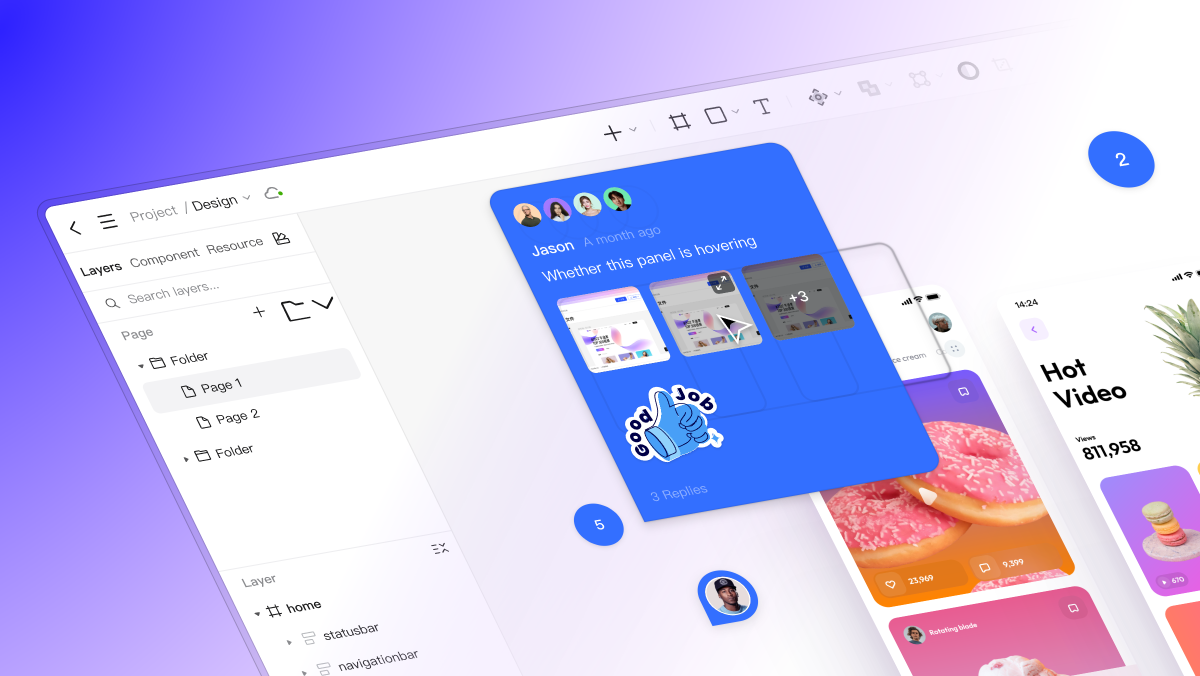
A picture comment combines an image with a note attached to the relevant part of a design. Use it when a screenshot can show the issue more clearly than words alone: a clipped label, an unexpected line break, a missing state, or a difference between a design and its implementation. The image shows what happened; the comment explains why it matters and what needs to change.
In Pixso's collaborative design workspace, image attachments can support a review without moving the discussion into a separate slide deck or chat. A useful comment still needs a specific target and enough context for someone else to investigate. “Make this better” remains vague even when it has a screenshot.
What picture comments add to a design review
A screenshot preserves the visual evidence the reviewer saw. It can identify the particular label, spacing problem, or control without requiring the recipient to guess which element was meant. A short note supplies the part an image cannot establish by itself: the conditions, expected behavior, and requested decision.
For example, consider a notification-settings screen where “Email me when an invoice is overdue” is clipped after “invoice.” A close-up shows the missing text, but it does not establish the viewport width, which version was reviewed, or whether wrapping is intended. Include those details with the image.
Picture comments are especially useful for comparing a design with a rendered screen or showing a hard-to-describe layout issue. They are less useful when the entire request is “change the heading to Account settings.” In that case, a precise text comment is usually sufficient.
Turn a screenshot into an actionable comment
Use four pieces of information: context, observed result, expected result, and action. This makes the note understandable even after the reviewer has left the conversation.
| Part | Clipped-label example |
|---|---|
| Context | Notification settings, mobile design at 360 px wide, the version linked in this review. |
| Observed result | The label stops after “invoice,” so the condition “is overdue” is not visible. |
| Expected result | The full condition remains readable before a person turns on the notification. |
| Action | Allow the label to wrap, keep the switch aligned with the row, and check the longest supported translation. |
The resulting comment could read:
At 360 px, the notification label is clipped after “invoice” in this version. The missing words change what the person is agreeing to receive. Please allow the full label to wrap without covering or moving the switch out of its row. After the change, check this English label and the longest supported translation.
This is more useful than an arrow labelled “bad spacing.” It describes the problem without pretending that the screenshot proves its cause. A fixed-height row might be responsible, but the designer or developer should inspect the layout before choosing the implementation.
If you are proposing an alternative rather than reporting a defect, say so: “Could we place the helper text below the label?” Keep the observed problem and the proposed solution distinct, so the team can choose another solution that meets the same need.
Add a picture comment in Pixso
1. Open the design or presentation being reviewed
Open the shared file or presentation and navigate to the relevant screen. Check that you are reviewing the intended version and that your account has access to participate.
2. Place the comment beside the issue
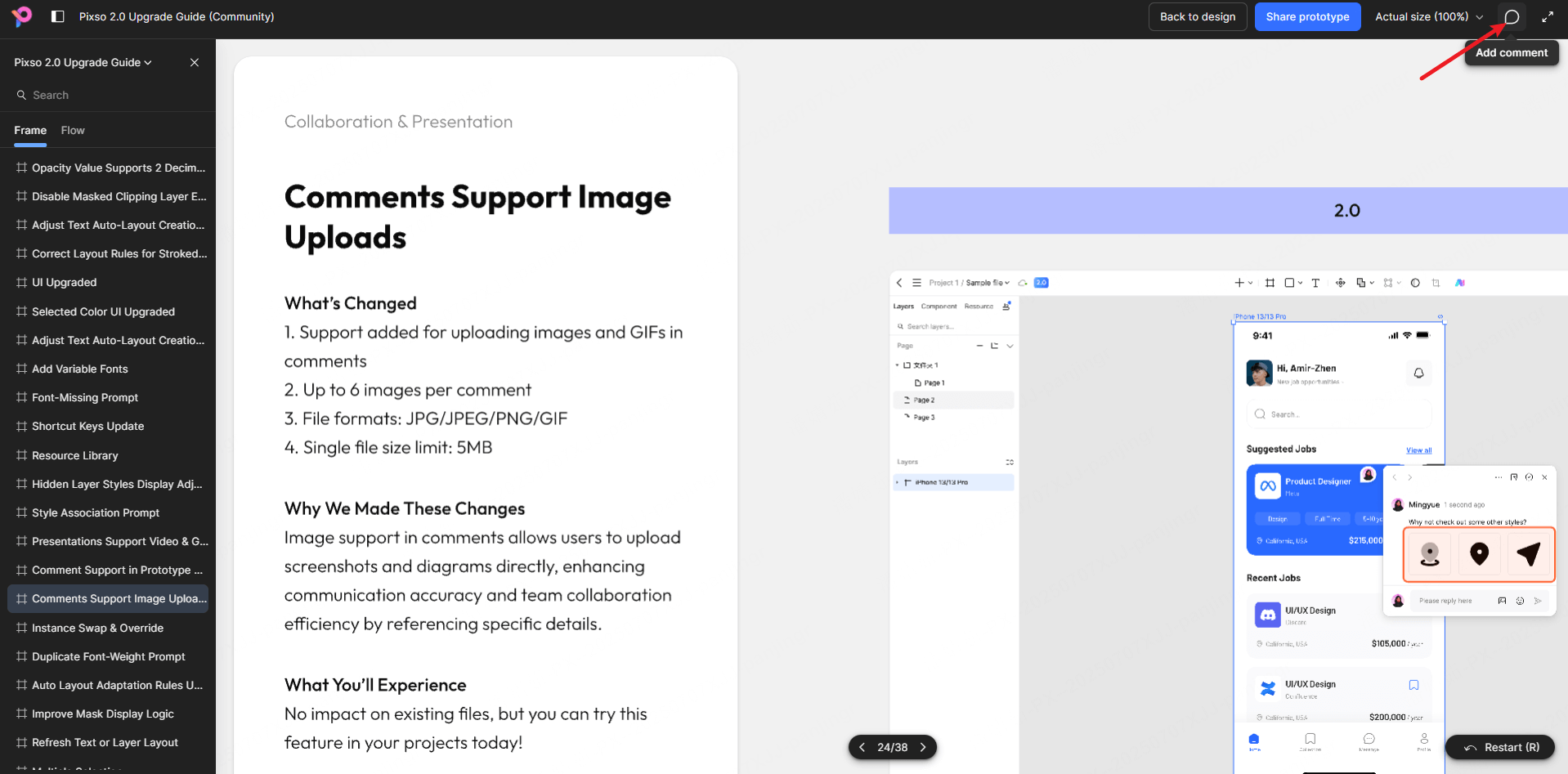
Enter comment mode with the comment control. In the editor, the shortcut is C. Click a location or drag to mark a region, then write the note. Place it near the affected row or control rather than at an unrelated corner of the page.
Pixso's guide to adding comments explains the location and region options. Do not assume that a comment automatically follows every nested layer or copied object; check its location after reorganizing the design.
3. Attach the screenshot
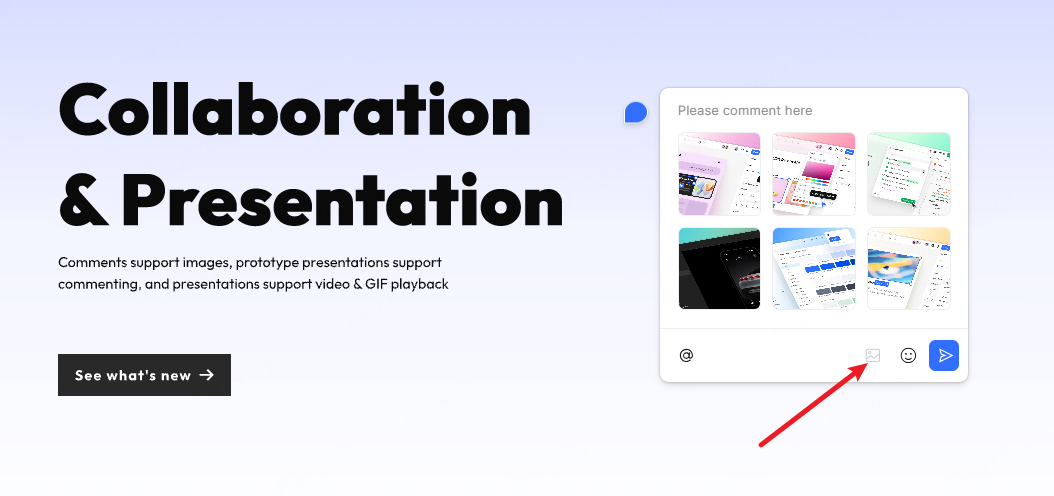
Use the image control in the comment field to upload a picture from your device. If you paste a copied screenshot into the field, confirm that its attachment preview appears before sending. If it does not, save the screenshot as a file and upload it instead.
4. Add the evidence and the request
Write the screen, condition, observed problem, and expected result alongside the image. Mention a collaborator when you need that person's input. Avoid putting the only explanation inside the picture: text in the comment is easier to quote, search, and respond to.
5. Post it and check the attachment
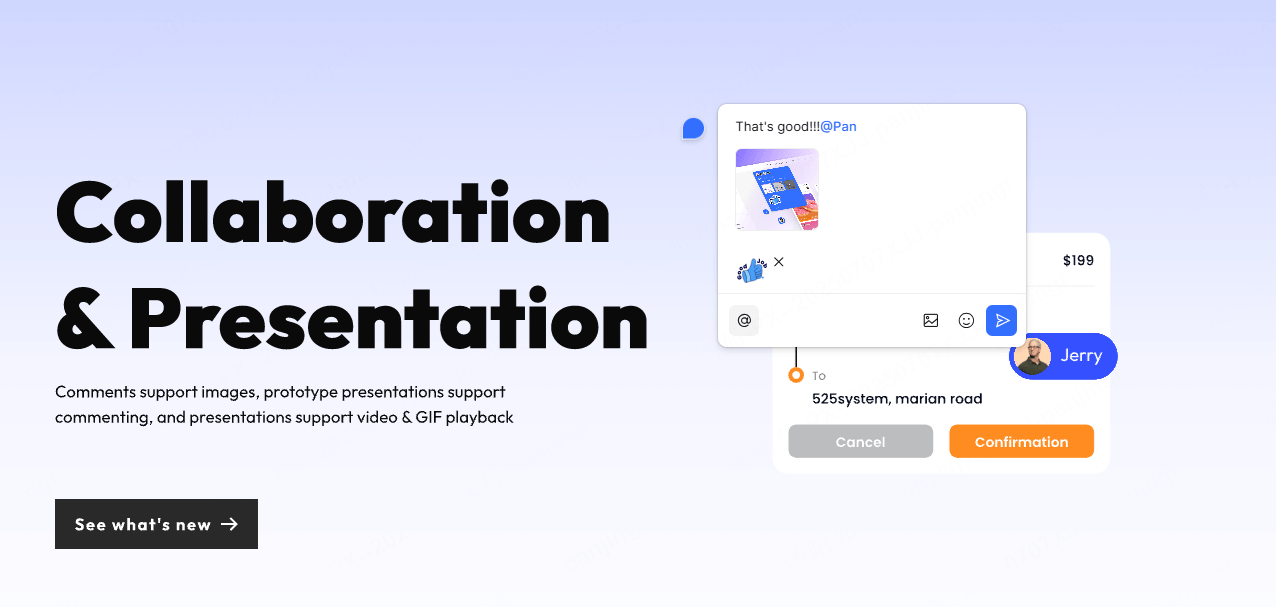
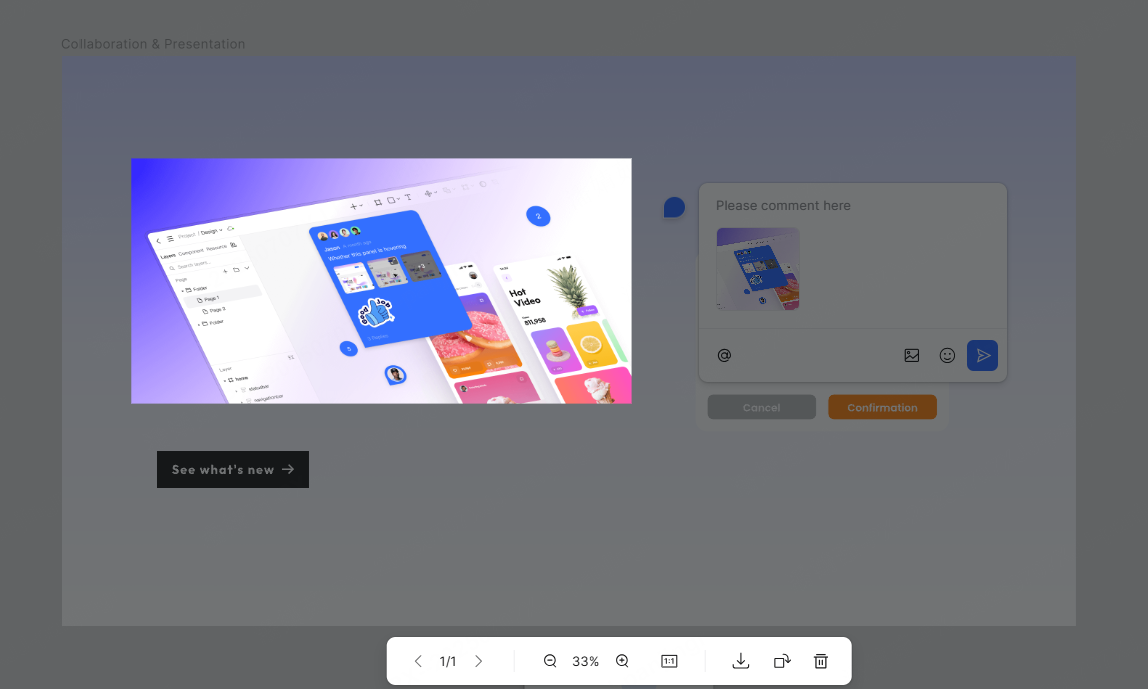
Send the comment, then open it to confirm that the image is readable and the note points to the right part of the design. Collaborators with access can use the thread to discuss the issue. An attachment appearing in the draft is not enough if the upload has not finished or the wrong image was selected.
Prepare a screenshot people can use
Crop to the issue, but keep its context. For the clipped label, include the full settings row and enough of the neighboring content to show its position. A crop containing only half a word is hard to locate; a full desktop screenshot may make the same word too small to read.
Keep text legible. Inspect the screenshot at the size a teammate will open it. Avoid repeatedly compressing an already small image. When necessary, attach an overview and a separate detail image, with a note explaining their relationship.
Mark one main issue. A circle around the clipped edge is usually enough. Several arrows, highlighted boxes, and numbered notes can obscure the interface itself. Split unrelated issues into separate comments so one can be resolved without hiding the others.
Remove information that does not belong in the review. Check for personal data, customer records, tokens, browser tabs, or notifications before uploading. Redact the original image before sharing it, and open the exported copy to verify the sensitive content is no longer visible.
A picture comment should not require access to a personal desktop session to understand it. Include the relevant file or frame link, version information, and display conditions in the text.
Choose text, an image, or a sequence based on the issue
Image comments are not inherently faster or more accurate than text. Use the smallest form of evidence that communicates the problem.
| Review task | Useful evidence | What to include |
|---|---|---|
| Replace a word or label | Text comment | The current wording and exact replacement |
| Report clipping, alignment, or unexpected wrapping | Screenshot plus text | The affected area, display conditions, and expected layout |
| Compare a design with an implementation | Two labelled screenshots | Which is the design, which is the implementation, and the specific difference |
| Explain a multi-step interaction problem | A short sequence of images plus steps | The starting state, action, result, and what should have happened |
| Ask for a product decision | Text with relevant alternatives | The decision required and its consequences; screenshots only where they help |
A static screenshot cannot prove that focus moved correctly or that a save operation completed. For behavior, describe how to reproduce the issue and what you observed at each step. Use a prototype or a recording available through the team's approved workflow when the sequence is difficult to express in still images.
Keep the discussion connected to the version being reviewed
Designs change while comments remain. If a screenshot shows an earlier version, say which version it represents. Do not silently replace the evidence in a way that makes earlier replies incomprehensible.
For the clipped-label example, a designer might reply: “The row now expands to fit two lines; the switch stays aligned to the first line. Please review the updated mobile frame.” That tells the reviewer what changed and where to check it. If the issue concerns a running application, include the build or environment instead of only linking to the design.
During handoff, separate unresolved questions from agreed requirements. A picture comment is useful supporting evidence, but the final design and specification should express the decision. Developers should not have to infer an accepted behavior from several contradictory suggestions in a thread.
Resolve the issue after checking the result
Agree on who makes the change and who verifies it. After the update, revisit the conditions in the original comment. For the label, check the same narrow width, the complete English text, and the longer translation. Confirm that the fix has not hidden the switch or created an overlap in the next row.
If the result meets the intended behavior, reply with the outcome and mark the comment resolved. If the team chooses another solution, record that decision before resolving it. “Resolved” should describe the issue's status, not simply mean that someone has read it.
Pixso allows resolved comments to be shown again through the comment filters and marked unresolved. Use that history when the same problem returns. Avoid deleting useful decisions merely to make the comment list look shorter.
Make the next review easier to act on
A strong picture comment shows one problem, explains the conditions, and asks for a clear outcome. It leaves enough evidence for the recipient to reproduce or inspect the issue, while keeping unnecessary detail out of the image.
For your next review, start with one screen and one concrete problem. Attach the relevant crop, write what you observed and expected, then keep the decision and verification in the same thread.