On this page

Scott
An AI-generated poster starts with a useful visual direction, but the headline, event details, and reading order still need design work. In Pixso, you can generate an image, place it on a canvas, and build the poster around the information viewers need. The Halloween examples below show how different subjects and compositions lead to different layouts.
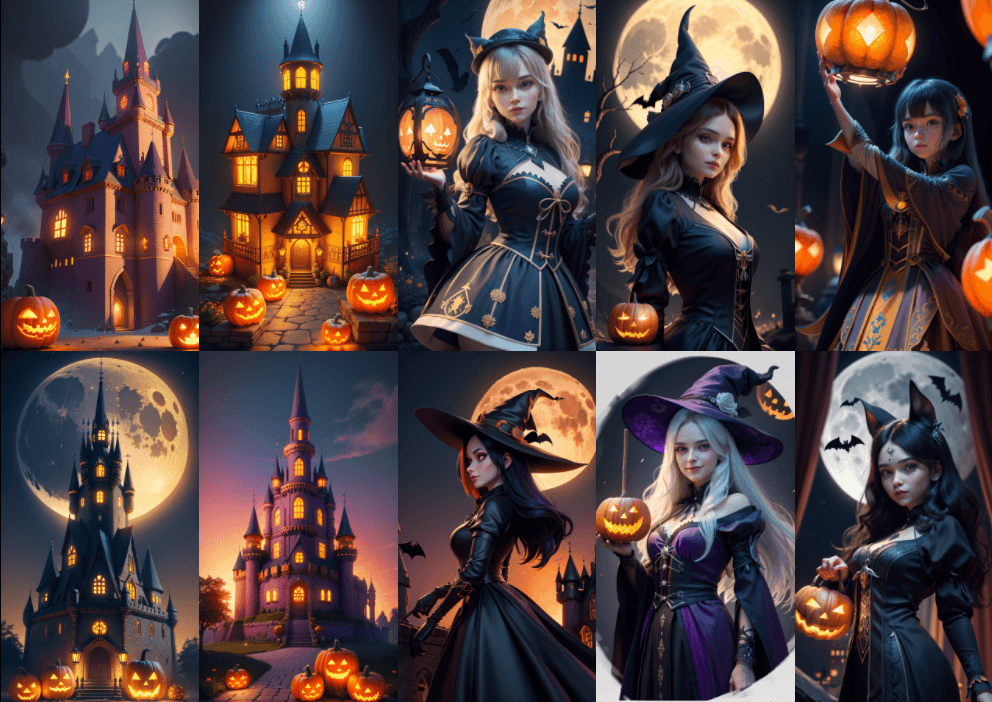

Introduction to AI Poster Generation Software
Pixso AI includes image-generation tools that can help explore poster imagery. Start with the tools and generation settings available in your workspace. Check the available credits before generating several variations, then choose a result that leaves enough room for the headline and supporting details.
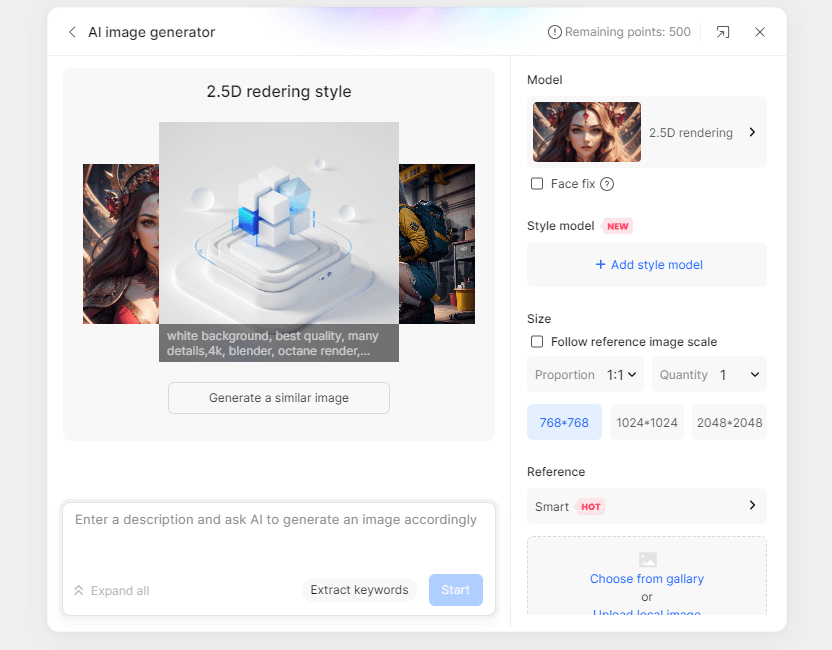
AI Poster Generation Tutorial
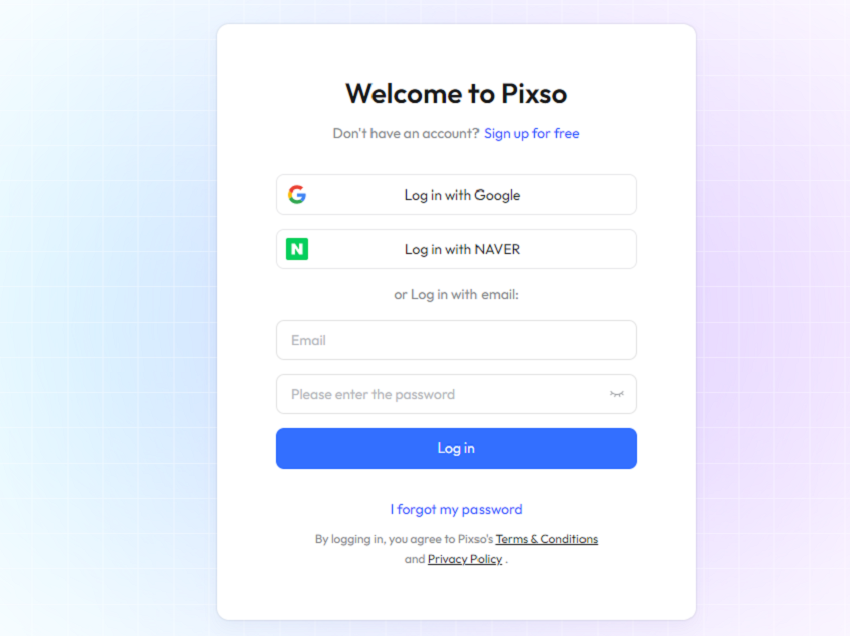
Step 1: Open the Pixso website and create an account or sign in. Check which AI tools and credits are available in your workspace.
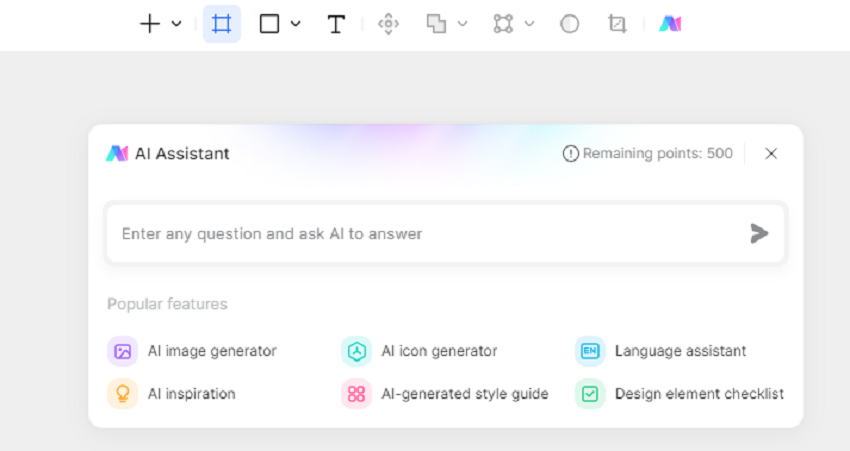
Step 2: Open your design workspace and select the Pixso AI tools.
Step 3: Choose text-to-image and a model or style available in the current panel. Select an aspect ratio that fits the poster’s intended placement.
Step 4: Describe the subject, composition, colors, and space needed for text. Adjust the available output settings and add a reference image when it helps explain the direction.
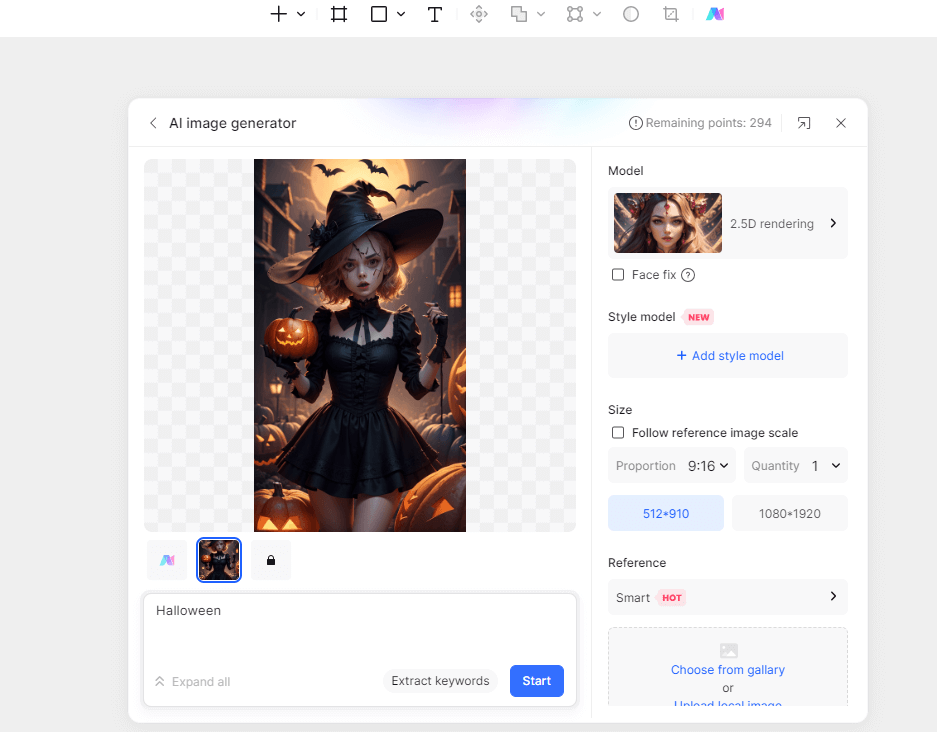
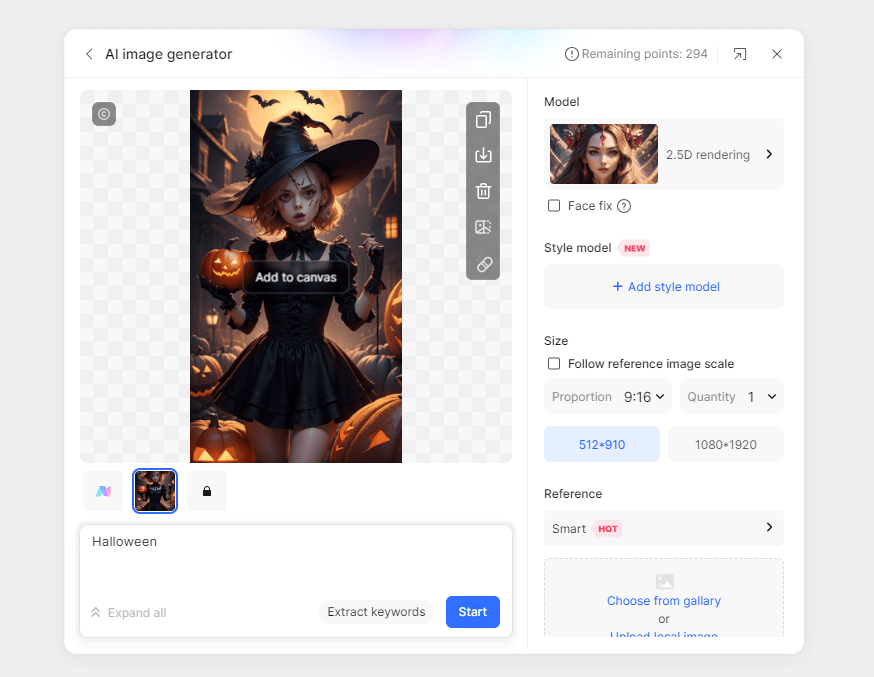
Step 5: Review the image and bring the chosen result into your canvas. Add the headline, date, location, and call to action as editable text, then inspect the poster at its intended size.
Examples of AI-Generated Posters
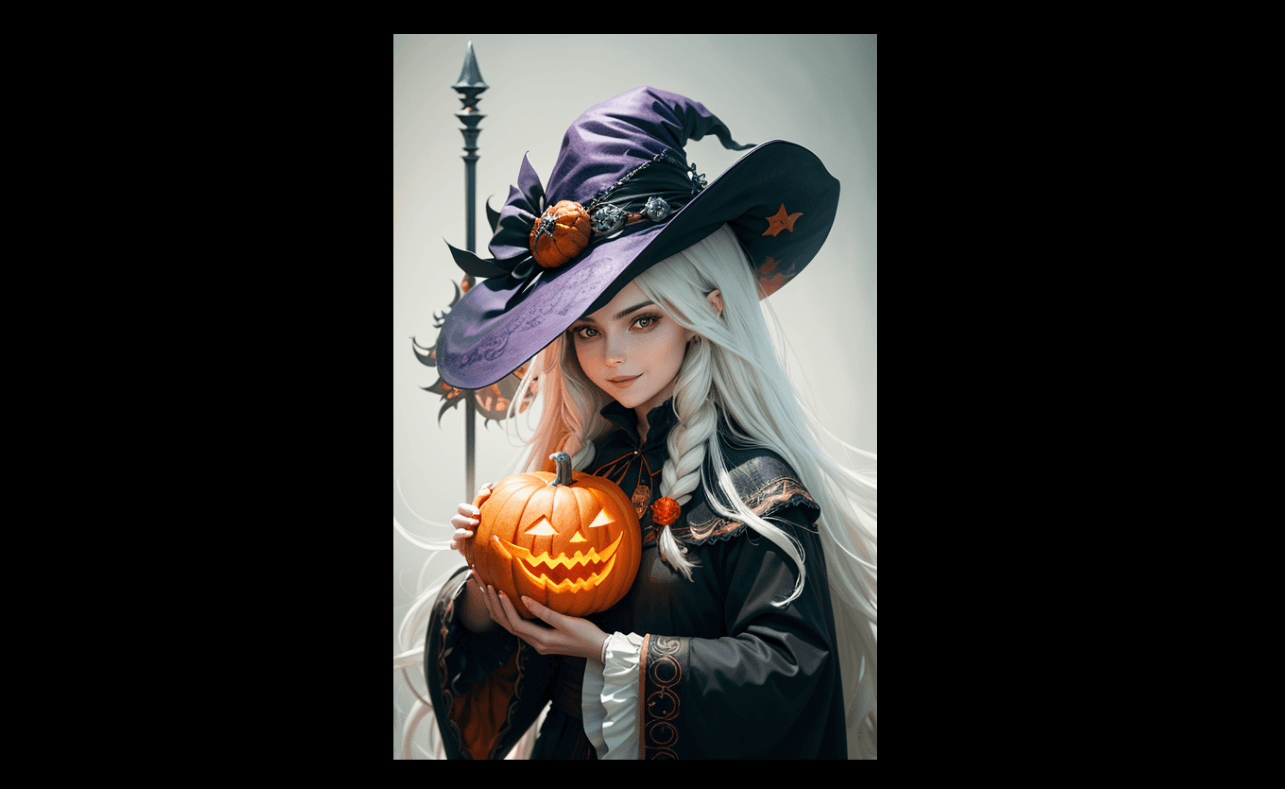
Halloween Witch Poster
Prompt: Witch, smiling, white long hair, red lipstick, holding a pumpkin, dark purple and orange background, magical, delicate face, 2D game art (Realism: 1.4)
Basic Model: 2.5D Rendering
Style Model: 3D Realistic Rendering
AI Tool: Pixso AI
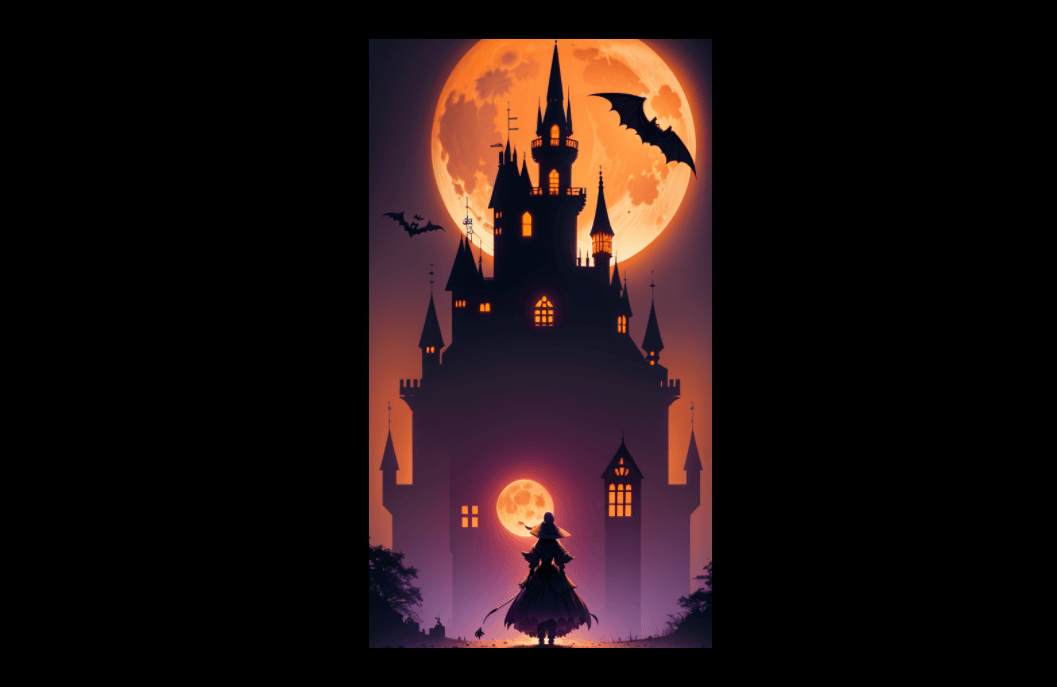
Halloween Castle Poster
Prompt: Ghost, Halloween, pumpkin, castle, moon, bats, trees, color gradient, dark orange and dark purple style, silhouette, high quality
Basic Model: 2.5D Rendering
AI Tool: Pixso AI
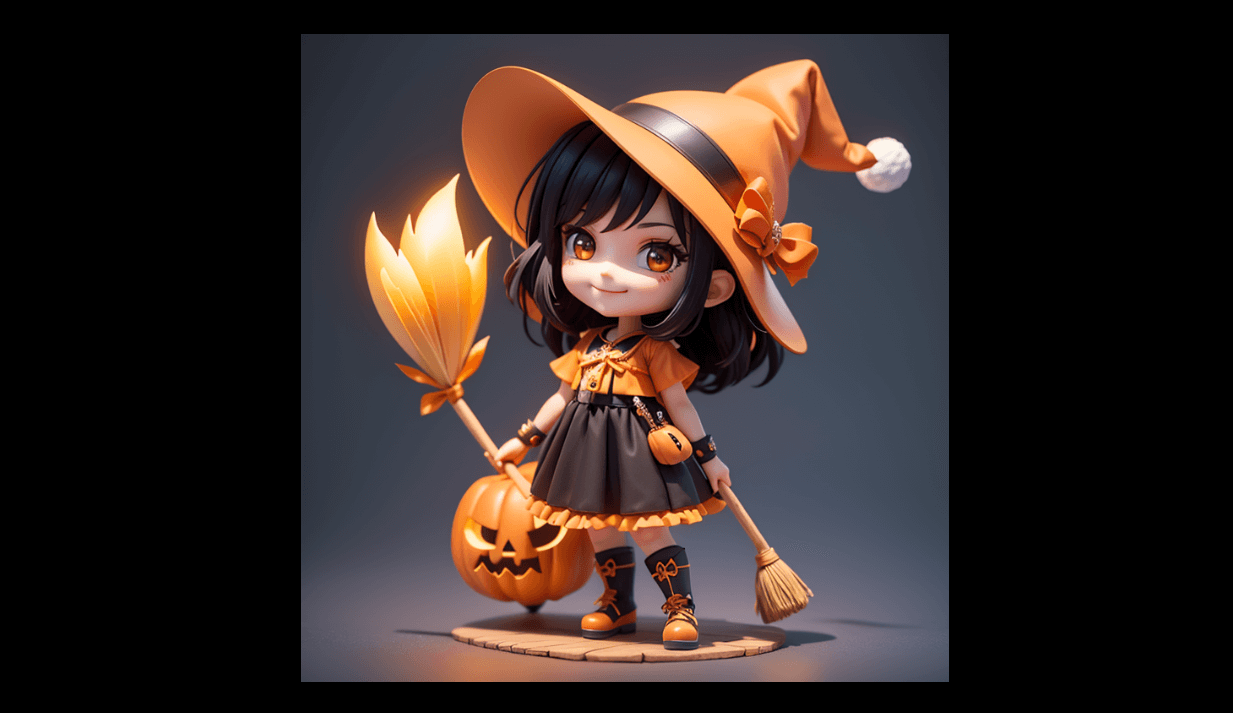
Cute Witch Poster
Prompt: Cute witch, black hair, holding a broom, smiling, Halloween scene, pumpkin lanterns, bats, castle, orange and black background, vibrant colors, hooded cloak
Basic Model: 2.5D Rendering
Style Model: Big Head Doll Model
AI Tool: Pixso AI
Poster Design Tips
Color Matching
Color matching is crucial in poster design as it enhances visual appeal and attracts the audience's attention. Here are some principles:
Color Coordination: Use analogous colors or complementary colors for harmony and contrast.
Color Allocation: Use primary, secondary, and background colors for balanced design.
Emotional Impact of Colors: Choose colors that convey the intended emotion and theme.
Font Selection
Choosing the right font affects the overall look and readability. Consider brand style, readability, font pairing, and the emotional impact of fonts.
Use Filters: Enhance images with filters.
Crop and Resize: Adjust images to fit the design.
Overlay Graphics and Text: Add elements to emphasize points.
Adjust Brightness and Tone: Modify images to change mood and atmosphere.
Layout and Typography
Effective layout and typography are essential for clear communication:
Alignment: Ensure consistent alignment for a professional look.
Hierarchy: Use size, color, and font differences to create visual hierarchy.
White Space: Use white space to improve readability and aesthetics.
Font Choice: Choose clear, readable fonts.
Color Usage: Use colors to convey emotion and draw attention.
Start with one visual direction and a clear message in Pixso AI . Keep the key information editable, compare the composition at the final display size, and refine the image or typography where they compete for attention.