On this page

Scott
An 8-point grid is a spacing convention: use a small set of distances based mainly on multiples of eight to make padding, gaps and component sizes consistent. Start with 8, 16, 24, 32 and 48 design units, then keep a few smaller values when the interface needs them. The point is to make relationships predictable, not to force every edge, letter or icon onto an invisible grid.
A spacing scale answers “How far apart should these elements be?” A layout grid organizes columns, gutters and alignment. You can use both, but they solve different problems. A page with a careful column grid can still feel uneven if every card uses different internal padding.

Choose a scale you can actually use
Begin with the distances your interface needs most often. For an ordinary web app, a working set might be 4, 8, 12, 16, 24, 32, 48 and 64. Eight remains the main rhythm, while four and twelve provide finer adjustment inside dense controls. You do not need every multiple of eight, and you do not need to replace an established, coherent system just because its values differ.
IBM Carbon's spacing system includes increments based on two, four and eight. It distinguishes detailed component spacing from larger layout spacing. That is a useful reminder that a practical system can allow small increments without abandoning consistency.
Agree with developers what a design unit represents in the implementation. A spacing value of 16 in a web design commonly becomes a value expressed in CSS pixels or relative units; it does not mean sixteen physical pixels on every display. Keep that conversion explicit when a product spans web and native platforms.
| Example value | Possible role | What to inspect |
|---|---|---|
| 4 | A tight relationship, such as an icon and a short badge label | Whether the result remains legible and avoids a cramped appearance |
| 8 | A title and its description, or a label and its field | Whether both clearly belong to the same item |
| 16 | Related blocks inside a component | Whether the blocks are distinct without looking unrelated |
| 24 | Card padding or a break before an action group | Whether the component has enough room at its smallest width |
| 32–64 | Major groups and page sections | Whether the gap expresses hierarchy instead of creating empty scrolling |
These are starting assignments for the example, not universal rules. A compact data table and a marketing page need different density. What should stay consistent is the reason for choosing a distance.
Use space to show which things belong together
Imagine a project-summary card containing a title, a description, a status, task information and a “View project” button. Giving every pair of elements a 16px gap creates a regular stack, but it does not show which items form a group.
Instead, place the title and description 8px apart. Give the status and task information their own related block. Separate the main content from the action by 24px. The reader can now recognize an introduction, supporting details and a next step without extra borders around every region.
Measure the space between the layout boxes consistently. A text layer includes its line-height, which may extend beyond the visible letter shapes. If one designer measures from the text box and another from the lowest visible letter, they can enter different values while trying to produce the same gap. Use the component's layout structure as the shared measurement system, then make any optical adjustment deliberately.
A bigger gap should normally indicate a bigger separation in meaning. If the description sits farther from its title than from the next project's title, the layout suggests the wrong relationship even when every number is divisible by eight.
Build a project card with nested spacing
Use a 360px-wide card for this example. Set its left and right padding to 24px, leaving 312px for content. The card's height should grow with its text rather than being fixed to make the arithmetic look neat.
- Create the introduction group. Add the title “Website refresh” and the description “Update the product pages and prepare the handoff.” Set the gap between them to 8px.
- Create the supporting group. Add “In progress” and “Design team · 12 tasks.” Keep their spacing tighter than the separation from a different project.
- Group the content. Put 16px between the introduction and the supporting group. Treat these as two related parts of the same project.
- Place the action. Separate “View project” from the content by 24px. Keep the button aligned with the content edges.
- Apply the outer padding. Use 24px on each side of the card. Check the top and bottom visually with the actual title and button, not with empty rectangles.
This produces a small hierarchy: 8px within a closely related group, 16px between content groups and 24px around the card and before its action. The same values have different jobs. Documenting those jobs makes the component easier to reuse than a note that only says “Use the 8-point grid.”
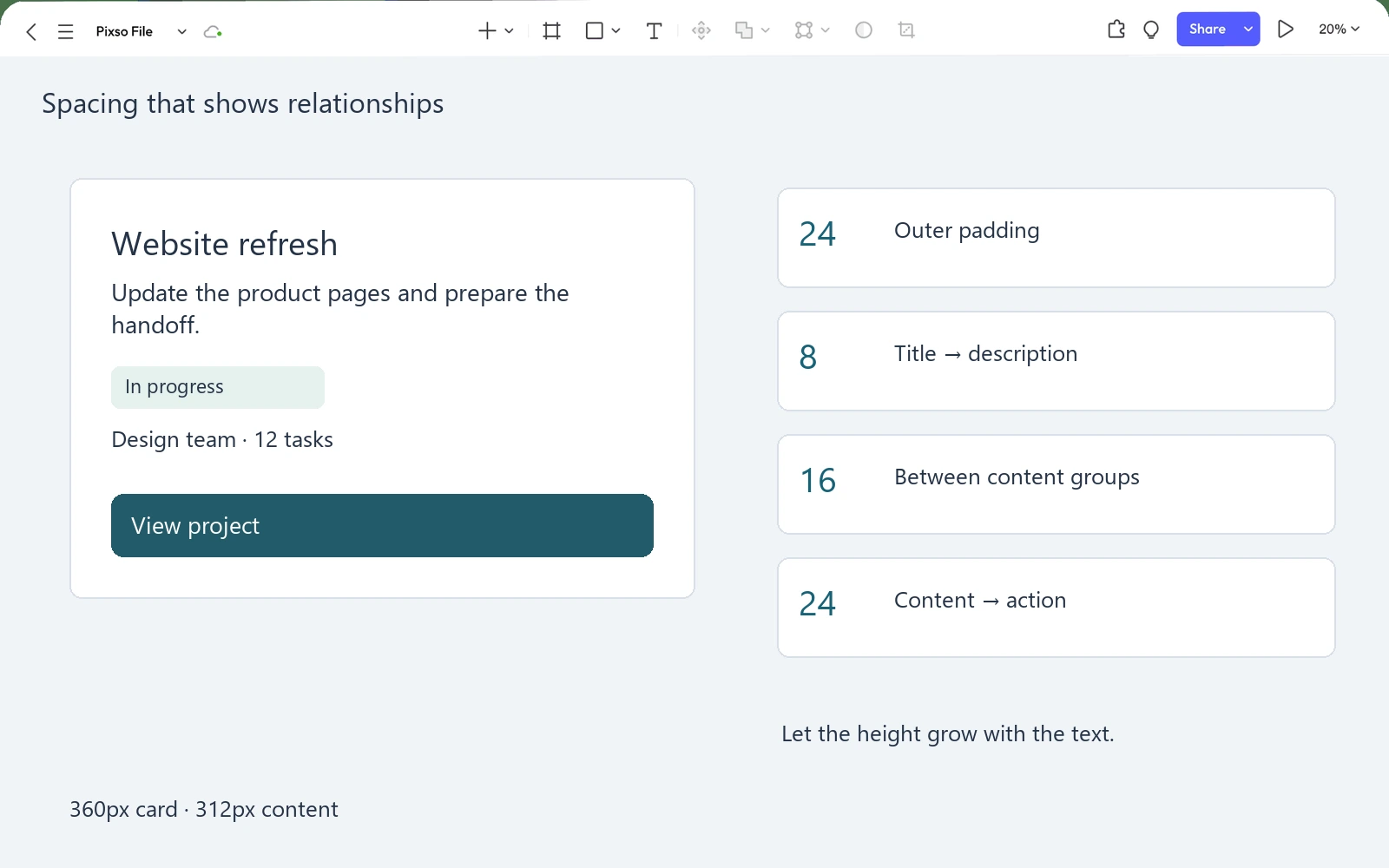
Now replace the title with “Website refresh for the international product launch.” Let it wrap. The description and other content should move down while the chosen gaps remain intact. If the button overlaps the text, the problem is the resizing behavior or fixed height, not the spacing scale.
Apply the rules with Auto Layout in Pixso
In Pixso's UI design workspace, use nested Auto Layout groups for the introduction, supporting information and full card. Set the spacing for each relationship and the outer padding separately. This lets longer text change the layout without requiring you to reposition every layer.
Keep a small spacing reference beside the component: the allowed values, their intended roles and one example of each. When the card is ready, reuse it as a component so later screens start from the same structure. If a particular screen needs denser cards, design that as an intentional density choice rather than applying unrelated local adjustments to every instance.
Do not assume that naming a token or writing a number beside a design automatically connects it to production code. Agree on names and implementation with the development team. A note such as “card padding = 24; content-to-actions = 24” communicates the intended relationship even before a shared token pipeline exists.
Keep useful exceptions small and explicit
An 8-point convention is not a rule for every measurement. A 1px border, a carefully adjusted icon, or an established type scale may need values outside it. Do not increase a border to 8px or distort an icon to make the file look mathematically consistent.
Likewise, a required control target should follow the product's accessibility requirements and platform guidance. Being a multiple of eight does not make a button large enough, readable enough or easy to operate. Check the target and the spacing around it as separate decisions.
Use 4px or 12px where the scale's finer steps make a meaningful difference. For a dense list, 8px may feel too close and 16px too loose between a compact icon and a label. A documented 12px relationship is more maintainable than a series of 11px, 13px and 14px adjustments made independently.
When an exception appears repeatedly, decide whether it deserves a place in the scale or whether the component structure is wrong. Adding a new token for every accidental distance preserves inconsistency under more formal names.
Adapt density without shrinking everything
At a narrow width, first let the card use the available space and allow text to wrap. If 24px outer padding leaves too little useful content width, compare a compact version with 16px padding. You can keep the 8px title-description gap and the 24px separation before the action if those relationships still read clearly.
Do not multiply every distance by a mobile scaling factor. That can turn a deliberate scale into a set of arbitrary fractions while also shrinking controls that should remain easy to use. Change the few relationships that the narrower layout genuinely affects.
For the project card, compare short and long titles, one and several lines of description, and the longest expected action label. Keep the version where the groups remain clear and nothing depends on a fixed text height. The final handoff should explain which values stay fixed, which vary with density, and where the component is allowed to grow.

![[User Guide] How to use developer view in Pixso](https://pixso.net/assets/media/dev-view-68a58eacfb81157ae473-78d7f5d0a52b9d7f.webp)


