Scott
Every designer knows the feeling of staring at a blank canvas, waiting for inspiration to strike. You've got the product requirements in front of you, but translating those raw text specs into structured, nested visual elements is a slow process. Traditionally, you'd spend the first couple of hours just wireframing basic containers, setting up type hierarchies, and placing buttons.
With the introduction of new utility features inside Pixso AI, this mechanical starting phase is shifting. Modern ai ui design features allow you to translate standard text prompts directly into layered, editable vector files on your canvas. This isn't about generating a flat, unchangeable image; it's about spitting out functional UI structures with auto-layout properties, real variables, and nested groups that you can manipulate instantly.
Whether you are working on landing pages, e-commerce checkouts, or trying to figure out how to implement responsive web design across multiple frames, having an intelligent canvas assistant acts as a massive shortcut. It handles the repetitive, rule-based setup, so you can spend your energy on the actual user experience and brand-specific refinements.
What is AI Design?
AI Design is the ability to transform your natural language descriptions directly into structured, editable UI prototypes (such as websites or mobile app interfaces) using artificial intelligence.
Unlike generating a single flat image, it creates a fully layered "design file" complete with components, layers, and basic layouts. You can edit, refine, and collaborate on this file immediately.
How does it differ from "Text-to-Image"?
AI Text-to-Image: Focuses on generating static visuals (like banners, illustrations, or icons) where the priority is artistic style and aesthetics.
AI Design: Focuses on creating functional user interfaces containing UI elements like buttons, lists, and cards. The priority is layout, structure, and interaction logic.
How does it work?
You describe a scenario, and the AI "assembles" a preliminary draft based on its training on vast design systems and UI patterns, ensuring adherence to standard design principles.
Example: If you enter "Generate a 'Now Playing' screen for a music app," the AI understands that this typically requires album art, a progress bar, playback controls, and song details. It then arranges these elements with a logical visual hierarchy.
How It Transforms Your Workflow
Overcome "Blank Canvas" Paralysis: Get a high-quality head start on any new idea. Shift your creative process from "starting from scratch" to "refining and editing."
Accelerate Alignment & Communication: Instantly generate visual solutions during requirement discussions to validate ideas and eliminate misunderstanding.
Spark Layout Inspiration: Hit a creative block? Quickly generate multiple layout variations to explore new possibilities and open up your thinking.
Empower Non-Designers: Enable Product Managers and Marketers to visualize ideas rapidly, facilitating efficient collaboration with designers based on concrete visuals rather than abstract descriptions.
Its Role: The "Advanced Starting Point"
Where AI Excels: Speed, structural generation, and adherence to design patterns. It delivers logical, usable first drafts in seconds.
Where Designers are Irreplaceable: Deep UX thinking, brand alignment, detailed refinement, and emotional connection. Think of AI as providing the "bricks and mortar"; you are the architect who gives the structure its soul.
"AI Design" acts as a translator and assembly assistant, converting "product requirements" into "interface design language." It handles the repetitive, rule-based tasks, freeing you to focus on the creative and strategic core of your work.
How to use the AI Design feature in Pixso
Users can select "AI Design" from the right AI panel to complete page generation and multiple rounds of iterations. The generated results will be displayed directly within Pixso and can be manually edited in detail.
- Select the "AI" feature.
- In the left panel, submit a request to the AI to generate a design draft.
Core 4 Elements: Type, Style, Key Content, and Mood. - Generate, Edit, and Refine
You can command the AI to modify specific sections (such as the navigation bar) and regenerate them. - Import the AI output results into Pixso for further manual editing.
- Click the AI edit input field.
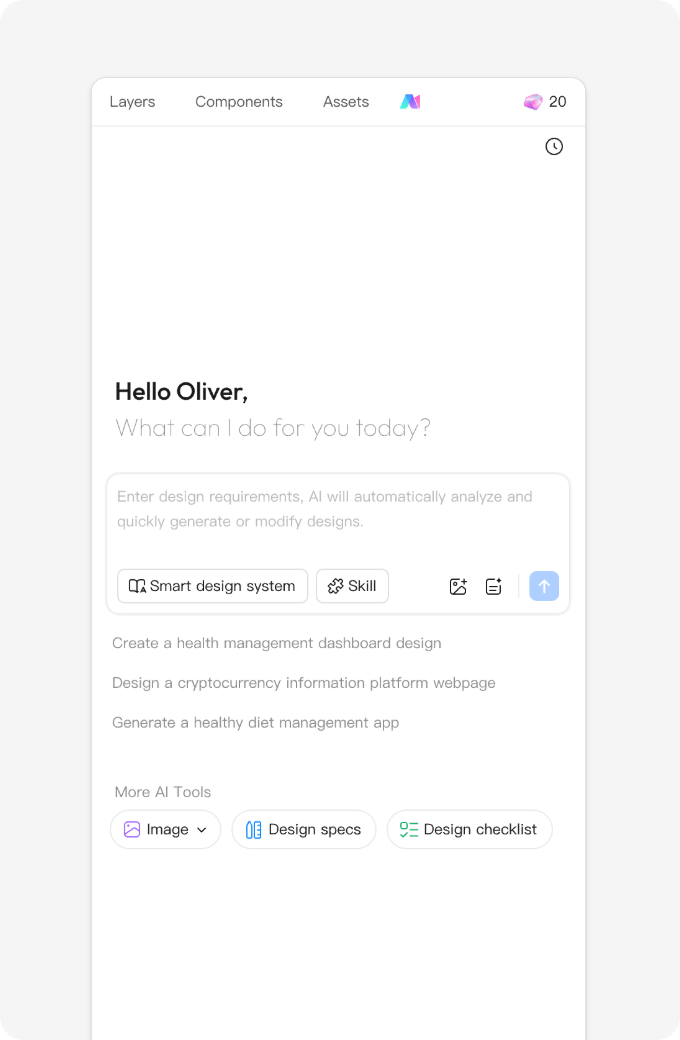
- Enter your prompt and select a design system.
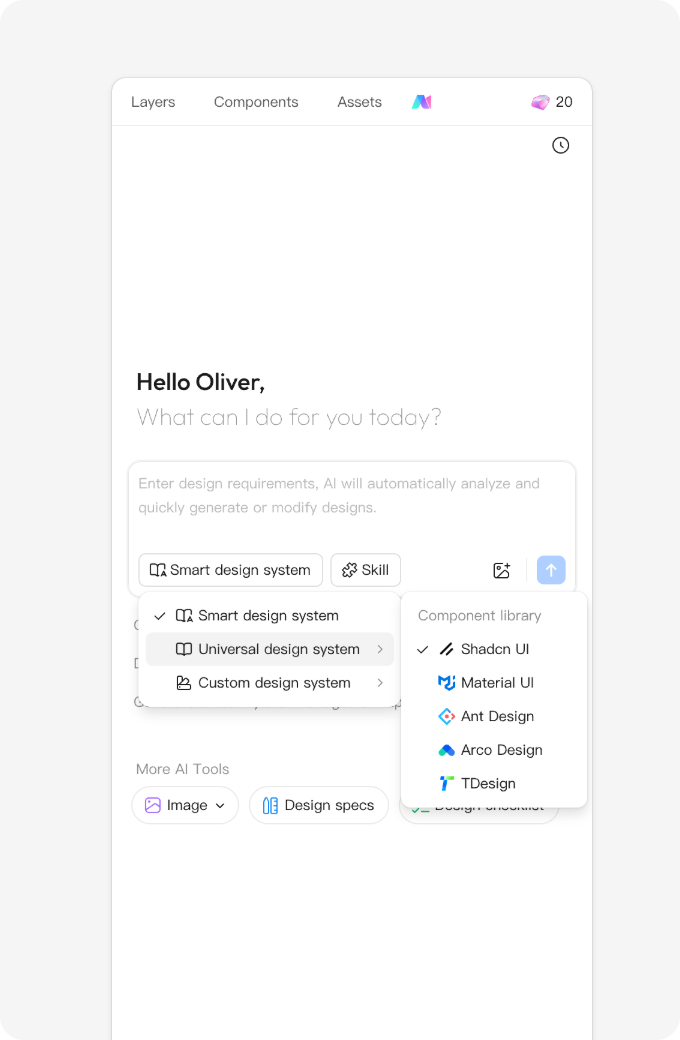
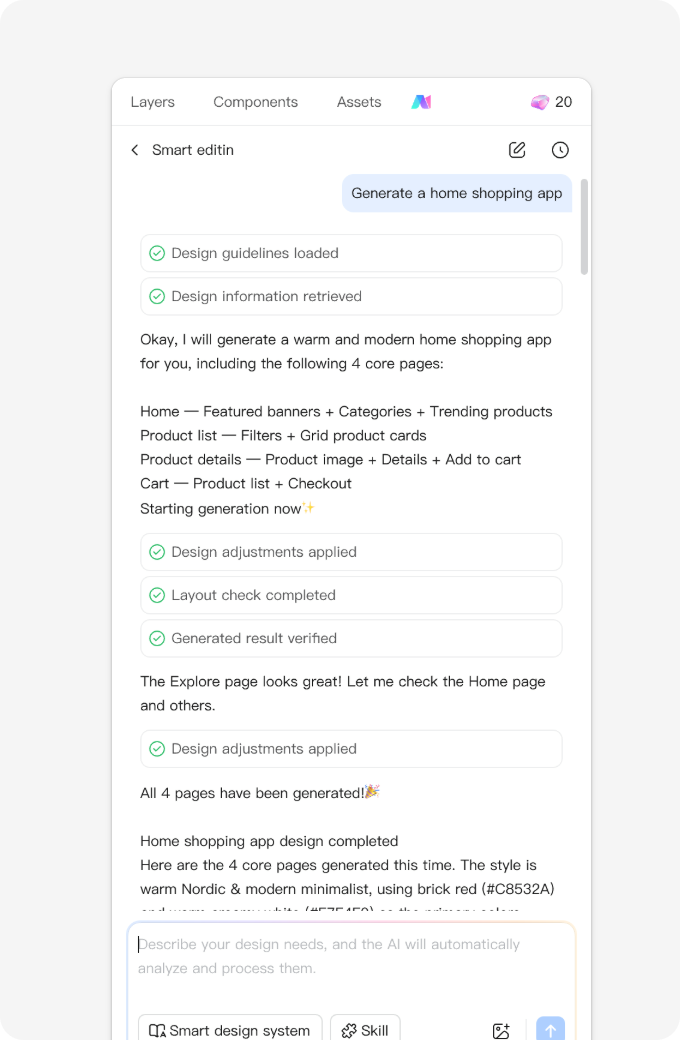
- During generation, the AI processes your request in depth, followed by automatic self-checking and refinement.
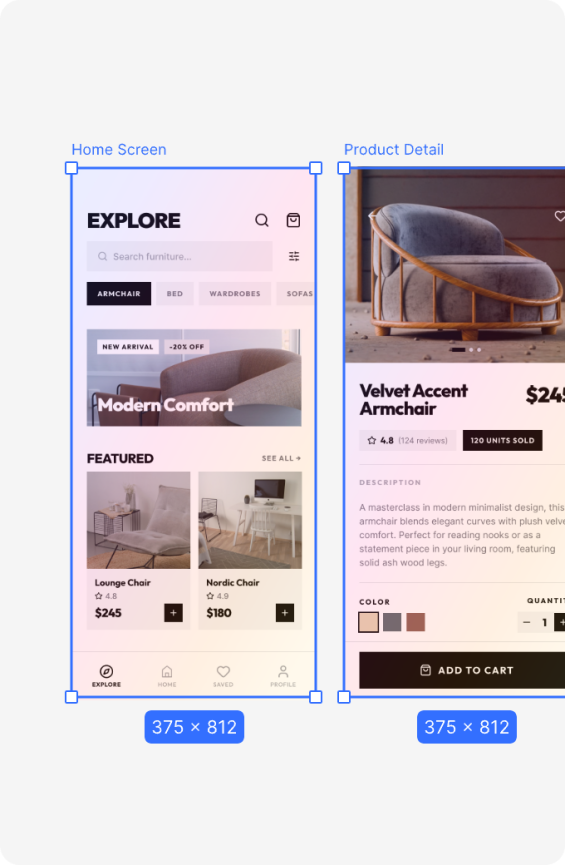
- Preview results on the canvas in real time, with full editing capabilities.
Try generating a webpage!
Use the provided prompts, and try modifying some details to your liking to see the difference!
- Multiple prompts are provided to try generating different websites.
- Advanced control keywords are also available, allowing you to replace or add keywords based on your needs.
- Additionally, try using some of your own keywords! Create more interesting webpage details.
Try these Prompts
E-commerce
Generate a Product Detail Page (PDP) for a fashion e-commerce app. Modern minimalist style. Includes a product carousel, name and price, size selection, user reviews section, and a floating "Add to Cart" button. Bright colors, compact layout.
Utility / Tools
Generate a monthly overview page for a personal finance app. Dark mode, with a professional financial feel. The top shows the monthly balance, the middle features a donut chart for expense distribution, and the bottom contains a detailed transaction list. Use a blue and dark gray color scheme.
Social Media
Generate a "Discover" page for a photo-sharing social app using a waterfall (masonry) layout. Card-style design, where each card includes a user avatar, image, like, and comment buttons. Staggered layout with a relaxed and lively atmosphere.
Landing Page / Website
Generate a long scrolling features page for a SaaS product website. Section-based design. Includes a Hero section, a three-column feature layout, a testimonial carousel, and a bottom CTA. Clean, tech-focused style.
Keyword Replacement
Page Type
Home page, Detail page, Profile page, Settings page, Login page, Sign-up page, Dashboard, List page, Playback page
Style & Tone
Modern minimalist, Warm and friendly, High-tech, Professional and serious, Playful and cute, Luxury, Retro, Futuristic
Layout Description
Card layout, List layout, Waterfall layout, Split-screen layout, Single-column vertical, Grid system, Asymmetrical layout
Core Components
Top navigation bar, Bottom tab bar, Sidebar, Floating button, Carousel, Accordion, Data table
Visual Details
Large rounded corners, Borderless, Layered shadows, Gradients, Background blur, Micro-interactions, Ample whitespace
Mood & Atmosphere
Airy, Immersive, Translucent, Trustworthy, Energetic, Serene, Premium feel, Community feel
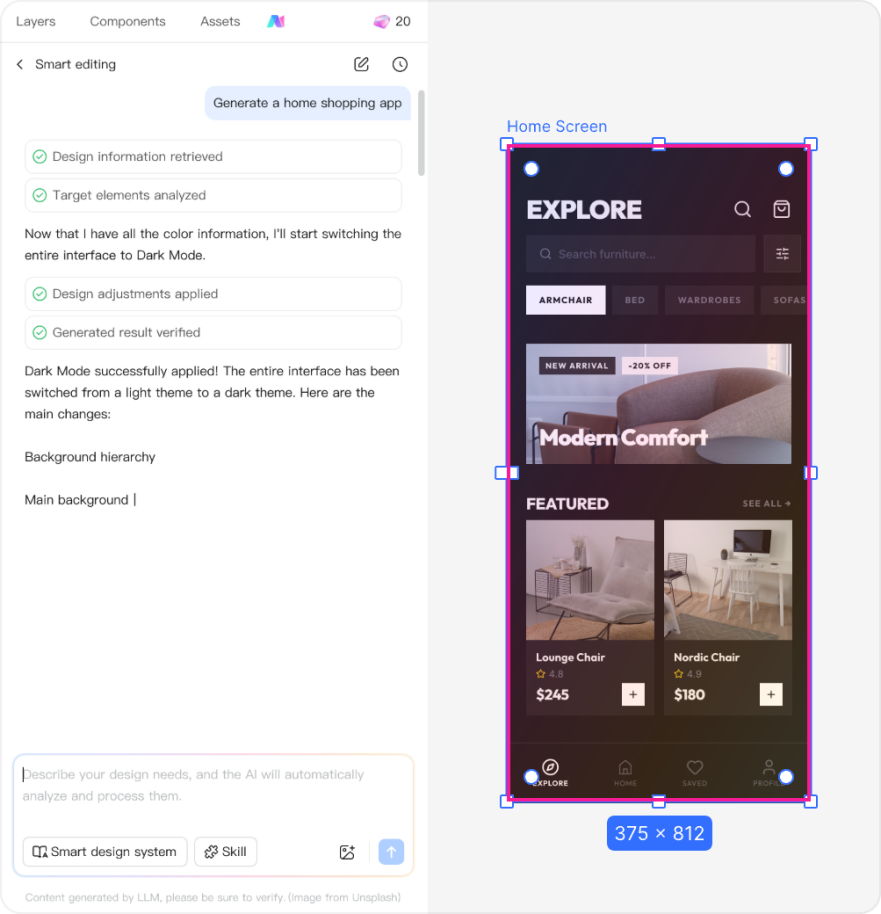
Intro to AI Smart Editing — Modifying Designs
AI design modification supports several core capabilities, including basic property adjustments (e.g., position, size, layout, fill, stroke, effects, text, images, variables). It transforms complex manual design operations into natural language prompts, enabling users to quickly execute property edits, bulk adjustments, layout optimizations, content generation, and multi-size adaptations. Some highly complex or specific properties may not be supported yet, such as certain premium effects, complex layer blending modes, and specific plugin properties.
Prerequisite: Select the target object(s) on the canvas. Here are some common use cases:
- Modify content and local properties: Ideal for quickly adjusting a specific area, card group, button, or copy segment.
Example: Change all corner radii to 16px and soften the drop shadows to make the overall design feel lighter. - Bulk property adjustments: Ideal for uniformly adjusting multiple elements of the same type.
Example: Change all card title font sizes to 20px and body text to 14px. - Typography and layout optimization: Ideal for correcting messy page structures, inconsistent spacing, or unclear visual hierarchy.
Example: Arrange these feature cards into a 3-column layout, keep the spacing consistent, and vertically center the content. - Auto Layout adjustments: AI can apply logical Auto Layout structures to your content, making the design easier to maintain and adapt.
Example: Apply Auto Layout to this list and maintain reasonable spacing between the icon, title, and description. - Multi-screen size adaptation: AI can rearrange content layouts rather than just resizing the frame.
Example: Adapt this mobile layout to a tablet size, and rearrange the navigation, content cards, and bottom action area. - List expansion and auto-completion: Ideal for repeating structures like tables, lists, card groups, and menu items.
Example: Generate 3 new product feature cards based on the existing style, keeping the typography and visual aesthetics consistent. - Smart text generation and processing: AI can generate, rewrite, or optimize copy within the design based on context.
Example: Translate the Chinese copy on this page into English, ensuring the length of buttons and titles still fits the UI layout.
How to write more effective prompts?
To help the AI better understand your needs, we recommend including the following elements in your prompt:
- Target Object
Example: Select one or multiple objects, such as frames, text, images, or sections. - Specific Properties
Example: Color, font size, spacing, corner radius, layout, image, copy... - Constraints
Example: Keep the original style, do not change the structure, only modify the title... - Expected Output
Example: More premium, softer, more tech-driven, switch to dark mode, change the primary color, generate variables...
Weak prompt: Optimize this page.
Better prompt: Optimize the visual hierarchy of the current page while keeping the original content unchanged. Focus on adjusting title font sizes, module spacing, and card alignment to make the page look cleaner
Notes:
For complex designs, we recommend explicitly selecting the modification scope before prompting. This prevents the AI from processing too large an area, which can increase wait times.
The AI may not fully support advanced effects, complex nested instances, or specific plugin properties.
If the initial result isn't ideal, you can refine it with follow-up prompts, such as "make it more compact," "make the colors softer," or "don't change the original layout."
- Select the target object on the canvas and enter your prompt.
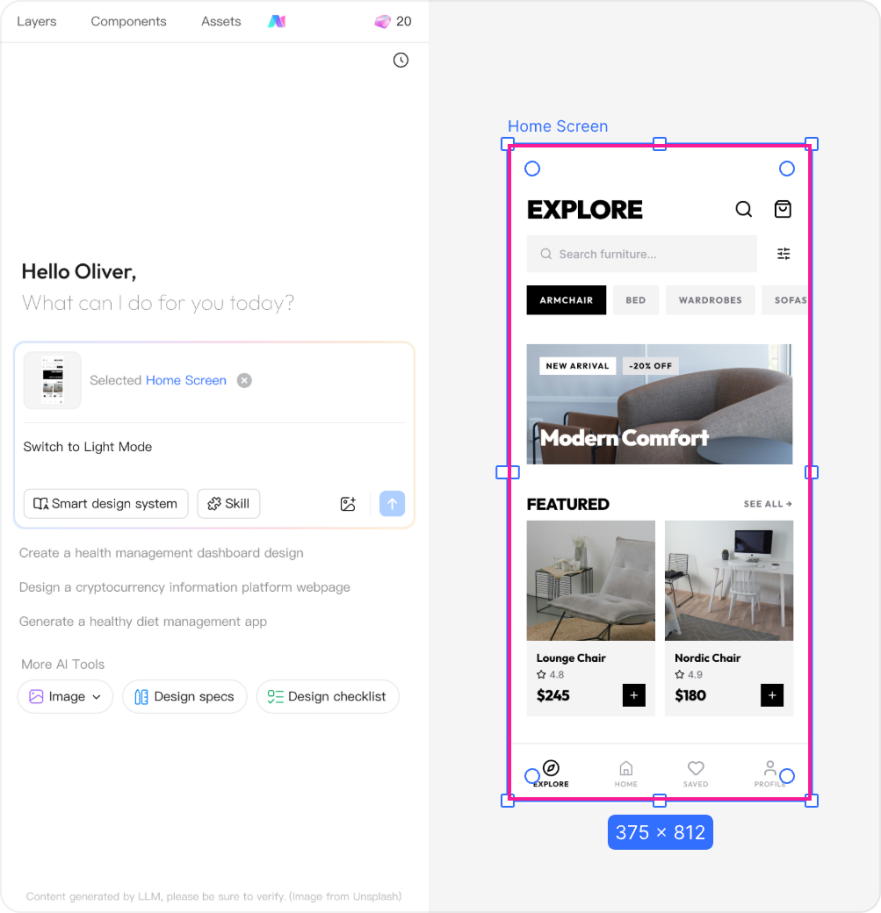
- The AI processes your request and applies the changes to the canvas, allowing you to preview the results in real time.
Conclusion
AI drafting is most useful when you can name the screen, the content it needs and the part you want to change. Start with a focused prompt, then refine the editable layers or request one specific adjustment at a time.
FAQ
Q1: How does the generated layout handle auto-layout properties?
The engine doesn't just place random vector shapes on the canvas. It groups elements logically, applying auto-layout structures with precise padding, gap variables, and constraints. When you change text strings or swap icons, the surrounding container scales naturally, just like a manually built design system.
Q2: Can I use this for mobile responsive design audits?
Yes, this is one of its strongest use cases. Instead of manually rebuilding mobile viewports from desktop mockups, you can select your web frames and instruct the assistant to adapt them for mobile viewports. It handles layout reflowing, menu compacting, and touch-target sizing automatically, making mobile responsive design checks incredibly fast.
Q3: What are the main limitations of the AI visual editing features?
While it is excellent for bulk styling adjustments, auto-layout optimizations, and standard content generation, the AI currently has limits when handling highly complex visual properties. For example, specific custom plugin properties, intricate nested components with overlapping layer-blend modes, and complex canvas interactions still require manual visual styling inside Pixso AI.
Q4: How does the code export work for developer handoff?
Every layout generated on the canvas can be converted into front-end code. By switching your workspace to Inspect Mode, developers can instantly view CSS and HTML properties, grab design tokens, and inspect responsive web design parameters. This ensures the design-to-code process stays clean and predictable.