On this page

Elodia
Moving a Sketch file between platforms can involve compatibility issues. With Pixso, designers can import and export Sketch files while preserving layouts, layers, and visual elements. This guide explores how Pixso handles Sketch files and supports the transition to a collaborative design environment.
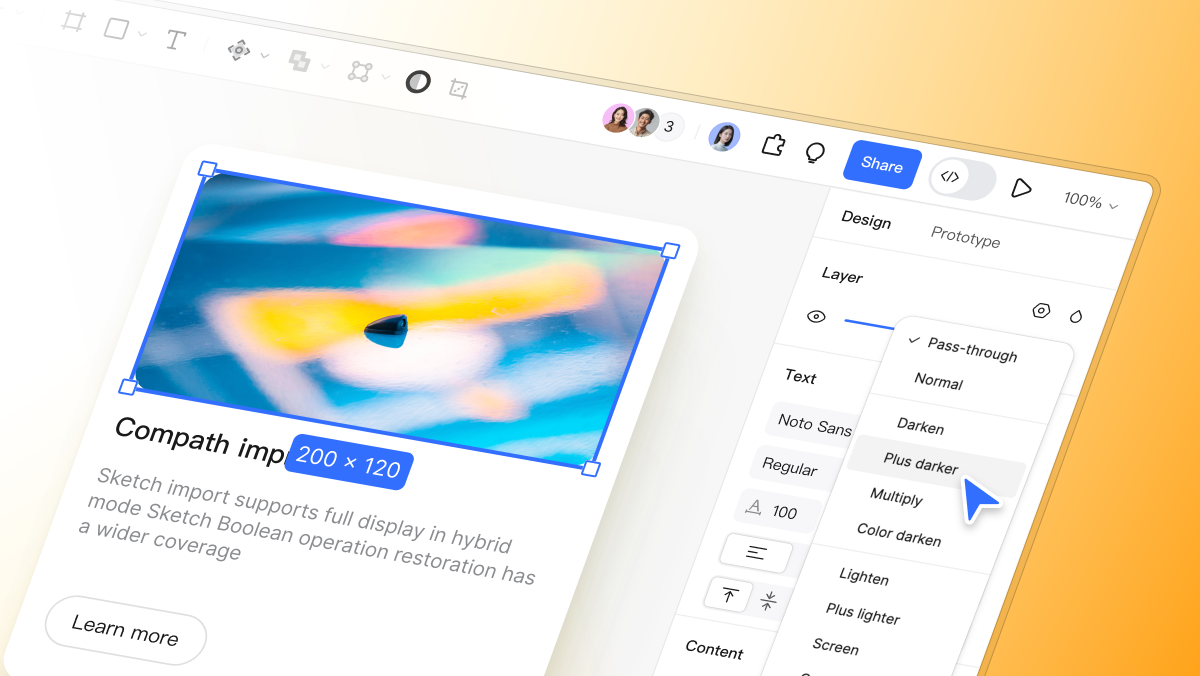
Part 1. Understanding Sketch Files and Their Complexities
Before discussing Pixso's features, it helps to understand what makes Sketch files complex. Sketch files are not just static images; they are made up of multiple layers, vector objects, typography, effects, and interactive objects. These files usually hold:
- Mixed Mode Layers: Blending mode layers that affect color and shape interactions.
- Boolean Operations: Combined shapes and paths creating complex vector objects.
- Background Effects: E.g., blurs, gradients, and saturation effects.
- Bidirectional Text: Text formatted for languages such as Arabic or Hebrew.
When bringing a Sketch file into a new design platform, any misunderstanding of these elements can lead to erroneous rendering, misplaced layers, or shattered typography. Designers need a tool that supports Sketch files and preserves each layer and effect. Pixso 2.0 fulfills this requirement by ensuring your imported Sketch files do not diverge from their original design.
Part 2. Pixso's Extended Sketch Compatibility Features
Pixso 2.0 introduces features focused on improving Sketch compatibility:
Mixed Mode Display Support
One of these features is support for layers with different blending modes. Pixso displays the blending modes in imported Sketch files, preserving their original visual relationships and interactions. Designers do not need to manually re-optimize layers in order to achieve the desired look, which saves significant time correcting import errors.
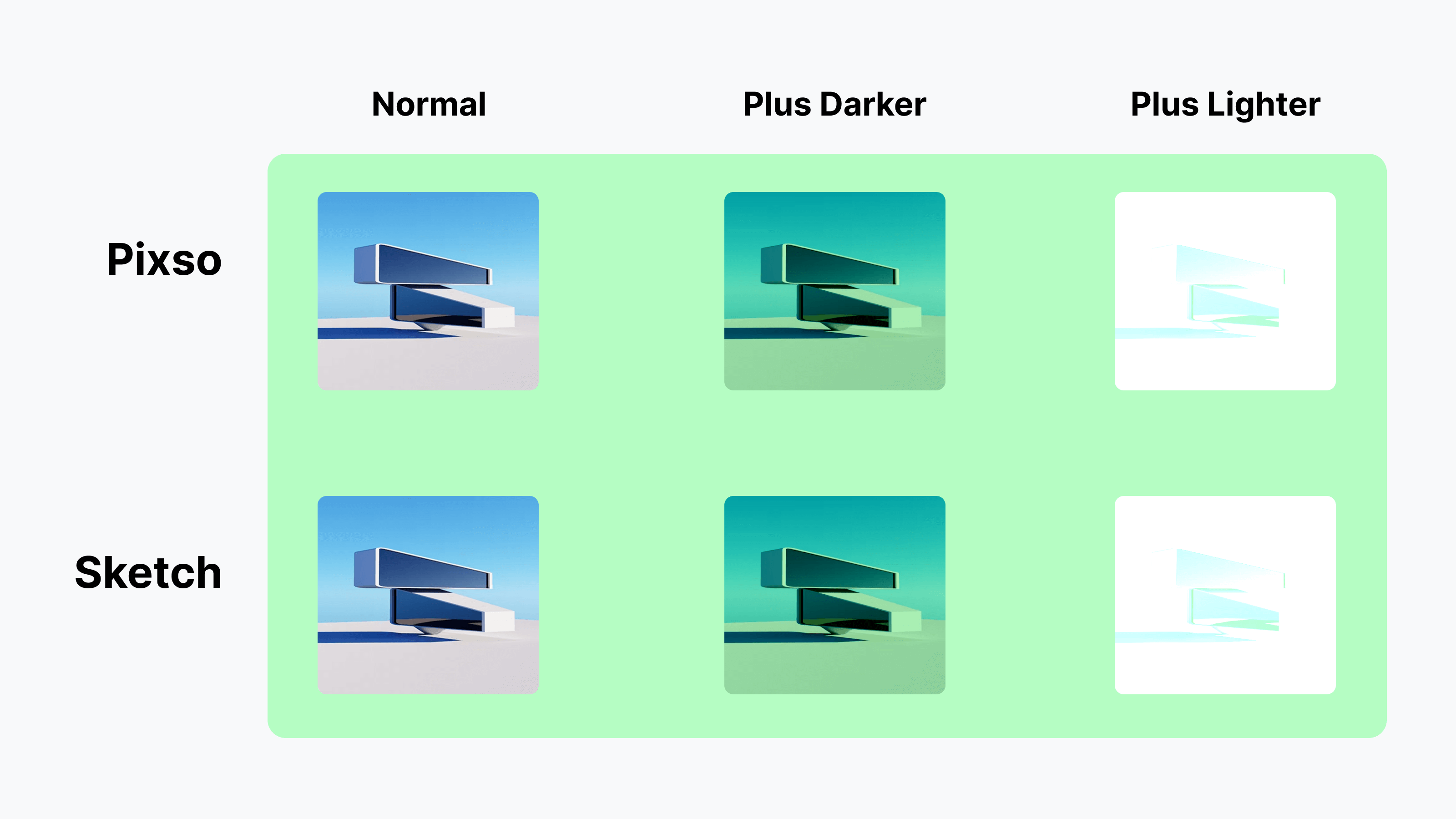
Bidirectional Text Compatibility
Global projects need support for different text directions. Pixso's bidirectional text compatibility makes sure that languages that are right-to-left, such as Arabic and Hebrew, are properly shown while importing Sketch files. This improves Sketch compatibility as well as accessibility and localization for global design teams.
Background Blur and Saturation Accuracy
Background effects, including blurs and saturation levels, are generally misrepresented when files are transferred. Pixso properly preserves these graphical effects, and imported Sketch files appear as they did when they were created. Visual effects can be used with certainty by designers, without worrying about platform inconsistency.
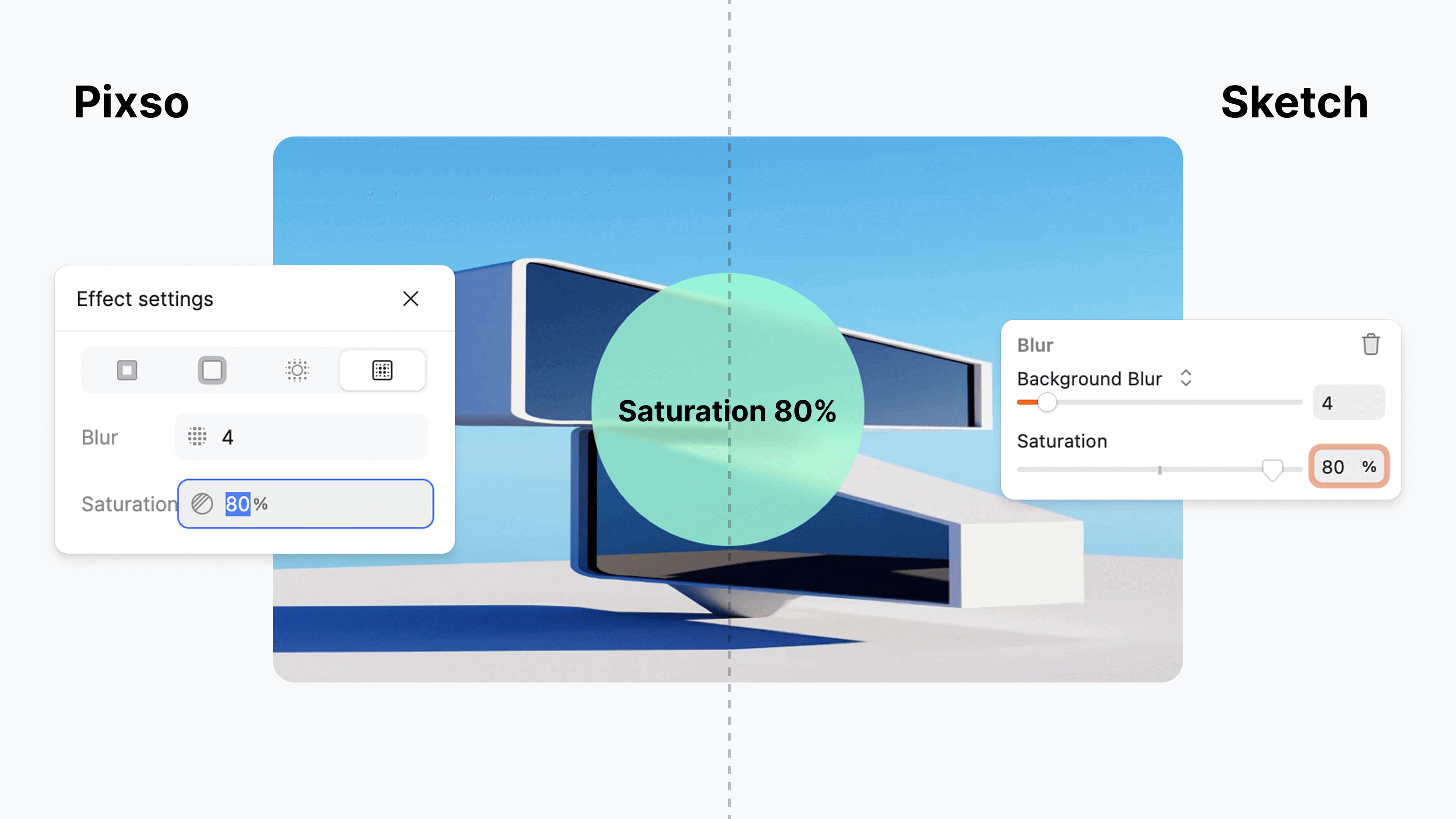
Improved Support for Boolean Operations
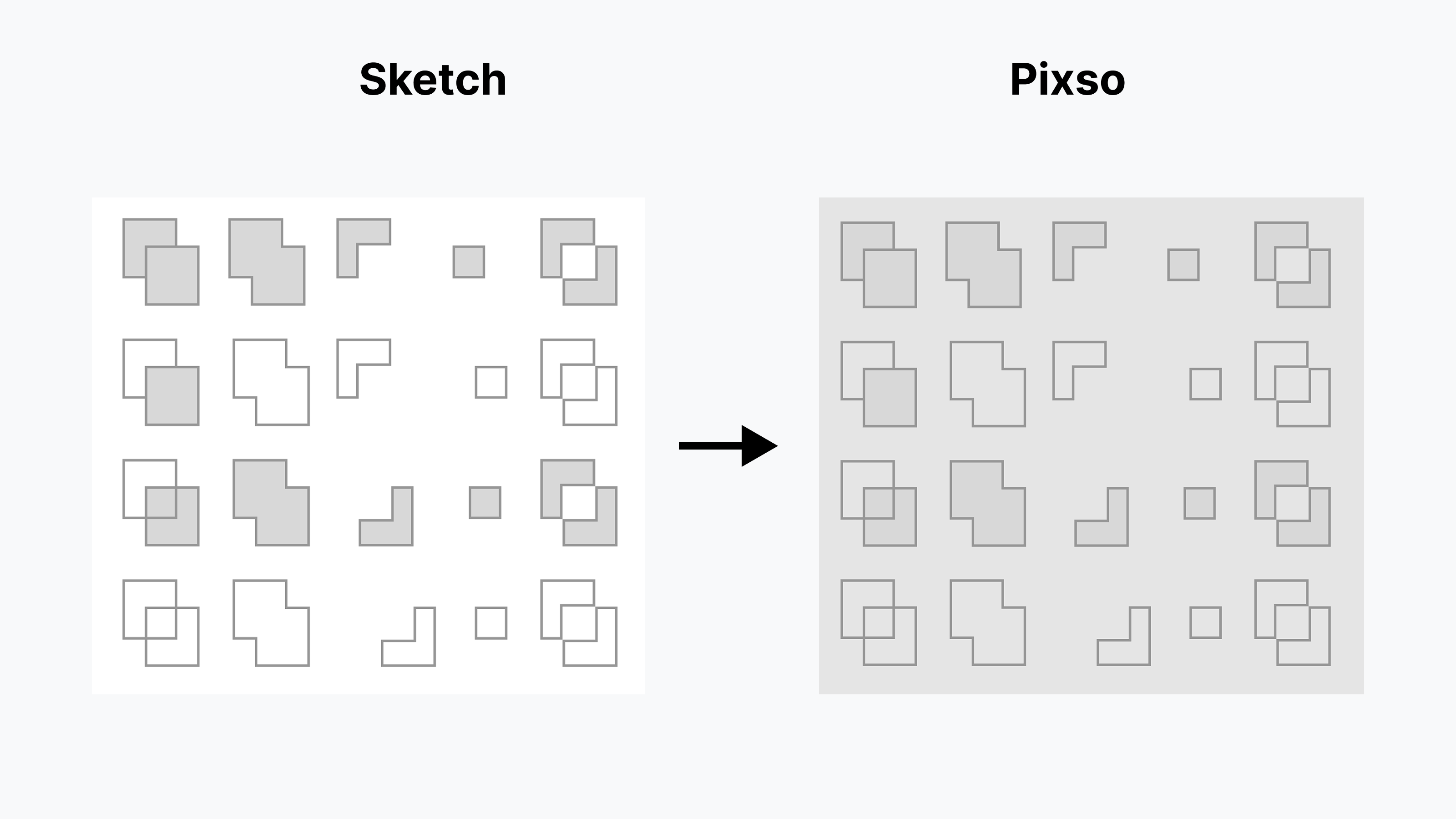
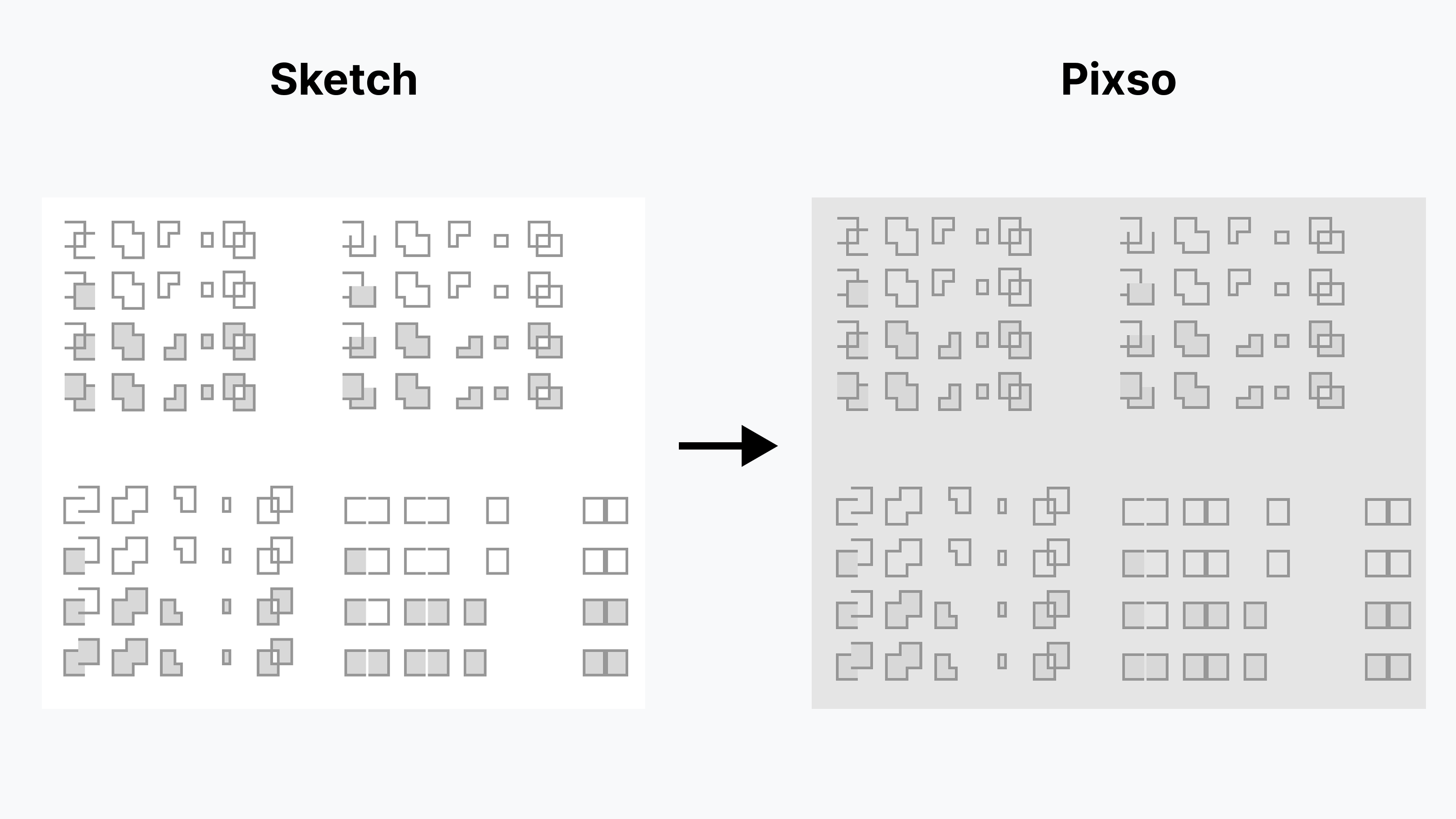
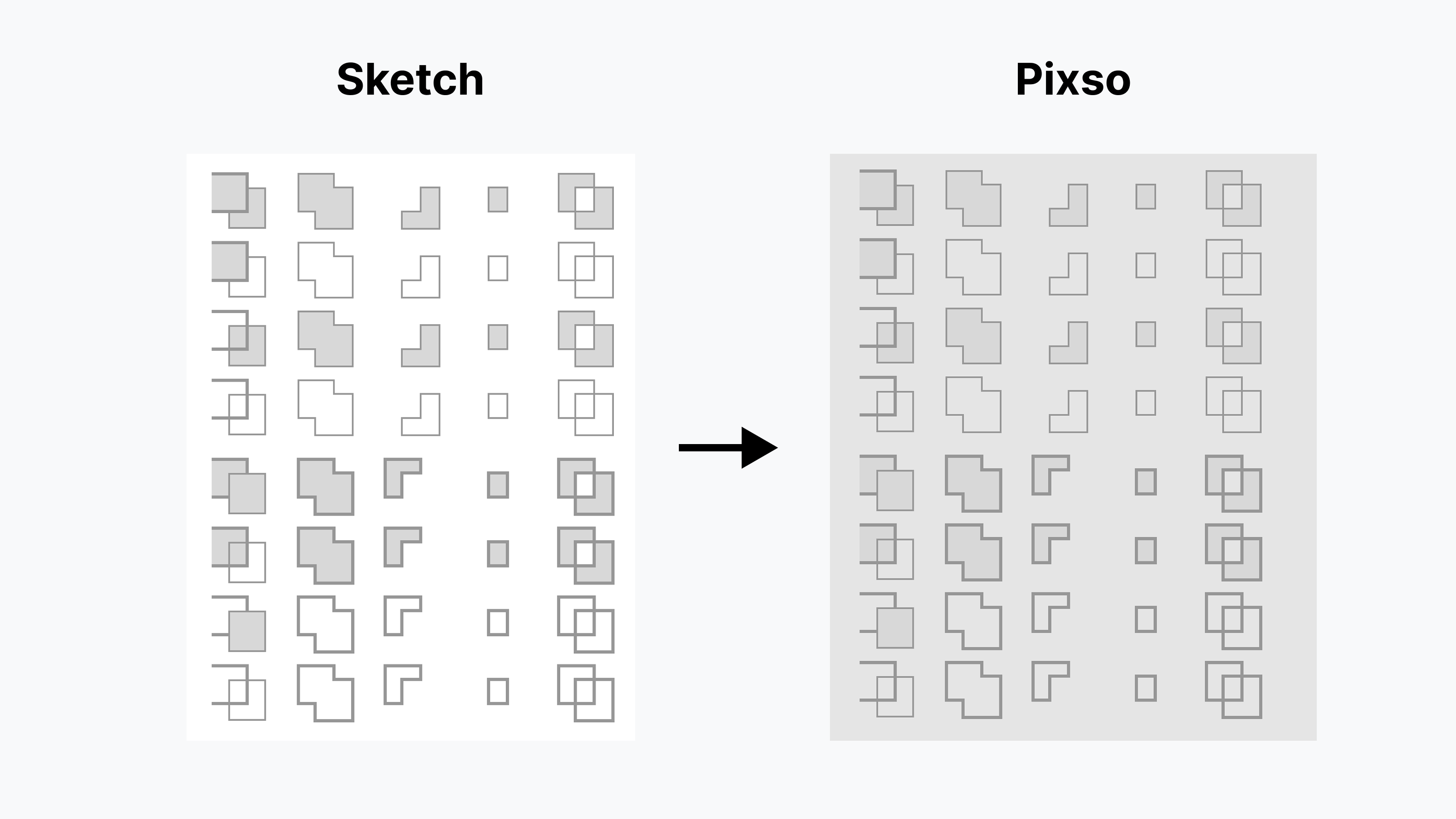
Complex vector shapes developed via Boolean operations are difficult to import correctly. Pixso improves the recovery of these operations in a manner that reflects paths, combined shapes, and overlaps correctly. This added support reduces the risk of lost objects or distorted layers, enhancing Sketch compatibility and workflow consistency.
- Closed Paths: Clean and Intact
- Open Paths: Smooth and True
- Mixed Paths: Perfect Together
Part 3. How to Import Sketch Files into Pixso
Importing Sketch files into Pixso is straightforward, and the process is designed to maintain fidelity across all layers and elements. Here’s a step-by-step guide:
- Open Pixso and Select the Import Option: Navigate to the import menu and choose Sketch file import.
- Select Your Sketch File: Locate the desired Sketch file on your system. Pixso supports both individual files and batch imports for larger projects.
- Preview the Import: Preview the import before finalizing it to check that layers, blending modes, and effects appear as expected.
- Adjust Import Settings if Necessary: Pixso gives designers control to define layer visibility preferences, text direction, and effect precision.
- Finalize the Import: When you are ready, finalize the import and begin editing your design in Pixso.
Following these steps, designers can import Sketch files in a way that's efficient without compromising on accuracy or losing important design elements. Pixso preserves the imported design so you can edit and share it.
Part 4. Exporting Sketch Files from Pixso
In addition to importing, Pixso also allows designers to export Sketch files to Sketch format. This is especially useful for teams working with mixed-tool setups or collaborating with external designers who work on Sketch. Some things to remember when exporting Sketch files include:
- Maintaining Layer Hierarchy: All groups, layers, and symbols should be correctly translated while exporting.
- Retaining Visual Effects: Background blur, saturation, and blend modes are retained with precision.
- Ensuring Text Compatibility: Variable and bidirectional fonts are exported accurately to maintain readability and layout consistency.
By exporting designs from Pixso in Sketch format, designers can collaborate with their team and share files that preserve the original design.
Part 5. Best Practices to Maintain Sketch Compatibility
For best use of Pixso's Sketch compatibility, here are the best practices:
- Standardize Component and Layer Names: Clear and consistent naming allows Pixso to import Sketch files properly.
- Verify Mixed Modes and Boolean Operations: Double check that combined layers and combined shapes render correctly when importing.
- Test Bidirectional Text: Check RTL text renders as intended, particularly on multilingual projects.
- Check Background Effects: Verify blur, saturation, and other visual corrections match the original Sketch file.
Implementing these best practices ensures Pixso preserves the integrity of your Sketch files while enhancing editing and collaboration.
Part 6. Benefits of Utilizing Pixso for Sketch Workflow Integration
Pixso's improved Sketch integration offers the following benefits to designers and teams:
- Time Savings: Import and export are assured to be safe, reducing the requirement for manual adjustments and fixes.
- Design Consistency: Visual elements, font, and effects are preserved consistently between tools.
- Team Collaboration: Collaborative Pixso projects allow several team members to work together at the same time without sacrificing Sketch compatibility.
- Cross-Platform Agility: Designers are able to switch from Pixso to Sketch without fidelity loss.
Teams can focus more on design creativity and innovation rather than debugging import/export issues by taking advantage of Pixso capabilities.
Conclusion
The shift from Sketch to Pixso is no longer an issue. With advanced Sketch compatibility, Pixso ensures that Sketch files import exactly as expected, bidirectional text is exactly as styled, background effects are preserved, and Boolean operations remain complete. Designers can export and import Sketch files confidently, maintain design integrity, and collaborate seamlessly across platforms.
Whether you are creating web, mobile, or cross-platform applications, Pixso's Sketch compatibility support helps you streamline your workflow, reduce errors, and improve productivity. By adopting Pixso as part of your UI/UX toolkit, your team is able to achieve a totally seamless design transition, thus allowing you to focus on creating great user experiences.