On this page

Scott
In daily creative workflows, designers continuously gather visual inspiration, organize component references, and document design decisions. A dedicated asset library serves as the core foundation for creative velocity and design consistency. In a fast paced digital environment, static folders and disconnected local storage can no longer keep up with modern collaborative workflows.
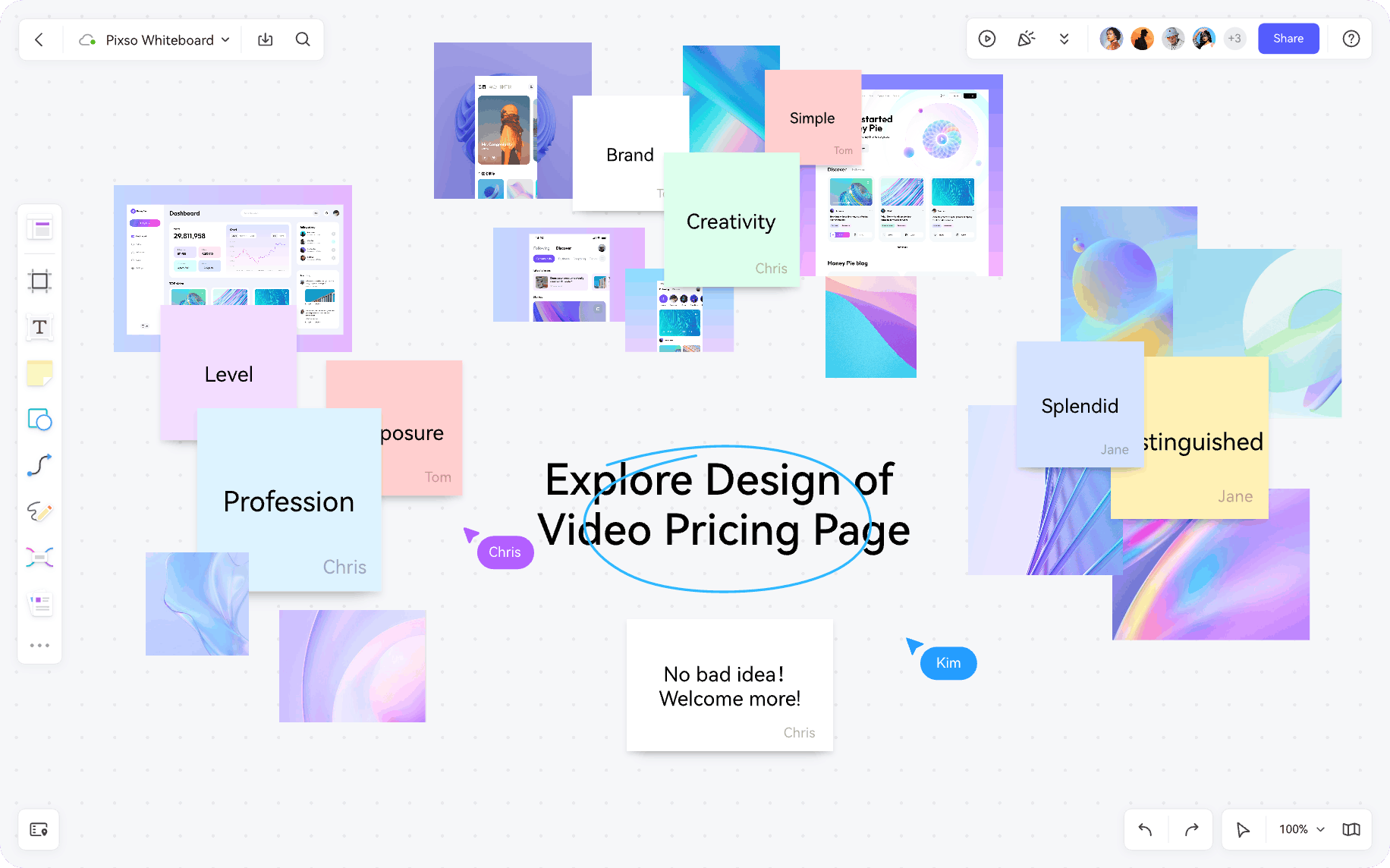
Pixso Whiteboard has emerged as an intuitive, flexible visual canvas designed to help creative teams curate, organize, and scale their design resources in real time.
With its rich built in visual toolkit, pixso whiteboard empowers designers to structure, categorize, and distribute their visual design assets effortlessly. Below is a practical step by step guide to creating an interactive asset library in minutes.
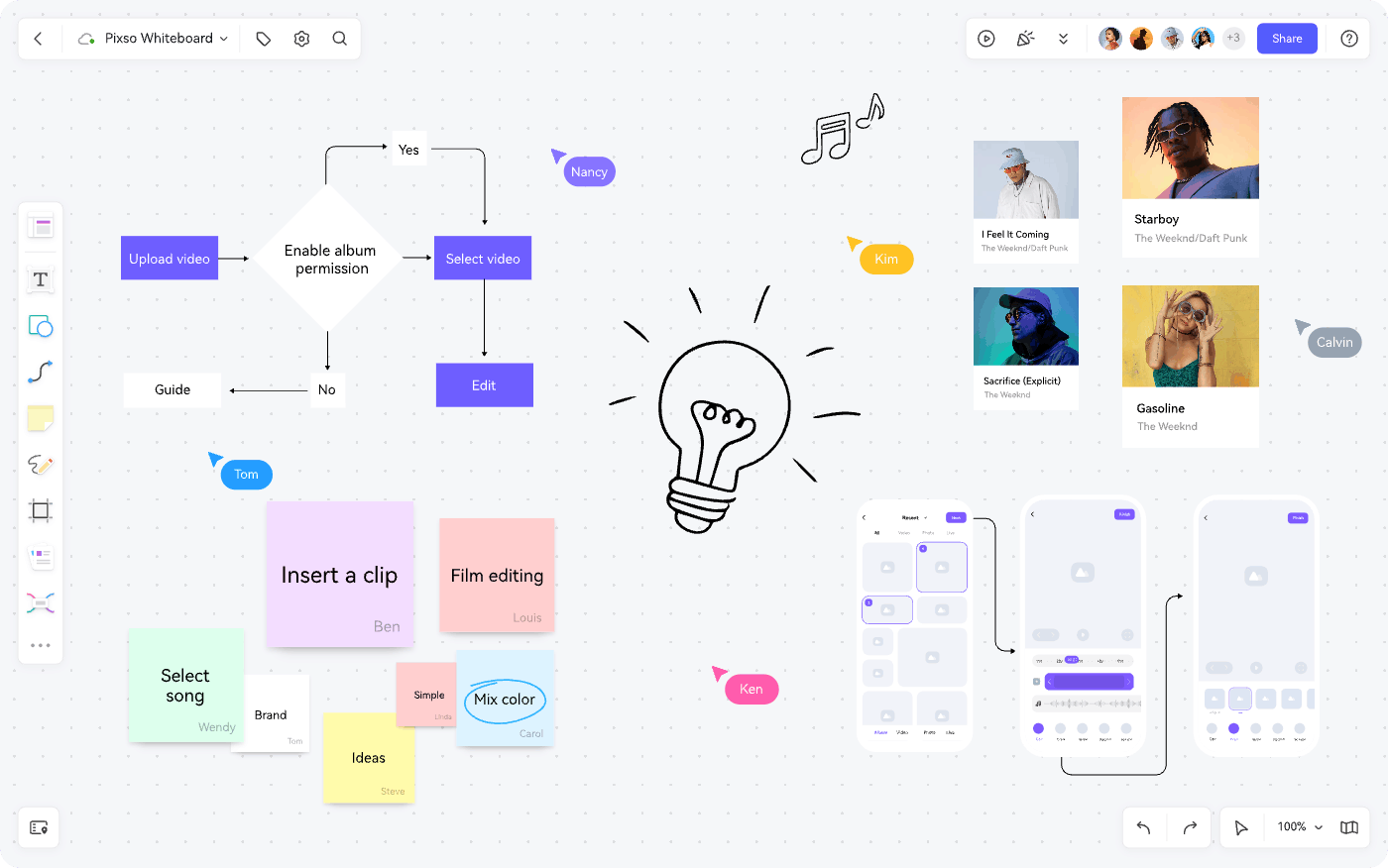
Step 1: Create a New Whiteboard Canvas and Define Your Hub
Start by creating a new board in Pixso and placing a primary container frame to act as the central hub of your visual resource library. Give this main area a clear, descriptive title such as "Design System Inspiration" or "UI Asset Repository."
👉 Click here to sign up for a free Pixso Whiteboard account
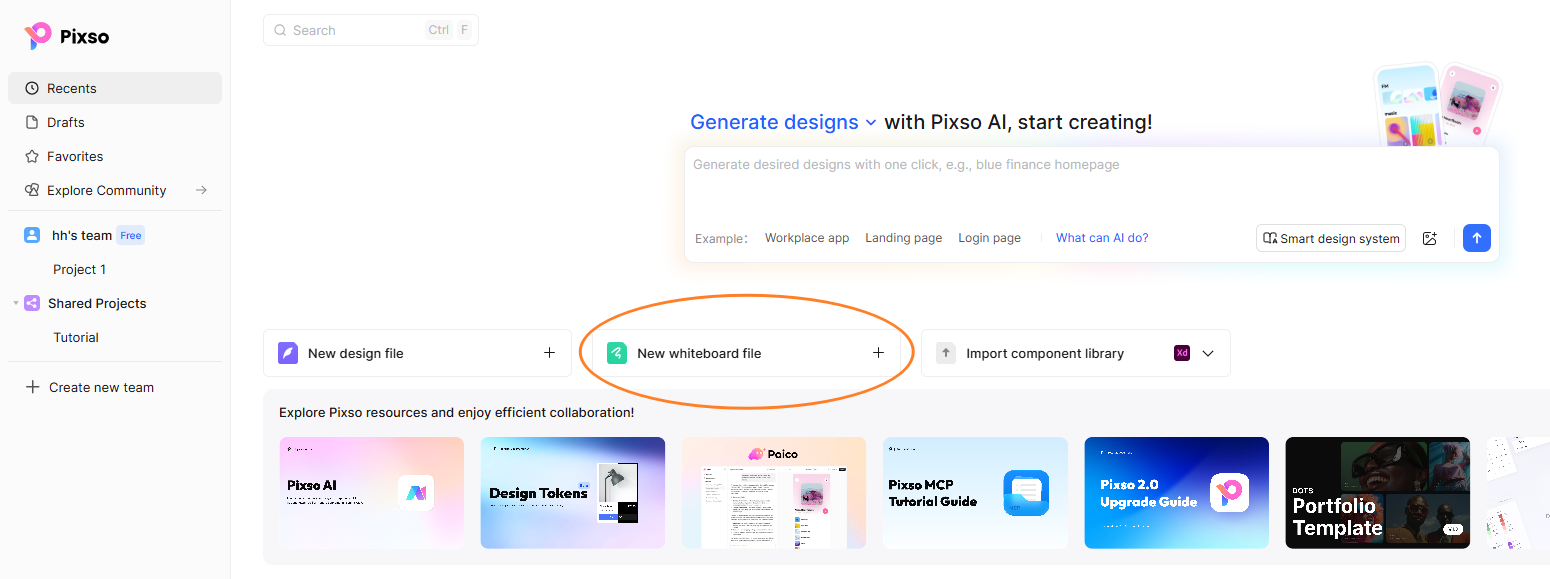
Step 2: Establish Logical Categories and Taxonomy
Organize your canvas into structured zones based on project scope, component types, visual styles, color themes, or interaction patterns. Creating distinct visual sections early on ensures that team members can navigate, manage, and retrieve design assets effortlessly as the library grows.
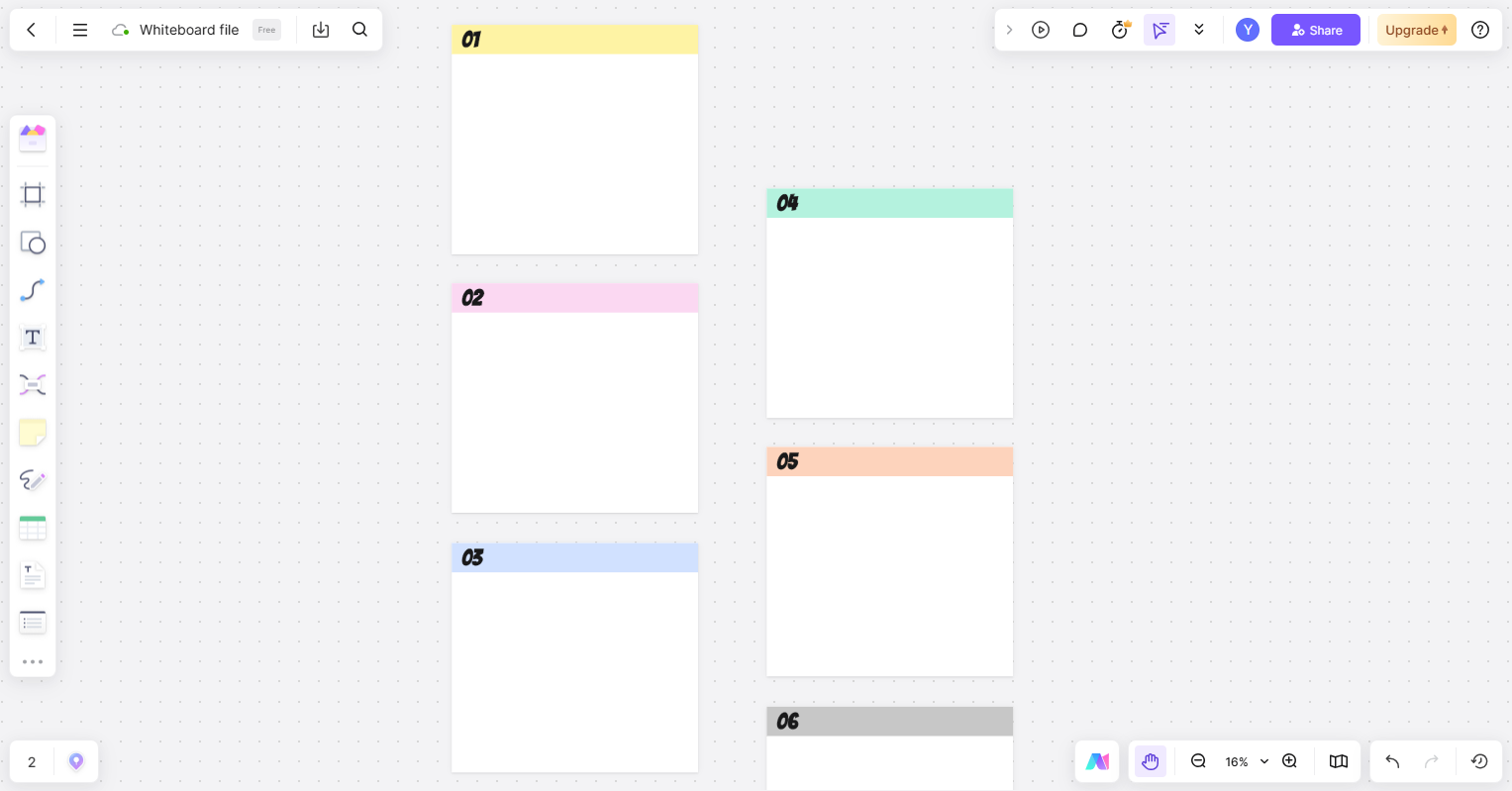
Step 3: Import and Annotate Visual Inspiration
Pixso Whiteboard supports frictionless drag and drop imports for images, interface screenshots, vector illustrations, and reference photos directly onto the canvas.
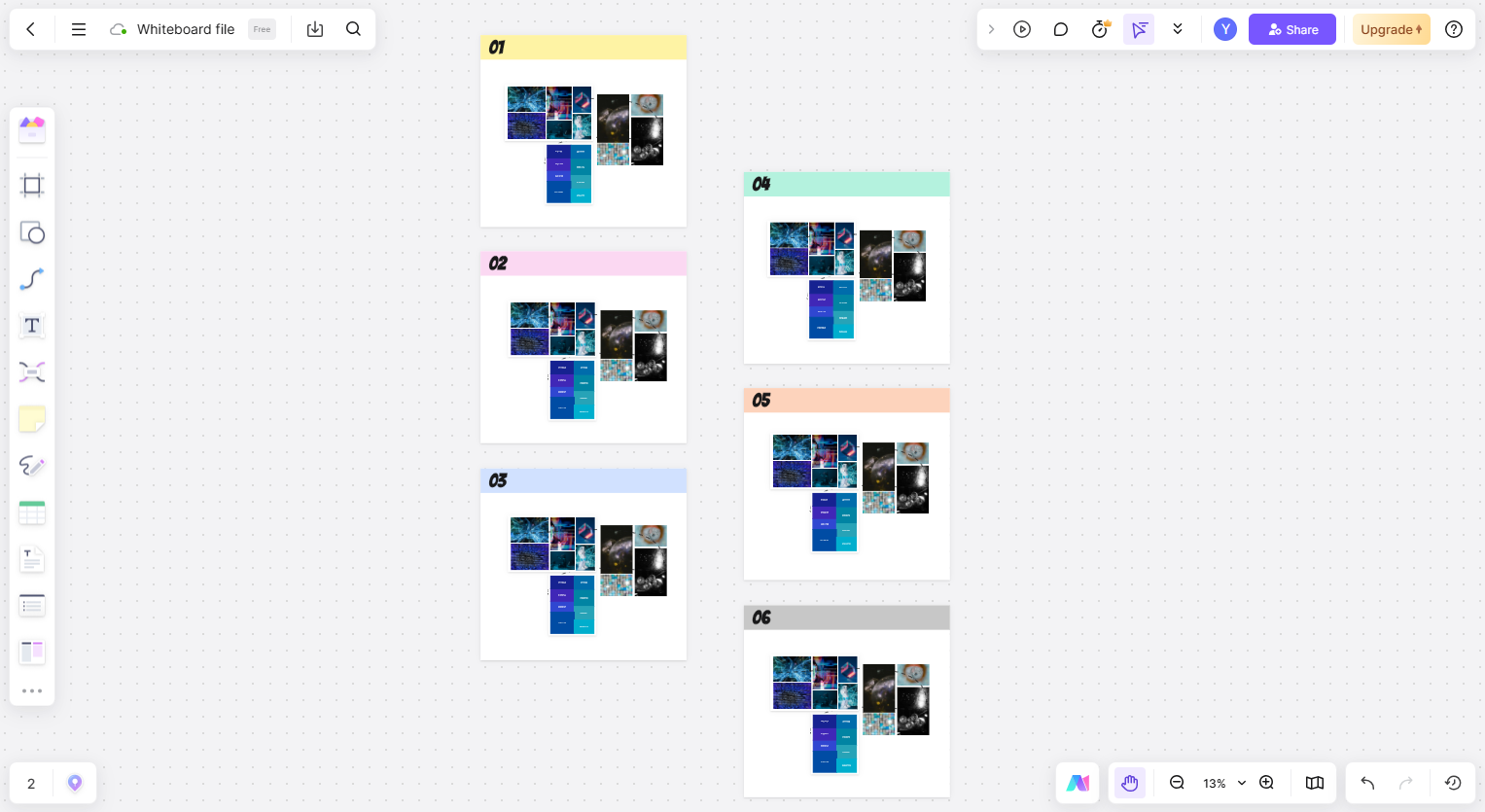
To optimize asset retrieval, assign clear titles, color tags, or sequential numbers to each visual section. You can label items with metadata such as asset names, primary colors, or product themes. Adding brief textual annotations next to your references helps collaborators understand design rationale and technical context when they access the resource library.
👉 Try Pixso Whiteboard for free today
You can also leverage integrated visual tools including smart connectors, sticky notes, digital pens, stickers, shapes, and mind mapping features:
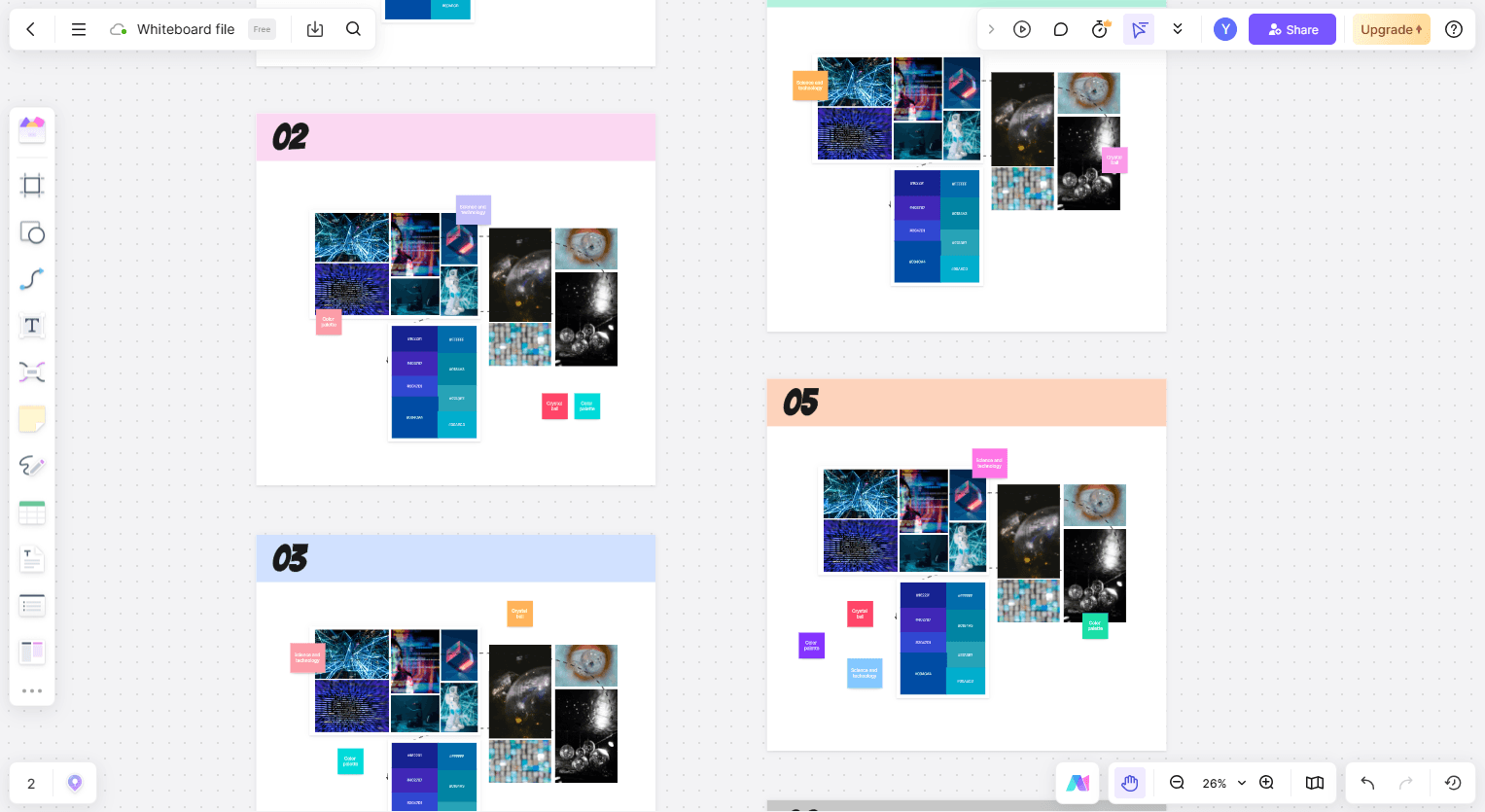
- Use smart connectors and mind maps to link related visual components and illustrate design relationships.
- Add sticky notes to document color hex codes, typography scales, or implementation guidelines.
- Utilize real time canvas comments and threaded feedback to discuss reference assets with teammates, enriching the library through collective input.
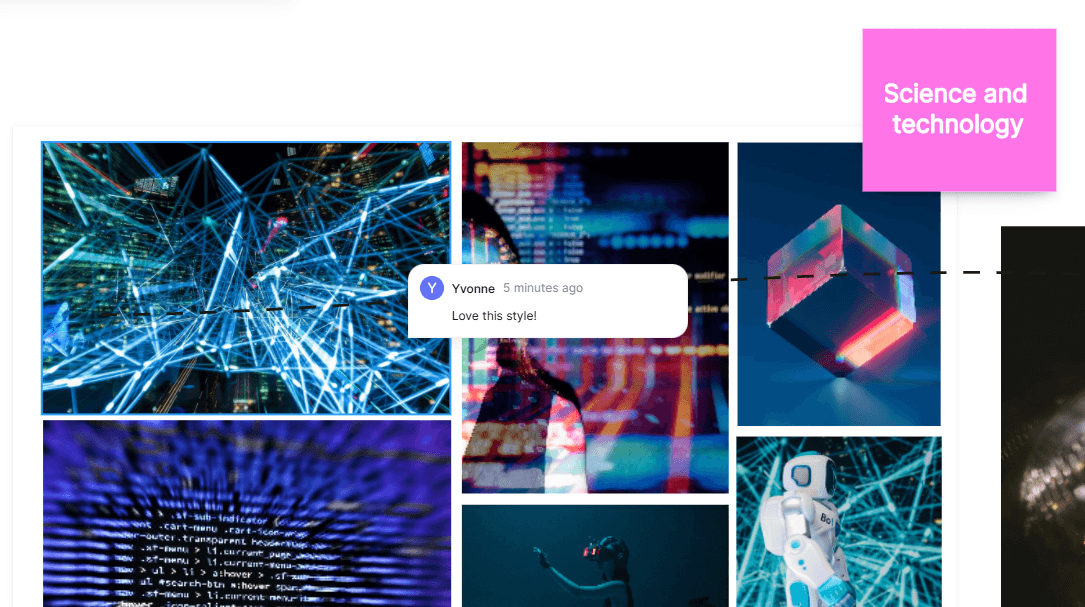
Step 4: Maintain, Update, and Share Your Asset Hub in Real Time
An effective asset library requires continuous curation. As a cloud native online whiteboard tool, Pixso lets you add new assets, reorganize layouts, and prune deprecated components directly inside any web browser without local software installations.
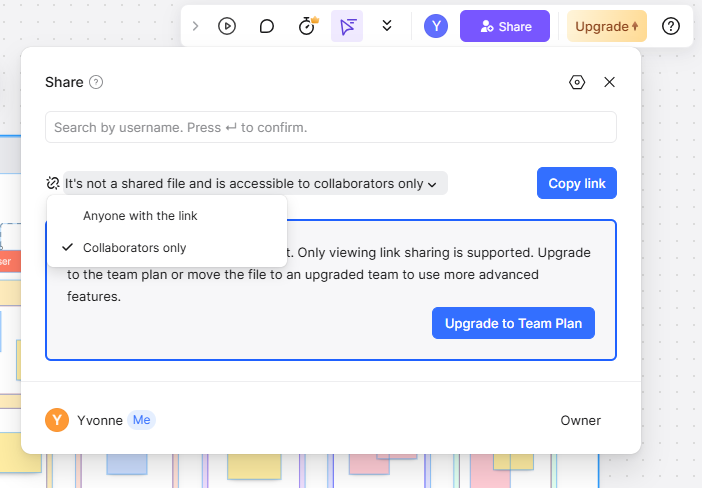
Pixso Whiteboard also makes sharing simple. Click the share button to generate a secure workspace link, configure viewer or editor permissions, and invite internal teams or external stakeholders to collaborate.
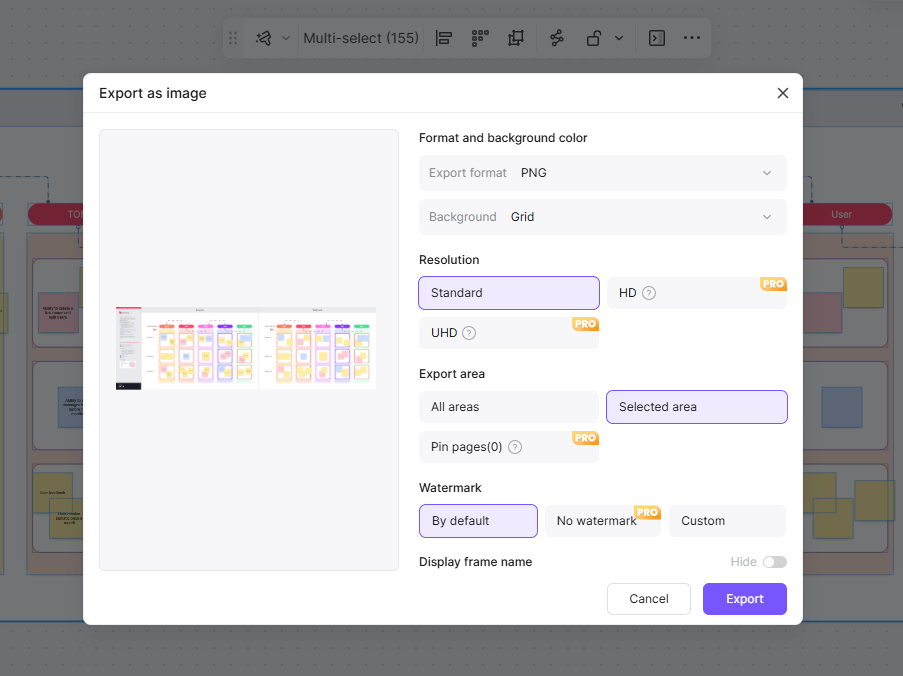
For documentation and external presentations, you can export your organized boards into high resolution PNG, JPG, or PDF formats for quick archiving and offline reviews.
FAQ
Q1. How does a visual whiteboard handle vector SVGs and code ready design tokens?
Vector SVGs imported onto the canvas retain their underlying mathematical path data and can be copied directly into production design editors without rasterization or quality loss. This enables creative teams to organize vector icons, illustrations, and design tokens visually on an online whiteboard tool while keeping code-ready assets accessible for engineering handoff.
Q2. How does an infinite canvas maintain smooth performance when hosting thousands of visual assets?
Modern cloud whiteboards leverage WebGL acceleration alongside dynamic asset virtualization, rendering only the elements currently within the active screen viewport. This intelligent memory management ensures responsive zooming and panning, even when an asset library scales to include thousands of high-resolution images, components, and mood board references.
Q3. What is the most effective method for searching and retrieving assets across a massive board?
The fastest way to locate specific design assets is combining standardized container tagging with global canvas search. By labeling container frames with consistent taxonomy like component type, platform, and color palette, team members can use keyword search and spatial mini maps to jump directly to specific UI patterns in seconds.
Q4. Can visual references on a whiteboard be migrated directly into production design systems?
Yes, assets and wireframe components curated on pixso whiteboard can be copied directly into primary UI design files to serve as baseline elements for formal design systems. This seamless connection bridges the gap between early-stage visual research and production-ready UI component libraries.
Summary
Pixso Whiteboard stands out not only for its versatile canvas tools, but also for its seamless real time multiplayer collaboration. It transforms fragmented inspiration into a structured, scalable visual repository where product teams can co-create, review, and refine creative ideas together.
👉 Start building your collaborative asset repository with a free online whiteboard on Pixso today!