On this page

Scott
Image splitting and slicing are daily necessities in design and digital operations. Whether processing ecommerce visuals, constructing UI interfaces, or adjusting social media graphics, using an effective image splitter makes a significant difference. Design requirements vary widely: high precision projects demand professional controls, collaborative teams require frictionless sharing, and quick edits benefit from a free online image splitter. In this guide, we review 8 recommended tools ranging from professional design platforms to smart automated slicers, helping you select the best slicing tool for your specific workflow.
1. All in One Image Splitter & Slicing Tool
1️⃣ Pixso
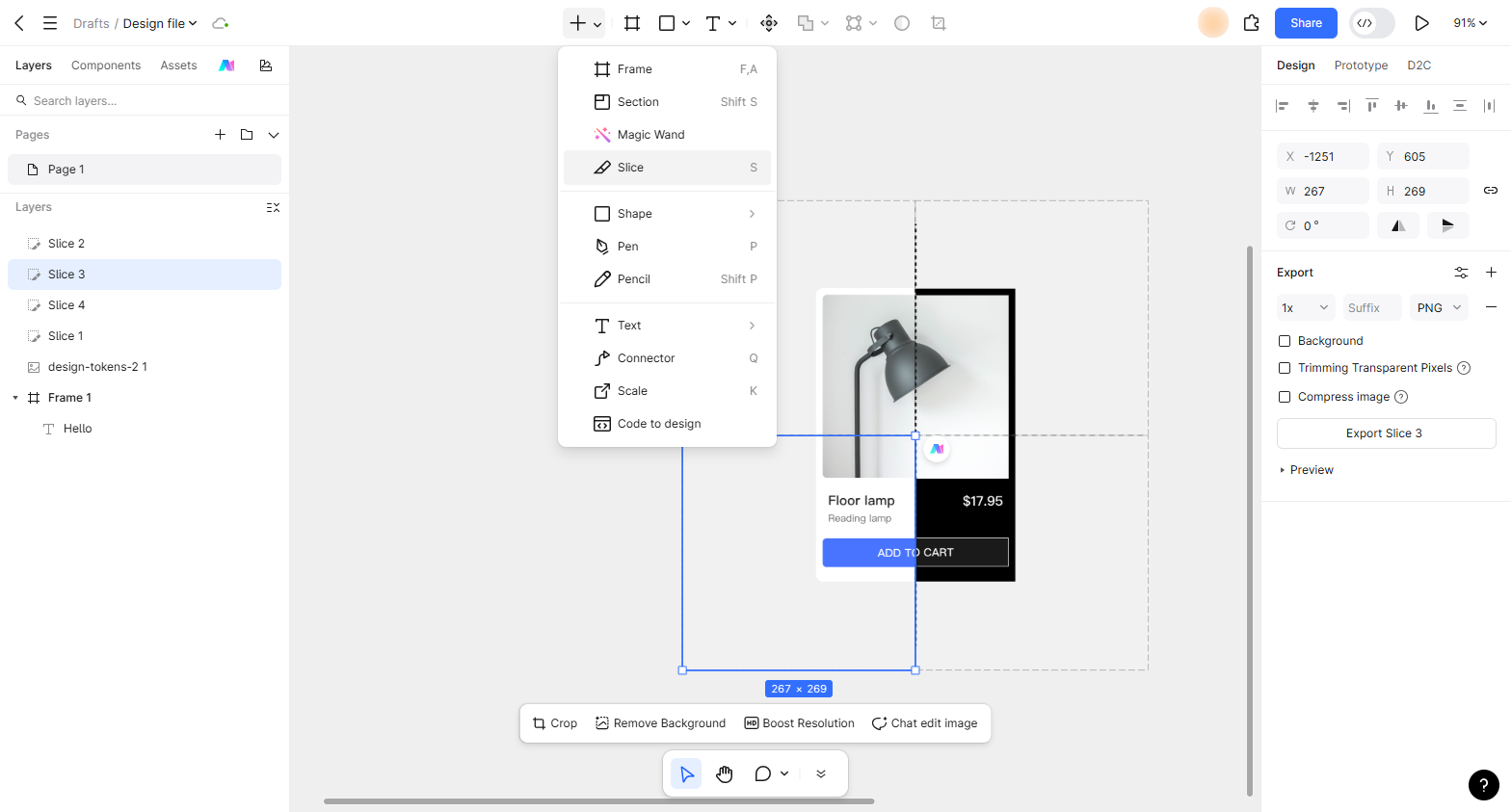
Pixso is a versatile design platform that combines vector creation, real time collaboration, and an intuitive image splitter. In practice, Pixso allows users to slice images by adding custom slice frames or cropping images directly. The interface is intuitive, cross platform compatible, and connects seamlessly with team collaboration workflows.
✨Core Features:
- Image Splitter Tool: Upload images and draw rectangular or custom slice frames to isolate precise areas with fine adjustable boundaries.
- Quick Image Cropping: Drag handles to adjust crop boundaries directly, making simple image trimming quick and accessible.
- Collaborative Slicing & Delivery: Team members can view progress in real time, add comments, and allow developers to download slices directly from shared files.
🧐Pros & Cons:
Simple operation, free access, and powerful online collaboration make Pixso ideal for teams. Complex multi layered images may require manual adjustment of slice boundaries.
💻Best Use Cases:
Ideal for remote design teams slicing UI interfaces and icons, as well as designers and developers collaborating during handoff across Windows and Mac operating systems.
2. Professional Image Slicing Tools
1️⃣ Photoshop
Photoshop remains an industry standard slicing tool, renowned for pixel precise accuracy and multi scenario adaptability when handling complex image splitting tasks.
✨Core Features:
- Precise Manual Slicing: Define slice regions manually with edge adjustments down to individual pixels.
- Multi Format Batch Export: Export slices simultaneously in PNG, JPG, and web formats tailored for mobile and desktop screens.
- Layer Linked Processing: Integrates directly with multi layer document structures to keep individual elements separate during export.
🧐Pros & Cons:
High professional precision and broad scenario coverage, but carries a higher subscription cost and requires time to master.
💻Best Use Cases:
Suited for professional designers handling intricate image slicing, ecommerce landing page layouts, and web asset preparation requiring exact pixel alignment.
2️⃣ Sketch
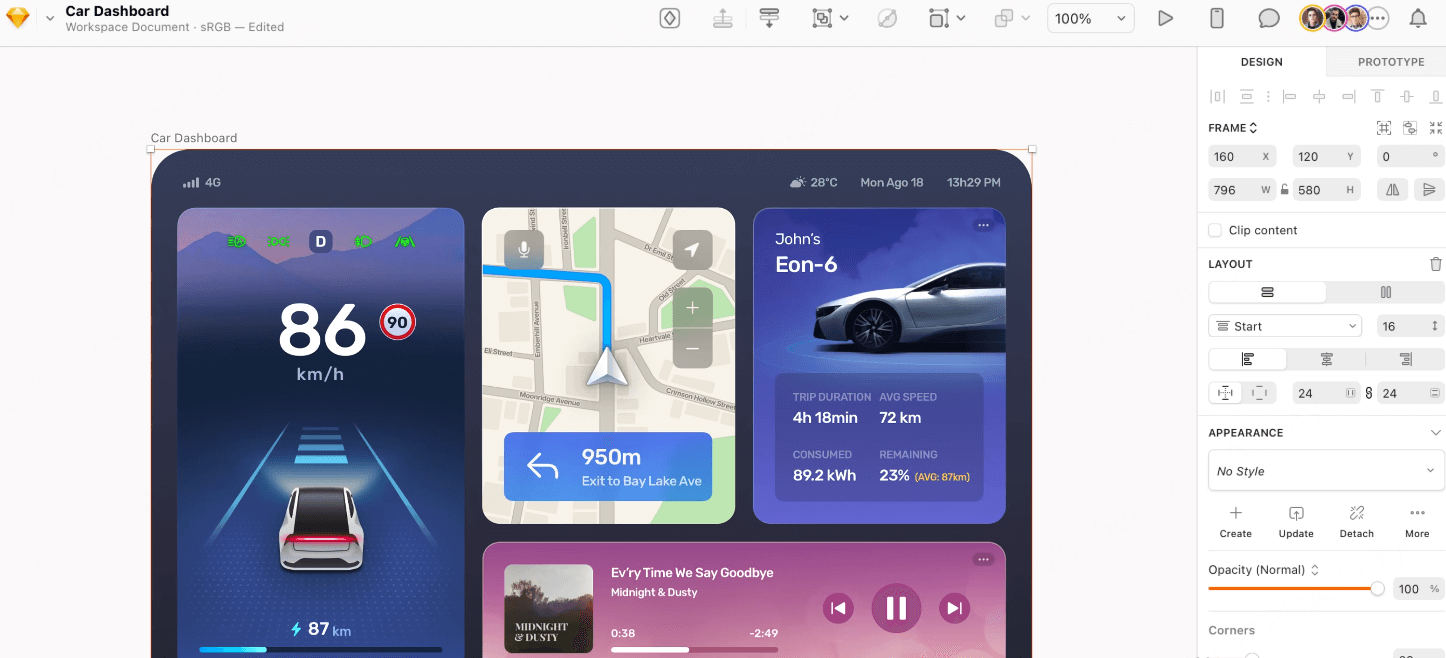
Sketch is a macOS native design app known for efficient UI slicing tool capabilities tailored for digital interface production.
✨Core Features:
- Automated Slice Identification: Mark regions to auto detect asset boundaries and minimize manual effort.
- Multi Resolution Export: Export slices across 1x, 2x, and 3x display density presets for diverse device screens.
- Plugin Ecosystem: Pair with slicing plugins for one click asset exports to accelerate design delivery.
🧐Pros & Cons:
Smooth workflow and high export efficiency for Mac users; limited to macOS with a paid license.
💻Best Use Cases:
Ideal for Mac based UI UX designers preparing iOS application assets, mobile icon slices, and multi resolution exports.
3. Online Collaborative & Smart Slicing Tools
1️⃣ CodeBeautify Image Splitter
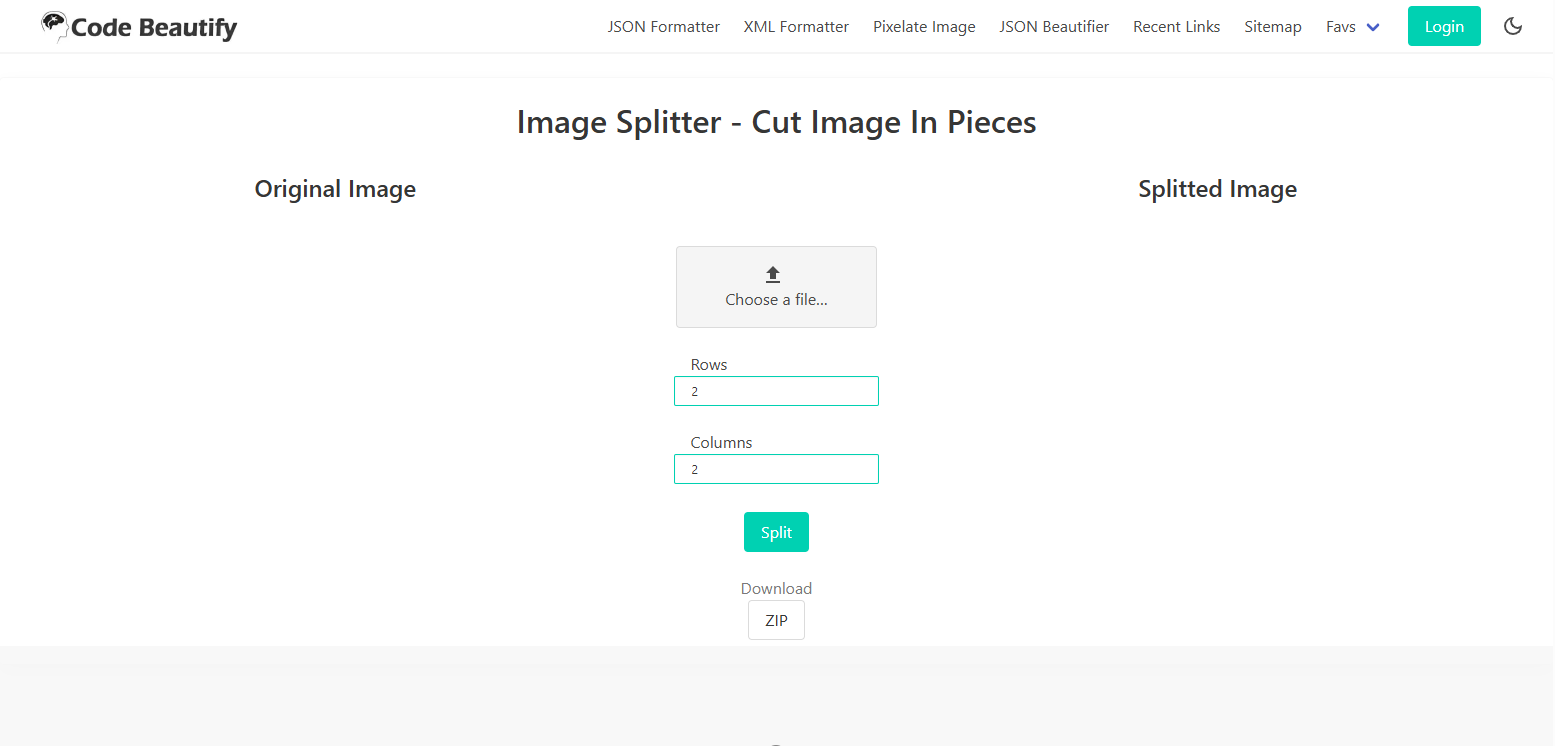
CodeBeautify Image Splitter is an accessible web based online image splitter tool designed for quick browser based asset slicing without installing software.
✨Core Features:
- Quick Grid Selection: Upload an image and specify column or row split parameters to create precise slices with fine adjustable boundaries.
- Automatic Code & Asset Export: Generates downloadable image grids and helper code snippets directly within the web application.
- Multi Format Export: Supports fast PNG and JPG exports directly from any desktop or mobile browser.
🧐Pros & Cons:
No installation required, lightweight, and completely free. Handles general grid slicing easily, though processing massive high resolution design files may require extra memory.
💻Best Use Cases:
Great for web design beginners slicing buttons, social media grids, and icons without learning heavy desktop software.
2️⃣ Watermarkly Crop Tool
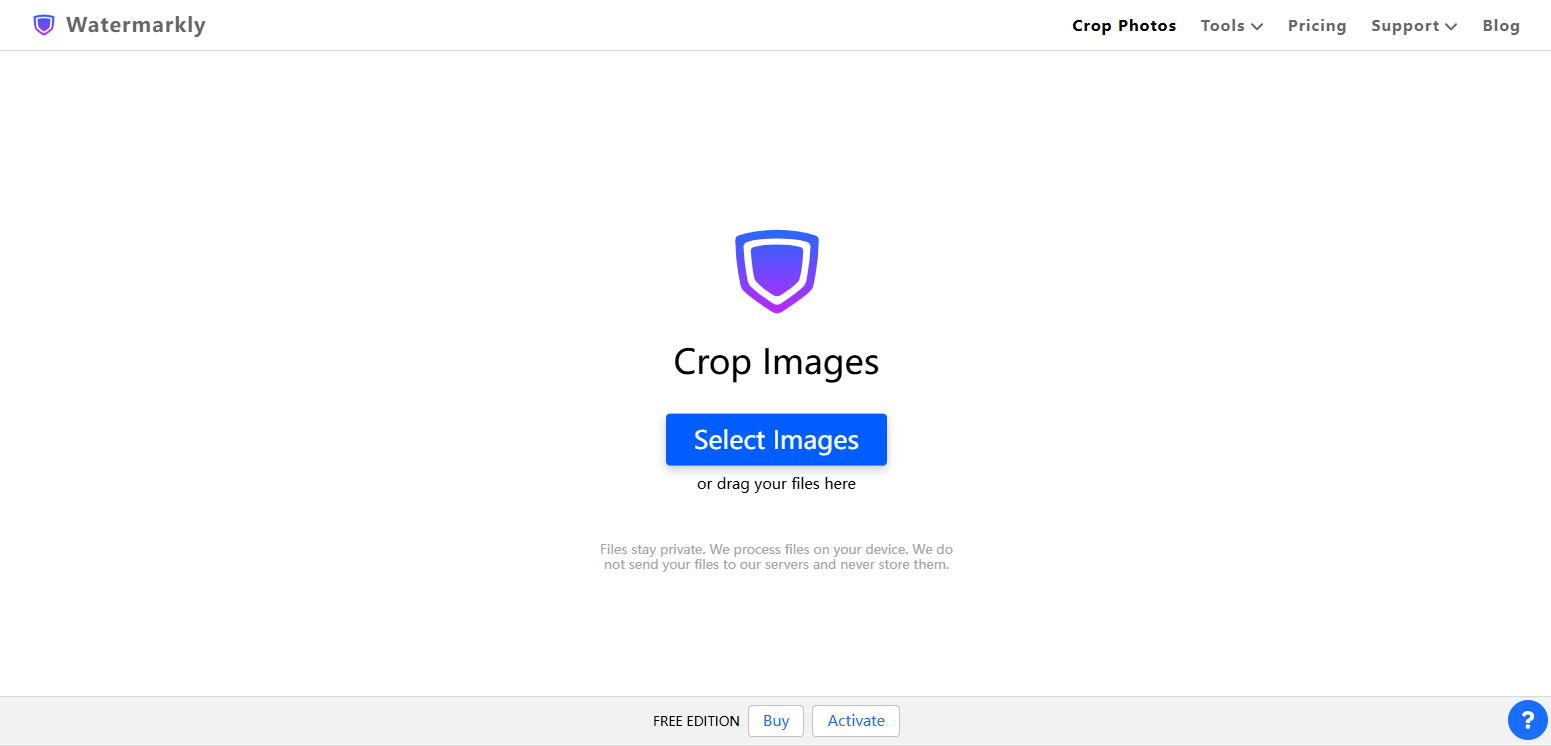
Watermarkly Crop Tool is an AI-assisted cropping utility that automatically detects primary subjects within an image, preserving critical visual content during automated slicing.
✨Core Features:
- Smart Subject Recognition: AI algorithms analyze compositions to prioritize focal subjects such as human faces, product items, or scenery centerpieces.
- Efficient Batch Processing: Upload dozens of images at once and apply uniform aspect ratio rules to eliminate repetitive manual work.
- Multi Dimension Adaptation: Input target pixel dimensions to adjust crop areas automatically for responsive social and web layouts.
🧐Pros & Cons:
High recognition accuracy and time saving batch processing. Highly crowded scenes may occasionally require quick manual boundary adjustments.
💻Best Use Cases:
Ideal for ecommerce teams cropping product catalogs, social media managers producing multi dimension graphics, and content marketers handling high volume image assets.
3️⃣ Photopea
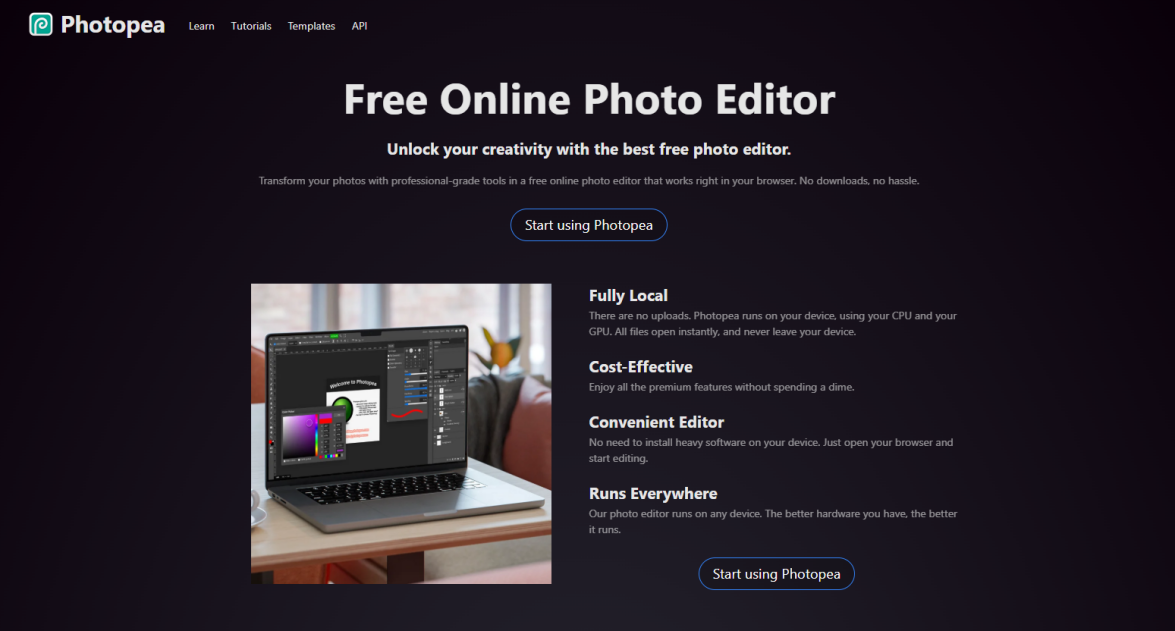
Photopea is a full featured online image splitter tool running in any web browser without installation, offering editing logic and slice tool features similar to Photoshop.
✨Core Features:
- Professional Slice Tool: Supports manual slice creation with pixel level boundary adjustments.
- Multi-Format Compatibility: Exports slices in PNG, JPG, SVG, and web formats suitable for digital design.
- Layer Based Editing: Leverages layer controls to manage multi layer document splitting efficiently.
🧐Pros & Cons:
Free to use in the browser with professional tool controls. Processing large files can slow browser performance compared to desktop software.
💻Best Use Cases:
Perfect for on the go image slicing, student projects, freelancers, or users who prefer not to install heavy software suites.
4. Team Collaboration & Developer Handoff Tools
1️⃣ Zeplin
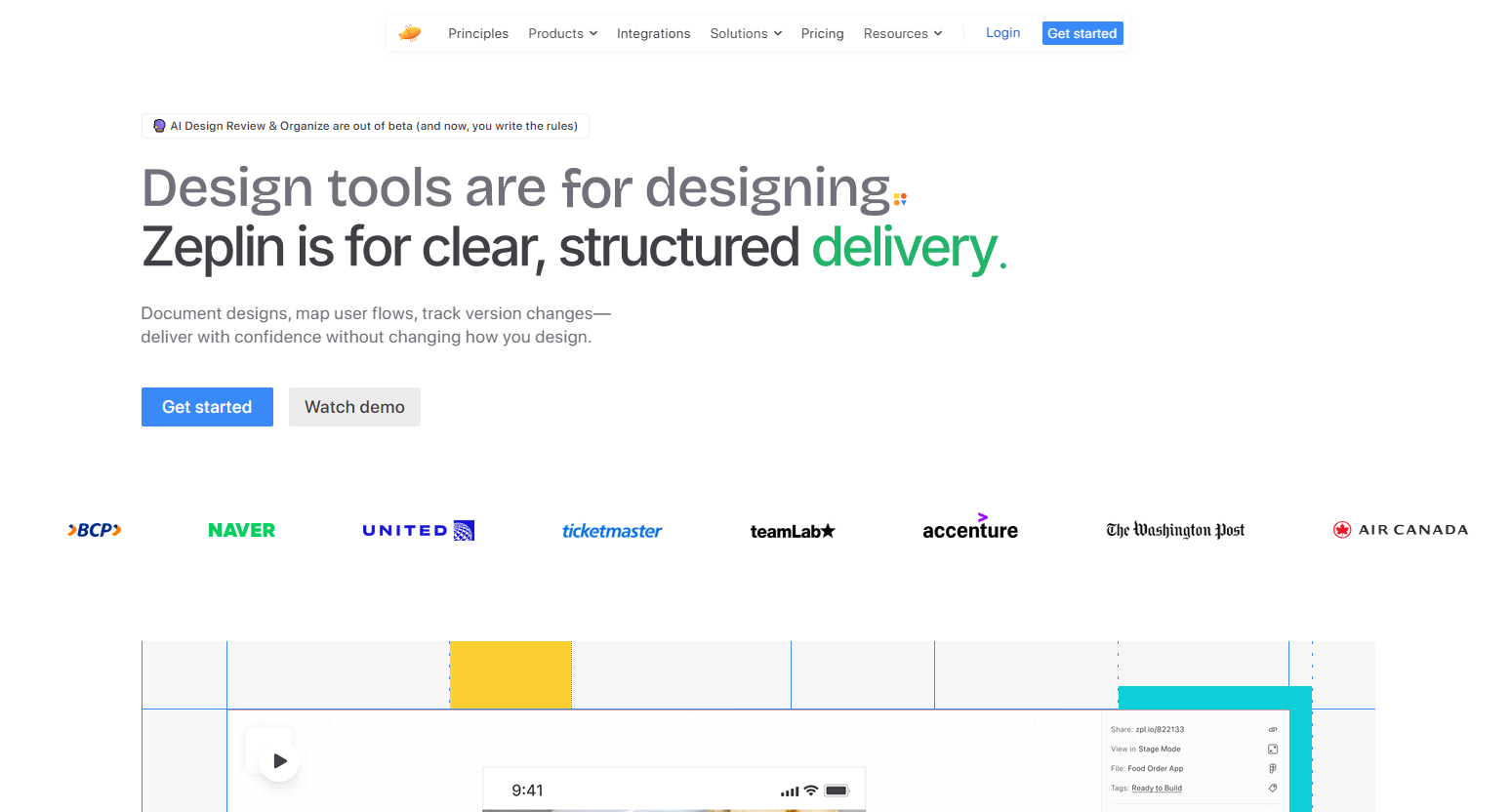
Zeplin is a team collaboration platform focusing on design to development handoff, parsing slice tags from design files into organized asset downloads.
✨Core Features:
- Design File Integration: Compatible with Figma, Sketch, and Photoshop files, automatically parsing tagged slice regions upon upload.
- One Click Asset Export: Developers can download image slices tailored to target platforms like iOS, Android, and web in PNG or SVG formats.
- Team Annotations: Designers add specifications and developers leave comments right alongside asset slices, maintaining a clear revision history.
🧐Pros & Cons:
Streamlined handoff process with an easy onboarding experience. Requires external design tools to create assets, and free plans limit project counts.
💻Best Use Cases:
Suited for UI designers delivering asset slices to engineering teams, agile product teams iterating rapidly, and projects requiring clear design specifications.
2️⃣ Adobe XD
Adobe XD is a team collaboration and delivery tool within the Adobe ecosystem, enabling direct synchronization of slice tags and design specs.
✨Core Features:
- One Click Slice Generation: Mark elements to generate slices with adjustable boundary precision.
- Multi Device Export Presets: Includes presets for mobile, tablet, and desktop display resolutions.
- Real Time Collaboration: Team members add comments and specs directly next to slices to reduce communication back and forth.
🧐Pros & Cons:
Seamless collaboration within the Adobe ecosystem. Subscription costs are high if used solely as an image splitter tool.
💻Best Use Cases:
Ideal for UI UX teams designing mobile or web applications, projects with frequent designer developer interaction, and workflows integrated with Adobe software.
FAQ
Q1: Why is exporting image slices in multiple resolutions necessary for mobile applications?
Modern smartphones and tablets feature high density displays with varying pixel ratios. Exporting image slices across multiple density multipliers ensures visual assets remain crisp and clear across all mobile screens without blurriness or distortion.
Q2: Should UI assets be exported as vector SVG slices or raster PNG files?
Vector formats like SVG are best for UI icons, logos, and flat graphics because they scale infinitely without quality loss and keep file sizes minimal. Raster formats like PNG or JPG are preferable for detailed photographs, complex gradient illustrations, and image assets where vector paths are not feasible.
Q3: Is image slicing still relevant with modern CSS layout frameworks?
In early web development, entire website layouts were sliced into tables. Today, CSS handles page structure, but designers still rely on a slicing tool to isolate individual graphic elements, custom icons, and media banners so front end developers can embed clean assets into modern CSS layouts.
Q4: How does proper image slicing affect website loading performance?
Slicing images to exact UI component dimensions prevents web browsers from relying on heavy CSS resizing, which consumes memory and slows down rendering. Using an image splitter alongside proper web compression optimizes asset file sizes, improving overall page load speed, mobile user experience, and performance scores.
Conclusion
Image splitting needs vary across projects, and selecting the right slicing tool depends on your specific workflow. Professional desktop tools deliver high precision for complex files, browser based utilities offer quick access, and collaborative platforms streamline developer handoff.
Pixso combines vector design with an intuitive image splitter, serving as a free online image splitter and collaborative workspace. With flexible slicing tools, quick cropping controls, and real time developer handoff, Pixso accommodates remote teams and individual creators on both Windows and Mac. Start using Pixso today to streamline your image splitting and design workflows!



![[Detailed Guide] Map UI Design](https://pixso.net/assets/editorial/20261007/map-ui-design/hero-en-b33ffdb59caa5913.webp)


