Scott
A carousel presents related items in a limited area and lets people move through them. It works best when visitors can understand what is available, reach a particular item and stay on it for as long as they need. Previous and next arrows are only part of that job: the selected item, position and surrounding explanation must remain clear too.
Use Pixso's prototyping workspace to compare those decisions in a complete browsing sequence. Start with the content someone wants to inspect, not an animation that needs somewhere to go.
Decide whether the content should be hidden at all
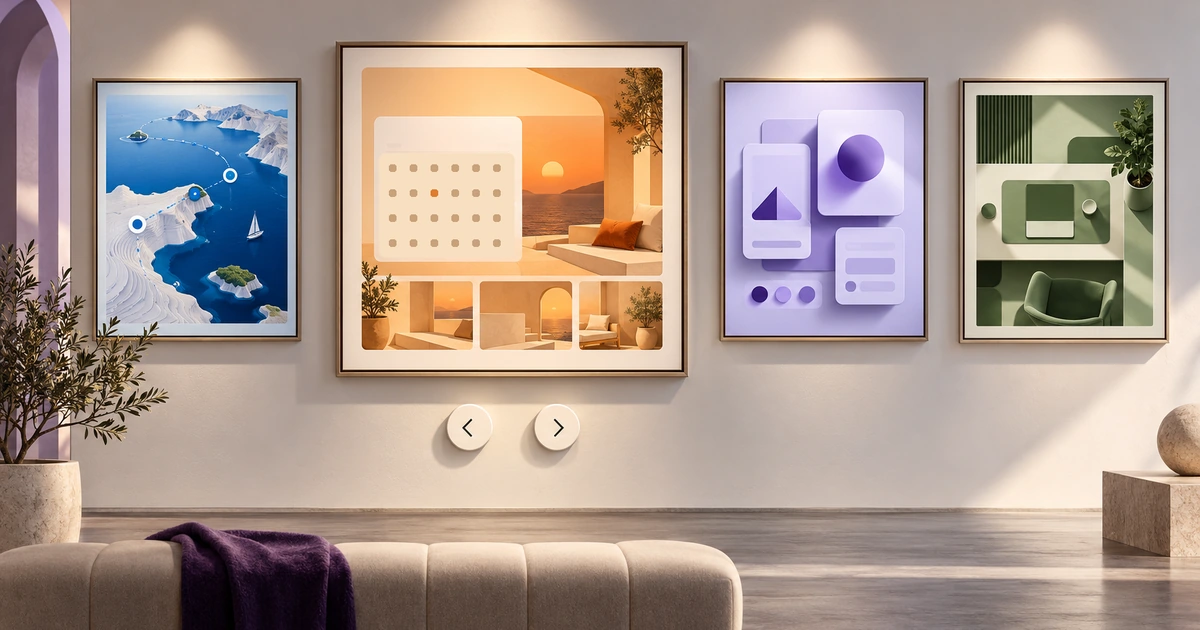
A carousel asks visitors to reveal content that a grid would show together. That trade-off can be reasonable for a small gallery whose images need a large viewing area. It is weaker when people must compare several options simultaneously or discover essential information that appears only on a later slide.
Consider Oak Studio, a designer's portfolio with four interface-project previews. Each preview deserves enough space to read its visual structure. A gallery can give the selected project that space while thumbnails show the rest of the set. The studio's introduction and the route to contact the designer stay outside the changing area.
Now change the task: a client wants to compare all four project summaries before choosing a case study. A grid may serve that decision better. A carousel is not inherently more polished, and putting every important message into one does not guarantee that visitors will see those messages.
Define what one slide means
Keep a stable unit of content. In Oak Studio's gallery, one item is one project preview with a title and a link to its case study. Do not make one item a whole project, the next an isolated testimonial and the next a contact form while presenting them as equivalent choices.
The second project is Booking flow. When it is selected, its preview, title, thumbnail treatment and position label all agree. A visible “2 of 4” tells the visitor where they are, but the title supplies the meaning. Neither should change independently of the image during a transition.
Place a short description beside or beneath the preview rather than over a visually busy interface image. Keep the case-study link attached to the selected project. “Read the Booking flow case study” is clearer than a persistent “Read more” button whose destination silently changes.
Offer two useful ways to browse
Previous and next controls support sequential browsing. Thumbnails support a different task: choosing a recognizable project or returning to one already seen. Oak Studio can offer both because the set is small and its previews are visually distinct.
Keep the controls outside the artwork's important content. An arrow laid over a bright interface button can disappear or look like part of the project being shown. Give each control a consistent location, a readable name and enough space to operate comfortably.
Dots alone are less informative for this example. They can communicate position, but they do not explain which project will appear. If space rules out thumbnails, make the controls and current title clear enough that visitors can still navigate deliberately. Do not make a tiny dot the only way to reach an item.
| Gallery element | What it answers | Oak Studio treatment |
|---|---|---|
| Current title | What am I viewing? | Booking flow appears beside the selected preview. |
| Position | Where am I in the set? | 2 of 4 stays near the browsing controls. |
| Previous and Next | How do I continue through the set? | Separate controls stay in a consistent location. |
| Thumbnails | How do I choose or revisit a project? | All four previews are available, with the selected one visibly identified. |
| Case-study link | How do I investigate this project? | The link names the selected project and opens its matching detail. |
Choose what happens at the ends
Decide whether Next on the final item stops or returns to the beginning. Both behaviors can be understandable, but the controls and feedback must match the decision. Do not let the prototype loop while the implementation disables Next.
For Oak Studio, stop at the ends. The portfolio has a short, deliberate sequence, and its thumbnails already offer direct access. On the first project, Previous is visibly unavailable; on the last, Next is unavailable. Keep their positions stable so reaching an end does not move the remaining control under the pointer.
A looping gallery needs a different explanation through its behavior. Moving from the fourth project to the first should not look like a fifth item was added. Test the transition with someone who has not seen the design. A movement effect is useful only if it reinforces where the person went.
Keep focus distinct from selection
The selected thumbnail identifies the project being displayed. Keyboard focus identifies the control that will respond to the next activation. These can be different at the same moment. Booking flow can remain selected while a visitor moves focus to the Next button.
Do not change slides merely because someone tabs through ordinary controls. In this manual gallery, activating Next changes the preview while focus stays on Next, allowing another activation. Activating a thumbnail selects its project without unexpectedly moving the visitor into the case study.
The W3C carousel tutorial covers keyboard access, control of movement and communication of changes. Agree on the actual control pattern with development. The implementation needs accessible names and an understandable way to identify the current item; a visible border drawn around a thumbnail does not supply that information by itself.
Include captions or useful alternative text where they explain an image's purpose. Avoid repeating the full visible project description in every thumbnail's accessible name. The navigation choice needs to identify its destination, while the large preview needs the description appropriate to the artwork.
Start with manual advancement
Oak Studio's previews contain interface detail. A visitor may inspect a layout, read the description or pause to consider whether the project is relevant. Manual advancement lets that reading time vary without asking the visitor to find a pause control first.
Automatic rotation also creates a harder return task: the project someone was about to open may disappear. A carousel that advances while the visitor is using its controls can undermine the very interaction it is offering. For this portfolio, the motion adds little value to the decision, so leave it out.
If another product has a justified need for automatic rotation, the WAI-ARIA carousel pattern describes rotation controls and stopping on keyboard focus and pointer hover. After focus enters, rotation does not resume unless the user explicitly requests it. Specify those behaviors rather than adding an unexplained delay between slides.
Adapt the gallery, not just the image
On a narrow screen, preserve the relationship between preview, title and controls. A smaller image is not enough if the navigation moves far below its caption or the current title wraps underneath a floating arrow.
Oak Studio can keep Previous, position and Next on a separate row beneath the preview. Thumbnails can become a compact strip if all remain reachable. Swipe may be an additional browsing method, but it should not be the only one. A visitor should not have to guess a gesture to open the third project.
Reserve a consistent preview area where practical so changing images does not shift the controls. Fit the artwork in a way that preserves the part the case study discusses. Cropping away a navigation region from an interface preview can remove exactly the detail someone came to inspect. Test portrait and wide artwork before committing to a crop rule.
Build a specific gallery in Pixso
Place Oak Studio's four project previews in a Pixso file and create the selected states with the same gallery structure. Keep Booking flow as the second item across the preview, thumbnail and position label. Connect the browsing actions so a reviewer can move forward, back and directly to another project.
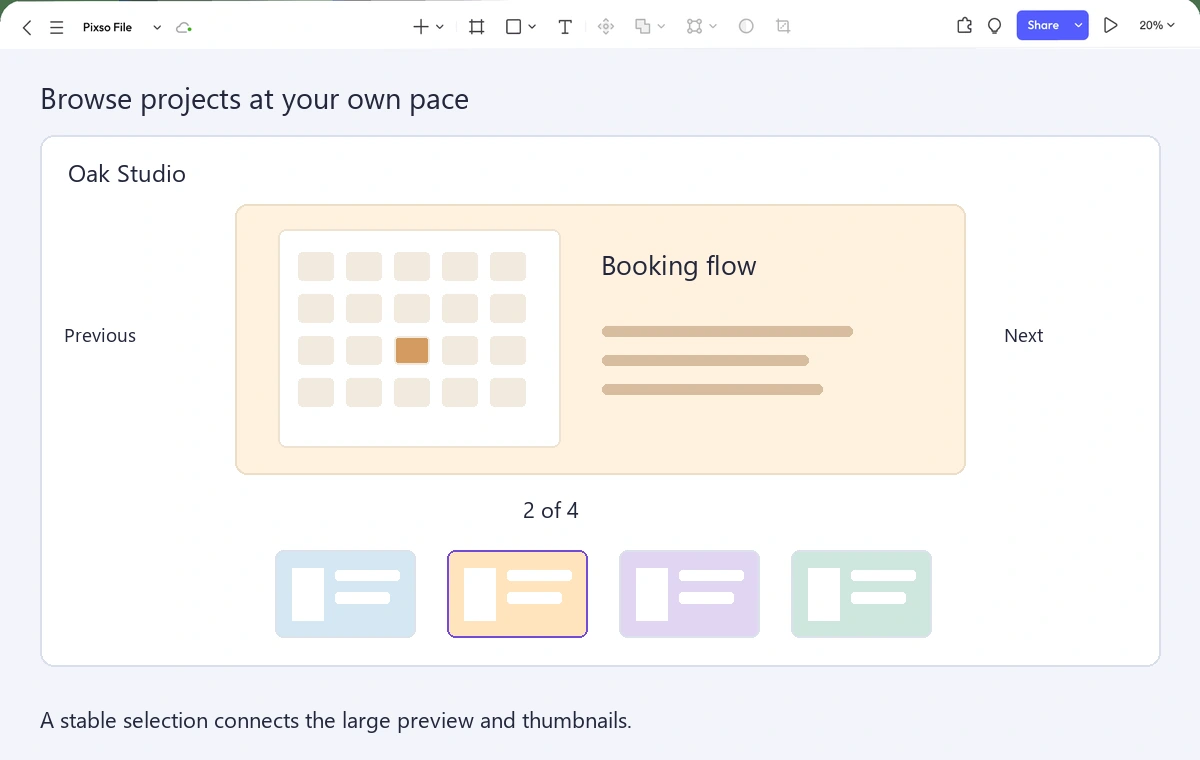
Ask a reviewer to open Booking flow, inspect another project, then return to Booking flow. Watch which control they choose and whether they can identify the current item without recounting thumbnails. Repeat at a narrow width with a longer project title.
Record the chosen end behavior, focus expectations and image-fit rule beside the frames for handoff. Then verify those interactions in the built gallery. The most useful carousel is not the one with the busiest transition: it is the one that makes the next item easy to find and the current item easy to study.