On this page

Scott
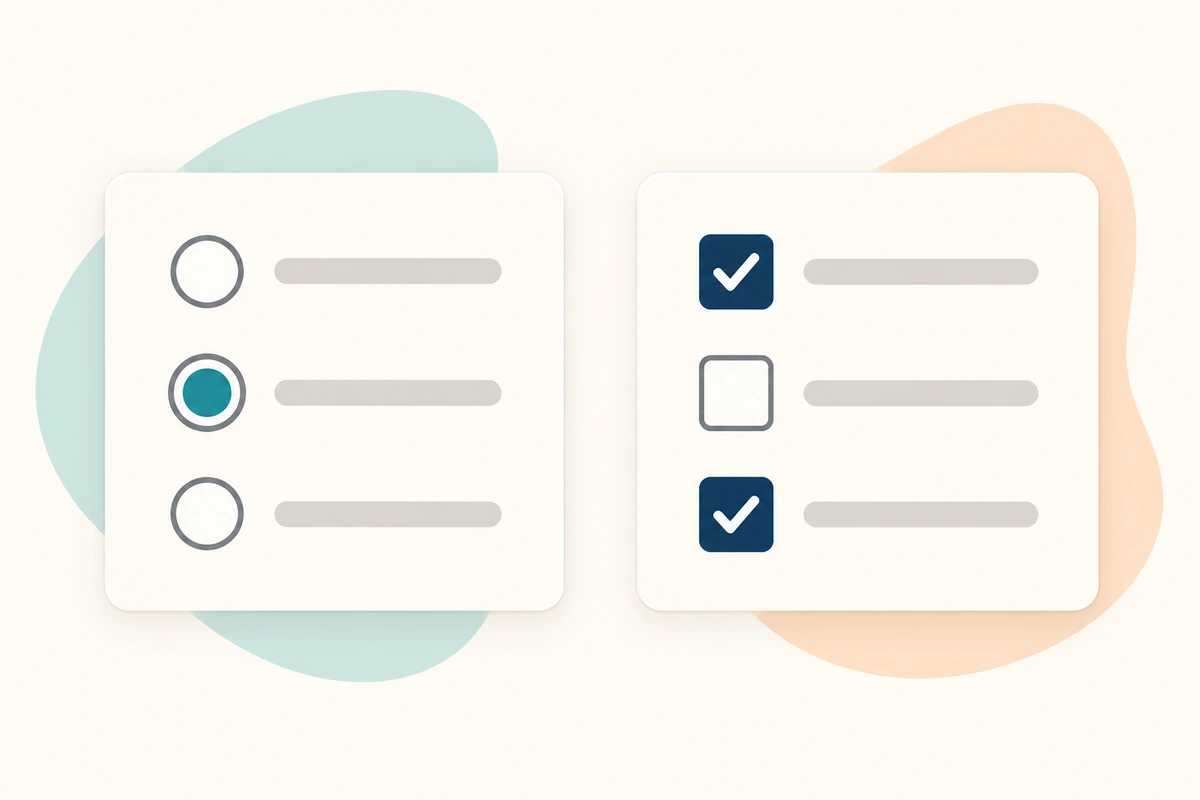
Use radio buttons when a person must choose one answer from a group. Use checkboxes when each option is an independent choice and several can be selected together. The distinction comes from the answer you need to collect, not from whether circles or squares fit the visual style of the page.
For example, a workshop booking form needs one session date but may allow several optional learning materials. Those questions belong to the same form, yet they need different controls. The wider form UI design workflow connects those choices with labels, validation and submission; here, the focus is choosing and explaining the selection itself.
Start with the answer the form must store
Before choosing a component, write a few valid answers in plain language. “Tuesday morning” is a valid answer to “Which session will you attend?” “Tuesday morning and Thursday afternoon” is not, if the booking permits only one session. Radio buttons communicate that rule by replacing the previous selection when another option is chosen.
For learning materials, “Printed notes,” “Practice pack,” “Both” and “Neither” can all be valid. Two checkboxes represent those independent choices directly. Making people select one entry from “Printed notes / Practice pack / Both / Neither” needlessly turns two independent decisions into a combined list.
| Question | Valid answer | Useful control |
|---|---|---|
| Which workshop session will you attend? | One session from the available alternatives | Radio group |
| Which optional materials do you want? | Zero, one or several independent items | Checkbox group |
| Do you want to receive the workshop follow-up? | One optional choice, selected or unselected | A single checkbox with a clear positive label |
| Should a saved account setting turn on immediately? | A setting changes as soon as it is activated | Consider a switch rather than a form selection |
“Choose up to two” is still a multiple-selection question. Use checkboxes and explain the limit. Specify what happens when the person tries to select a third item; do not quietly remove one of their previous choices. Conversely, using a checkbox group and then allowing only one item creates a radio group in disguise.
Design one workshop booking example
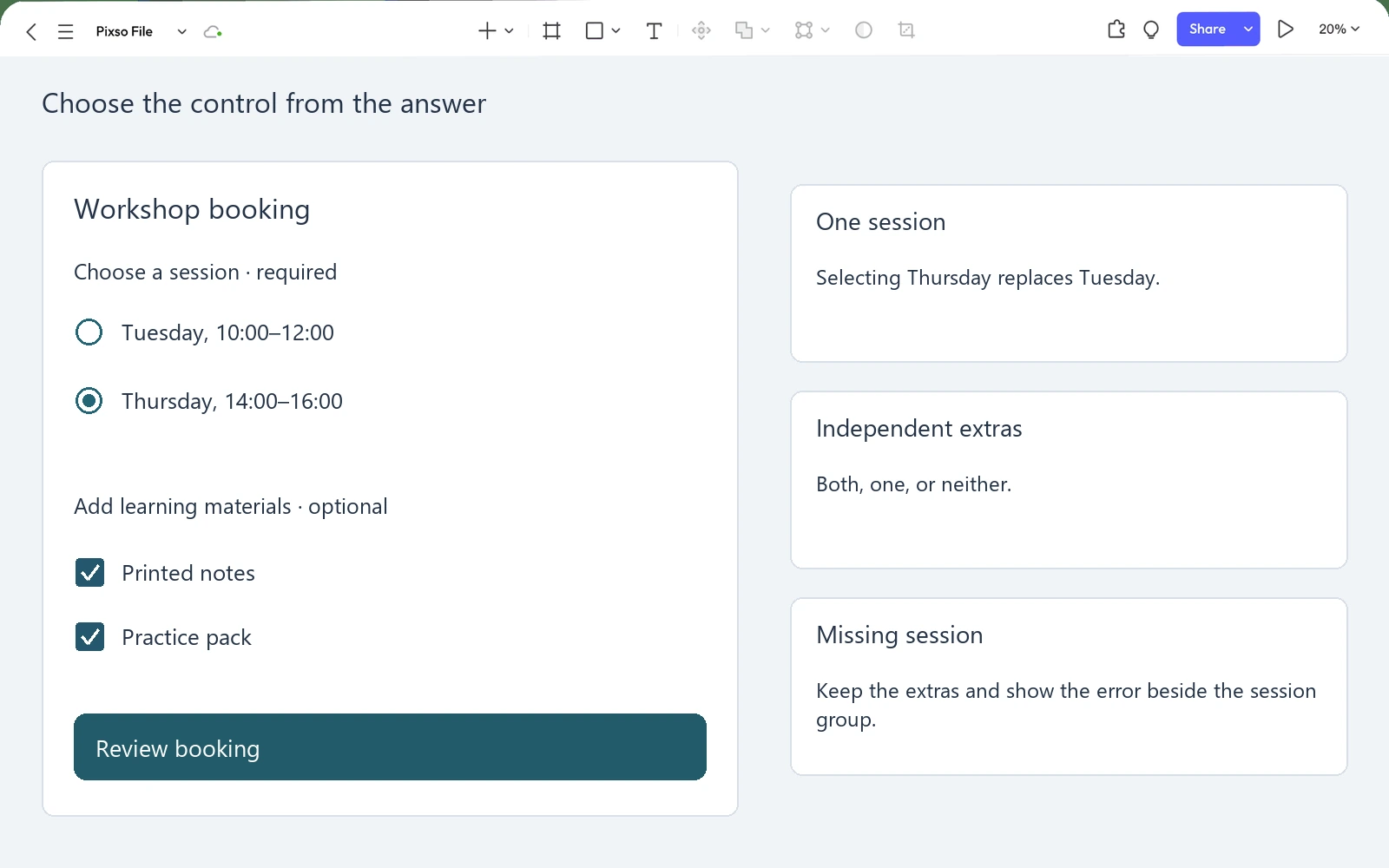
The example form contains two groups. The first is required: Choose a session, with “Tuesday, 10:00–12:00” and “Thursday, 14:00–16:00.” The second is optional: Add learning materials, with “Printed notes” and “Practice pack.” The next action is “Review booking.”
Place the session options in a vertical radio group. Write “Choose one” if the surrounding context does not make the rule clear. Keep the full date and time visible next to each control so people can compare them without opening another panel.
Place the materials in a separate checkbox group and include “optional” in its group label. Both extras may be selected. Leaving both unchecked means no extra materials; there is no need for a third “None” checkbox that can conflict with the other two.
If the person chooses Tuesday and then chooses Thursday, Tuesday becomes unselected. If they select Printed notes and then Practice pack, both stay selected. These simple transitions should remain unmistakable even when the options are styled as large cards.
On the review screen, show the resulting answer rather than repeating the control vocabulary: “Thursday, 14:00–16:00” and “Materials: Printed notes, Practice pack.” A reader should not need to interpret “Radio 2 selected” or two unexplained checkmark icons to understand the booking.
Choose defaults deliberately, and make “none” possible when needed
A required radio group can begin without a selection when the person needs to make an active choice. In the workshop example, picking Tuesday simply because it is first in the list could create an accidental booking. Leave the group unselected until the attendee chooses a session.
A default can be helpful when it reflects an existing, known choice. If someone returns to edit a saved Thursday booking, show Thursday selected. Keep that distinction clear: displaying an existing answer is different from inventing a new one to make the form appear complete.
Radio groups do not normally clear their value when someone activates the selected option again. If a question genuinely permits no answer, provide a clear path such as “No preference” or an explicit way to clear the selection. Choose wording that matches the stored meaning: “No preference” is not the same as “I have not answered.”
For optional checkboxes, an empty group already expresses no selections. Do not preselect additional services merely to make the interface look populated. When a required acknowledgment is a genuine part of the process, make its meaning explicit and keep it separate from unrelated optional choices.
Some questions need a separate “None of these” answer because the product must distinguish an intentional none from a skipped question. That changes the interaction. Explain that choosing it clears the other choices, and choosing another item clears it. If that rule makes the form hard to understand, reconsider whether the question should be split into a simpler first question and a follow-up.
Keep the group question visible
“Tuesday” and “Thursday” are option labels. “Choose a session” is the question connecting them. Both levels matter. Without the group label, someone returning to the form may not know whether the dates refer to a live workshop, a delivery or a follow-up meeting.
Use parallel labels and put distinguishing information in the same order. “Tuesday, 10:00–12:00” and “Thursday, 14:00–16:00” are easier to compare than “Tuesday morning” and “Afternoon workshop on Thursday.” Add short descriptions only when they change the choice, such as the format or location.
For longer options, align the control with the first line and let the label wrap. Keep the label and its explanation together. A multi-line option should not push its radio circle into the space between two alternatives or make the lower description look like a separate choice.
Make the label part of the activation target in the implementation, not just the tiny circle or square. Keep a visible selection marker as well as color. For option cards, an outline alone can be confused with focus; show the radio dot or checkbox mark so selected and focused states can be understood separately.
A long list may benefit from another pattern. The dropdown design guide explains when a compact select or a searchable picker is more useful. Do not hide a short, consequential comparison just to save a few lines of height.
Explain missing and unavailable answers without erasing choices
If the attendee selects both materials but continues without a session, show a specific message by the session group: “Choose a session to continue.” Keep the selected materials. The error concerns one missing answer, not the whole form.
Place the message where it clearly belongs to the group. Repeating the same error under every radio option makes one issue look like several. If an error summary is used in the implemented form, its link should take the person to the affected question.
If Thursday becomes unavailable, show the reason in ordinary language. An unexplained gray option is difficult to interpret: it could be sold out, not yet released or restricted to a different booking. When a previously selected session is no longer valid, explain what changed and ask for a replacement. Do not silently move the booking to Tuesday.
A mixed checkbox is useful when a parent summarizes a partly selected group, such as some items in a large list. It is not another answer between yes and no. The workshop example has only two independent materials and does not need a “Select all” control; adding one would create more interface than the task requires.
Include the keyboard behavior in the design
For an ordinary radio group, the WAI-ARIA radio pattern uses Tab to move into or out of the group and arrow keys to move between and select options. Space selects a focused option. Radio groups inside toolbars have a different interaction pattern, so do not copy that exception into a normal booking form.
For a focused checkbox, Space changes its checked state. The implementation also needs a programmatic label, the correct state and an understandable group name. Drawing a checkmark or linking two prototype screens does not create those browser semantics.
In Pixso's interface design workspace, build reusable radio and checkbox components with unselected, selected, focused and unavailable appearances. Place them in the complete workshop form so label wrapping and group spacing can be reviewed in context. Keep the behavior note beside the group: one session, independent materials, and no automatic booking until the review flow confirms it.
Walk through choosing Tuesday, changing to Thursday, adding both materials and removing one. Then try continuing without a session. The design should make the resulting answer clear at every step. That is the practical test of the control choice: people can choose what they mean, change it easily and recognize what will be submitted.