Scott
Color-blind-friendly UI design makes important information understandable without requiring people to distinguish particular colors. Keep color as a useful cue, then add clear words, shapes, patterns, or position wherever it carries meaning. A red error outline needs an explanation; a selected appointment needs a visible selected state; an unavailable action needs a reason.
Start with one complete task rather than swapping the interface's palette in isolation. This guide uses an appointment-booking screen: someone chooses a time, enters their details, and confirms the booking. In Pixso’s UI design workspace, you can design those states together and review how the meaning carries from the time selector to the confirmation.
Find the decisions that currently depend on color
Look at the booking screen as a customer would. They need to know which appointments are available, which one they selected, whether their details need correction, and whether the booking is complete. If the answer to any of those questions is “look for the green one,” the design needs another visible cue.
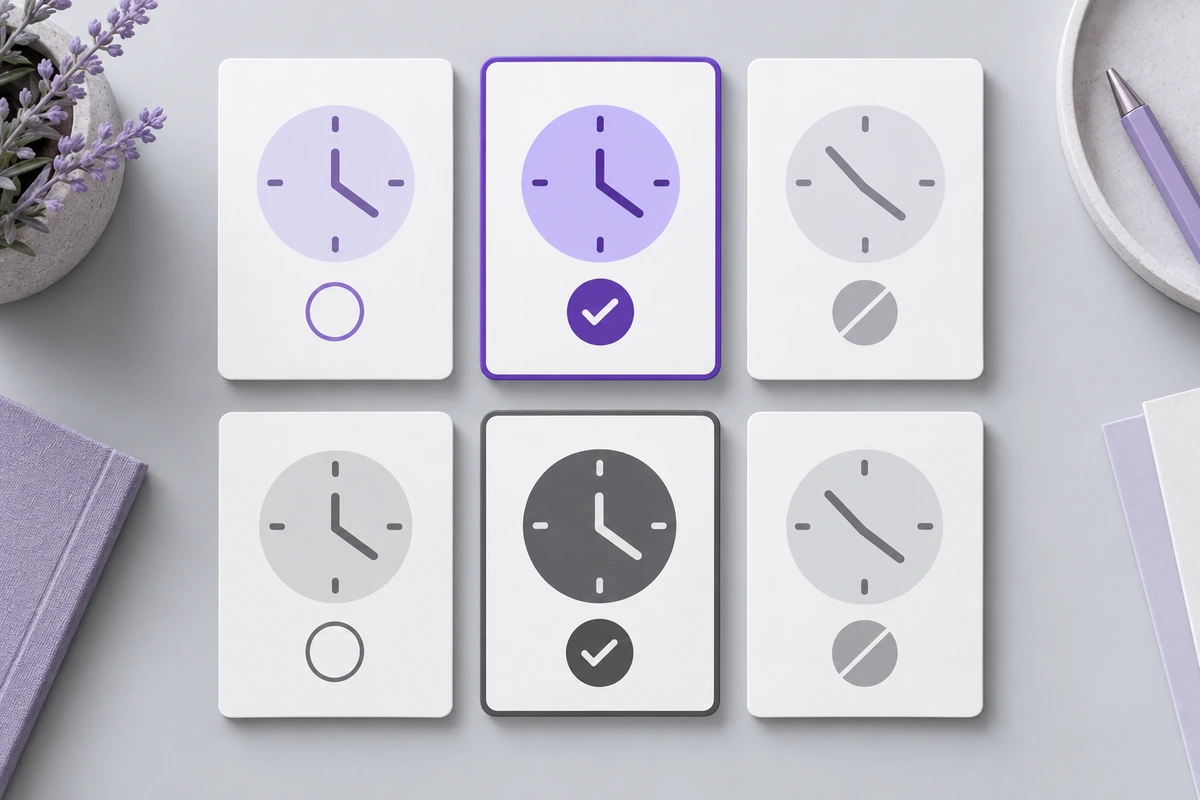
In an early version of this screen, available times are green, unavailable times are gray, and the selected time turns blue. The form shows a red outline around an invalid email address. All of these colors may be distinct to the designer, yet the customer still has to infer the meaning of each change.
Redesign the meaning first. Keep a visible time label on each slot. Give the selected slot a checkmark and the word “Selected.” Label a time that cannot be booked “Unavailable.” Place an explanation beside an invalid field, such as “Enter an email address in the format name@example.com.” Color can reinforce those messages without carrying them alone.
WCAG’s Use of Color guidance addresses information communicated through color differences and requires an additional visual way to understand that information. A screen-reader label alone does not solve a color-only cue for a sighted person who cannot distinguish it.
Give each state a readable cue
A good secondary cue explains the state quickly and consistently. For this booking flow, words are useful because the difference between “Selected” and “Confirmed” matters. A checkmark can support either, but using the same checkmark without text could suggest that choosing a time has already completed the booking.
| Meaning | Weak treatment | Clearer treatment in this flow |
|---|---|---|
| A time can be chosen | Green background only | Readable time and “Available,” with a clear interactive boundary |
| A time is selected | Blue background only | Checkmark, “Selected,” and the same time in the booking summary |
| A time cannot be chosen | Faint gray time only | “Unavailable” beside the time; no suggestion that pressing it will book it |
| A detail needs correction | Red outline only | A specific error message adjacent to the field and a recognizable error cue |
| The booking is complete | Green success panel only | “Booking confirmed,” the appointment details, and the next useful action |
You do not need to put a word on every decorative shape. Use explicit cues where a person must interpret a state or take an action. If repeating “Available” makes a long list noisy, a clearly labelled available-times section may do that work for its items. Keep exceptions, such as unavailable or selected times, identifiable in their own context.
Make the cue survive the smallest intended layout. A tiny checkmark that becomes indistinct on a phone provides little help. If there is not enough room for the time and its status, let the slot grow or use a more spacious list instead of shrinking both labels.
Check contrast as a separate question
Two colors can be different hues and still have too little light-dark contrast for text or a necessary indicator. Conversely, a high-contrast color pair does not explain what a state means. Ask both questions: can the customer see the information, and can they understand it?
WCAG 2.2 text-contrast guidance sets a minimum of 4.5:1 for normal text and 3:1 for qualifying large text, with specified exceptions. The appointment's small time and status labels should be assessed as normal text. Check the actual foreground and background pairing in each state.
For the selected slot, inspect the checkmark against its surface as well as the text. The non-text contrast guidance generally requires 3:1 against adjacent colors for visual information needed to identify active controls and their states. This does not mean every decorative border or every pair of state colors must have that ratio.
Do not use the selected fill as the only focus cue. A customer moving through times with a keyboard needs to know which control currently has focus as well as which time they have chosen. Give focus a distinct visible treatment and document it separately from selection.
Make errors and links explicit
The booking form should explain how to recover at the point where the problem occurs. “Check the fields in red” forces the customer to decode color and search the page. “Enter an email address” beside the Email field tells them what needs attention. A summary at the top can link to that field when several corrections are required.
Keep the field label visible after someone types. An error message is easier to understand when the customer can still see which question they were answering. Preserve the entered value so the person can make a correction instead of starting again.
For a “Cancellation policy” link inside explanatory copy, an underline is a straightforward visible distinction from surrounding text. Keep the link identifiable before hover, because touch users cannot rely on a mouse-hover state. The wording should say what opens, rather than referring to the color of the text.
Use the same approach in confirmation messages. “Your appointment is confirmed for Tuesday at 10:30” communicates an outcome. A colored badge with “Success” adds less useful information. If the booking is still pending, say so; appearance should not imply a commitment the system has not made.
Build the complete booking flow in Pixso
Place three screens together: time selection, details with an email error, and booking confirmation. Use the same chosen time throughout. Add a small set of reusable slot states beside the screens so the selected and unavailable cues remain consistent when the layout changes.
In the example, show 09:00 as available, 10:30 as selected, and 11:00 as unavailable. The summary should repeat 10:30, and the confirmation should describe that same appointment. These repetitions help the customer recognize the result of their choice; they also make inconsistencies easier to spot during review.
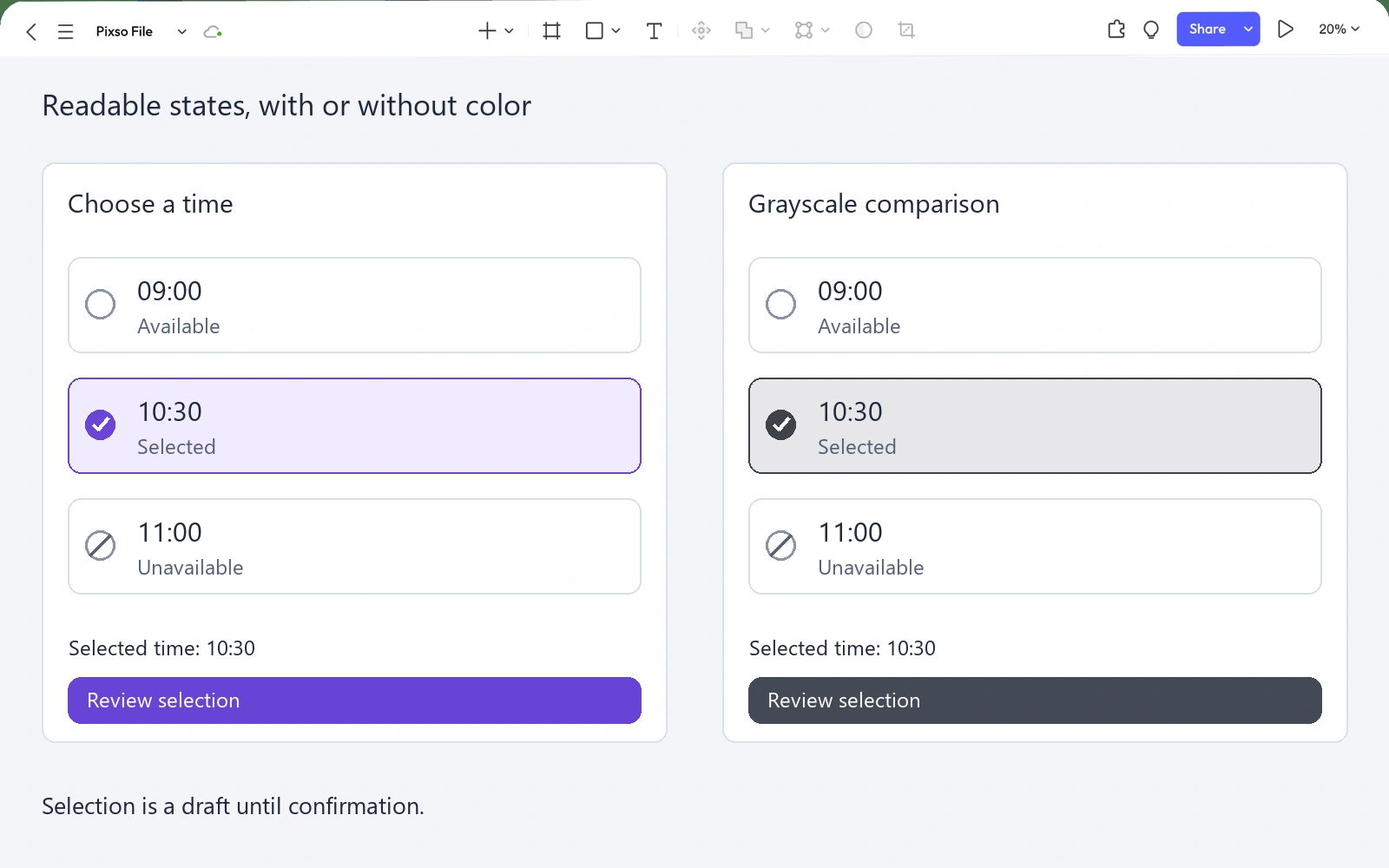
Keep the visible states and their intended behavior close together. A note for developers can distinguish focus from selection, explain which unavailable times remain in the list, and state how an error is connected to its field. A visual design does not establish the implemented component's accessible name or keyboard behavior; those details need to be carried into the build.
Use shared styles for recurring color and text roles, but avoid naming a state only after its color. “Appointment selected” expresses a meaning that can survive a theme change. A name such as “Blue badge” describes its current appearance and makes it easier to reuse the treatment for an unrelated meaning.
Review the task with and without its color cues
Hide the color temporarily and ask whether the appointment can still be understood. The customer should be able to identify an available time, find the selected time, correct the email address, and recognize the completed booking. This is a quick design probe, not a complete simulation of every form of color vision.
A color-vision simulation can reveal combinations worth revisiting, but it should not be treated as a single view that represents everyone. Combine it with contrast measurement and a review of the actual labels, symbols, and states. When possible, involve people with relevant visual needs in task-based testing of the implemented interface.
Check both light and dark themes if the product supports them. A badge that is readable on a pale surface may lose its boundary on a dark one. Keep the same meaning and cues while adjusting the specific foreground-background pairs; simply inverting every color can create new problems.
The accessibility testing tools guide explains how design-stage contrast review and browser testing complement each other. Use the finished booking task in those checks so results stay connected to an experience someone needs to complete.
Keep color useful without making it indispensable
Color can make the available appointments easier to scan and give the confirmation a reassuring emphasis. The design becomes more dependable when the same information is also visible in the time label, status word, symbol, and summary.
For this flow, the decisive improvement is simple: customers can tell what they can choose, what they have chosen, what needs correction, and whether they are finished. Keep those answers visible first, then refine the palette around them.