On this page

Scott
A CSV import should answer a question before it changes anything: what will happen to each row? Uploading the file is only the first step. A useful import interface also explains how columns map to fields, which record an identifier refers to, what happens to existing values, and which rows cannot proceed.
Design the flow around those decisions, not around a progress bar that reaches 100%. A file can transfer successfully and still contain an ambiguous identifier or a column mapped to the wrong destination. Separate form states and validation from the final transaction so that “ready to import” never looks like “import complete.”
Start with a small file that exposes real decisions
Consider an invented workshop-roster application. An administrator wants to add new participants and update existing participants. The application uses Record ID as its matching key; names and email addresses help identify people on screen but are not the matching rule. Every participant needs an email and one workshop.
The file contains these five data rows. Row numbers below exclude the header. Records P-104 and P-102 already exist; P-108 and P-109 do not. P-102 is currently assigned to Design systems.
| Source row | Record ID | Full name | Workshop | |
|---|---|---|---|---|
| 1 | P-104 | Mira Chen | mira@example.org | Research |
| 2 | P-104 | Mira Chen | mira@example.org | Prototyping |
| 3 | P-108 | Leo Martin | leo@example.org | Research |
| 4 | P-109 | Jo Rivera | Empty | Research |
| 5 | P-102 | Ada Reed | ada@example.org | Prototyping |
This is enough to expose three different decisions: create a participant, update a participant, and stop because the file does not provide a safe answer. A hundred perfectly clean rows would reveal less about the design.
Put the source and destination beside each other
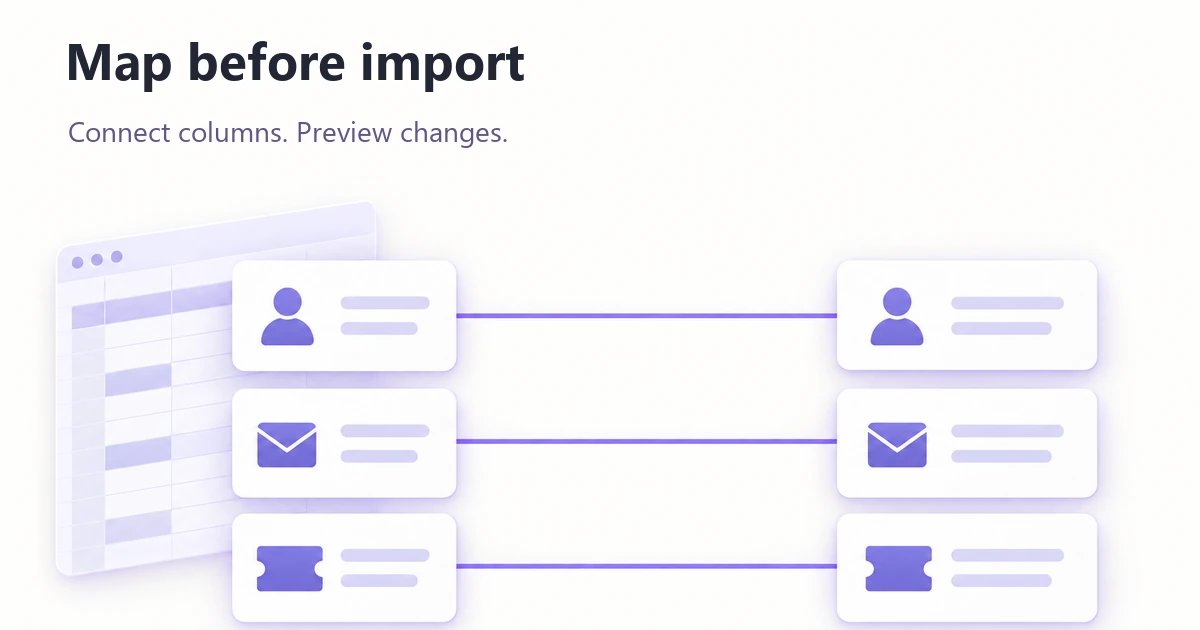
Each mapping row should show the source column heading, representative values, the destination field, and any required rule. A dropdown containing only destination names forces the operator to remember what was in the spreadsheet. A preview makes the choice inspectable.
For Workshop, show values such as Research and Prototyping beside the destination “Workshop.” If the application stores a workshop ID, explain how those labels will be resolved. Two different workshops with the same display name need another identifying detail; guessing from a friendly label is not a safe mapping strategy.
Suggested mappings should remain editable until confirmation. Distinguish “suggested” from “confirmed” visually or through clear introductory copy, and flag required fields that remain unmapped. For optional columns, offer an explicit “Do not import this column” choice. Leaving a control blank should not secretly mean skip, erase, or create a new field.
HubSpot's import documentation provides a useful precedent: mapping, record identifiers, and options for protecting existing values are separate decisions. The particular rules belong to that product; the broader design lesson is to make these decisions visible rather than burying them behind an Import button.
Choose the operation and matching rule before preview
“Import participants” is incomplete when the file contains existing IDs. State the selected mode: create new records, update existing records, or both. Then explain what a missing or unknown identifier does in that mode.
In this exercise, the administrator chooses “Create new participants and update matching participants.” Matching uses Record ID. An unknown valid ID can create a record; an existing ID can update one. A name match alone does neither. These rules belong beside the choice, not only in help documentation.
Empty cells also need a contract. Suppose the file later includes an optional Notes column. Does an empty cell preserve a note, clear it, or fail validation? Here, blank optional cells preserve existing values; deliberately clearing a value requires a separate, explicit action. That choice protects against accidental erasure, but it is not a universal import rule. An application that treats blank as clear must make the consequence just as visible.
Keep unmapped, empty, invalid, and explicitly cleared values distinct. They can look similar in a spreadsheet while causing very different changes in the destination.
Preview outcomes, not just a sample of the file
A source preview answers “Did you read my CSV correctly?” A change preview answers “What will this do?” The second needs the proposed outcome and, for updates, the fields that change.
The example application blocks every row that shares a duplicate Record ID until the operator resolves the conflict. It does not silently choose the first or last occurrence. It also requires all validation problems to be resolved before committing this file.
| Source row | Proposed outcome | What the operator needs to know |
|---|---|---|
| 1 | Needs review | P-104 also appears in row 2 with a different workshop. Neither row will be applied yet. |
| 2 | Needs review | Choose the intended P-104 value and remove the redundant source row. |
| 3 | Create | Create P-108 for Leo Martin in Research. |
| 4 | Needs review | P-109 has no email. Add the required value. |
| 5 | Update | Change P-102 Workshop from Design systems to Prototyping. |
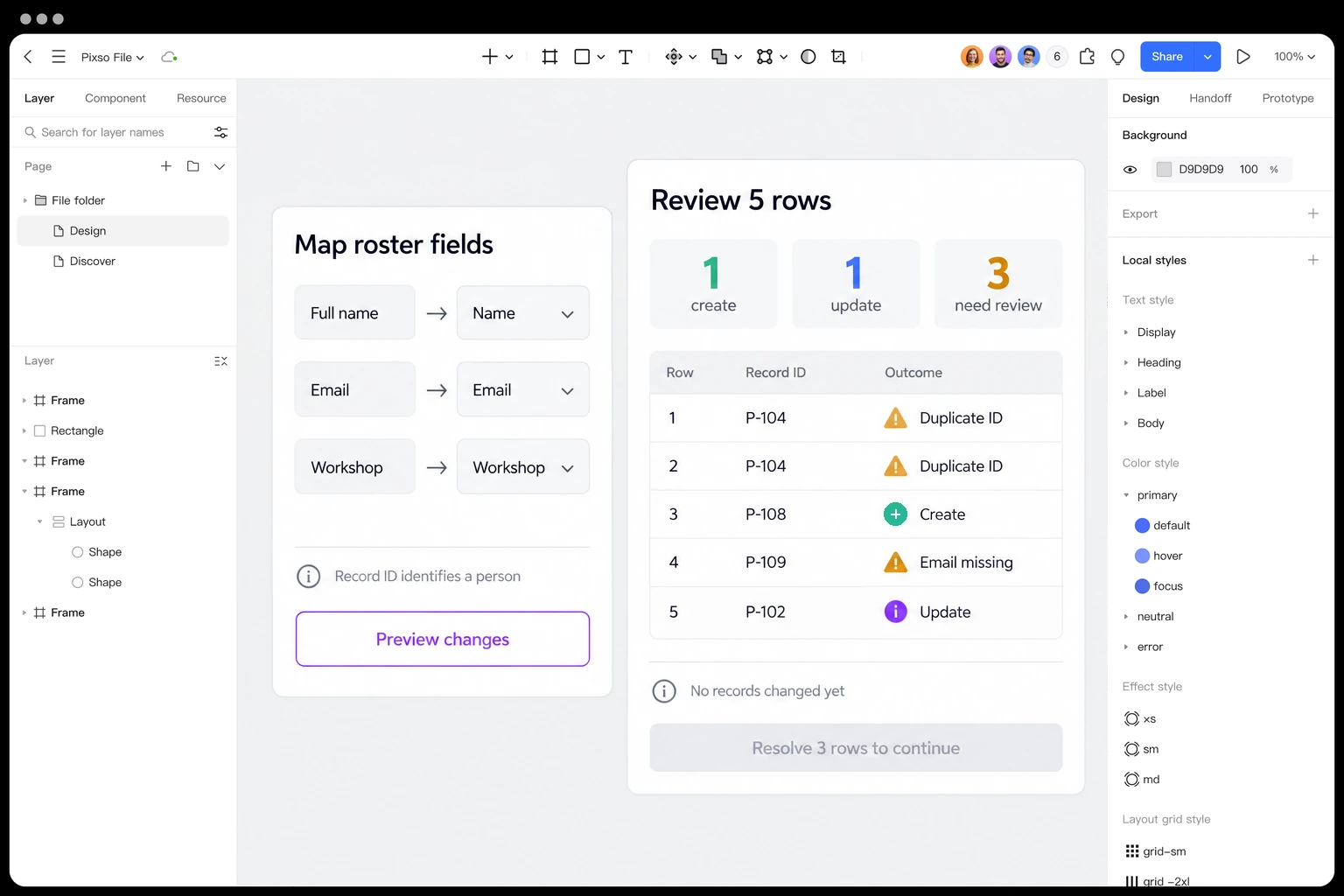
The summary is 1 create, 1 update, 3 need review: five source rows in total. Label these as previewed outcomes. Do not show a success checkmark or claim that one participant has already been created.
Let the operator filter to “Needs review” while retaining the file's total and source-row references. If the preview displays only a sample, state that clearly and validate the full file before reporting it ready. A clean first page cannot stand in for the remaining rows.
Compare mapping and consequences in Pixso
Build two frames in a Pixso design file: Map columns and Review changes. Use the five-row roster in both. In the first frame, pair Workshop with its sample values and the destination field. In the second, show the outcome counts, the three rows needing attention, and P-102's Design systems → Prototyping change.
Keep the mapping controls and the record preview as separate components. This makes it easier to explore a corrected mapping without rebuilding the entire screen. Add a note beside the preview explaining that the import is blocked until all three affected rows are resolved. Ask a reviewer which participants exist already, which value will change, and whether anything has been committed. Their answer should come from the interface, not your spoken explanation.
Design an import preview in Pixso →
Keep corrections attached to the original problem
“Import failed” gives the administrator no useful starting point. An actionable error identifies the file, source row or column, offending value where safe, reason, and next action. Duplicate identifiers and missing required values should not share an indistinct red warning.
HubSpot's error reference distinguishes duplicate record IDs, duplicate row content, and duplicate unique-property values. That distinction illustrates why error names need to match actual processing behavior; a single “duplicate” label can conceal different outcomes.
For the roster, suppose the administrator decides P-104 belongs in Prototyping. They remove source row 1 and fill in Jo Rivera's email. The revised file now contains four rows, so its preview must be recalculated: two creates and two updates, with no rows needing review. Do not keep the old five-row total after a correction changes the input.
If corrections happen inside the import interface, make it clear whether the original file changes or only the pending import data changes. Preserve enough source context to reconcile a later error with the correct record. If the user uploads a replacement file, retain mappings only when its columns still match, and show any mapping that needs confirmation again.
Keep readiness, processing, and completion separate
Before the final action, show the file, operation mode, identifier, current counts, and affected fields. “Import 4 participants” is understandable only if the neighboring summary explains that two records will be created and two updated. If the underlying records changed since preview, revalidate rather than applying a stale prediction without explanation.
While processing, prevent duplicate activation and preserve the import reference. A lost response should lead to checking that operation's status, not immediately encouraging another submission of the whole file. The application needs an implementation strategy for this; a disabled button by itself does not prevent duplicate processing.
After completion, report confirmed results. If processing can finish partly, separate completed, skipped, and failed rows and offer a retry scoped to the unresolved records. Do not tell the user to repeat successful creates. If the system supports only all-or-nothing processing, make that model explicit instead of borrowing a partial-success screen.
The final interface should let the administrator identify the imported records, see what changed, and resolve anything left unfinished. That is a stronger completion state than a green progress bar with no connection back to the roster.