On this page

Scott
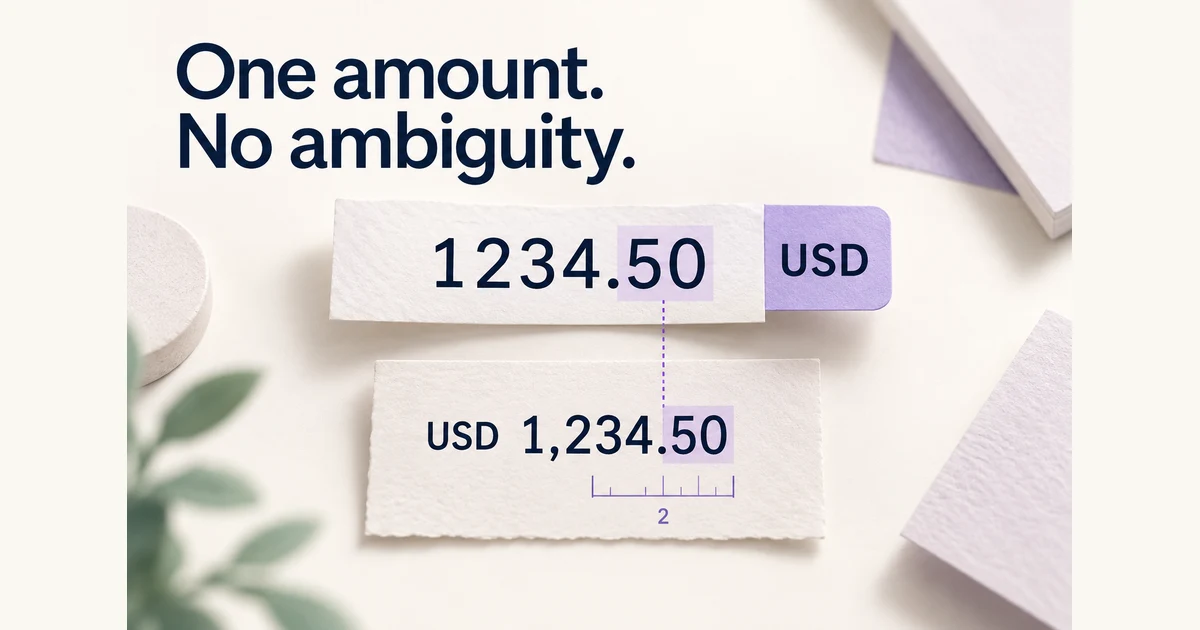
A currency amount field needs to keep three things aligned: the number the person intends, the currency attached to it, and the value the application will save. Show the currency explicitly, use a defined number format, and let people inspect the interpreted amount before a consequential action. Formatting must never quietly turn one amount into another.
Start with a field contract for the complete form, then give monetary values their own rules. “Accept numbers” is not enough when a comma can be a decimal separator, a pasted quote can include a currency code, and a different currency can change the allowed precision.
Give the amount a precise job
Imagine a purchasing application where an employee records a supplier's quoted total before creating a purchase order. The example quote is USD 1,234.50. The field records that total; it does not calculate tax, convert currencies or initiate a payment.
For this exercise, the product accepts positive quoted totals in USD, EUR and JPY. USD and EUR totals allow two fractional digits; JPY totals use whole units. These are the example application's rules. A unit-price field, an exchange-rate field and an accounting adjustment may require different precision or sign rules even when they appear in the same product.
Keep the quote's currency and the user's display preference separate. An English-language interface can record a euro quote. A German number-format preference can display a US-dollar amount. Choosing USD must not also silently switch the person's language or redefine how their current text is parsed.
Label the field “Quoted total” and label the currency control separately. Use full choices such as “USD — US dollar” where users select the currency, with the code retained near the amount. A bare dollar sign is weak context for a form that handles several currencies.
Distinguish entered text, interpreted amount and review display
While someone types, the input contains text that may not yet be complete: an empty string, “1234.” or a value with the fractional part selected for replacement. That temporary text is different from an accepted quantity. The review display is another representation of the same quantity, formatted for reading.
For the example quote, the input may show “1234.50,” the accepted amount is 1234.50 in USD, and the review says “USD 1,234.50.” Those representations must agree. A hidden previously valid value must not remain submittable after the visible field has been edited into an unresolved value.
Unicode CLDR's currency patterns describe formatting conventions, including symbol position and grouping. They do not decide how your application should interpret every pasted string. Specify parsing and display separately so a formatting library is not mistaken for a complete input policy.
In the design notes, give engineering concrete pairs rather than “support international currency”: selected format, entered text, accepted amount, currency and review display. Keep these notes beside the relevant states. The interface can stay simple even when the underlying contract is precise.
Decide what a pasted separator means
A quote copied from another application may use a different number format. In a US-style format, “1,234.50” represents the same quantity that “1.234,50” represents in a German-style format. The decimal and grouping roles matter; deleting every comma or period is not a safe substitute for understanding them.
The CLDR number-symbol guidance distinguishes decimal and group symbols and discusses regional locale choices. Use an explicit, visible or already established format preference for the entry experience. Do not infer the quote's currency from its punctuation.
| Entry context | Text entered | Expected outcome in this design |
|---|---|---|
| US-style number format, USD selected | 1,234.50 | Accept 1234.50 USD; review as USD 1,234.50. |
| German-style number format, USD selected | 1.234,50 | Accept the same quantity in USD; show the review using that number format. |
| US-style number format, USD selected | 1.234,50 | Keep the text and explain the expected format; do not strip punctuation and guess. |
| Number format has not been established | 1,234 | Resolve the format or ask for an ungrouped value with an explicit decimal separator before accepting it. |
This is a deliberately bounded parsing policy. A product can support additional paste formats if it distinguishes them reliably and still exposes the interpreted amount. The important decision is what happens when two plausible interpretations remain.
For the rejected paste, an actionable message is “Use a period for decimals, for example 1234.50,” accompanied by a way to change the number-format preference if the product supports one. Keep the original text visible so the employee can compare it with the quote.
A pasted “USD 1,234.50” can have its recognized USD label removed without changing meaning when USD is selected. A pasted “EUR 1,234.50” while USD is selected needs a currency-mismatch decision. Silently discarding EUR would leave a polished field containing the wrong monetary value.
Format at a moment that preserves editing
For this purchase-order form, leave the value easy to edit while focused and format it after a complete, valid entry loses focus. Do not pad “1” into “1.00” while the employee is still entering “1234,” or move the cursor to the end when they replace a digit in the middle.
Formatting during typing can also be designed well, but it needs careful handling of cursor position, selection, deletion, paste and composition. Pega's currency component, for example, specifies formatting as the user types. That is a component's behavior, not a requirement every money field must copy.
Choose with the actual editing task in mind. Have someone replace the “34” in “1234.50,” remove the fractional part, paste over the whole value and undo the change. If the input fights those ordinary actions, a beautiful formatted default state does not compensate.
On mobile, a decimal keyboard hint can help entry. The HTML inputmode definition describes a fractional-number input mechanism; it does not validate the amount. Test the implemented control on supported devices, including whether users can enter the separator that the form expects.
Reject unsupported precision without silently rounding
Suppose the employee enters USD 1,234.567. Under this quoted-total contract, three fractional digits are not accepted. Keep the entered value and explain “Enter no more than 2 decimal places for USD.” Do not quietly save 1,234.57, because the application would then record a total different from the quote.
If a product intentionally rounds calculated amounts, define the rule and where the rounded result becomes visible. That is a different design decision from rounding a person's unsupported entry merely to make it fit. The same applies to truncation: hiding the third digit does not remove it safely.
The amount's precision also has to match the operation behind the interface. Stripe's currency documentation illustrates why integration details matter: its amount API uses minor units, with 10 USD represented as 1000 and 10 JPY as 10, alongside currency-specific exceptions. These are Stripe rules, not instructions to multiply every application's amount by 100.
For the purchasing application, agree an exact decimal representation with engineering and make the review match it. Decide separately whether zero is allowed, whether negative adjustments belong in this flow, and whether there is an upper limit. A blank required field should remain blank until a person enters a value; displaying a placeholder “0.00” must not create a real zero total.
Changing currency must not look like conversion
The employee now changes USD to JPY while 1234.50 is still in the field. Simply replacing the currency label would create a new meaning, and dropping “.50” would also change the number. Neither action is currency conversion.
In this design, retain the entered digits as an unresolved draft and show “JPY uses whole amounts here. Enter the quoted total in JPY.” The USD review is invalidated. The employee can return to USD and recover the prior draft, or enter the actual JPY total from the relevant quote and review it anew.
For a change from USD to EUR, the existing digits satisfy the same precision rule but still represent a different currency amount. The form can keep them visible, while clearly requiring review of “EUR 1,234.50” before creating the order. A changed code is a meaningful change even when no decimal error appears.
If the product offers conversion, give it a distinct action and show the source amount, resulting amount, rate context and any applicable charges or rounding before acceptance. This sample does not offer conversion, so an exchange-rate line would be misleading decoration.
Confirm the pair that will be saved
The purchase-order review should state the quoted total with an explicit currency code, alongside the supplier and quote reference. Return the employee to the amount field through an Edit action. Editing either the digits or currency invalidates the old review; the form must not keep an approval badge attached to stale values.
Make currency context available beyond its visible prefix. The GOV.UK text-input guidance warns against relying on a prefix or suffix alone. Associate an informative label and the relevant instructions with the actual control, so someone using assistive technology receives the same amount context.
After saving, show the confirmed stored amount and currency. If the save fails definitively, retain the reviewed pair for correction or retry and explain that the order was not saved. If the outcome is unknown, reconcile the order's status before inviting another create action. A green field indicates valid entry, not a completed purchase order.
Design the currency switch beside the review in Pixso
Build a Pixso canvas for this one quote-entry task. Place the USD editing state beside its “USD 1,234.50” review, then add the JPY-change state with “1234.50” still visible and the whole-amount message. Use a reusable amount-field component so labels, currency position and message spacing can be compared across states.
Connect the currency-change and Edit actions to the relevant frames and preview the route. Use Auto Layout to see how a longer error message affects the quote reference and action below it. Pixso's screen-linking and review tools support this walkthrough; the parser and monetary rules remain part of the application specification.
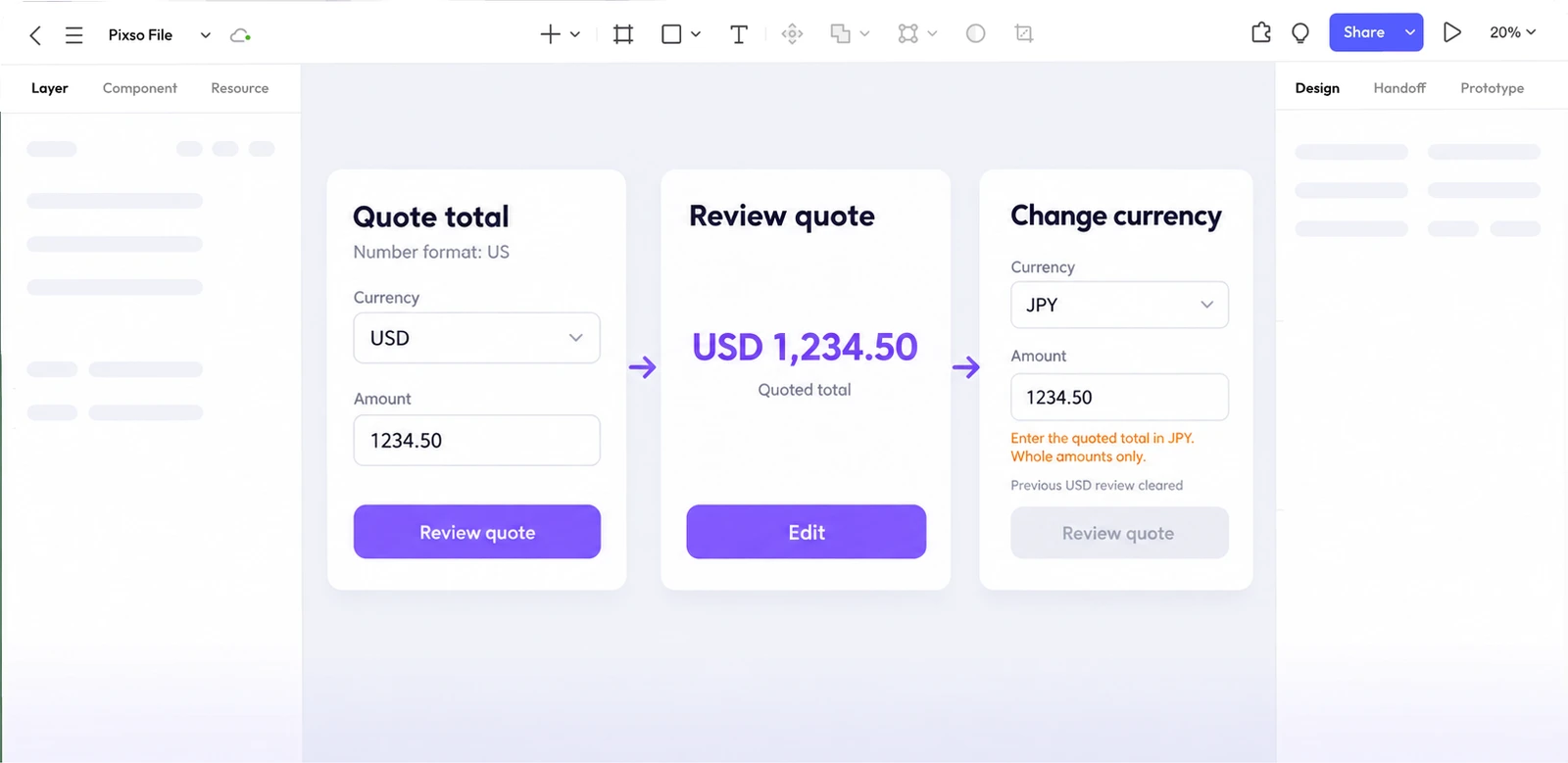
Ask a reviewer to record the quote, replace the fractional digits and change currency once. At each review state, ask what amount the order would contain. Put any disagreement beside that frame as a comment. If the answer depends on guessing what a separator means or assuming a conversion happened, the field still needs a clearer contract.
Review currency inputs by state
Make the amount field answer three questions before release: which currency is active, what format is accepted, and what happens when the value cannot be parsed. Keep the entered digits visible while the user switches currency, and show the formatted value only after the input is valid.
| State | What the user needs | Design check |
|---|---|---|
| Empty | Currency and example | Use a locale-aware example without inserting a value. |
| Editing | Stable caret and digits | Do not reformat on every keystroke. |
| Invalid | Actionable correction | Explain the allowed range or decimal rule beside the field. |
| Valid | Confidence before submit | Show the currency code and the value that will be sent. |
In Pixso, model these states as component variants and test the same field in narrow and wide frames before handoff.
![[NEW] How to unblur images & sharpen portrait photos with AI](https://pixso.net/assets/media/unblur-images-9181e03d97cfd9712007-77af57af1809dcce.webp)