Scott
A useful error message explains what happened, identifies what the person can change, and gives an action that matches the actual state. “Something went wrong” does none of those jobs. A more specific message is not always a longer one: “Choose a PDF smaller than 10 MB” can be enough when the file type or size is the problem.
Write error copy while designing the states, not after the screen is finished. In a shared UX design workflow, designers, writers, and developers can agree on what the system knows and what the user can safely do next. This guide follows an invoice-upload task from field validation to an uncertain submission outcome.
Identify the problem before writing the sentence
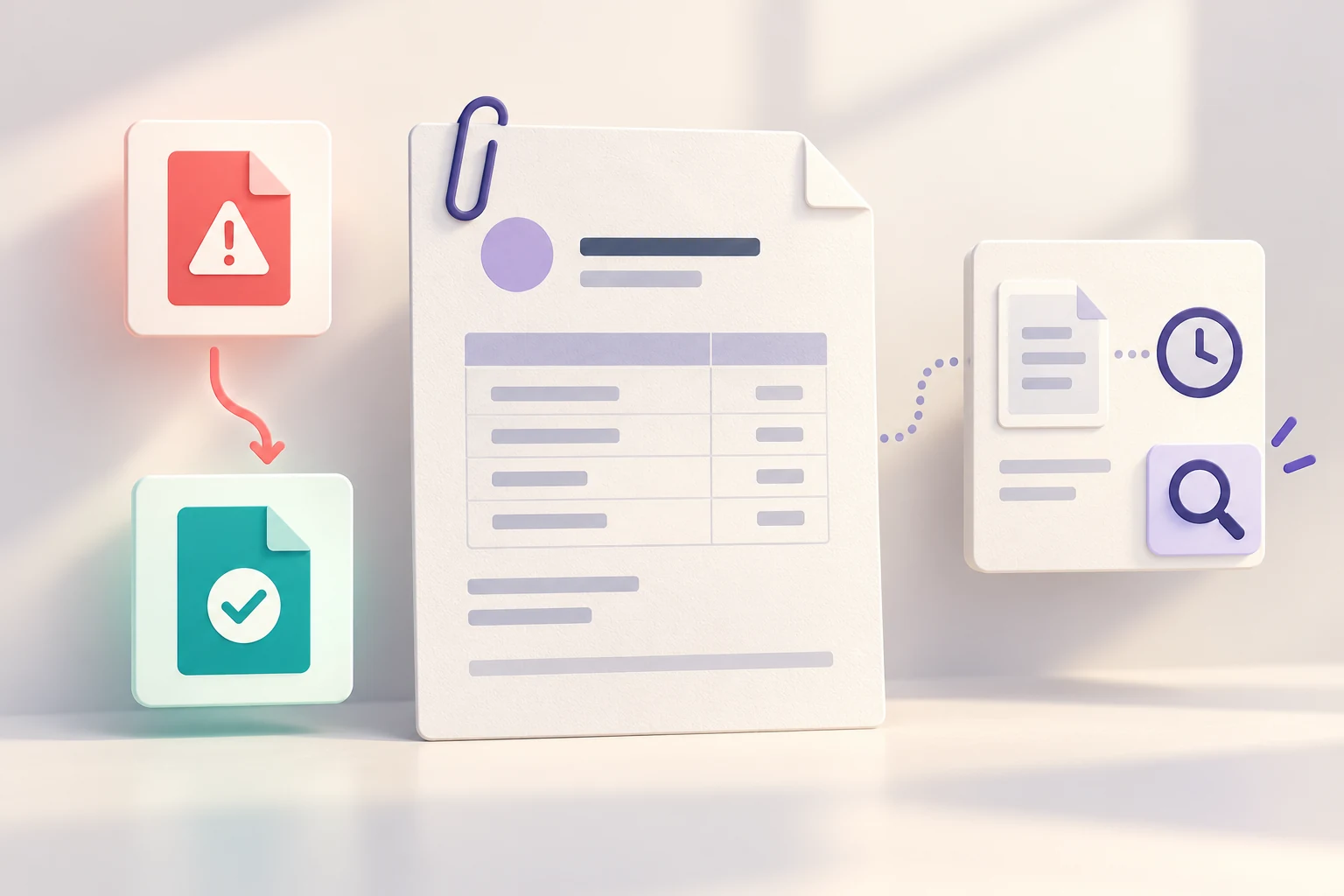
Consider an accounts-payable form with invoice number, amount, and attachment. The same red banner cannot accurately describe a missing invoice number, an unsupported file, a temporary upload failure, and a submission whose result is still unknown. These situations have different owners and different safe actions.
| Situation | What the user can change | Message direction |
|---|---|---|
| Required value missing | The field | Name the information to enter |
| File violates a known limit | The selected attachment | State the accepted format or size |
| Service temporarily unavailable | Usually not the entered data | Explain the failed operation and available recovery |
| Submission outcome unconfirmed | They should first establish the result | Say what is unknown; avoid inviting a duplicate submission |
The example's 10 MB limit is a product decision for this fictional invoice service, not a Pixso upload limit. In a real project, use the limit enforced by the backend. Copy that promises one limit while validation enforces another creates a defect regardless of how polished it sounds.
Write field errors as instructions people can use
For a missing invoice number, prefer “Enter the invoice number” to “Invalid input.” For an amount outside the permitted range, explain the range using the same currency and number format as the field. Do not blame people for data the service cannot currently verify.
The GOV.UK error-message guidance recommends specific, understandable explanations that tell people how to fix the problem. Apply that principle to the exact field rather than borrowing a generic sentence for every form.
| Weak copy | More useful copy for this task | Why it helps |
|---|---|---|
| Invalid file. | Choose a PDF smaller than 10 MB. | Names the constraints the person can act on |
| Amount is incorrect. | Enter an amount greater than 0. | Identifies the actual rule, when that is the rule that failed |
| Error 409. | An invoice with this number already exists for this supplier. Review the existing invoice. | Connects the conflict to the object and recovery route |
| You forgot a required field! | Enter the supplier's name. | Removes blame and identifies the missing information |
Do not include an account number, private supplier details, or another person's information in a message unless the viewer is entitled to see it. Specificity is useful only within the access rules of the product. A reference ID may help support investigate a failure without exposing internal diagnostics.
Distinguish a failed operation from an unknown result
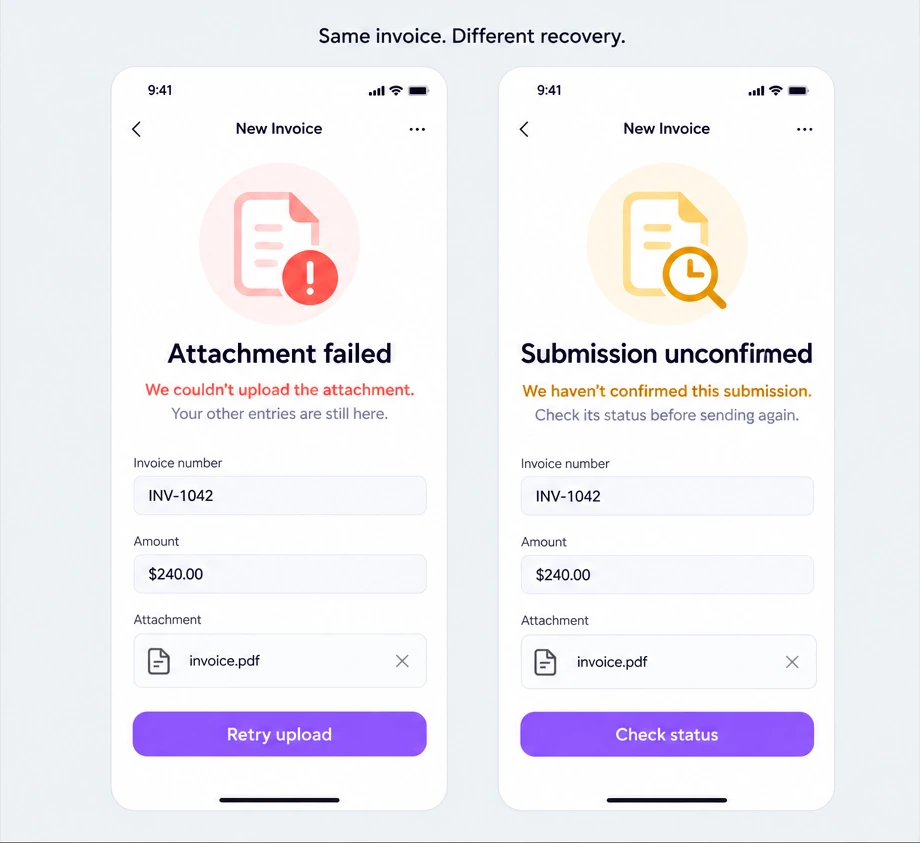
If the upload fails before submission, “We couldn't upload the attachment. Your other entries are still here. Try uploading it again” may be accurate. If the form was sent but the response never arrived, “Submission failed—try again” could cause a duplicate invoice. The interface does not yet know whether the service accepted it.
For the unknown-result state, a safer message is “We haven't confirmed whether this invoice was submitted. Check its status before sending it again.” Provide Check status only if the product can actually perform that check. If it cannot, show the available route, such as reviewing the invoice list or contacting support with a reference.
Agree on this behavior with engineering. A disabled button, a request identifier, and a status lookup can matter more than a softer sentence. The writer needs to know whether retry reuses the same operation or starts a new one. The UI should never claim “Nothing was saved” merely because a request timed out.
Match the message to its place and timing
Place an invoice-number error next to the field and associate it with the control in implementation. A service-wide interruption belongs at the form level. If several fields fail after submission, an error summary can offer a route to each problem. Avoid simultaneously showing the same paragraph in a banner, toast, and inline message.
Do not announce a field as invalid before someone has a reasonable chance to finish typing. An incomplete amount while the person is entering digits is not the same as a rejected submitted value. Keep useful instructions visible before an error, including file restrictions that affect what someone chooses.
Error styling also needs a text or icon cue; color alone should not carry the meaning. Longer translations must fit without covering the action or breaking the field association. Preserve correctable input after failures, subject to the product's security requirements, and say what was retained only when that behavior is implemented.
Review the whole error sequence in Pixso
Create frames for the invoice form with missing data, an oversized attachment, uploading, upload failure, an unconfirmed submission, and confirmed receipt. Keep the same invoice number through the sequence. Put the exact message and action label on the screen where they will appear, not only in a separate copy document.
Beside each frame, record the condition that triggers it, what remains saved, and what the primary action does. Ask a developer to identify any claim the service cannot guarantee. Ask a designer or writer unfamiliar with the flow to explain what they would do next. If they choose to resubmit in the unknown-result state, investigate the action label, placement, and explanation together.
For a fuller attachment interaction, the file-upload UI guide covers selection, progress, and retry states. Keep this article's copy decisions tied to those behaviors rather than treating error messages as decoration.
Maintain messages by cause and recovery
A useful message library groups reusable patterns by cause: missing value, invalid format, conflict, unavailable service, and unconfirmed result. Store the required variables and constraints with each pattern. A “maximum size” message needs a real limit; a “review existing item” action needs an accessible destination.
Avoid a single catch-all sentence that teams copy because it is easy to find. Keep product vocabulary consistent, but let the object and action remain specific. “Upload attachment,” “Check invoice status,” and “Review existing invoice” tell people more than three identical Try again buttons.
When support or research reveals confusion, update the underlying state and message together. Better wording cannot repair an action that discards the form or submits twice. Design and review your error states in Pixso.