On this page

Sherry
Figma and Sketch use different native file formats, so a direct export is not always available in Figma. The practical options are to move the editable file through Pixso, or export selected frames as SVG when you only need a small set of visual assets. This guide explains both workflows, what each one preserves, and how to check the result before you continue working in Sketch.
Choose the right Figma to Sketch method
| Your situation | Recommended method | What you receive | Main trade-off |
|---|---|---|---|
| You need an editable file with multiple pages and components | Import the Figma file into Pixso, then export the current document as a Sketch file when the option is available in your workspace | A Sketch document to inspect and continue editing | Imported layers, fonts, effects, and interactions still need a visual check |
| You only need a logo, illustration, icon set, or selected frame | Export the selection from Figma as SVG | One or more vector assets that Sketch can place on the canvas | SVG does not reproduce the original file structure, component library, or interaction links |
| You are comparing a small third-party conversion plugin | Use the plugin only after checking its current support and data handling | A plugin-generated Sketch file or asset | Coverage, privacy, cost, and output quality vary by plugin and version |
Use the full-file workflow when the design contains reusable components, variables, multiple pages, or a team review history. Use the SVG-only Figma to Sketch guide when a selected asset is enough. Keeping these jobs separate prevents a simple asset export from being mistaken for a complete file migration.
Method 1: Move an editable Figma file through Pixso
Pixso's current public product page lists Figma, Sketch, and XD among its supported file formats. The exact import and export entry points can change, so confirm the labels and availability in your Pixso workspace before writing a team procedure. The workflow below describes the task and the checks that matter regardless of small interface changes.
1. Prepare the Figma source
Before importing, make a copy of the Figma file or record the current version. Remove unused pages only if your team agrees that they are out of scope. Rename important frames, components, text styles, and variables so that you can compare the result later. Check the fonts, linked images, masks, blend modes, and prototype links that the receiving Sketch file must preserve or replace.
For a high-risk migration, create a short inventory:
- Pages and frames that must be present after conversion.
- Fonts and text styles that need to be installed or substituted.
- Shared components, variants, variables, and libraries.
- Raster images, SVG assets, videos, and external links.
- Interactions that must be rebuilt in the destination workflow.
2. Import the Figma file into Pixso
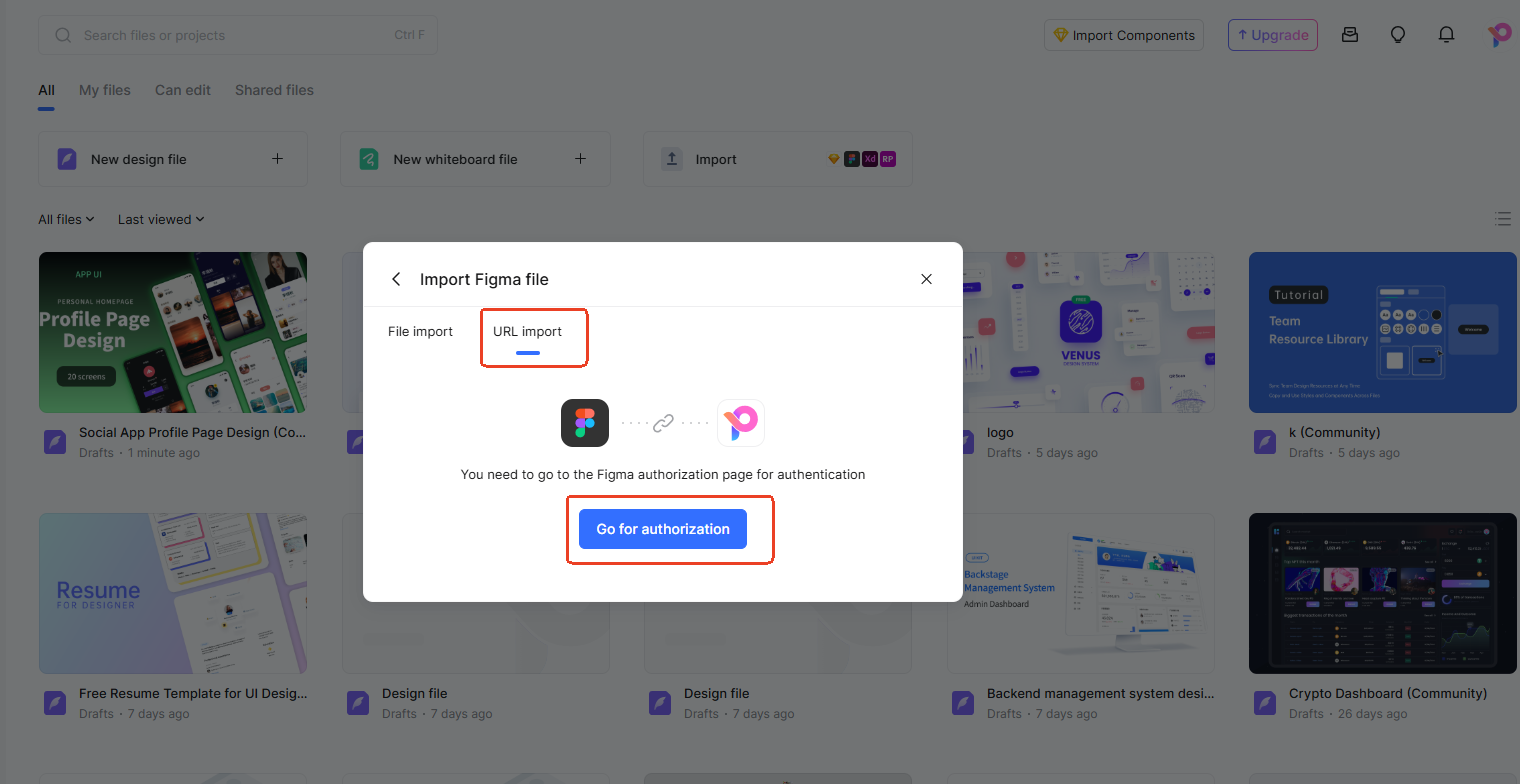
Open Pixso and use the current file import workflow. Depending on the workspace and account configuration, the source may be a local Figma file or a Figma file link that requires authorization. Select the Figma import option, choose the source, and wait for the editable document to finish loading.
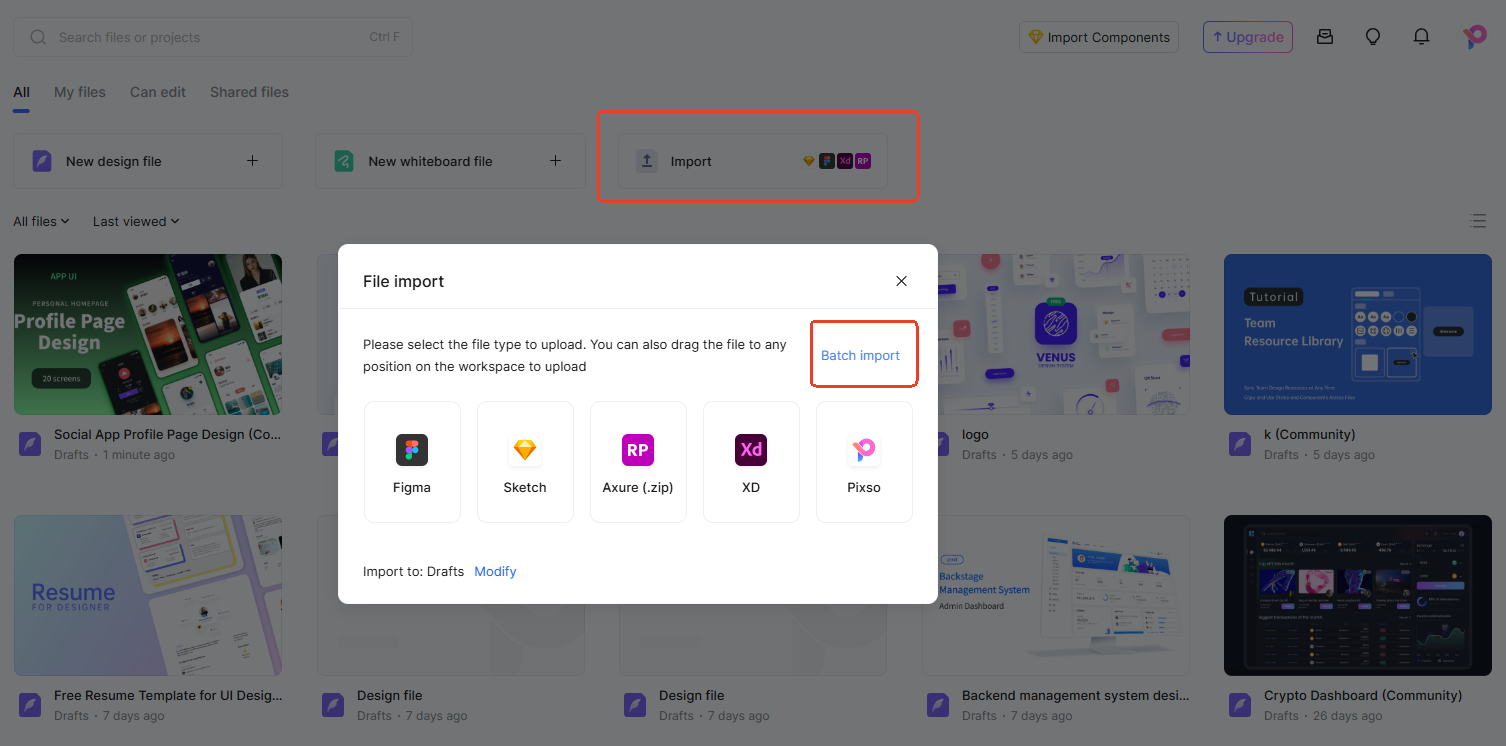
For a link-based import, complete the authorization step in the Figma account that owns or can access the source file. Do not use a link that exposes a private design to an account or workspace that should not receive it.
3. Inspect the imported document before export
Do not export immediately after the import finishes. Compare the imported file with your source inventory. Check page count, frame dimensions, text wrapping, font substitutions, images, component instances, masks, and effects. Open representative screens at 100% and at the sizes used by your team. If the source contains a design system, verify a button, input, card, and repeated navigation pattern rather than checking only one static frame.
Pixso provides a collaborative design workspace with components, design tokens, version history, and comments. Those features help the team review the imported document, but they do not guarantee that every Figma behavior will become a native Sketch behavior. Treat the imported file as an editable conversion result that needs human review.
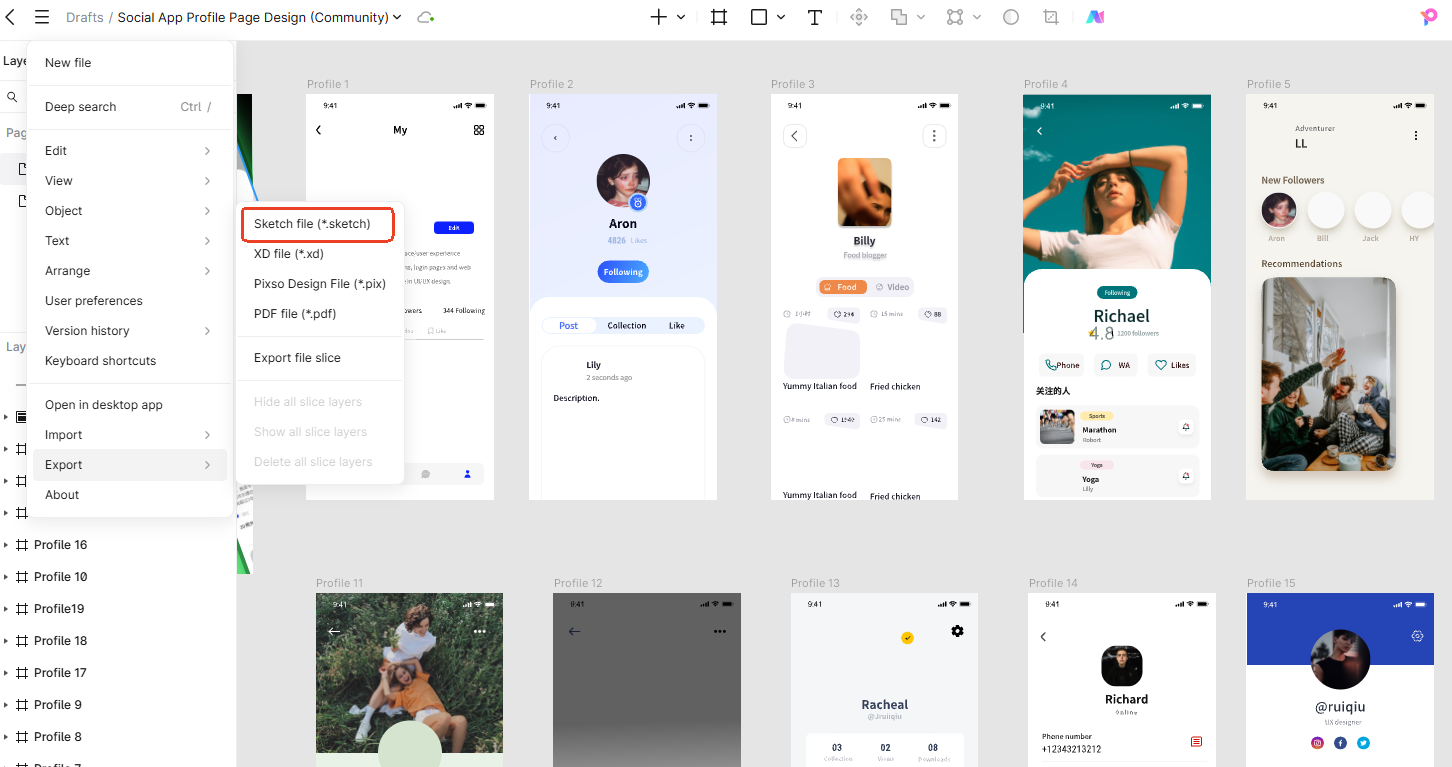
4. Export the current document as a Sketch file
When the Sketch export option is available in your workspace, use the current export menu and select the Sketch format. Save the downloaded file with a versioned name, such as checkout-migration-2026-09.sketch, so the source, conversion date, and review status are clear.
Open the file in the current Sketch version used by your team. If Sketch reports missing fonts, unsupported effects, or damaged objects, record each issue before making manual corrections. A conversion is complete only when the destination file can be edited and the important screens still communicate the intended design.
Method 2: Convert selected Figma frames with SVG
SVG is useful when you need a vector asset rather than a complete design file. It is a good fit for logos, illustrations, icons, and a small number of static frames. It is not a replacement for a full-file conversion because it does not carry the original Figma page hierarchy, component relationships, variables, or prototype connections.
- In Figma, select the frame or vector layer you need.
- Use the current export controls to choose SVG and save the file with a descriptive name.
- Open Sketch and drag the SVG onto the canvas, or use Sketch's current import command.
- Inspect text, masks, clipping paths, gradients, strokes, and layer groups.
- Save the Sketch document and keep the original SVG beside it for comparison.
For the detailed SVG path, including common layer and text issues, use the Figma to Sketch with SVG tutorial.
What is usually preserved well, and what needs review
File conversion changes representations. The receiving application may interpret the same visual instruction differently, so review the parts that carry meaning rather than assuming that a successful download means a successful migration.
| Area | Check | Typical follow-up |
|---|---|---|
| Geometry | Frame size, constraints, spacing, corner radius, and alignment | Correct dimensions or rebuild a constraint that did not map cleanly |
| Typography | Font availability, weight, line height, wrapping, and truncation | Install an approved font or update the text style deliberately |
| Color and effects | Fills, opacity, gradients, shadows, blur, and blend modes | Replace unsupported effects and compare at 100% zoom |
| Structure | Layers, groups, components, variants, and naming | Reorganize layers and reconnect the destination library where needed |
| Assets | Images, SVGs, masks, and linked files | Relink missing assets and confirm their license and resolution |
| Behavior | Prototype links, hover states, variables, and conditional logic | Rebuild behavior in the destination workflow; static conversion does not prove interaction parity |
Figma to Sketch conversion checklist
- The source Figma file and conversion date are recorded.
- The destination file opens in the team's current Sketch version.
- All required pages and key frames are present.
- Fonts are installed, licensed, or intentionally substituted.
- Text wrapping and component states match the approved source.
- Images, masks, gradients, and effects have been checked at 100% zoom.
- Prototype behavior and variables are either rebuilt or clearly marked as out of scope.
- The converted file has a versioned name and a responsible reviewer.
Figma to Sketch FAQ
Can Figma export a native Sketch file?
Do not assume that a direct native export is available in every Figma workspace. If the export menu does not offer Sketch, use an editable conversion workflow such as importing the file into Pixso and checking the current Sketch export option, or use SVG for selected assets.
Will components remain editable?
An editable conversion can preserve more structure than an image or SVG export, but the result still needs inspection. Components, variants, variables, styles, and library links may need to be reconnected or rebuilt in Sketch.
Is SVG enough for a whole product file?
No. SVG is appropriate for selected vector assets and static frames. It does not preserve the original file's page hierarchy, component logic, variables, or interactive connections.
What should I do when text changes after conversion?
Check the font family, weight, font file, line height, letter spacing, and text box width in both tools. Replace missing fonts only after confirming the approved fallback with the design owner.
Conclusion
Use the Pixso workflow when you need to move an editable multi-page design and review it before exporting a Sketch file. Use SVG when the job is limited to a logo, illustration, icon, or selected static frame. In both cases, inspect the result in Sketch, record exceptions, and keep the source file available for comparison. The goal is not only to download a file; it is to preserve the design decisions your team still needs to edit and ship.