On this page

Scott
A permission request is a small workflow with a large trust cost. The person asking needs to know what they are requesting, the owner needs enough context to decide, and the design must not imply access before it is granted. Define the request states in a collaborative UX review workflow, then test the boundary between a visible file, a requested role, an approved role, and a request that has expired or been denied.
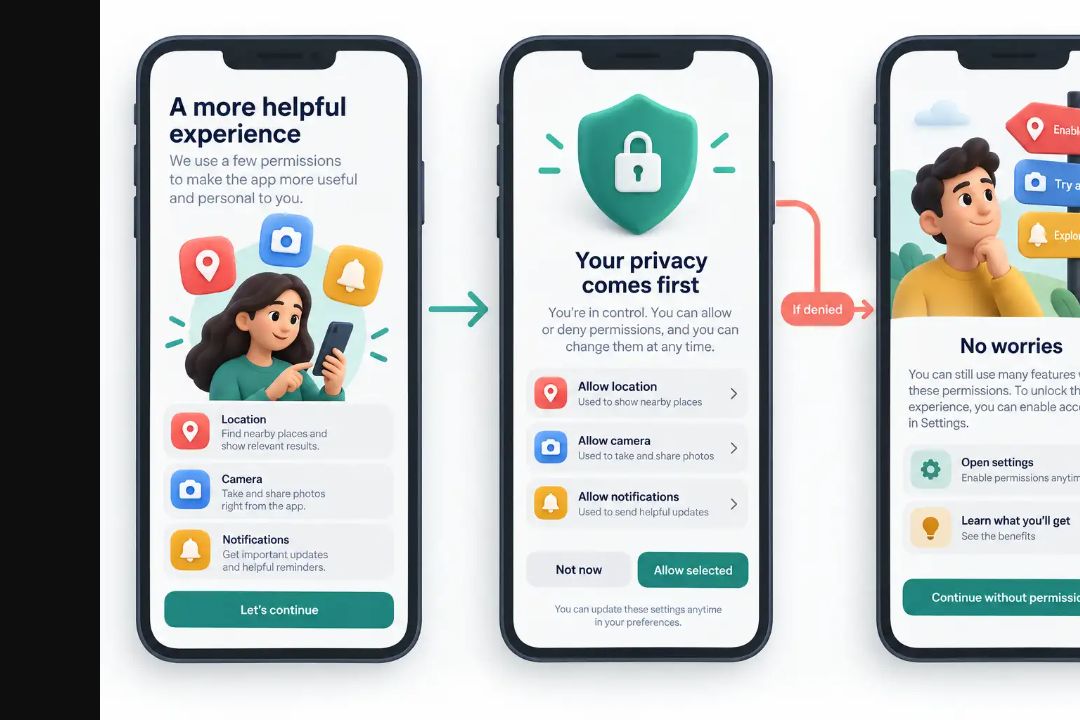
Name the access request precisely
“Request access” is not enough when a file has several roles. State the file or workspace, the role being requested, and the reason the person may need it. A viewer request and an editor request have different consequences, so do not hide the role in a secondary dialog after submission.
| Request state | Visible facts | Allowed next action |
|---|---|---|
| Not requested | Current access and available role are clear. | Choose a role and send a request. |
| Pending | Requested role, recipient, and sent time are visible. | Cancel or update the request if policy permits. |
| Approved | Granted role and effective scope are explicit. | Open the file within the granted scope. |
| Denied | The request is denied without exposing private reviewer notes. | Contact the owner or request a different role if allowed. |
| Expired | The old request is no longer actionable. | Send a new request with a current role and reason. |
Use the same role names in the request, notification, owner review, and resulting access banner. Changing “edit” to “contribute” in one step makes the person wonder whether the permission changed too.
Show scope before submission
Before the person sends a request, show what the role can and cannot do. “Can edit this file” is more useful than a generic “full access” label. If the role includes comments, exports, or sharing, list those consequences in the decision surface rather than burying them in help text.
- Identify the file, project, or workspace being requested.
- Show the current access and the requested role side by side.
- Explain who will receive the request and what context they will see.
- Ask for an optional reason only when it helps the owner decide.
- Confirm the request without claiming that access has changed.
A request reason should be short and task-specific: “Review the checkout prototype and leave implementation notes” gives more signal than “Need access”. Avoid forcing sensitive details into a field that every reviewer can read.
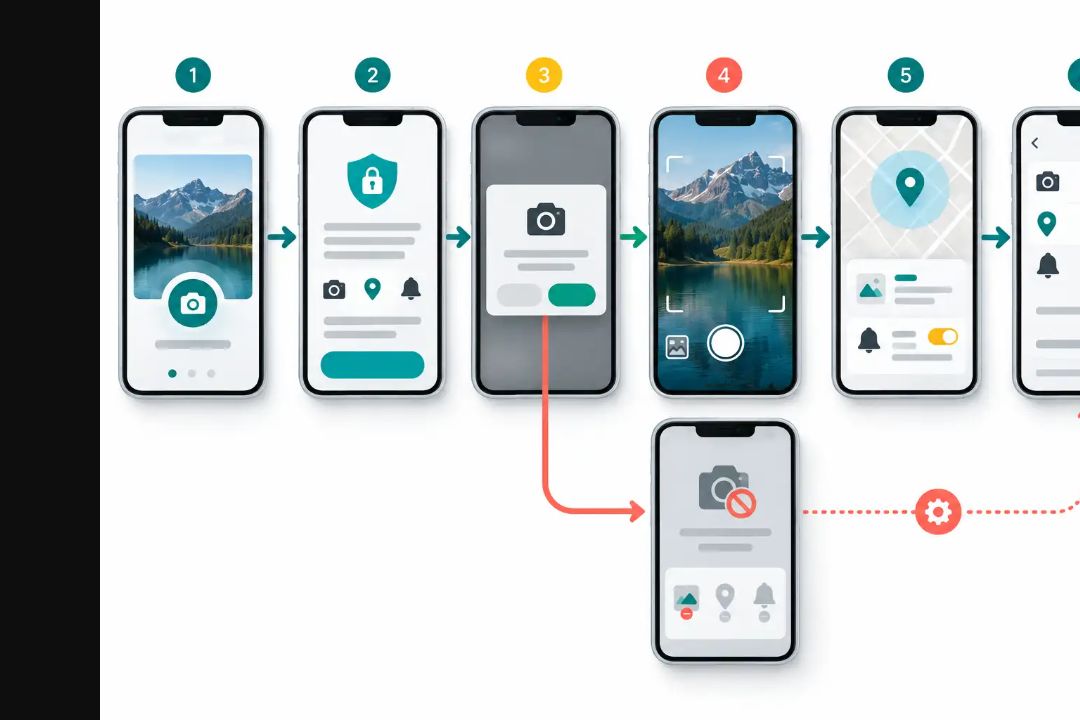
Give owners a decision they can audit
The owner review surface should answer who is requesting, what they want to do, and where the role applies. Put approve and deny actions beside the request, but separate the role change from unrelated file settings. If an owner changes the requested role, show the final role in the confirmation and notification.
| Owner question | Evidence to show | Failure to avoid |
|---|---|---|
| Who is asking? | Name, account, and organization context that policy allows. | Approving an unknown identity from a truncated label. |
| What do they need? | Role, file scope, and reason. | Granting workspace-wide access for a file-level task. |
| What happens next? | Effective time, notification, and reversibility. | Showing success while the permission update is still pending. |
| Can I revisit it? | Decision history and current role. | Deleting the request and losing the audit trail. |
Handle races and repeated requests
Two owners may act on one request, or a request may be submitted while access changes elsewhere. The interface should treat the server’s latest decision as authoritative and explain a conflict without silently overwriting it. If approval arrives while the requester is viewing the pending state, refresh the role and state together.
Prevent duplicate requests without trapping people in a stale screen. A pending request can show “Already requested” with its role and recipient; a new request should be possible only when the previous one is cancelled, denied, expired, or intentionally superseded. If the requester changes from viewer to editor, show whether that edits the existing request or creates a new decision.
Protect privacy in denial and error states
A denial message should explain the next permitted path without revealing private reasons or the existence of unrelated files. “The owner did not approve this role” is safer than exposing an internal note. When the request cannot be sent because the account is suspended, the file was deleted, or the owner is unavailable, keep the typed reason available and provide the relevant support route.
Do not use a success toast for a request that the server has not accepted. Use a pending state with a stable request identifier if the product supports one, and keep the requester from sending the same request repeatedly while the first result is unknown.
Test the access contract across roles
Build a matrix for requester, owner, and existing collaborator views. Test a viewer request, an editor request, a denied request, an expired request, a role change during review, a removed owner, and a permission update received in another tab. Each path should state what the person can do now and what will happen after the next decision.
In Pixso, connect the requester and owner screens with the pending, approved, denied, and conflict paths. Keep the role copy and file scope visible in each frame so reviewers can compare the decision, not just the visual style. The prototype should make it difficult to mistake “request sent” for “access granted”.
Hand off behavior, not just screens
Document the role definitions, state transitions, notification copy, privacy limits, and server-error recovery with the final frames. Include which events are safe to measure, such as request submitted, decision made, and access used, without logging private reason text. A permission flow earns trust when every transition leaves the person with an accurate explanation and a recoverable next step.