Scott
Quick answer: A UI design maker is a tool or workflow that helps you turn a product brief into interface screens, reusable components, and a testable prototype. The useful question is not whether a maker can produce a screen instantly; it is whether you can inspect, edit, review, and hand off the result.
This guide explains how to choose and use a UI design maker for a real app or website task. It focuses on the work a designer must complete after the first draft: clarifying the user task, checking states, applying a consistent system, and sharing decisions with a team.
What is a UI design maker?
A UI design maker combines a visual canvas with interface building blocks such as frames, text, components, styles, and prototype links. Some makers begin with a blank canvas; others start from a wireframe, template, or written prompt. The output should remain editable so that a team can change layout, content, states, and behavior without rebuilding the screen from an image.
A maker is different from an image generator. An image can communicate a visual direction, but it does not by itself provide a component structure, responsive constraints, interaction states, or developer-ready handoff.
UI design maker vs. generator vs. editor
| Tool type | Best starting point | Check before choosing |
|---|---|---|
| UI design maker | A brief that must become editable screens | Components, states, prototype links, export and review |
| AI UI generator | Exploring several layout directions | How prompts are revised and how the result becomes editable |
| UI editor | Refining an existing screen or system | Styles, variables, permissions, version history and handoff |
A seven-step UI design maker workflow
- Write the brief. State the user, task, platform, content priority, and success signal. For example: “A returning customer needs to compare two plans and start checkout on a phone.”
- Map the main flow. List the entry point, decision points, completion state, and recovery path. A short flow prevents a maker from optimizing only the first screen.
- Create a low-fidelity structure. Place navigation, content blocks, actions, and status areas before choosing colors. Link the minimum screens needed to test the flow.
- Define reusable parts. Turn repeated buttons, fields, cards, and navigation items into components. Record the states that matter: default, hover, focus, disabled, loading, error, and success.
- Apply visual rules. Set type hierarchy, spacing, color roles, and contrast. Keep content long enough to expose wrapping and overflow issues.
- Prototype and review. Test the primary task with keyboard and pointer input. Ask reviewers to identify the next action, an error recovery path, and any missing context.
- Prepare handoff. Name frames and components, document behavior and responsive changes, and share the prototype or inspectable file with the development team.
Example: account settings on mobile
Example brief: A subscription app needs a mobile account-settings flow. The user can change an email address, confirm the change, or recover from an invalid address.
- Inputs: the brief, supported screen width, copy, validation rules, and the confirmation message.
- Required screens: settings overview, edit form, validation error, confirmation, and a back or cancel state.
- Review questions: Is the save action visible? Can a user recover after an error? Does the focus state remain visible? Does the layout work with a long email address?
- Handoff notes: component names, input states, keyboard behavior, and the event that returns the user to the settings overview.
UI design maker selection checklist
- Editable output: Can you change text, spacing, states, and components after the first draft?
- Flow support: Can you connect screens and test the task from start to finish?
- System support: Can you reuse styles, components, variables, or tokens?
- Team review: Can the right people comment, inspect, and track a decision?
- Handoff: Can developers see dimensions, assets, and interaction notes without guessing?
- Evidence: Does the tool let you record assumptions, test notes, and unresolved issues?
Choosing a UI design maker for app and website projects
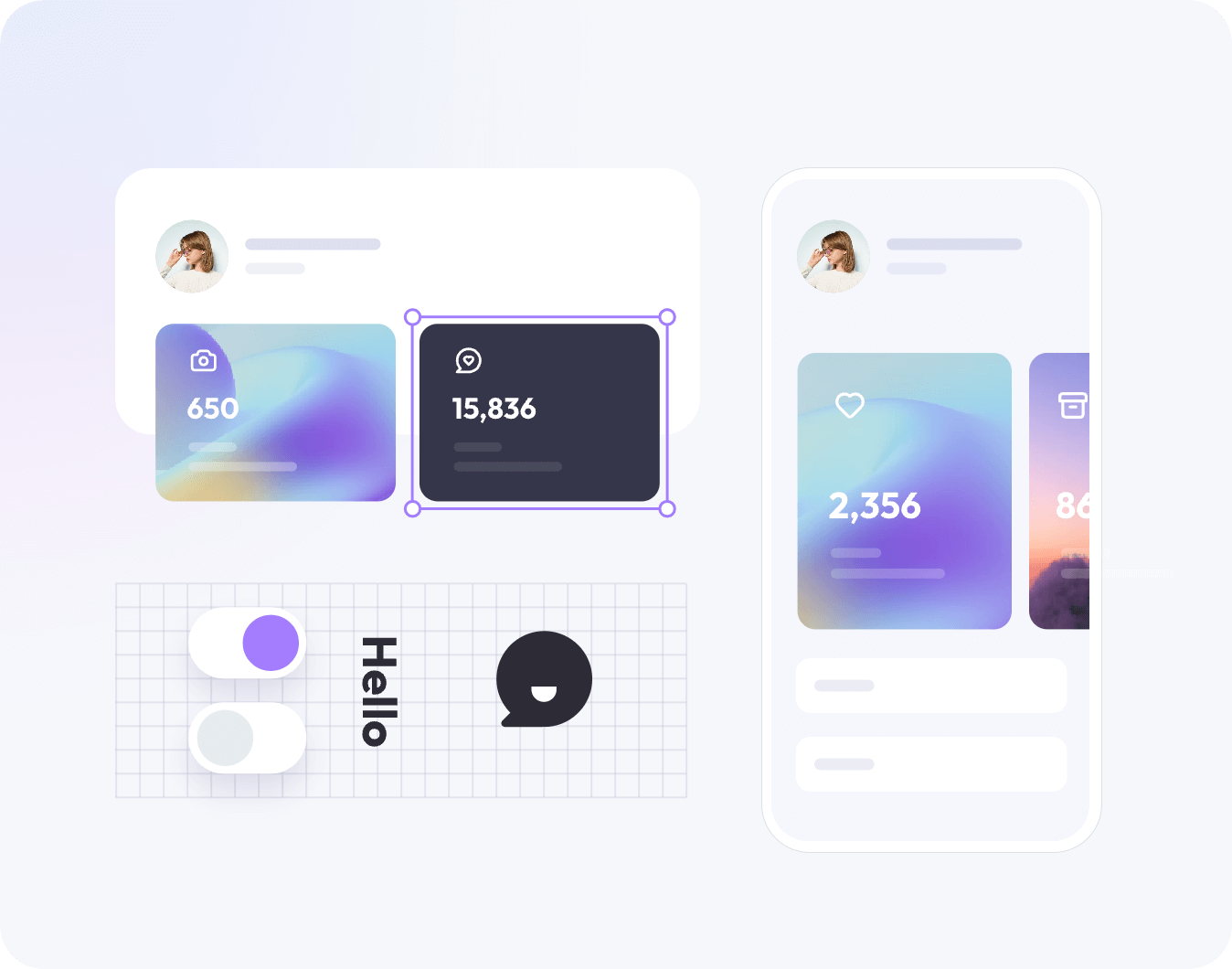
The right UI design maker should support the decision your project needs next. App work usually needs device frames, touch targets, and state coverage; website work often needs responsive layouts, content density, and reusable page patterns.
- For app interfaces: check mobile frames, keyboard and touch states, permission or empty states, and flows that work across common screen sizes.
- For websites: check responsive constraints, navigation variations, long-form content, and how repeated sections stay consistent across pages.
- For both: keep the source editable, test a real task, and document the states and handoff decisions the team must preserve.
How to evaluate a UI design maker output
A first draft is useful only when the team can inspect and change it. Review the result against the task before polishing the visual system.
- Structure: the screen hierarchy makes the next user action clear on desktop and mobile.
- States: repeated controls include focus, loading, error, empty, disabled, and success states where the task needs them.
- Consistency: components, styles, and variables can be updated without detaching every screen.
- Behavior: the prototype demonstrates the decisions that need review, including validation and recovery.
- Handoff: a developer can find the approved frame, assets, measurements, and open questions.
How Pixso fits this workflow
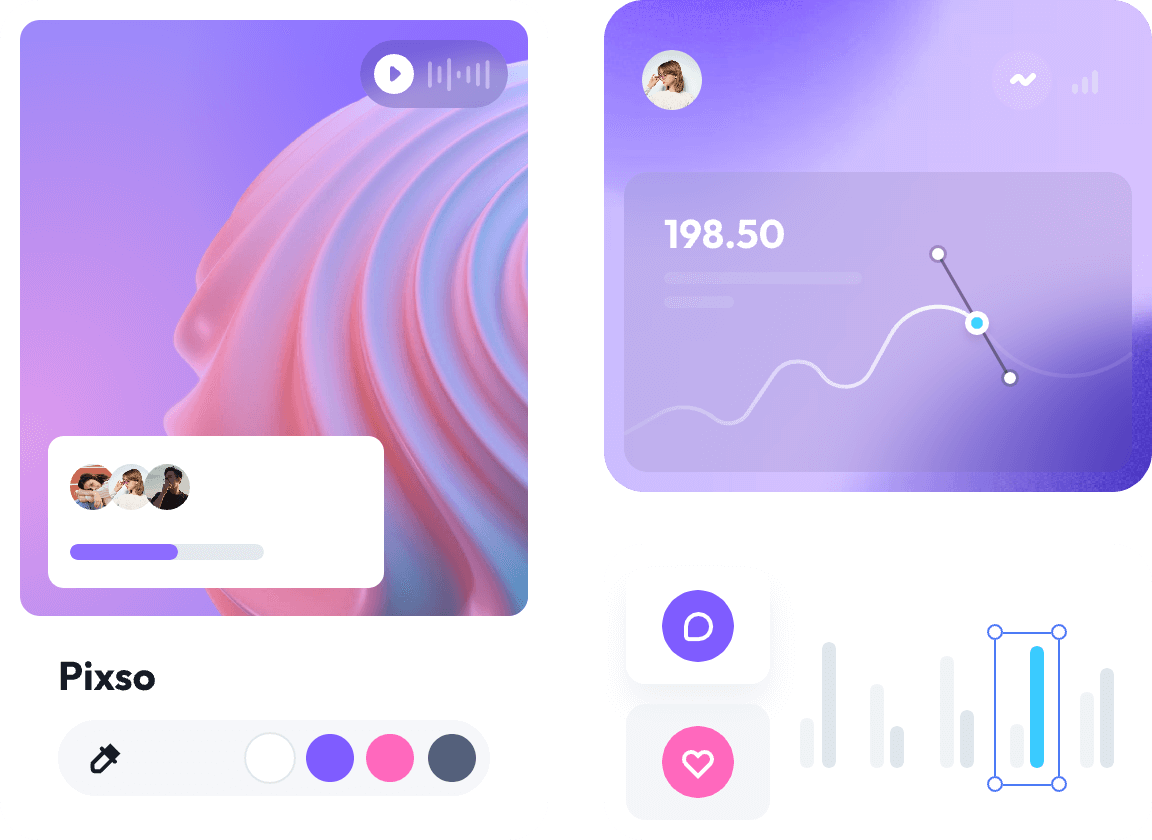
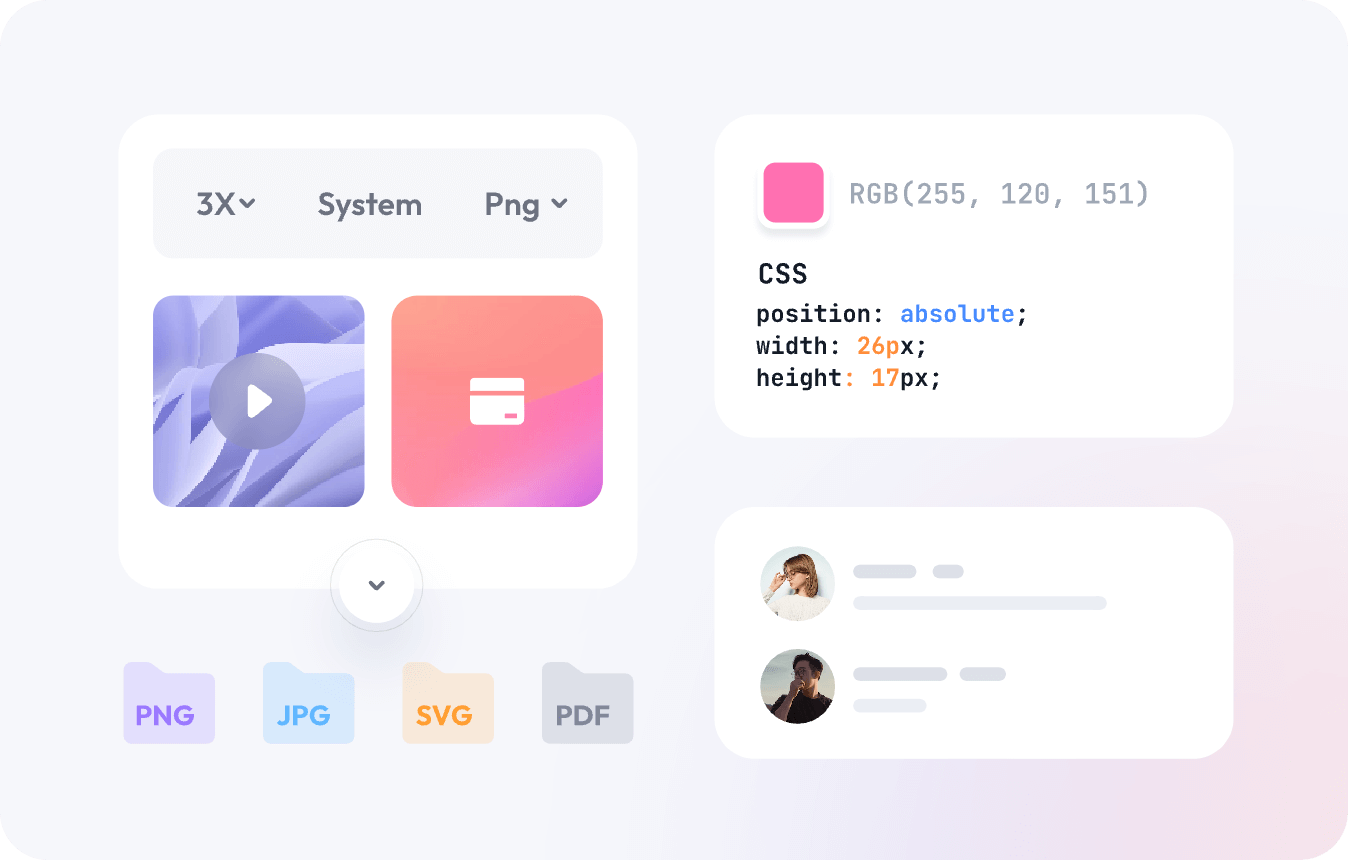
Pixso’s UI design workspace can support the canvas, reusable interface assets, prototype review, and team handoff in one project. Start with the wireframe tool when the structure is uncertain, then use interactive prototyping to test the task flow.
Related UI design guides
- Design system workflow: keep repeated patterns consistent as the interface grows.
- UI design examples: inspect hierarchy, states, and reusable patterns.
- UI design tool checklist: compare editing, review, and handoff requirements.
FAQ
Can a UI design maker replace a designer?
No. It can reduce repetitive setup and help explore directions, while a designer still defines the task, evaluates states, resolves constraints, and decides what should ship.
Should I start with a prompt or a wireframe?
Start with the clearest representation of the uncertainty. Use a short prompt for early exploration; use a wireframe when information hierarchy, flow, or responsive behavior is the main question.
What should I export from a UI design maker?
Share the editable source or inspectable file together with the prototype, content assumptions, component states, and any known limitations. An image alone is rarely enough for implementation.
Next step: Choose one user task, build only the screens needed to complete it, and review the states before expanding the visual system.