Scott
Keyboard focus order is the sequence of controls a person reaches while navigating an interface without a pointer. Design it around a complete task: moving through a form, opening a dialog, correcting an error, and returning to the right place. A numbered screenshot of the default screen is useful, but it does not explain what happens when that screen changes.
When preparing an interface in a collaborative UI design tool, document focus alongside the visible states. This guide uses a purchase-order form to show what to annotate, which decisions belong to a component, and what developers must verify in the working page.
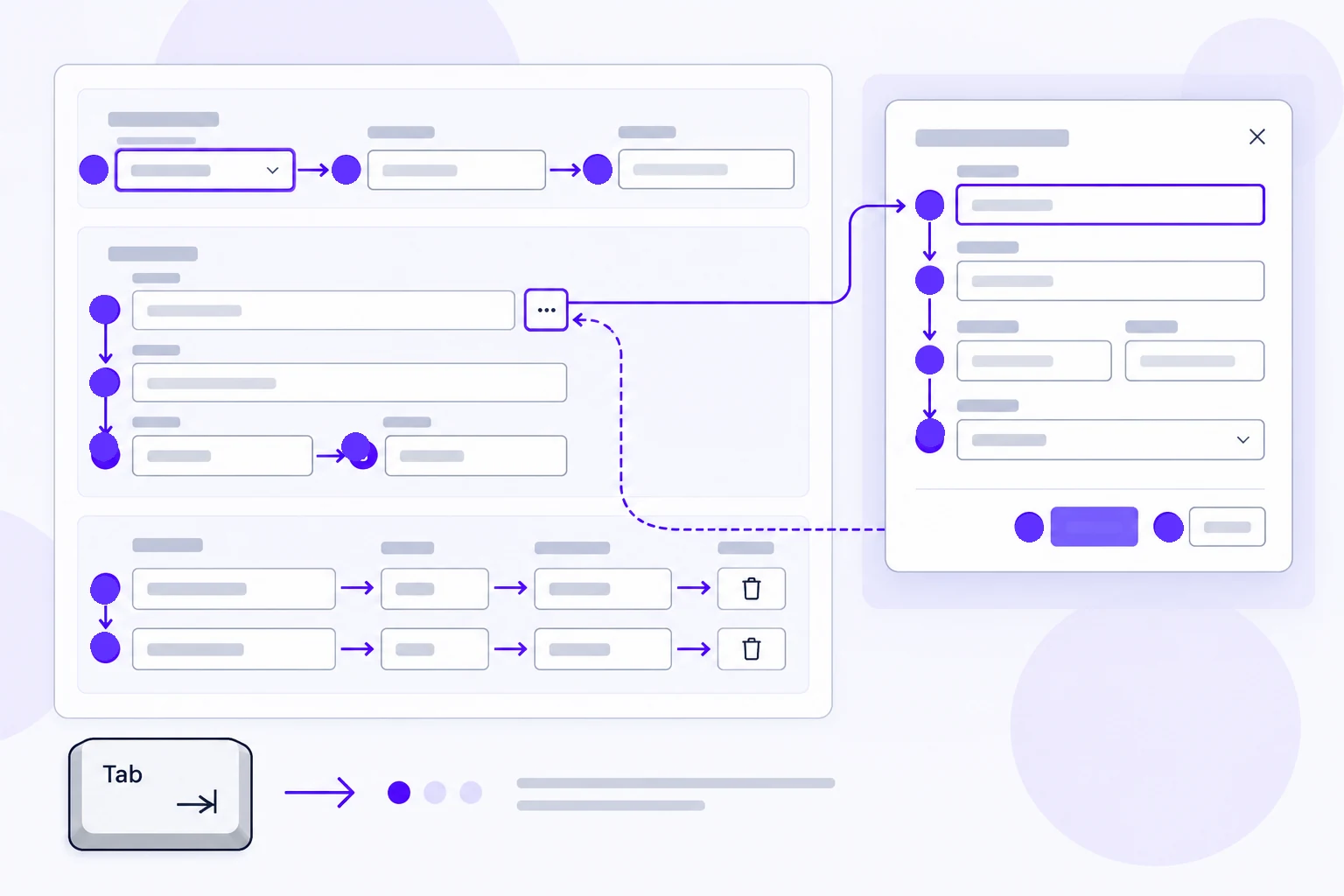
Start with the task, not a zigzag of numbers
Imagine a buyer creating a purchase order. The page has a supplier field, delivery address, item rows, an optional note, and a review action. A summary sits beside the form on desktop and below it on mobile. The buyer should be able to choose a supplier, confirm the address, enter items, and review the order without unexpectedly jumping into the summary between related fields.
Identify groups before numbering controls. Supplier and address form the delivery group; item, quantity, and unit price belong to an order line. A subtotal is information, not automatically another tab stop. A link to the supplier's details is an action and needs a place in the route. Numbering every visible label would turn a simple task into unnecessary navigation.
WCAG's focus-order guidance requires a sequence that preserves meaning and operation; it does not prescribe one universal visual order. Use that distinction when layouts change. The right question is whether the person can understand and complete the task, not whether every number follows a perfectly straight line.
Separate Tab order from movement inside a control
Tab generally moves between controls. Some composite controls use arrow keys within a group. A supplier combobox, for example, needs a specification for opening suggestions, moving through them, confirming a choice, and leaving without selecting. Do not draw every suggestion as a permanent step in the page's Tab sequence.
| Element in the order form | What to specify | Common mistake |
|---|---|---|
| Supplier combobox | Entry focus, typed text, option movement, selection and Escape behavior | Making Tab visit every suggestion |
| Quantity field | Visible focus and the next field after editing | Moving focus when a subtotal recalculates |
| Delivery-address action | Dialog entry and return destination | Closing the dialog and losing the user's place |
| Order summary | Reading order and any real links or buttons | Making all totals focusable just because they are prominent |
A visible focus indicator, a selected state, and a hover state communicate different things. Show them separately in the design. A selected supplier can remain selected while keyboard focus moves to quantity. If both use the same styling, reviewers may mistake a persistent value for the current keyboard position.
Specify both ends of a dialog
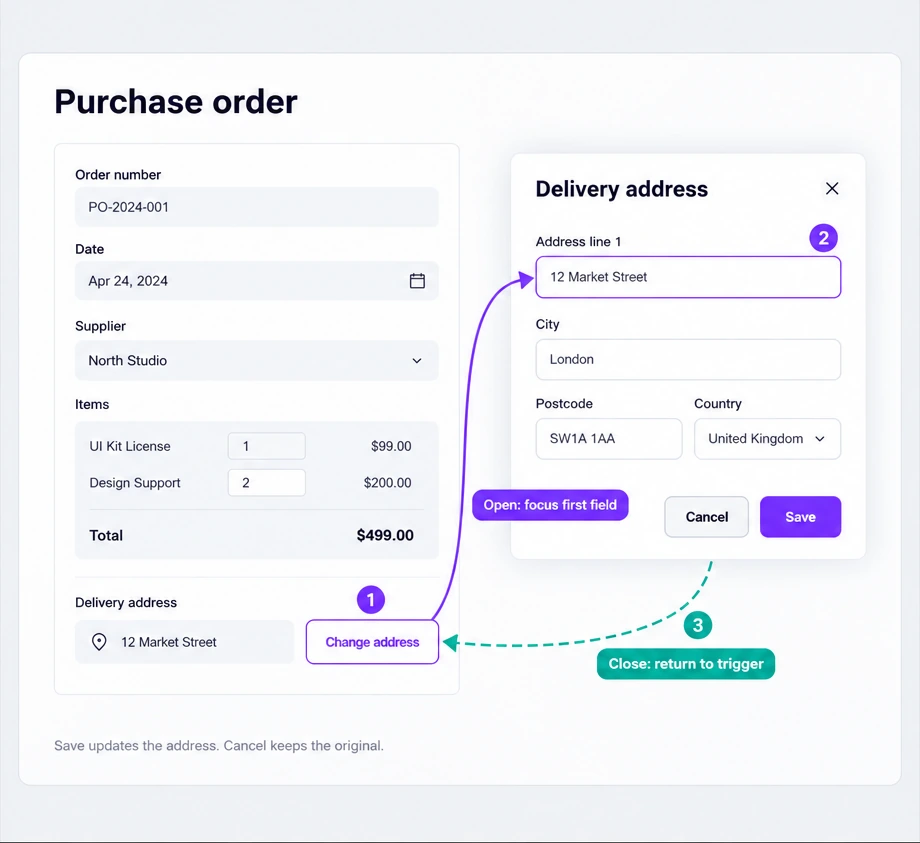
The buyer activates “Change delivery address.” The dialog needs a suitable initial focus location, a usable sequence within it, and a return destination when it closes. In a short edit form, its first field may be appropriate. A longer dialog may need its heading or explanatory content to be encountered first. The choice follows the task and information, not a rule that the first button always wins.
The WAI-ARIA modal-dialog pattern describes keeping keyboard navigation within an open modal and returning focus appropriately after it closes. Annotate Save, Cancel, and Escape separately. Saving an address should leave the buyer at a useful point in the order, while canceling should preserve the previous address.
For this example, record: “Open: focus Address line 1. Cancel or Escape: return to Change delivery address without changing the summary. Save: update the summary, close the dialog, return to Change delivery address.” If saving removes that trigger from the page, specify a different surviving destination. An arrow pointing at an element that no longer exists is not a handoff decision.
Plan for added rows, errors, and narrow layouts
The order includes an “Add item” action. Decide whether adding a row moves focus into the new item field or leaves focus on the action. Moving to the new row can support immediate entry, provided the new content is clearly identified. Keeping focus on the action can suit repeated insertion. Choose deliberately and explain the expected workflow.
Deletion needs equal care. If the focused remove button disappears with its row, focus should land somewhere useful: the next row's corresponding control, the previous row if there is no next one, or Add item when the list becomes empty. Document those three cases rather than writing only “return focus.”
For a failed review action, decide how a buyer discovers several errors and reaches each affected field. An error summary can link to the missing supplier and invalid quantity. Correcting one value should not unexpectedly move the buyer to the next error. Keep the person's current task stable while feedback updates.
On mobile, the order summary moves below the fields. Review the intended reading and focus sequences together with developers. CSS can change visual placement without changing document order. A design file cannot prove how the browser will traverse the implemented page; a narrow screenshot alone will not expose that mismatch.
Create a focus specification in Pixso
Place the default purchase form, address dialog, added-row state, deleted-row state, and validation-error state in one Pixso file. Keep the same example supplier and item across frames so the review stays about navigation rather than changing data. Add numbered annotations beside interactive elements without covering their labels.
Next to each transition, write the trigger, destination, and preserved information. For example: “Remove middle row → next row's Remove button; keep the remaining item quantities.” Use a second annotation style for movement within a composite control so it cannot be mistaken for page-level Tab order. Link the visual states in a prototype to discuss the flow; document keyboard behavior explicitly for implementation.
Assign unresolved behavior to a named component or screen. “Where should focus go after deleting the final row?” is a useful review comment. “Make it accessible” leaves both the decision and the acceptance test unstated.
Verify the route in the implemented interface
Start the purchase task with a keyboard and without clicking first. Move forward and backward, open and close the dialog, add and remove a row, and submit incomplete information. Observe where focus actually lands and whether the indicator remains visible. Repeat at a narrow viewport and with zoom; sticky actions must not hide the focused control.
Record a failure as a reproducible sequence: starting state, keys pressed, expected destination, actual destination, and effect on the task. A browser test that confirms dialog return is stronger than a screenshot with a correct-looking arrow. Use the design annotations to agree on the intended behavior, then use the working interface to establish whether it exists.
![[Full Guide] UI Design Prototyping](https://pixso.net/assets/media/what-is-ui-design-prototyping-79f536e2c60326ab.webp)