Scott
Time is your most valuable asset in the fast-paced world of digital product creation. Relying solely on your mouse to navigate complex dropdown menus can severely disrupt your creative flow and slow down project delivery. Mastering keyboard shortcuts is the absolute best method to hit tight deadlines and elevate your output without burning out. In this guide to UI design shortcuts for Figma, Sketch, Adobe XD, and other tools, we will explore essential keystrokes for everyday work. More importantly, we will introduce Pixso, an innovative platform that unifies these commands. By standardizing hotkeys across tools, Pixso drastically lowers the learning curve and maximizes your design efficiency, letting you focus entirely on building incredible user experiences.
Part 1: The switching dilemma and why Pixso is the ultimate solution
One of the most significant bottlenecks in the modern digital creative workflow is the friction caused by transitioning between different software environments. The industry is highly fragmented. You might spend months meticulously mastering specific commands in one tool, only to join a new company or collaborate with an external agency that uses an entirely different ecosystem. This constant shifting forces professionals to continuously second-guess their hand movements. When muscle memory fails, you inevitably revert to slow, deliberate mouse clicks, which severely damages your overall momentum and breaks your concentration.
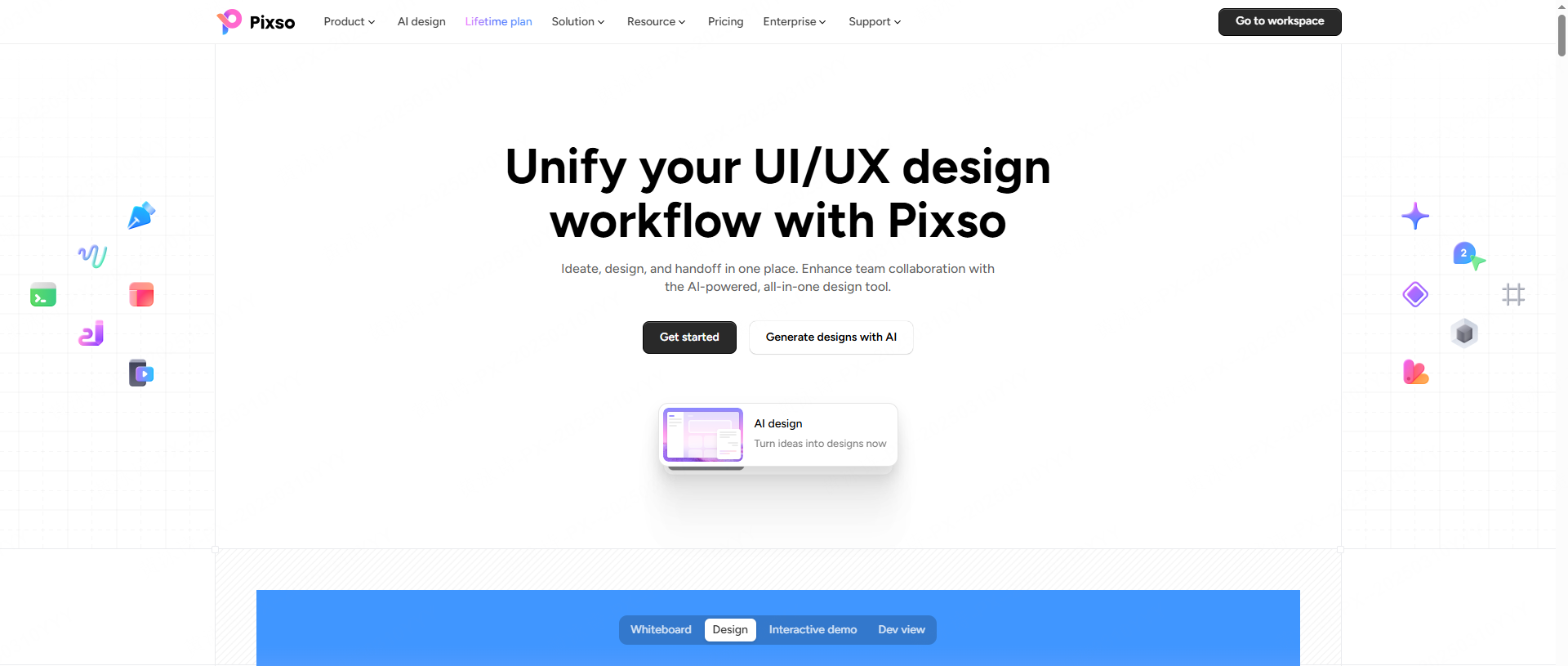
Enter Pixso, a next-generation collaborative UI/UX platform engineered specifically to resolve this universal industry frustration. The developers behind Pixso deeply understand that the core pain point for most creators and product managers is the immense friction associated with migrating a team to a new workspace. To combat this effectively, Pixso features a highly intuitive environment that intentionally mirrors the established logic of industry giants. If you already know how to group complex layers, duplicate application frames, or create responsive layouts in other popular mainstream applications, your hands already implicitly know how to operate Pixso.
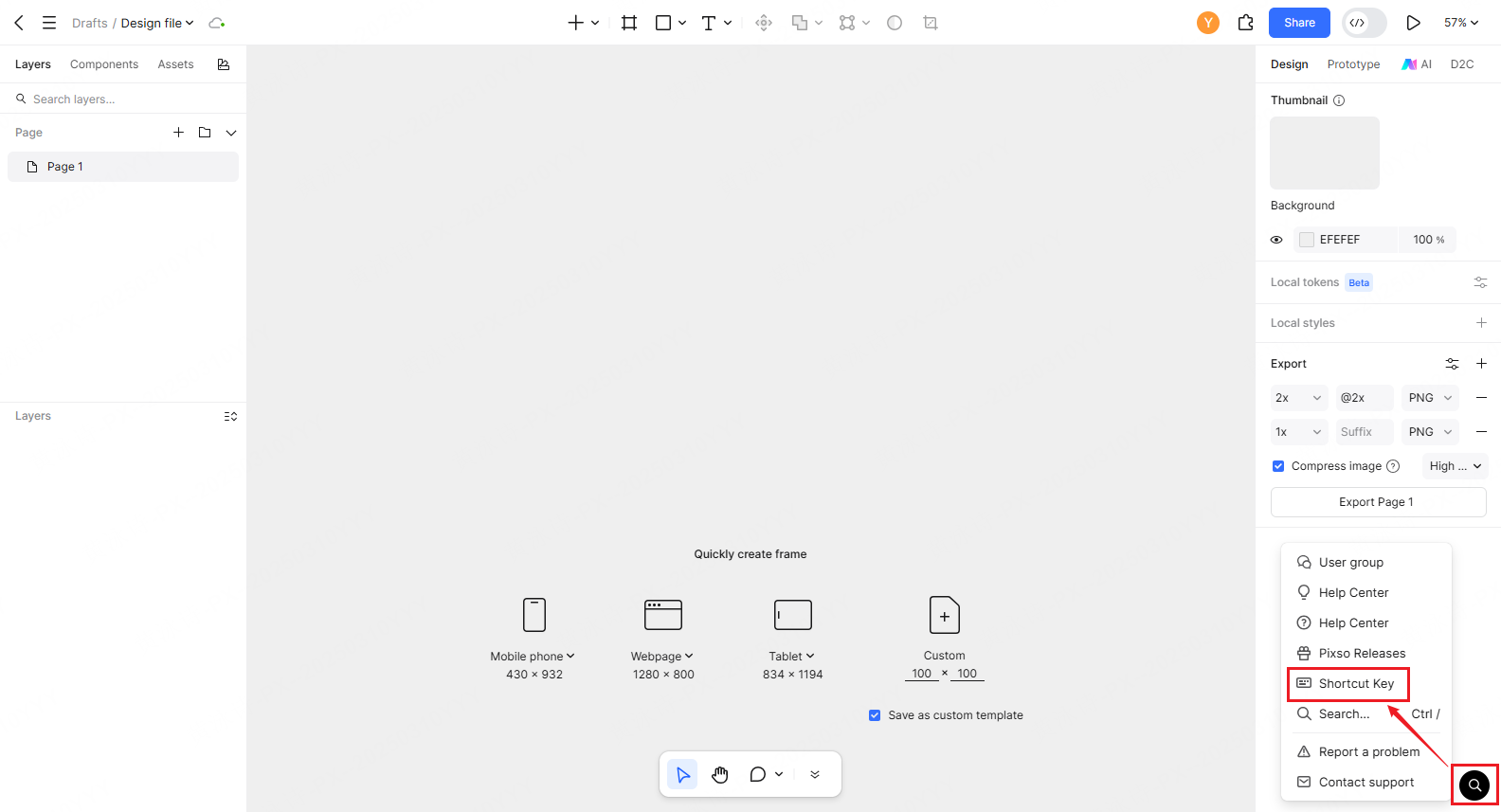
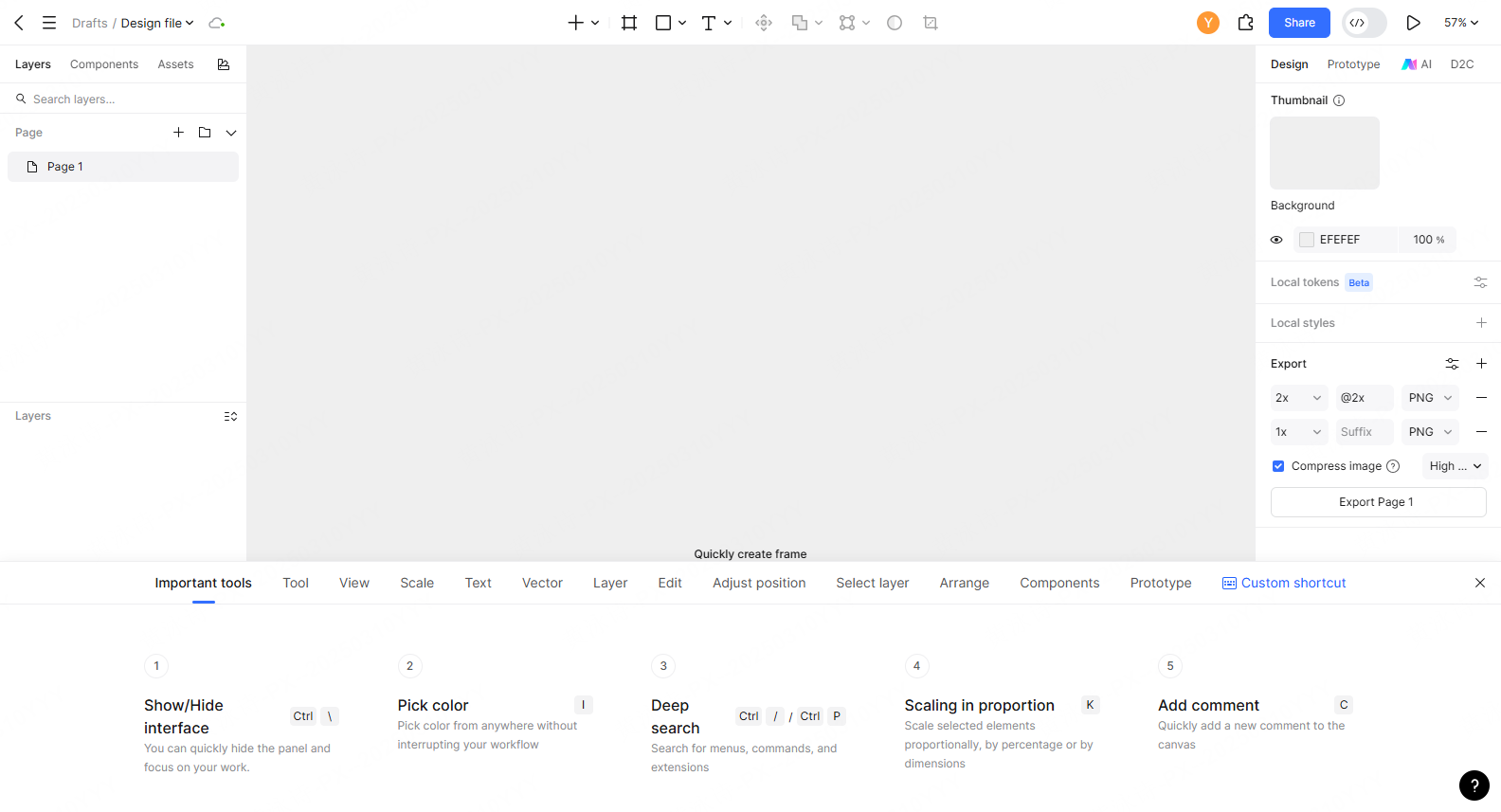
Even with a highly familiar layout, having rapid, unhindered access to a comprehensive reference guide is crucial. Pixso solves this problem elegantly with an on-demand, unobtrusive help system built directly into the main interface. When you open a design file in Pixso, simply cast your eyes to the bottom right corner of the screen. Right there, you will find a subtle question mark icon. Clicking this icon reveals a pop-up menu with a "Shortcut Key" option. Selecting this option opens a beautifully organized, centralized panel displaying the complete list of available commands without ever forcing you to leave your active canvas or open a new browser tab.
Part 2: The Top 20 golden commands for beginners
You absolutely do not need to memorize hundreds of obscure hotkeys to see an immediate, massive improvement in your daily output. For beginners looking to rapidly scale their abilities and work like seasoned veterans, focusing exclusively on the top twenty golden keyboard shortcuts is the most effective strategy. These priority commands handle the vast majority of repetitive daily tasks.
First, mastering primary shape generation is non-negotiable for rapid wireframing. Pressing R for rectangles, O for ellipses, and T for text layers allows you to sketch out user interfaces at lightning speed. These align perfectly with standard figma keyboard shortcuts, making them universally applicable across the industry. Next, effortlessly navigating the canvas is critical for large-scale projects. Holding the spacebar allows you to pan fluidly across massive artboards, while holding the Spacebar alongside the Cmd or Ctrl key allows you to quickly zoom into specific pixel details.
For manipulating elements on the screen, mastering the rapid duplication command (Ctrl/Cmd + D) and grouping mechanics (Ctrl/Cmd + G) will save you countless hours over a month. A highly valuable memory technique is closely associating the primary letter with the specific action: G stands for Group, T stands for Text, and V stands for the standard Vector selection tool. To make things even easier for newcomers, the comprehensive Pixso cheat sheet accessible via the bottom right question mark specifically highlights these high-frequency basics, ensuring beginners know exactly where to start their learning journey without feeling overwhelmed.
Part 3: Cross-tool comparison and seamless migration
When migrating an entire product team to a new platform, the learning curve is often the biggest hurdle. Transitioning from established legacy tools can feel daunting because muscle memory is incredibly strong. If your fingers instinctively execute specific figma keyboard shortcuts, pressing that familiar combination in a brand-new tool and experiencing an unexpected result can be deeply frustrating.
This is where Pixso truly shines as a unifying bridge. By offering a meticulously crafted shortcut design that functions essentially as a universal translator, it respects the habits you have already formed. In Pixso, the cross-tool comparison is practically a non-issue because the logic is unified. Whether you are coming from Adobe XD, where you might be used to specific repeat grid commands, or Axure, where dynamic panel navigation is key, Pixso aligns its core functionalities to reduce your switching costs to near zero.
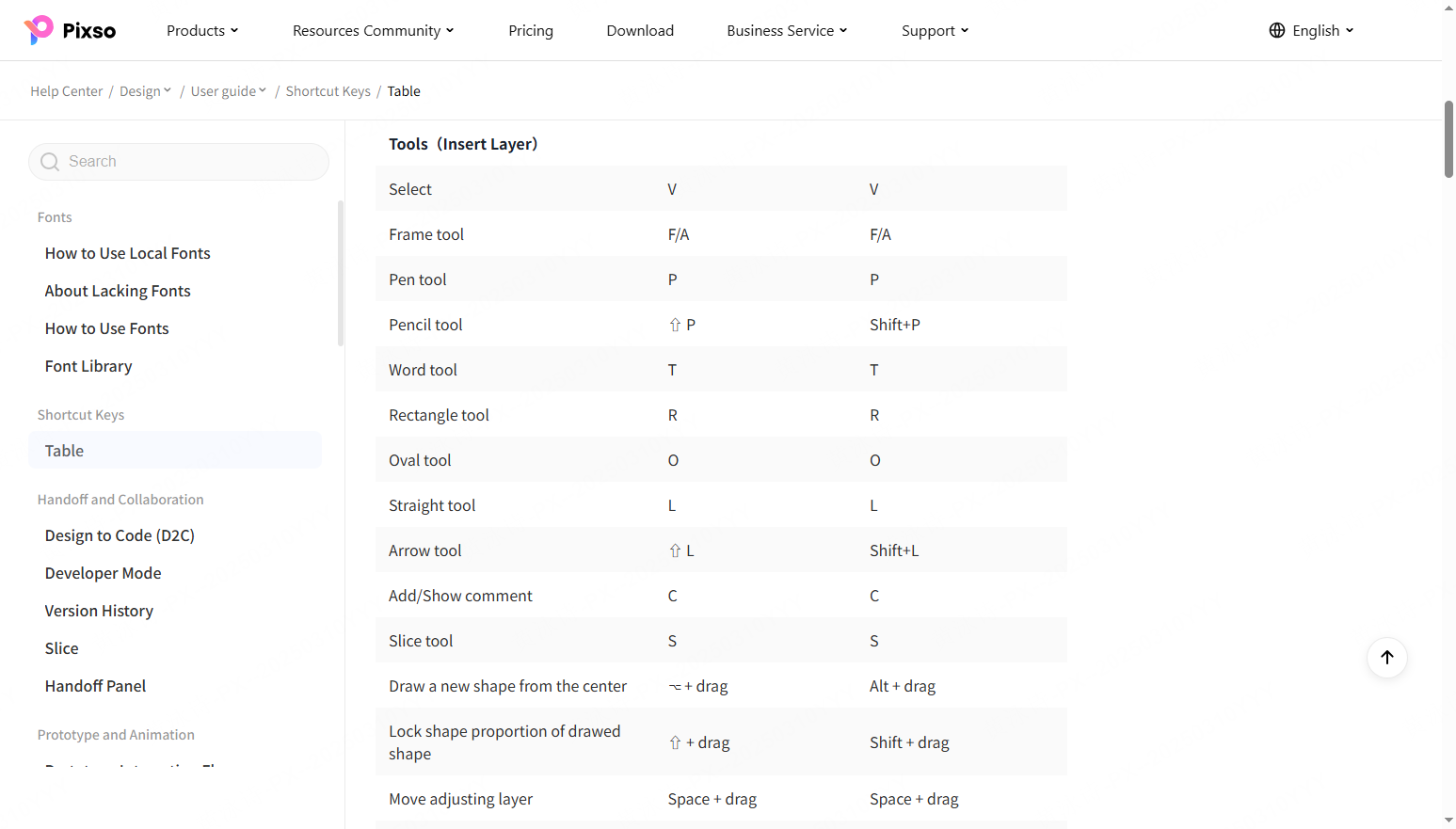
For the rare instances where a one-to-one mapping is technically impossible due to specific browser constraints or entirely unique platform features, Pixso excels in user transparency. The platform provides a clear, seamless migration mapping table. This guide explicitly annotates any minor differences and provides instant alternative solutions, radically lowering the learning cost. Instead of stumbling blindly through frustrating trial and error, your team has immediate, crystal-clear clarity on exactly how to execute their favorite commands in the new digital environment.
Part 4: Scenario-based grouping for real-world workflows
A remarkably common mistake novice designers make is trying to learn commands alphabetically from a massive spreadsheet. This purely academic approach lacks context and makes rapid recall incredibly difficult during high-pressure, deadline-driven situations. A far superior method, and one beautifully reflected in Pixso’s native guide, is scenario-based grouping. By intelligently categorizing hotkeys according to your actual daily workflow, you can find and apply them instantly based on the specific task at hand.
Consider the layout phase. When aligning multiple product cards on a complex analytical dashboard, relying on precise spatial alignment keys is strictly essential. Using designated keys to snap elements perfectly to the top, center, or distribute them evenly across a designated space removes the tedious guesswork. Pixso groups these specific alignment commands logically so you can learn them as a complete set.
Layer management presents another major scenario. When constructing complex interfaces, you frequently need to push decorative backgrounds to the very back or bring interactive modals to the absolute front. Using specific bracket key combinations (like Cmd + [ or Cmd + ]) to shuffle your layer hierarchy keeps your document tree pristine without requiring you to manually drag tiny rows up and down in the left sidebar.
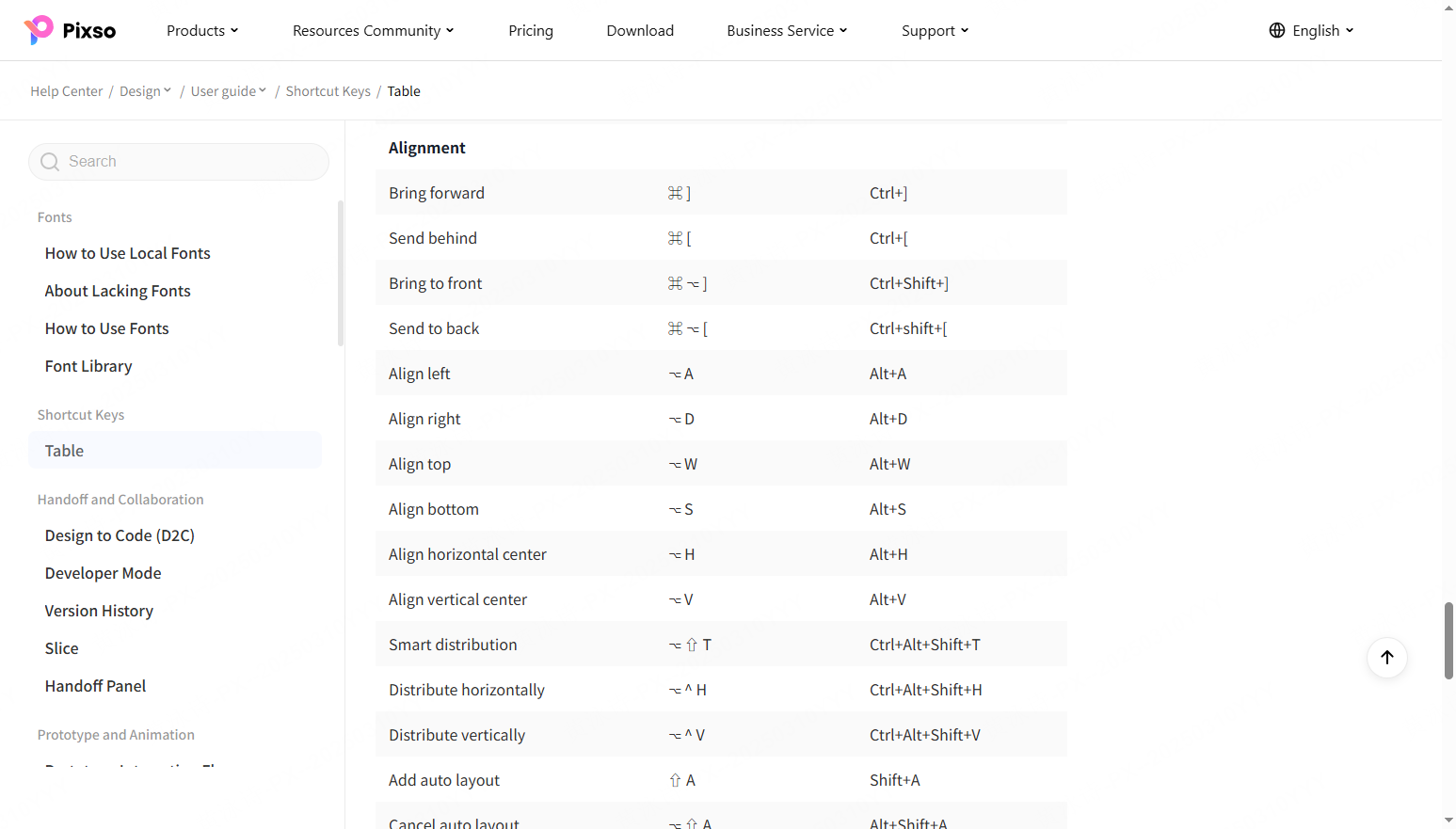
Furthermore, during the final handoff phase, specific export scenarios dictate the pace of delivery. Having rapid combinations categorized specifically under "Export" streamlines the developer handoff significantly. Similarly, in the interactive prototyping phase, knowing exactly how to switch between the static canvas and the live preview window keeps your interaction testing highly fluid. By structuring your learning around these daily, layout, layer, export, and prototype categories, your design efficiency naturally skyrockets.
Part 5: Pixso exclusive adaptation and multi-format delivery
While maintaining compatibility with industry standards is vital, a truly elite tool must also innovate. Pixso goes beyond basic imitation by offering its own exclusive shortcut design adaptations that elevate user performance. The platform provides a complete, exhaustive list of commands with full, seamless dual-system coverage for both Windows and Mac environments. You never have to guess whether you should be pressing the Command key or the Control key. Furthermore, Pixso specifically highlights its own unique, high-efficiency combination keystrokes designed to execute complex, multi-step actions with a single press.
Recognizing that people process and retain complex technical information in vastly different ways is also crucial for ensuring rapid team-wide software adoption. Some professionals thrive on interactive digital pop-ups, while others vastly prefer to have a tangible, printed reference sheet sitting right next to their keyboard.
Pixso fully embraces a robust, multi-format delivery approach. Beyond the built-in, online searchable menu accessed via the bottom right question mark, the platform ensures these resources are available everywhere. The complete list of keyboard shortcuts is fully copyable, allowing internal operations teams to effortlessly create their own highly customized onboarding wikis. For tactile learners, Pixso provides high-resolution PDF documents and crisp image-based print versions of their extensive cheat sheets. Whether you are watching a video demonstration of a new feature or printing a quick reference guide for your office wall, Pixso guarantees that this vital knowledge is accessible across all scenarios, making the learning process incredibly convenient.
Part 6: Translating keystrokes directly into tangible delivery speed
The ultimate purpose of committing these commands to memory is not simply to look impressive to your peers; it is to achieve highly tangible, measurable business results. Every single time you drag your physical mouse across a massive thirty-inch monitor to click a deeply nested menu item, you leak valuable seconds. While this might seem completely trivial in pure isolation, these tiny micro-delays compound massively over the course of a rigorous work week, draining your energy and impacting your design efficiency.
Fewer physical mouse movements equate directly to a state of highly sustained, uninterrupted creative flow. When you reach a point of mastery where you no longer have to consciously think about how to apply a specific auto-layout rule or how to correctly frame a complex selection, the software beautifully becomes an invisible extension of your creative intent. This intense focus on high-frequency operations drastically reduces your dependency on the mouse.
By deeply embedding these powerful mechanical habits, whether it is standard figma keyboard shortcuts or Pixso's exclusive high-speed combinations, you accelerate your final delivery speed remarkably. You can iterate through low-fidelity wireframes exponentially faster, respond to critical client feedback in real time during live review meetings, and finalize stunning, high-fidelity mockups well ahead of your scheduled deadlines. This massive, direct boost gives you a profound competitive advantage in a crowded market, ensuring that your ideas hit the screen exactly as fast as you can think of them.
Conclusion
In conclusion, deeply optimizing your workflow is fundamentally about working smarter, preserving your creative energy, and delivering exceptional quality at an unprecedented pace. By taking the dedicated time to master keyboard shortcuts, you drastically reduce mechanical friction and significantly elevate your overall output. Throughout this guide, we have seen how standardizing your approach is crucial for team success. Pixso stands out as an exceptional platform that understands this fundamental need. With its seamless cross-tool mapping, intuitive scenario-based groupings, and perfectly placed in-app help system, Pixso removes all technical barriers. Embrace these powerful commands in Pixso today, streamline your processes, and watch your creative productivity soar to entirely new heights.
![[NEW] How to change image styles with Pixso AI](https://pixso.net/assets/media/ai-image-style-changer-3dfaf55494026e0c148c-5f0e4928fc953542.webp)