On this page

Scott
The way an image is rendered profoundly impacts the visual message it delivers. Converting a real photo into a 3D character or shifting a landscape photo into a flat vector illustration completely alters the mood, tone, and strategic purpose of your content. Traditionally, changing an image style required dedicated photo editing software, hours of manual re-creation, or combining complex filters from scratch.
Today, generative AI can analyze the core subject, depth, and composition of a source photo and re-render it into a completely new aesthetic medium. In this guide, we will break down what style transformation is, explore practical use cases for product designers, and walk through how to change your visual assets using pixso ai.
Part 1. What Is Image Style Transformation?
Image style transformation is the process of re-rendering a source photo into a new aesthetic format, such as 3D clay, flat vector, or watercolor, while preserving the underlying subject, structure, and framing.
Common image style transformations include:
- Converting real-world photography into soft 3D clay art
- Shifting landscape photos into minimal flat vector illustrations
- Rendering portraits or product shots into watercolor paintings or pencil sketches
- Generating multiple illustrative variations from a single visual asset
- Reinterpreting stock photography to match a brand color palette
This process differs significantly from applying a standard photo filter. Traditional filters adjust surface-level attributes like brightness, contrast, and color temperature. An ai image editor, on the other hand, recognizes objects, foregrounds, and backgrounds within the frame and reconstructs the image from the ground up using a completely new artistic language.
Filters vs. AI Style Transformation
| Feature | Standard Image Filters | AI Style Transformation |
| Editing Scope | Colors, brightness, and contrast | Textures, geometry, and rendering medium |
| Object Awareness | Limited or non-existent | Contextual recognition of subjects and depth |
| Common Outputs | Vintage, black and white, color grading | 3D clay, flat vector, watercolor, sketch |
| Final Result | Color-adjusted version of the original | Reinterpreted artwork in a new artistic medium |
| Workflow | Manual tweaking of multiple sliders | Preset selection or natural language prompts |
Part 2. Why Product Teams Need Style Transformation
1. Pivot Creative Direction Instantly
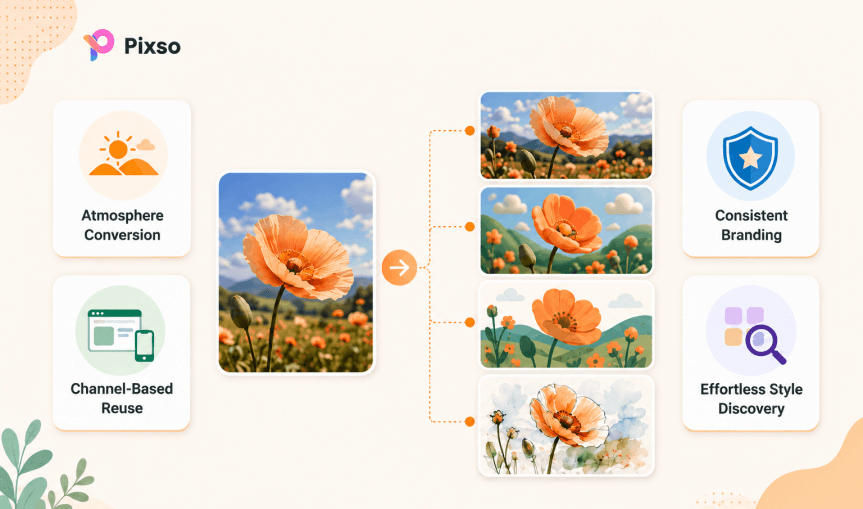
Re-rendering a single source image into different styles allows you to tailor your visual tone to specific marketing collateral. For example, a realistic floral photo might suit an e-commerce product card, while a 3D clay version of the same flower works better for a lively promotional banner or social media graphic. Shifting a landscape photo into a flat vector illustration makes it ideal for website hero sections or blog thumbnails.
2. Reduce Repetitive Asset Production
Websites, social media carousels, ad campaigns, and pitch decks all require distinct image styles. Creating separate assets for each platform from scratch consumes valuable design hours. Using an ai image style changer enables you to generate multi-channel variations from a single original file in seconds.
3. Maintain Visual Brand Consistency
Inconsistent illustration styles across an app or website can make a design system feel fragmented. By converting raw photographic assets into unified vector or 3D styles, product teams can establish a cohesive visual identity across their entire UI.
4. Explore Creative Concepts Without Specialized Skills
Creating custom 3D models or hand-drawn vector illustrations requires specialized software and technical expertise. AI style transformation empowers UI/UX designers, marketers, and content creators to explore diverse creative directions without complex asset pipelines.
Part 3. Practical Examples Using Pixso AI
Pixso is an online collaborative UI/UX design platform that lets product teams ideate, prototype, and edit assets in one place. By leveraging built-in AI capabilities, you can import images directly onto your artboards, execute style transformations, and continue designing your user interface within the same workspace.
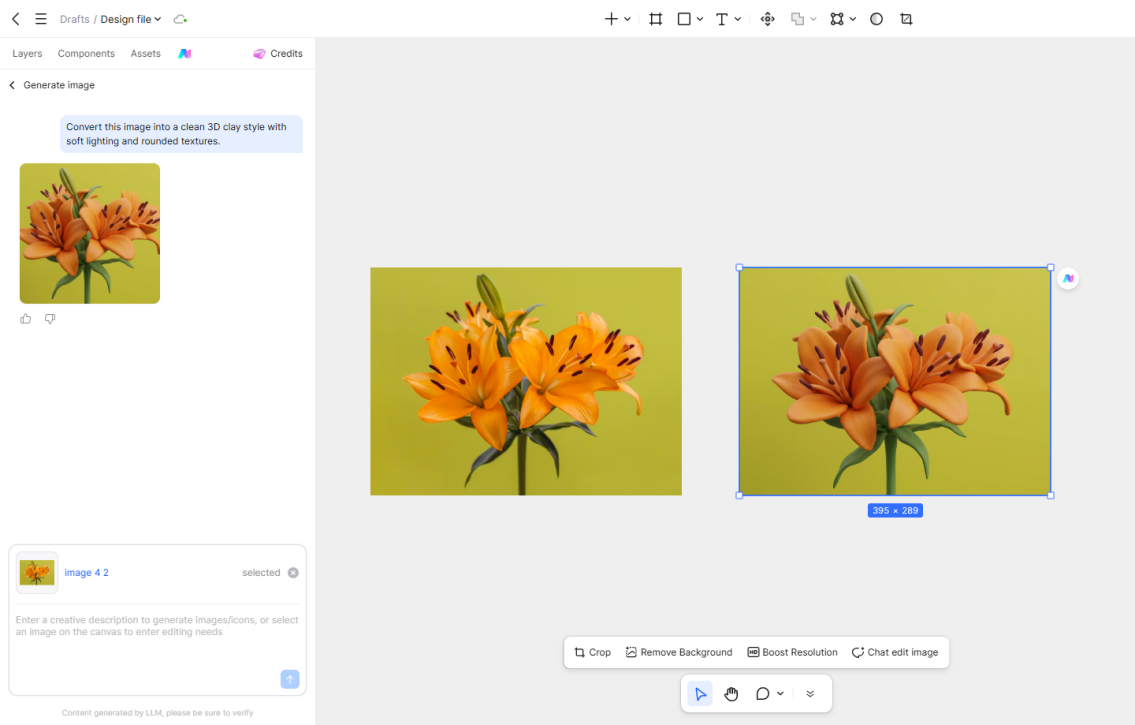
Example 1. Converting a Flower Photo to 3D Clay
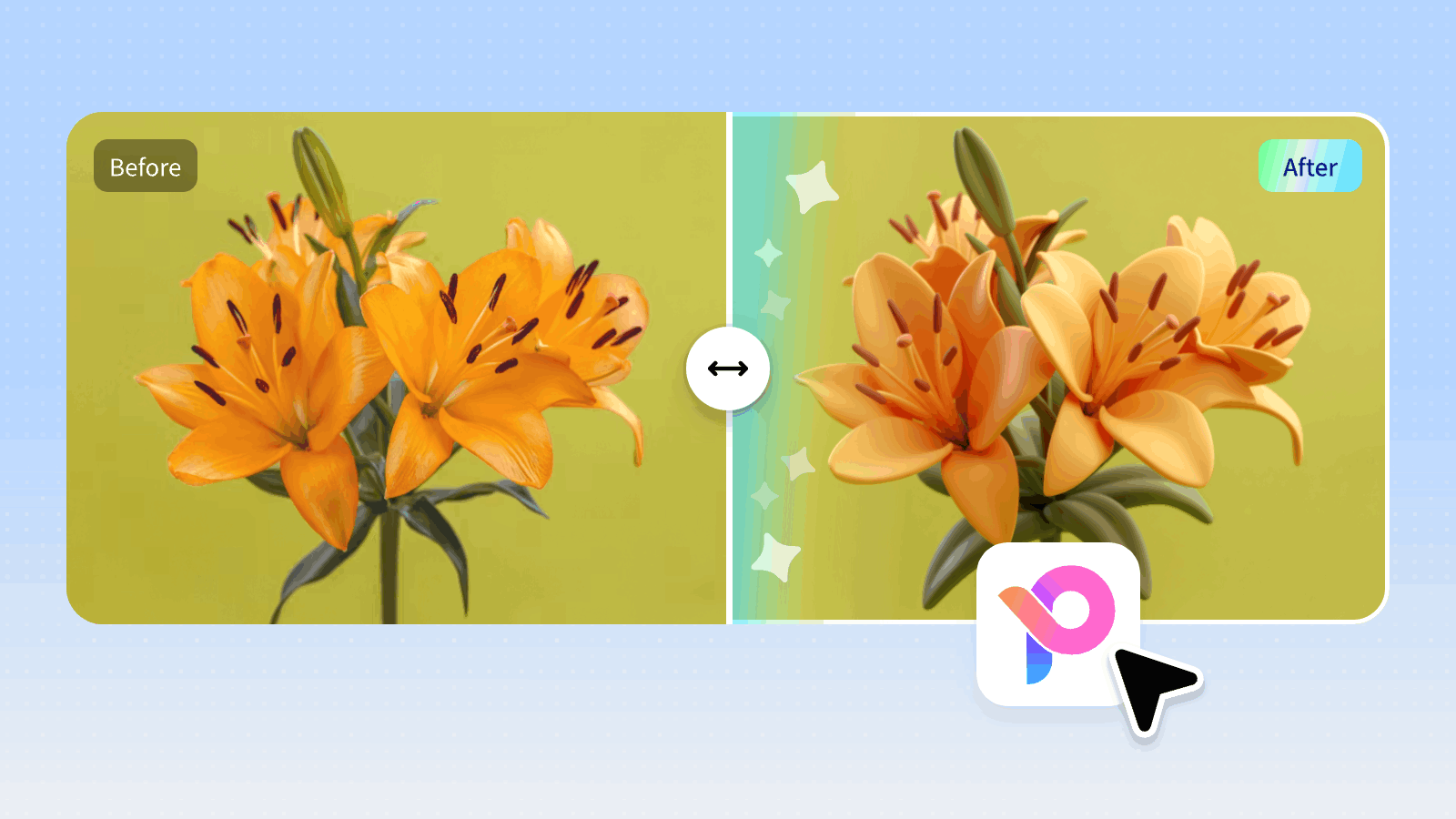
In this example, a realistic photo of an orange flower is transformed into a smooth, tactile 3D clay style. The AI retains the original petal arrangement and spatial layout while replacing realistic textures with soft, rounded clay geometry. This warm, approachable aesthetic is ideal for:
- Beauty and lifestyle branding
- Promotional ad banners
- Social media creatives
- Event landing pages
- Presentation illustrations
Sample Prompt:
"Keep the original flower shape and arrangement, but transform it into a smooth, rounded 3D clay style. Emphasize warm orange tones and keep the background minimal."
Example 2. Converting a Night Sky Hot Air Balloon to 3D Clay
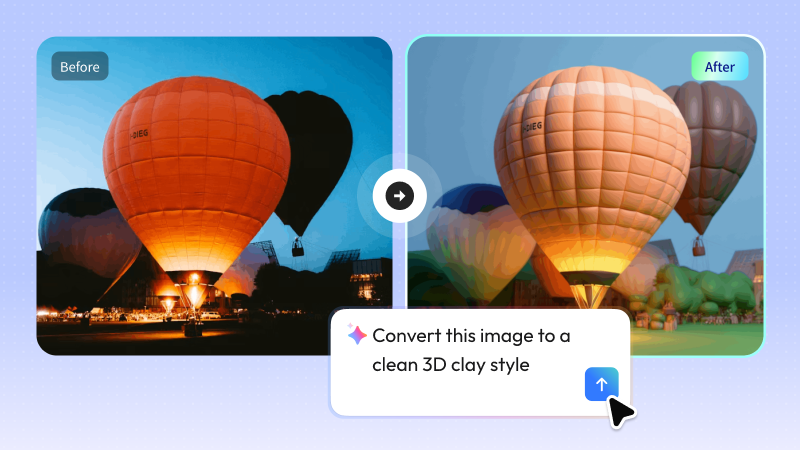
In this second example, a dark nighttime photo of a hot air balloon is re-rendered into a bright, vibrant 3D clay scene. The balloon retains its rounded geometry and placement, but its surface is replaced with soft clay textures. The dark background shifts into a bright, cheerful outdoor landscape, making it perfect for:
- Travel and leisure apps
- Mobile app onboarding screens
- Educational digital products
- Event banners
- Digital ad campaigns
Sample Prompt:
"Maintain the hot air balloon composition from the original image, but change the image to a specific art style focusing on a bright, friendly 3D clay aesthetic. Enhance 3D depth and set the background to a vibrant natural landscape."
Part 4. How to Change Image Styles in Pixso
Changing visual styles in Pixso takes just a few clicks directly on your design canvas.
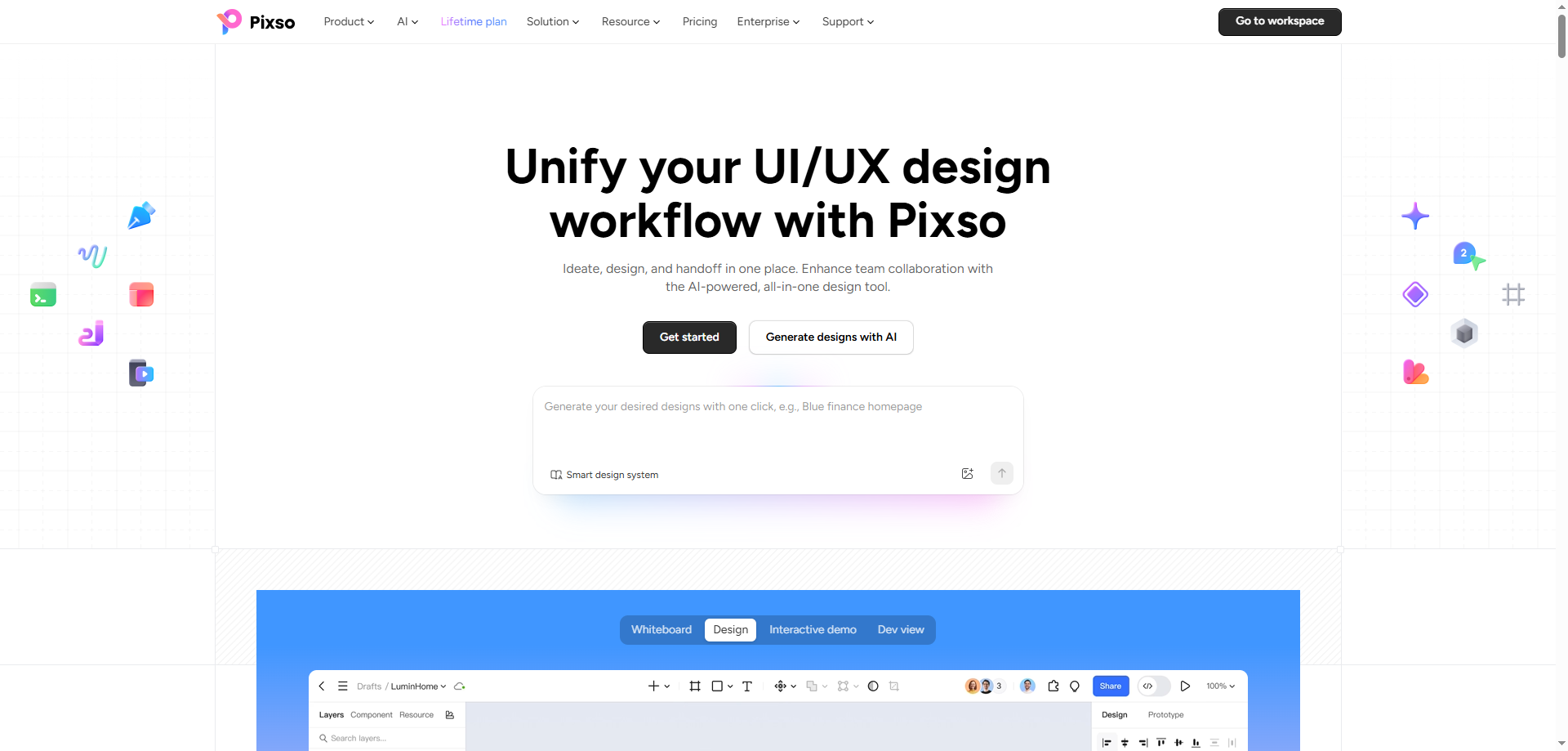
Step 1. Open Your Pixso Design File
Log into Pixso, enter your workspace, and open an existing canvas or create a new design file.
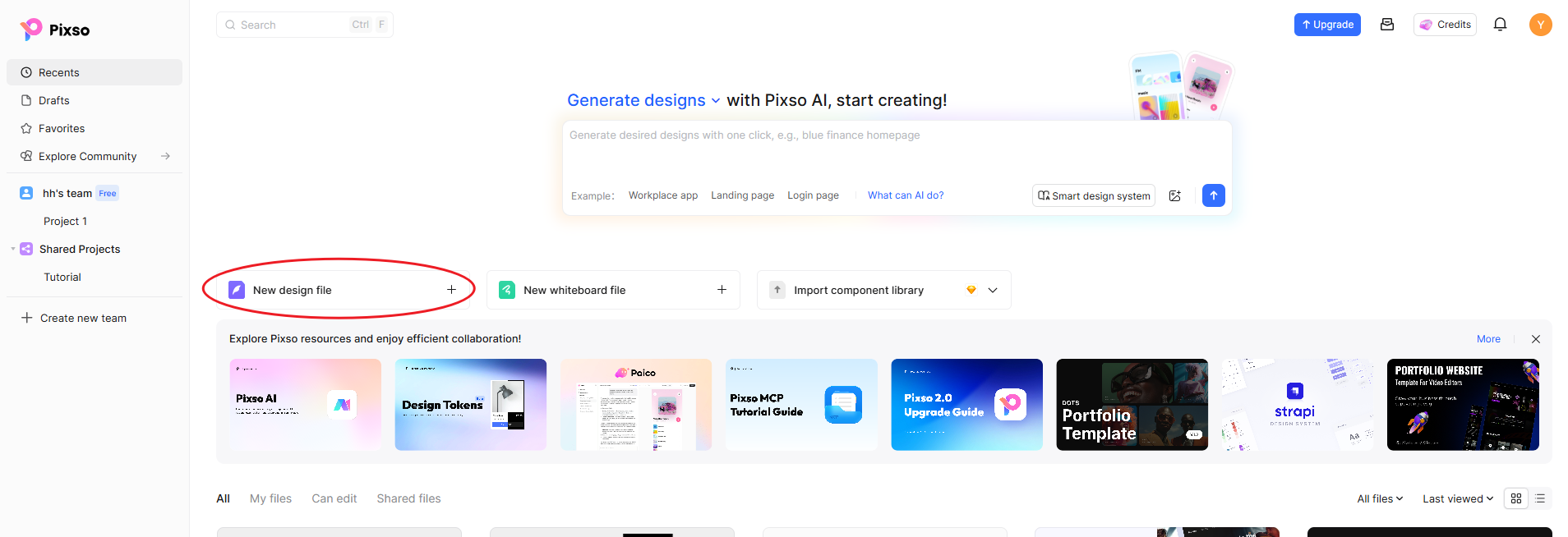
Step 2. Import and Select Your Asset
Import your image onto the canvas. You can transform standalone image files or edit assets already integrated inside app artboards, landing page frames, or banner layouts.
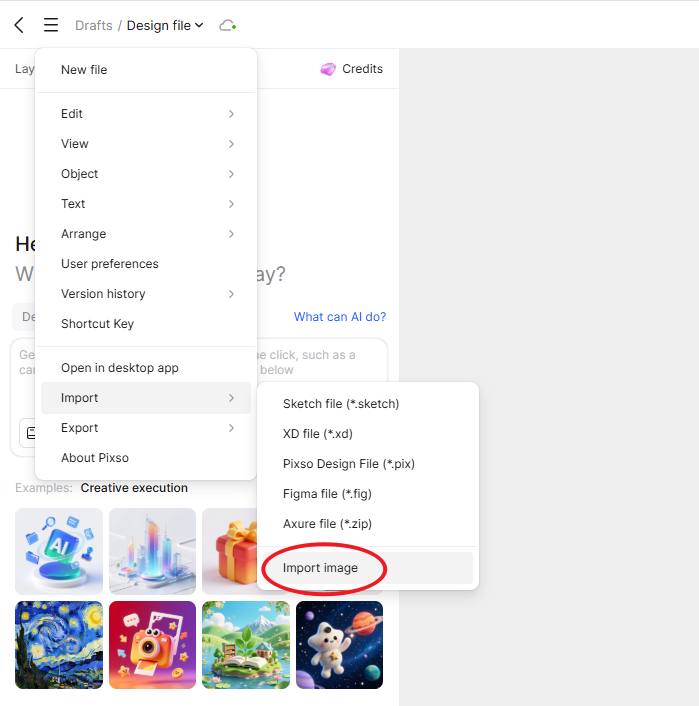
Step 3. Launch Pixso AI Image Tools
Select the target image layer and navigate to the AI tools menu. Select the image style transformation feature.
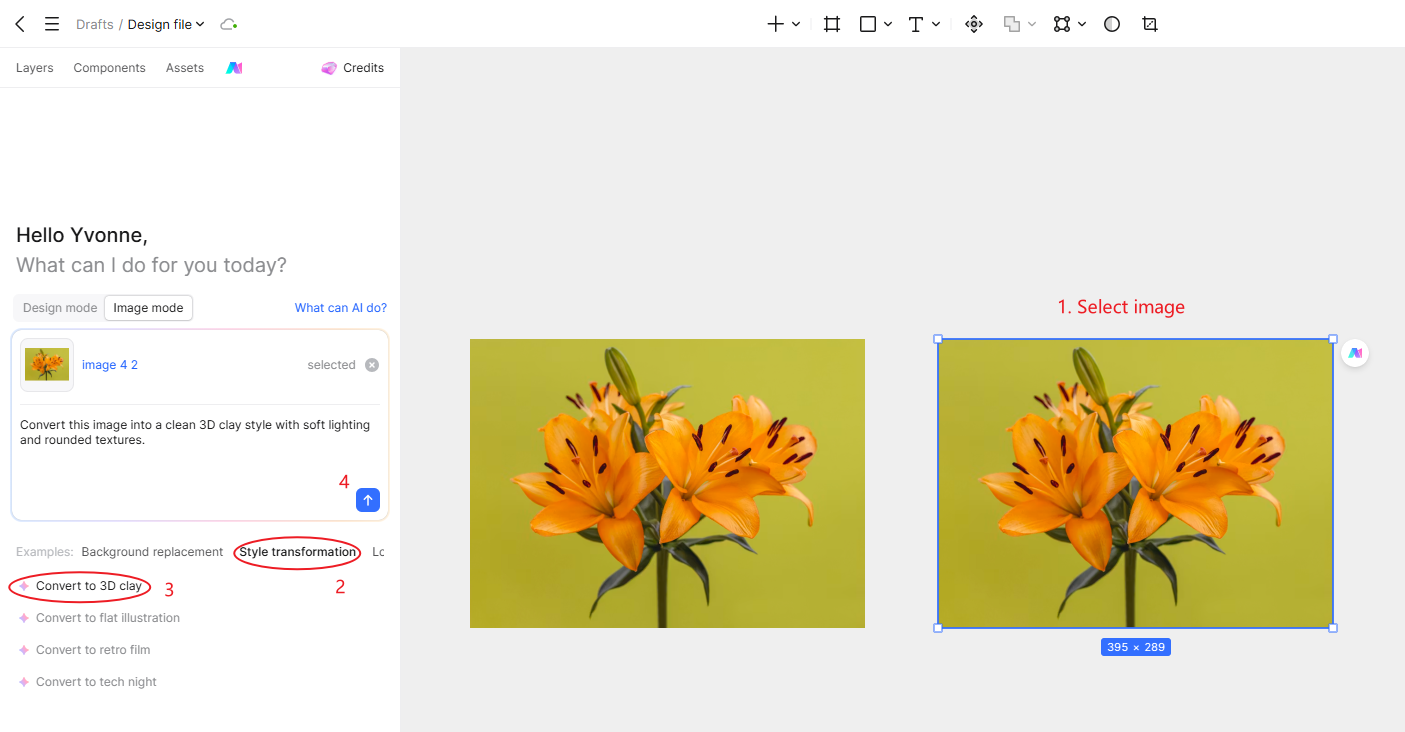
Step 4. Select a Style Preset or Input a Prompt
Choose from built-in presets like 3D Clay or Flat Vector, or enter a custom prompt.
When writing custom text instructions, include:
- Elements to keep: Subject, framing, composition, structural layout
- Elements to change: Artistic medium, texture, rendering technique, color palette
- Target mood: Warm, minimal, vibrant, sleek
- Design context: Web banner, mobile UI, presentation slide
- Negative parameters: Text overlays, distorted geometry, clutter
Step 5. Review and Refine Results
Evaluate the generated image. If the initial output needs tweaking, adjust your prompt parameters and generate a new iteration.
Step 6. Apply Directly to Your UI Designs
Place the finalized asset directly into your UI layouts, ad templates, or design frames. Scale, crop, and pair the image with typography, vector icons, and interactive components without switching tools.
Part 5. Prompt Engineering Best Practices for Style Transformation
Providing clear, structured conditions produces far better results than abstract descriptions.
Recommended Prompt Structure
"Keep [Subject and Framing] intact, and transform the image into [Desired Art Style]. Apply a [Color Palette and Mood], and do not include [Negative Constraints]."
Style Specific Prompt Examples
- 3D Clay Style:
"Maintain the main subject form and placement, but convert the image into a smooth, rounded 3D clay style. Highlight warm orange accents and keep the background simple." - Flat Vector Illustration:
"Keep the original landscape framing, but change the image to a specific art style using clean flat vector shapes, beige and teal tones, and smooth curves. Avoid complex textures or outlines." - Watercolor Painting:
"Preserve the facial features and pose from the original photo, and re-render it as a soft watercolor illustration. Use pastel color washes and a subtle paper grain texture." - Colored Pencil Sketch:
"Retain the architectural lines and perspective of the building, and convert the image into a hand drawn colored pencil sketch using fine stroke work and light pastel shading." - Brand Unified Illustration:
"Keep the product silhouette identical to the original image, but re-render it into a minimal vector illustration using our brand colors, navy and coral. Ensure a clean background."
💡 Pro Tip
Want to improve the sharpness and resolution of your source photos before applying a new artistic medium? Check out our step-by-step guide:
🔗 [NEW] How to unblur images & sharpen portrait photos with AI
Key Considerations When Changing Image Styles
1. Verify Core Subject Integrity
Even if a transformed style looks visually appealing, verify that key product details, facial characteristics, or brand logos remain recognizable. Always zoom in to inspect critical visual anchors.
2. Avoid Overloading Prompts
Attempting to change style, lighting, composition, background elements, and color palettes all in one prompt can produce unpredictable results. Shift the core rendering style first, then adjust colors and secondary elements incrementally.
3. State the Intended UI Context
Providing context in your prompt, such as "designed for a website hero section", helps pixso ai determine appropriate negative space, subject framing, and compositional balance.
4. Inspect Commercial Assets
AI generated visuals can occasionally introduce subtle anomalies in small text, intricate logos, or complex hands. Always compare your final outputs against raw design files before pushing assets to production.
FAQ
Q1. What is image style transformation?
Image style transformation uses AI to reinterpret a photo into a new artistic medium, such as 3D clay, flat vector, watercolor, or sketch, while preserving the original composition, subject, and structural layout.
Q2. How does style transformation differ from background replacement?
Background replacement isolates the subject and swaps out only the surrounding environment. Style transformation re-renders both the subject and background into a unified artistic medium.
Q3. Do I need professional illustration or 3D modeling skills to use this feature?
No. You can select built-in presets or type simple natural language prompts to transform assets, making advanced style creation accessible to every team member.
Q4. What types of images work best with style transformation?
The feature works across portraits, product shots, food photography, architecture, and landscapes. Clear subjects with distinct lighting and separation from the background yield the cleanest results.
Q5. Will my product shapes or facial features be altered?
Generative AI may slightly reinterpret fine details during style rendering. To protect exact silhouettes or facial identity, specify "preserve original product shape and proportions" in your prompt.
Q6. Can I use transformed assets directly in my Pixso UI prototypes?
Yes. Transformed assets render directly onto your Pixso canvas, allowing you to incorporate them into app screens, responsive layouts, design systems, and clickable prototypes seamlessly.
Conclusion
Transforming an image style goes beyond applying simple color filters; it reinterprets your visual content into a whole new visual language. Whether you need to convert product photography into 3D clay graphics or turn landscapes into flat vector illustrations, leverage pixso ai to pivot your design direction in seconds.
By combining AI driven asset generation with a full featured UI design canvas, Pixso empowers product teams to create, iterate, and refine visual assets in one seamless workspace. Try transforming your visual assets in Pixso today to build cohesive, high converting digital experiences.