On this page

Scott
Line spacing is the distance between text baselines. For UI body copy, start with a line height that makes it easy to find the next line, then test the actual font, column width, language, and content. A value such as 1.5 is a useful comparison point, not a universal setting. The wider UI typography guide explains how line height works with size and hierarchy.
Keep three decisions separate: line height within a paragraph, the gap after a paragraph, and the space around a component. Increasing one does not automatically fix the others. A card may need more room for its description without needing a larger gap between every label and value.
Understanding Leading and Its Historical Context
Source: Linkedin
1. Defining Leading in Typography
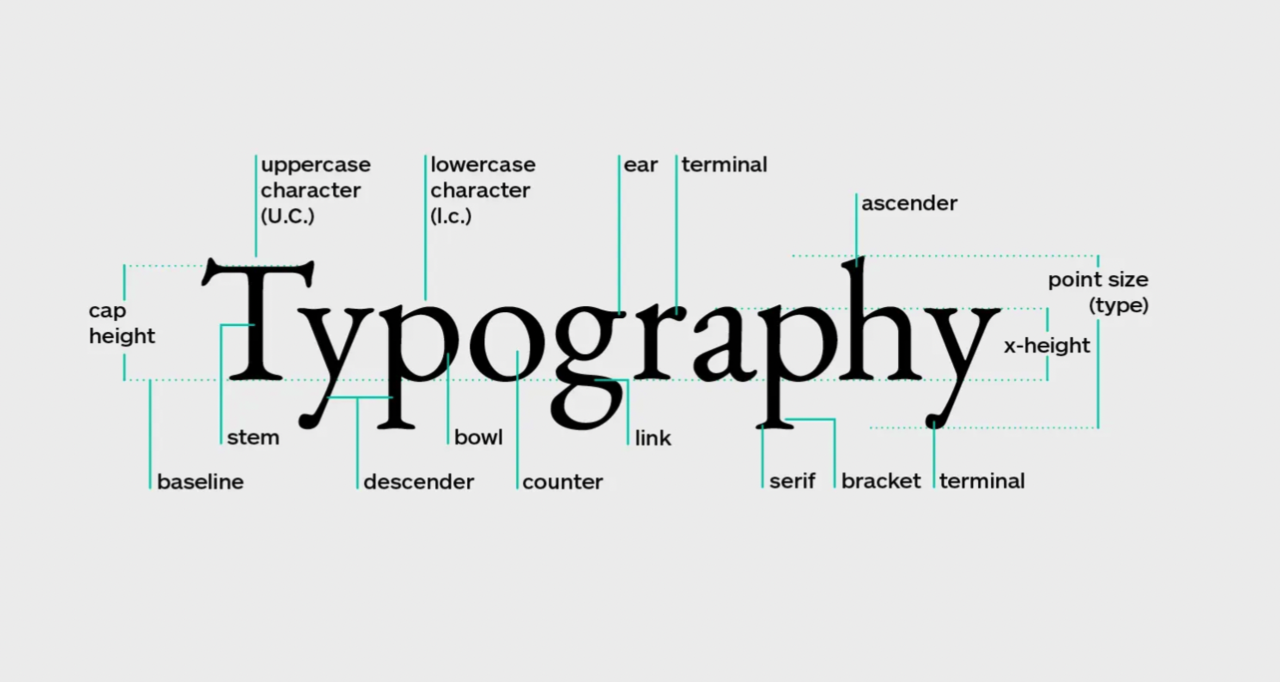
Leading is the vertical spacing between lines of text, determined by measuring the distance from the baseline of one line to that of the next line. This spacing is crucial as it impacts how easily a reader can navigate text. If the leading is too tight, the text can appear cramped, making it difficult to read. Conversely, if the leading is too loose, it can disrupt the flow of reading.
2. The Evolution of Line Spacing Practices
Historically, line spacing practices have evolved alongside advancements in printing technology. In the early days of printing, leading was physically added between lines of type to enhance readability. With the advent of digital typography, designers gained more flexibility to manipulate leading, allowing for more nuanced control over text appearance. Today, understanding the historical context of leading helps designers appreciate its role in UX design, especially when considering type line height for web applications.
Selecting The Best Line Height for Web Design


1. Determining an Appropriate Base Size for Text
Choose the font and body size before judging line spacing. For a web interface, 16px or 18px can be useful starting samples; neither guarantees readability. Compare them with the actual content, on the intended device, at the user's normal zoom. Small, low-contrast text does not become readable simply because its lines are farther apart.
2. Developing a Hierarchical Scale for Headings
Headings play a vital role in breaking up text and guiding readers through your content. Establishing a clear hierarchy using different font sizes and line heights enhances both comprehension and aesthetics. Compare wrapped headings at the intended sizes. Use space around a heading to separate sections without forcing the lines inside it too far apart.
3. Managing Different Sizes of Body Text
Use separate text styles for paragraphs, headings, captions, and short labels. A caption that wraps to three lines needs comfortable spacing just as body copy does. Do not automatically tighten smaller text: inspect the actual letterforms and the length of the line.
Essential Guidelines for Effective Line Spacing

- Choose the Right Design Software
Utilize software that allows for precise control over typography settings. Programs like Adobe InDesign, Sketch, or Figma provide features to adjust leading easily, ensuring that your text is spaced correctly.
- Implement Looser Leading for Body Text
For body text, a leading value of 1.5 times the font size is often recommended. This extra space helps the eye move smoothly from one line to the next, enhancing overall readability.
- Adjust Line Spacing Based on Typeface Variations
Typefaces differ in x-height, ascenders, descenders, weight, and script coverage. Compare the chosen face directly rather than assuming every serif needs more leading than every sans serif. Accented characters and mixed-language text can reveal collisions that a short English sample misses.
- Check Contrast and Spacing Separately
Colored text and non-white backgrounds require an appropriate text/background contrast pair. More leading can improve separation between lines, but it cannot repair insufficient contrast. Check contrast independently, then compare spacing without changing the colors.
- Apply Tighter Leading in Headlines
Large headings often use a tighter ratio than paragraphs. Test the longest realistic title on two or three lines before choosing it. Ratios below 1 can cause overlapping letterforms; a compact single-line headline is not evidence that the same style works when it wraps.
Compare line height on one real content card
Consider an appointment card with a title, a four-line preparation note, and a reschedule action. Keep its font, text, and width identical in three copies. With 16px body text, try line heights of 20px, 24px, and 28px: ratios of 1.25, 1.5, and 1.75. These are comparison samples, not pass/fail thresholds.
- Start with the narrow layout. Use a realistic note such as “Bring your current prescription and arrive ten minutes before your appointment.” Include a longer translated version if the interface supports multiple languages.
- Read across several lines. Compare whether the next line is easy to find. A visually airy card is not necessarily better if the paragraph stops reading as one unit.
- Check hierarchy separately. Keep paragraph spacing consistent between samples. Otherwise a larger section gap can be mistaken for improved line spacing.
- Let the content container grow. A fixed-height text box can clip the note when it wraps. Review the position of the action below it, not just the paragraph in isolation.
- Record the chosen pair. Store both the font size and line height in the text style, then check other cards using that style.
In Pixso, keep the three frames side by side and apply shared text styles after choosing the intended treatment. Review the longest content at narrow and wide widths. The design comparison establishes the intended spacing; the implemented page still needs its own zoom and text-override checks.
A default line height is not the accessibility test
WCAG 2.2 text spacing guidance concerns what happens when a person overrides spacing. It does not require every design's default line height to be 1.5. The interface must retain content and functionality when the specified line, paragraph, letter, and word spacing settings are applied together. Check clipped text, overlapping controls, lost labels, and unreachable actions.
Visual Comparisons: What Changes When Lines Move Apart
These screenshots compare specific text samples. Use them to notice how spacing changes the grouping of lines, then repeat the comparison with your own font and content.
Body text: 100% and 150%
The first sample packs several lines closely together at 100%. The second uses 150%, leaving more room between baselines. Follow a full line and find the next one in each sample; then consider whether the paragraph still reads as a single group.
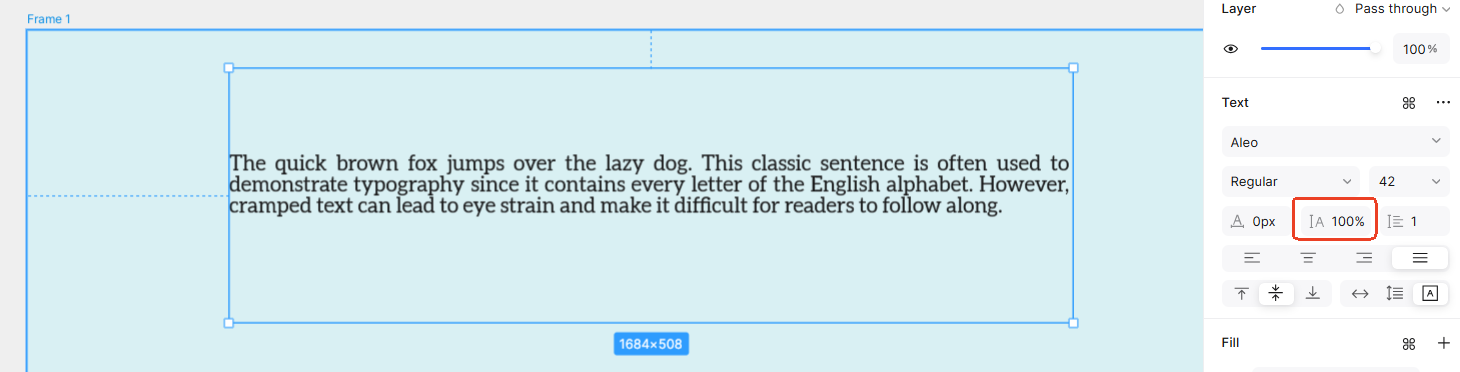
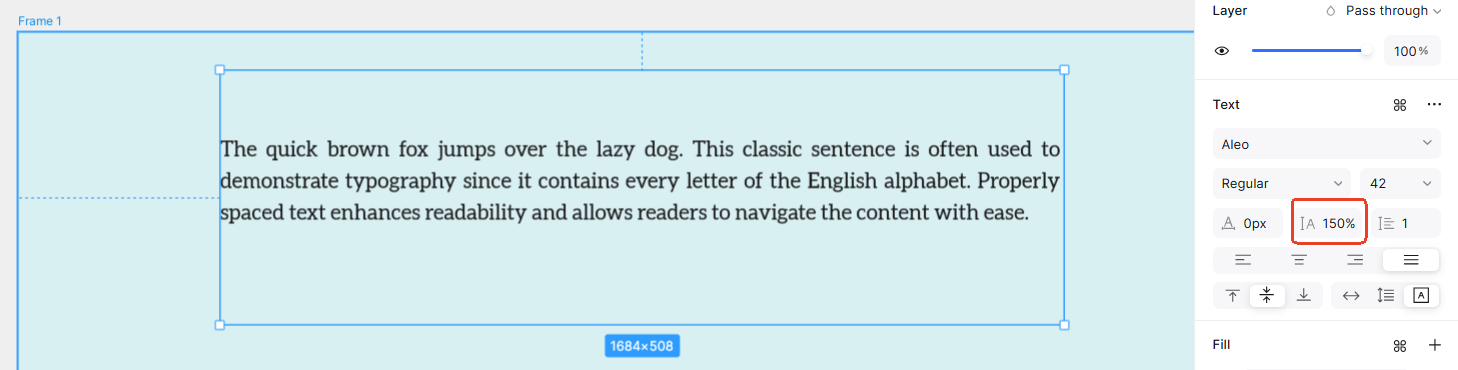
The extra room is visible, but neither screenshot establishes a universal optimum. Narrow columns, a different font, or a different script can change the useful spacing.
Headings: 180px and 110px
The property values in these screenshots are pixel values, not 1.8 and 1.1 ratios. At 180px, the two lines appear farther apart; at 110px, they form a tighter unit. Judge the longest realistic heading and check accents and descenders before applying the same setting to a shared heading style.
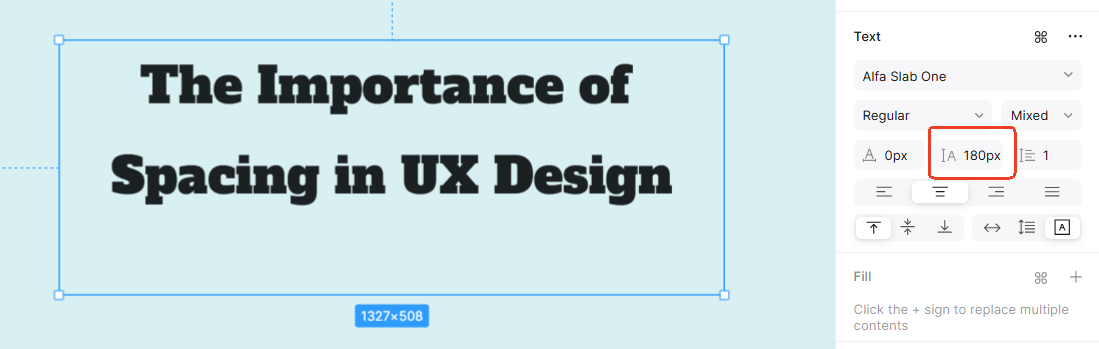
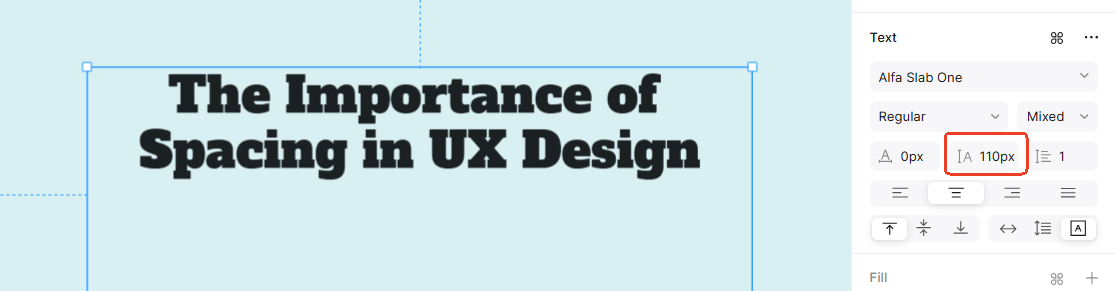
Colored text: spacing does not replace contrast
The last pair separates two colored lines by different amounts. More space makes the lines more distinct, but the orange and blue still need independent contrast checks against the pale background. Moving text farther apart does not make a low-contrast color pair pass.
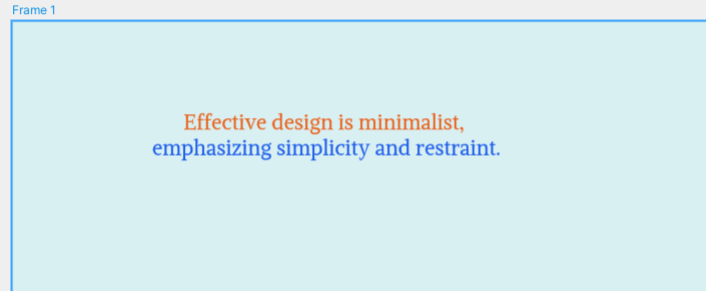
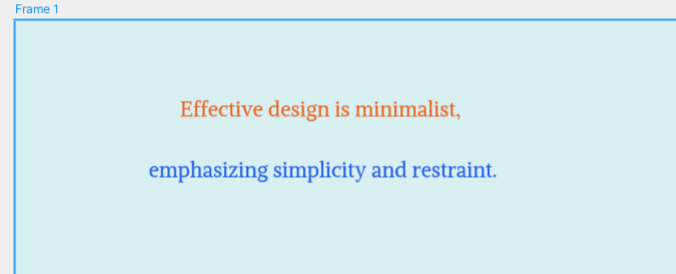
Keep the comparison controlled: change line height first, then inspect color, size, and paragraph gaps as separate decisions. Otherwise it is difficult to tell which change improved the reading experience.
Final Thoughts
Choose line spacing through a controlled comparison: one font, one text sample, one width, and several candidate heights. Then test wrapping and spacing overrides. A reusable text style is useful only when its content remains readable beyond the shortest, neatest example.