Scott
Mobile navigation works when people can predict where a destination lives, reach it with one hand, and return without losing context. The right pattern depends on the number of top-level destinations, how often users switch between them, and whether the current task has meaningful sub-sections. This guide compares bottom navigation, tabs, drawers, and contextual menus so you can choose a structure before polishing screens.
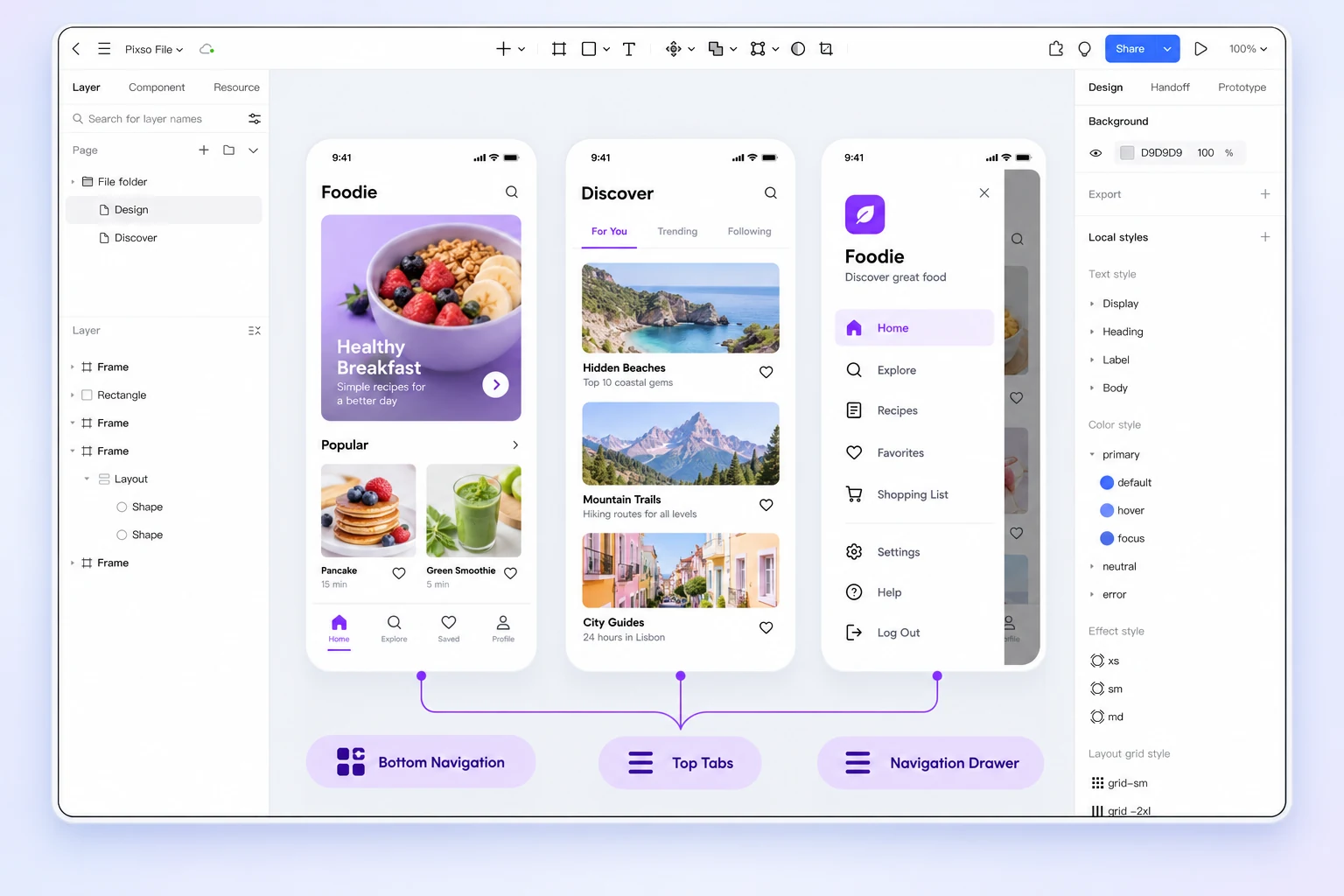
Use a Pixso UI design collaboration workflow to map the information architecture, prototype each candidate, and review touch targets and edge states with the team. The goal is not to copy a familiar pattern; it is to make the product’s structure legible.
1. Start with destinations and switching frequency
List the destinations users need at the top level and classify each by frequency, urgency, and relationship to the current task. A destination that users switch to repeatedly should not be hidden behind a menu simply because the screen looks cleaner.
| Question | What it reveals | Design consequence |
|---|---|---|
| How many top-level destinations are essential? | The size of the persistent navigation model | Too many items require grouping or a different hierarchy |
| How often do users switch while completing a task? | Whether navigation must remain visible | Frequent switching favors persistent tabs or bottom navigation |
| Does the destination have its own sub-sections? | Whether local tabs are needed | Separate global and contextual navigation |
| Is a destination urgent or time-sensitive? | How quickly it must be discoverable | Do not bury alerts or required actions in an overflow menu |
2. Choose bottom navigation for stable top-level destinations
Bottom navigation is useful when a small set of destinations is stable, distinct, and frequently revisited. Each item should have a clear label or a familiar icon-label pair. Keep the active state obvious and preserve the user’s position inside each destination when switching.
- Use it for product areas such as Home, Projects, Inbox, and Profile when each area has a distinct purpose.
- Do not use it as a container for every feature; move secondary actions into the destination or an overflow control.
- Check long labels, localization, and safe-area spacing before treating the bar as finished.
- Define what happens when the active item is tapped again: return to the top, reset the filter, or do nothing.
3. Use tabs for sibling views within one destination
Tabs work when the options are parallel views of the same object or task. “Overview,” “Activity,” and “Settings” may belong together when a user is already inside a project. They become confusing when one tab is a different product area or when the labels require a sentence to explain.
Keep the selected tab visible, make horizontal scrolling discoverable if it is necessary, and preserve filters when users switch between sibling views. If the tab count grows, revisit the information architecture instead of shrinking the type until labels become unreadable.
4. Use drawers and menus for secondary or occasional destinations
A drawer can hold destinations that are useful but not part of every session. It is appropriate for workspace switching, help, account controls, or a long list of settings. It is a poor hiding place for a task’s primary action or a destination users must check frequently.
When a drawer opens, maintain a strong visual relationship with the current screen, provide an obvious close path, and ensure keyboard, screen-reader, and focus behavior are defined for supported platforms. Prototype the open, closed, and interrupted states rather than documenting only the final screenshot.
5. Separate global, local, and contextual navigation
Many navigation problems come from mixing levels. Global navigation answers “where am I in the product?” Local navigation answers “which section of this destination?” Contextual actions answer “what can I do with this item right now?” Give each level a distinct visual and interaction treatment.
| Level | Example | Useful pattern |
|---|---|---|
| Global | Projects, Inbox, Profile | Bottom navigation or a persistent top-level control |
| Local | Project overview, files, members | Tabs or a section switcher inside the project |
| Contextual | Rename, duplicate, share | Overflow menu or action sheet tied to the selected item |
6. Prototype the uncomfortable cases
Navigation should be tested with long labels, deep links, no results, offline behavior, permission limits, and a user who returns from another app. Define whether the selected destination is restored, whether a pending action is preserved, and whether a system back gesture moves up one level or exits the task.
In Pixso, create a small interaction matrix beside the screens. Connect each navigation control to the destination and annotate the state that should remain visible. Ask a reviewer to complete three tasks without an explanation: switch destinations, return to the original task, and find a secondary setting.
7. Review accessibility and reachability before visual polish
Labels, focus order, contrast, touch target size, and motion behavior are part of navigation design. An icon that is obvious to the design team may be ambiguous to a new user. Use text where the meaning is not universal, and make the active state understandable without color alone.
Test with the largest supported text size and the longest likely translation. A navigation pattern that only works at the designer’s default viewport is not a stable pattern.
FAQ
How many items should bottom navigation contain?
Use the smallest set of stable, top-level destinations that users switch between often. There is no universal number; if labels become cramped or destinations overlap, revisit the hierarchy rather than adding a second row.
Are hamburger menus bad on mobile?
No. They are useful for secondary or occasional destinations. They become a problem when they hide the product’s primary tasks or provide no clear way to discover what is inside.
Can a screen use both bottom navigation and tabs?
Yes, when the levels are clear. Bottom navigation can switch global areas while tabs switch sibling views inside the active area. Avoid two controls that appear to change the same level.
Conclusion
Choose mobile navigation patterns from the product’s destinations, switching behavior, and task hierarchy. Keep frequent top-level areas discoverable, use tabs for true siblings, reserve drawers for secondary destinations, and prototype the states that expose lost context. A clear structure makes the interface easier to learn before a single visual flourish is added.