On this page

Scott
Replacing a file after submission is not the same as retrying an upload. The new file may be correct, yet a reviewer can still lose the comment, approval context or evidence that made the correction necessary. Design the replacement around one question: what remains attached to this submission when its active file changes?
Prototype the old file, confirmation and completed state together in a shared UX design workspace such as Pixso. This article follows one fictional project-plan PDF through a requested budget correction. The portal behavior described below is a design contract to specify and test, not a claim that Pixso stores or approves uploaded documents.
Start with the accepted record, not an empty upload field
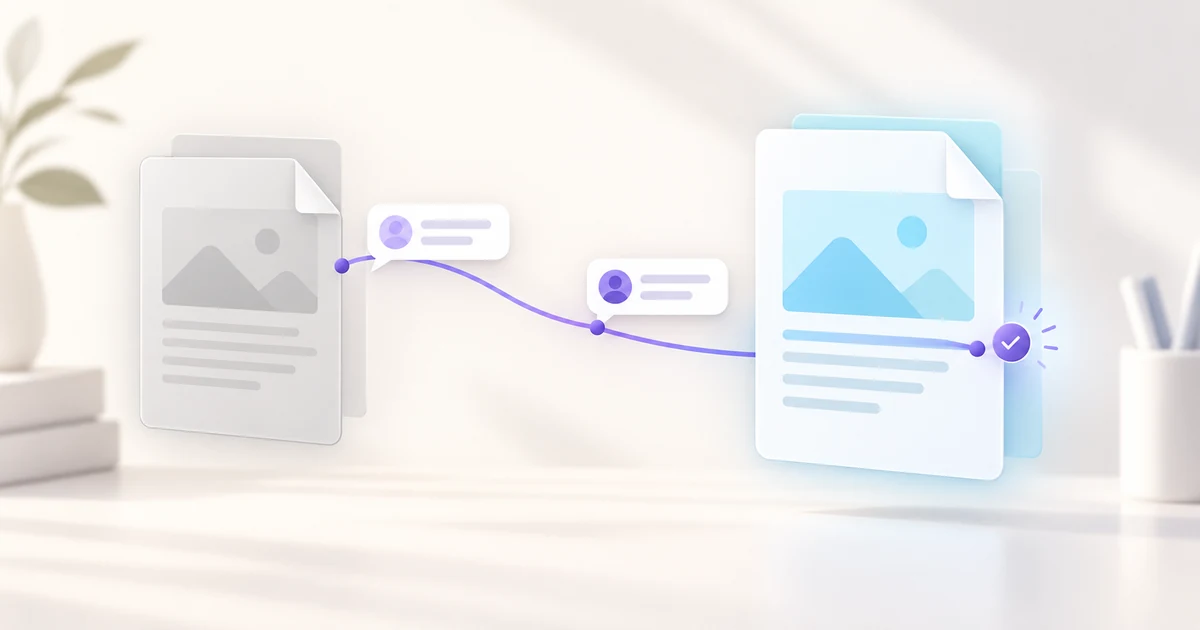
A file-upload screen usually begins with no accepted file. Here, the submission already exists. In our example, Project_Plan_v1.pdf is under review, and a reviewer asks for a corrected budget table in section six. The author selects Project_Plan_v1_corrected.pdf. If the interface simply says “Upload file,” the author cannot tell whether it will add a second attachment, replace the active one, or start a new submission.
Show the current file name, its state, and the reviewer’s request before the author selects a replacement. Use a specific action label—“Replace current file”—only where the system truly replaces the active attachment. If the portal instead keeps multiple active attachments, say “Add another file.” Those actions have different consequences and should not share one vague button.
Let the author compare before committing
The confirmation step needs to answer three practical questions: Which file is active now? Which file will become active? What happens to the previous version and its review thread? Put the two names side by side, along with any useful distinguishing information such as file size or upload time. A comparison of metadata is not a claim that the PDF contents are identical or different; if the product cannot generate a trustworthy content diff, do not imply that it can.
The safe default for this example is that the previous accepted file remains the active version until the replacement succeeds. A user who closes the dialog or loses connectivity should still find the original submission. If the product policy removes the old file for privacy or retention reasons, the confirmation must say so before the destructive step. Do not promise indefinite version history without a real retention policy.
| State | What the author sees | What the reviewer sees |
|---|---|---|
| Current | Original file, review request, Replace action | Original file and linked comment |
| Selected | Original and proposed file compared before confirmation | No new active file yet |
| Replacing | Progress and a clear indication that the original is still active | Existing file and review context remain available |
| Completed | Corrected file active, prior version and review request reachable if policy permits | Corrected file identified as a response to the request |
| Failed | Original still active; reason and safe Retry or Choose another file action | No false “updated” state |
Keep the review request attached to the submission
A reviewer’s comment on “section six” is about the work being reviewed, not merely the byte sequence of the first PDF. After replacement, retain a visible path from the corrected file to that request: the same submission identifier, a linked review thread, and a concise “replaced in response to…” event can do this. The exact data model depends on the product, but the interface should not silently create an unrelated new submission.
Do not make the earlier page-six pin appear on the new PDF at the same coordinate unless the page mapping has actually been verified. Page order or layout may have changed. A safer interface marks that comment as referring to the prior file and asks the reviewer to check the corrected section in the new one. The reviewer can then accept the correction, request another change, or note that the issue is outside this replacement.
Decide what happens if review continues during replacement
The author may begin selecting a corrected file while the reviewer is still reading the earlier one. Do not silently switch the document under an open review session. One defensible policy is to let the reviewer finish on the earlier version and show a visible notice that a newer version is available; another is to pause approval until the replacement completes. The right rule depends on whether the review is informal feedback, a regulated approval, or a legal record. Choose it explicitly rather than leaving two people with different ideas of the “current” file.
In the project-plan example, the reviewer opens the old PDF at 10:02 and the author completes the replacement at 10:04. The reviewer’s page-six comment should remain associated with the version they actually saw. If the reviewer clicks “Approve” at 10:05, the interface must say whether that decision approves the old version, the corrected version after a fresh review, or neither. A version label beside the action and a short status message are more useful than an ambiguous green badge. Test the same flow with two browser sessions before implementation is signed off.
Make failure and cancellation unambiguous
Before transfer, local checks can catch an unsupported format, an empty file or a size limit. During transfer, progress should describe the transfer being measured; it does not by itself prove that the replacement has been processed and attached. After transfer, server checks may still reject the file. Keep these stages distinct so the author does not see “Done” while the system is still deciding whether the new version is usable.
If the network drops at 78%, show that the original file remains active and offer a safe retry. If the corrected PDF is rejected after upload, explain the specific reason and let the author choose a different file without losing the reviewer’s request. If the author cancels before confirmation, return to the original submission without implying that a change occurred. The broader file-upload UI guide covers selection, progress and transfer errors; the additional design problem here is preserving an already accepted review record.
GOV.UK’s file-upload guidance provides concrete examples of specific error messages and notes that previously uploaded files can be reusable within a journey, subject to security and privacy. Those principles inform the labels here, but the post-review replacement flow remains a product-specific decision.
Make the status clear to sighted and screen-reader users
Moving a file card from “under review” to “replacement complete” is an important change. Put the state in text, not color alone, and announce progress or success without unexpectedly moving focus. W3C’s status-message guidance explains why people using assistive technology need access to changes that do not shift focus. Its upload-progress example is one technique, not a reason to announce every percentage point aggressively.
Keyboard users must be able to open Replace, inspect both file names, cancel, confirm and return to a sensible point in the submission. If a review comment was open before replacement, preserve or restore a route back to it. On a narrow screen, stack the current and selected files vertically but keep their labels explicit; do not rely on left-versus-right position to explain which is which.
Prototype the decision path in Pixso
In Pixso, arrange the portal screens as three states: accepted file with a reviewer request, a replacement confirmation with both versions, and a completed state with the corrected file and linked discussion. Add a failed state beside them. A designer and developer can review whether the old file is preserved, whether the active version is obvious, and whether a reviewer can reconnect the correction to the original request. The file cards inside the canvas are a design exercise, not native Pixso attachment controls.
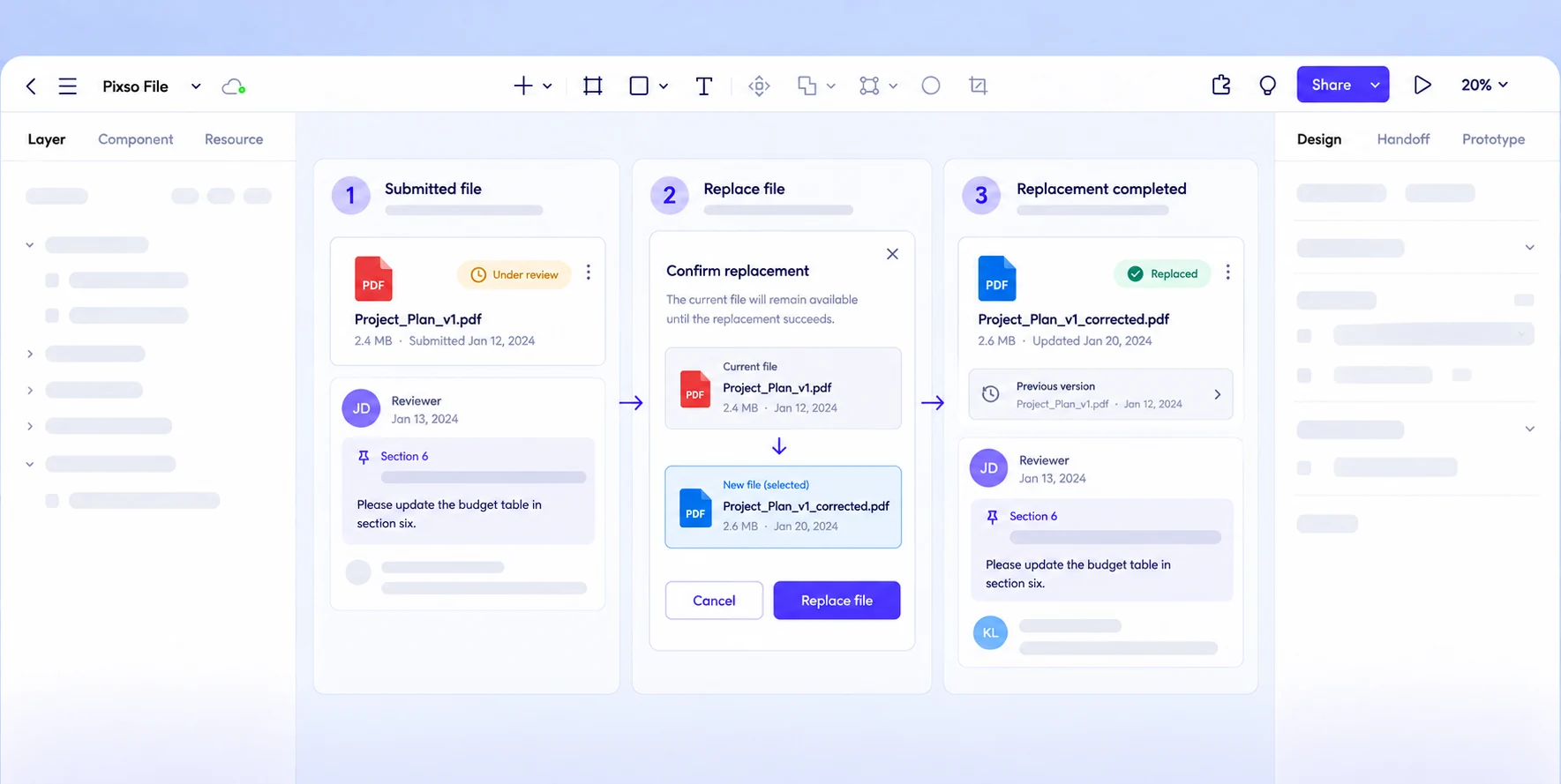
Ask the reviewer to walk through the screens with a real correction request: “Where is my earlier comment now?” Ask the author: “If this transfer fails, which file will the reviewer see?” If either answer depends on guessing, revise the state labels before polishing motion or shadows. The design is ready for handoff when the team can state the active file, the retained review context and the recovery behavior for each outcome.
![[Must-Read] User-Centered Design Principles & Methods](https://pixso.net/assets/media/user-centered-design-cover-f28feb8b6ddac9c9.webp)