Scott
Responsive image cropping keeps the important subject visible as an image moves between a wide banner, a card, and a narrow screen. Start by identifying what the image needs to communicate, then choose the shape of each image slot. Use a shared focal point when one crop can work across layouts; prepare a different crop when the composition itself needs to change.
Make these choices while the image is next to the content it supports. In a responsive web-design workflow in Pixso, wide and narrow layouts can sit side by side so you can compare the subject, heading, and action together. Resizing the file after the page is finished cannot recover a subject that the layout has cut away.
Choose what must survive the crop
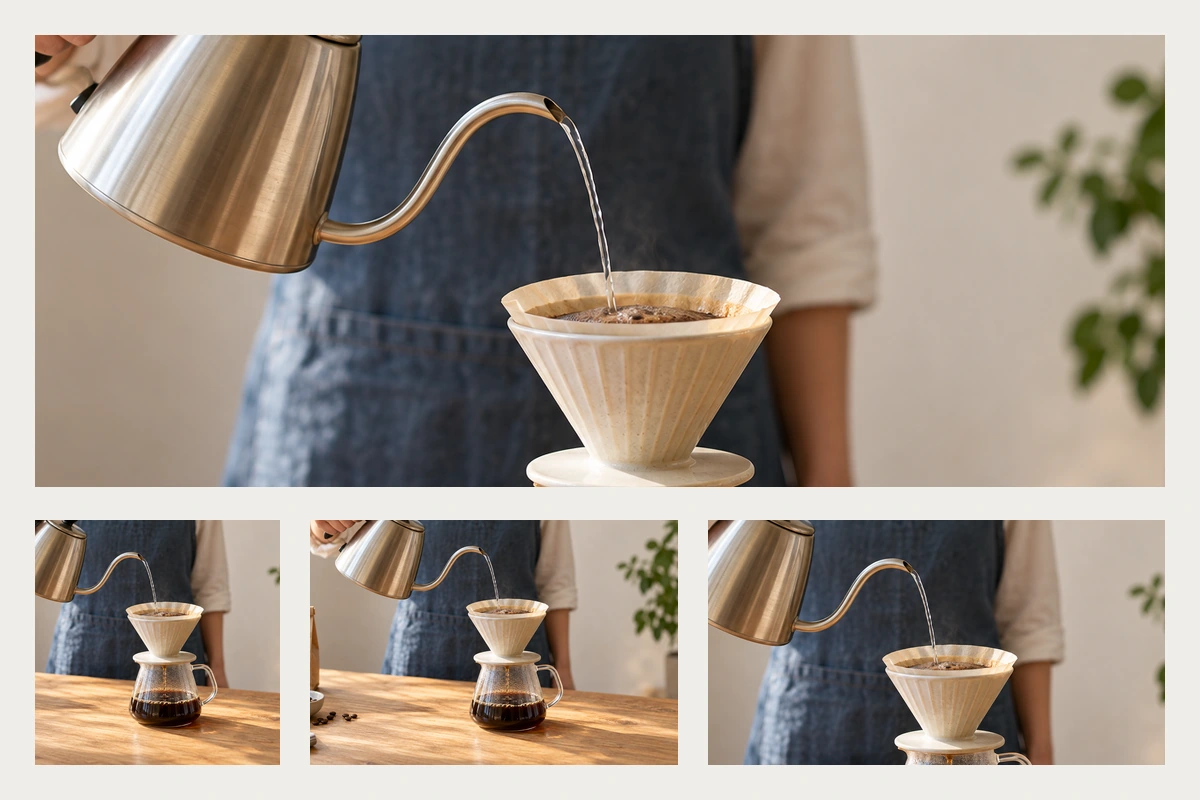
Imagine a page promoting a coffee workshop. The source photograph shows a hand holding a kettle on the left, a stream of water in the center, and a coffee dripper on the right. The important subject is the relationship between those elements: someone is learning to pour coffee. A crop containing only a hand or a dripper loses part of that meaning.
Mark the smallest region that preserves the action. Include the kettle spout, the visible stream, and the dripper opening. The complete arm and the surrounding café may be useful context, but they are less important in a compact card. This gives you a reason for each crop beyond making the subject look centered.
The essential region depends on the page. A product detail may need the whole object to show its shape. A tutorial screenshot may need the exact control being explained. A portrait can tolerate a closer crop only if the person's face remains recognizable. Decide what a reader needs to understand before setting a focal point.
Define the slots before producing exports
Write down the intended shape of each use. For the workshop example, start with a 1200 × 480 wide banner, a 480 × 480 square card, and a 360 × 240 image above the mobile page heading. These are example design dimensions, not universal device sizes. Their ratios determine how much of the source remains visible.
| Placement | Image ratio | Composition priority |
|---|---|---|
| Wide workshop banner | 5:2 | Keep the pouring action visible and leave a calm area if the heading overlaps the image |
| Workshop card | 1:1 | Keep the spout, stream and dripper together; put the title outside the image |
| Mobile detail page | 3:2 | Show enough context to explain the workshop without forcing a tiny text overlay |
A 3:2 source placed into a 5:2 slot must lose vertical content if it fills the slot without distortion. For a 1800 × 1200 source scaled to 1200 px wide, the image becomes 1200 × 800. A 1200 × 480 slot then hides 320 px of that scaled height. A centered crop removes 160 px at the top and bottom; another alignment moves which part is hidden.
This simple calculation explains why a seemingly generous original can still fail. The missing area is a consequence of the slot's proportions, not poor export quality. Stretching the photo to force it into the shape distorts the subject and should not be the solution.
Decide whether a focal point is enough
A focal point identifies the part of the source that should remain prominent while the visible window changes. It works when the important content occupies a compact region and the surrounding space is expendable. It works less well when several important elements sit far apart or when the heading needs clear space on different sides.
In the coffee scene, a square crop may need to center between the spout and dripper rather than on the dripper itself. If keeping both makes the action too small, use a tighter photograph or a deliberately composed alternative for the card. A better crop cannot create space that was never in the source.
MDN separates art direction from resolution switching. Art direction changes the composition for a layout; resolution switching provides versions of the same composition with different pixel dimensions. A mobile crop and a smaller desktop file are therefore not interchangeable deliverables.
Ask a developer how the crop will be controlled in the finished page. A CMS focal-point setting, CSS positioning, and a separately exported mobile crop do not necessarily produce the same result. Show the intended visible region rather than assuming a particular percentage will preserve it in every container.
Keep the heading and action out of the crop's way
A photograph that works behind a short English heading may fail when the heading wraps to three lines. Review the image with the actual title, button, and longest likely translation. Clear space belongs to the whole composition, not just the source photo.
For the wide workshop banner, the heading could occupy the left third only if the kettle and hand do not compete with it. If the action already fills that area, place the heading beside or below the image. Moving the text is often more effective than repeatedly darkening the photograph.
On mobile, put “Learn pour-over coffee” and the booking action below the photo. The image can then show the complete action while the text remains readable at its normal size. This also keeps a future title change from requiring a new crop.
A gradient or solid backing can support text when an overlay is necessary, but check the actual letters against the background across the complete crop. A low-contrast patch can move directly behind a word as the container changes width. Text baked into the photograph is harder to reflow and localize than ordinary page text.
Prepare the three compositions together in Pixso
Place the source photograph beside the wide, square, and mobile frames in Pixso. Keep a copy of the uncropped image available so later changes do not begin with an already cropped export. Add the real page heading and card title around the image slots before judging the result.
For each frame, compare the same three details: the kettle spout, the stream, and the dripper opening. If one disappears, move the visible region or change the composition. Keep the example's dripper on the same side unless you intentionally choose a different photograph; flipping a product image can misrepresent asymmetrical objects, lettering, or controls.
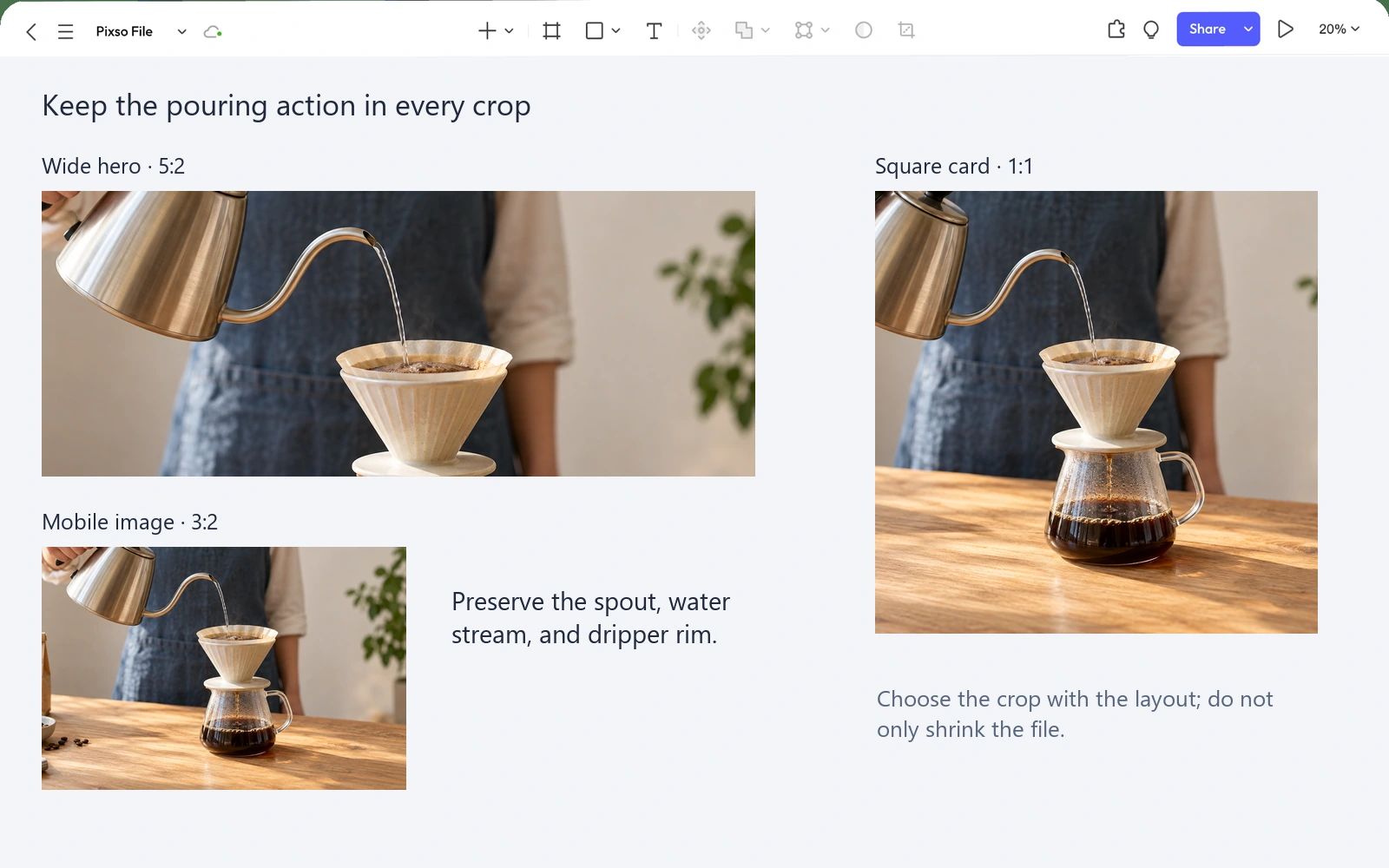
Name the frames by their role, such as “Workshop hero — wide,” “Workshop card — square,” and “Workshop detail — mobile.” Note the visible subject and any layout condition beside each one. Reviewers should be able to tell whether an apparent difference is intentional without opening every export.
Review the compositions at their displayed size. A card that looks elegant when enlarged may reduce the stream of water to an indistinct line in the actual list. If that detail is essential, tighten the composition or choose a clearer image rather than relying on extra resolution alone.
Deliver the crop and the image size as separate decisions
Once the composition is settled, choose suitable export dimensions and delivery formats. A 360 CSS px-wide slot might use a 720 px-wide raster candidate for a 2× display. That is a planning example: the implementation's actual slot sizes and supported density range determine which variants are useful.
Provide a separate name for each composition and distinguish its resolution variants. A square card and a mobile detail image should not share a vague filename such as “small.” A developer needs to know whether a file contains different content or simply more pixels.
Record the display ratio, intended subject, exported dimensions, and where the image appears. Include alternative text based on what the image contributes in that placement. If a nearby title already supplies all the information and the photo is decorative, the implementation may use an empty alternative; if the pouring technique matters, describe that information concisely.
The guide to image formats for web design covers choosing between vector and raster formats and comparing compression. Those decisions come after the crop: a sharp, lightweight image can still communicate the wrong thing.
Check the spaces between your finished layouts
Desktop and mobile mockups show two points in a changing layout. Ask the developer to review the implemented page between them, especially where a heading gains a line or a card changes columns. A crop that works at both endpoints can still become awkward in a narrower desktop column.
For the workshop, follow the page from the article card to the detail view. The card should show enough of the pouring action to set the right expectation, and the detail view should make that same subject easy to recognize. Confirm that the published page receives the intended crop rather than a CMS-generated center crop.
When the image fails, identify what disappeared: the subject, the relationship between subjects, or the space needed by the text. Change the slot, composition, or text placement accordingly. Responsive cropping is successful when the meaning survives the layout change.