Scott
A workspace switcher should answer one question immediately: where will my next action go? Show the active workspace in the persistent interface, identify the account behind it, and make any unsaved work visible before switching. A logo-only menu is risky when two client spaces use similar names or when a person has different permissions in each.
Consider a small agency designing a checkout for Northstar and a booking flow for Riverton. One designer belongs to both client workspaces and uses one browser session. The risk is not that the switcher is hard to find; it is that a comment, upload or invitation lands in the wrong client space. We will model those states in a collaborative design workflow in Pixso. The client spaces below are an application design exercise, not a description of Pixso’s own account-switching implementation.
Separate account, workspace and project
These levels answer different questions. Account is who is acting. Workspace is the organization or client boundary in which the action takes place. Project is the specific collection of files within that boundary. If the switcher combines all three without labels, two projects named “Website redesign” can look identical while belonging to different clients.
In the agency example, the persistent header reads “Northstar / Checkout redesign” and the profile area identifies “Maya Chen.” The workspace menu groups projects beneath their client names. When Maya changes to Riverton, the header and the next upload target both change together. Showing the client name only inside an open menu is too late: most actions occur after the menu closes.
Test the longest realistic names. Truncation may hide the exact part that distinguishes “Northstar Brand” from “Northstar Support.” If the header is narrow, show a short name but reveal the full name on focus, hover and in the switcher. An avatar color alone cannot carry identity; colors may repeat and are not reliably perceived by everyone.
Design a menu that explains destination
The first menu row should confirm the current context rather than merely say “Switch workspace.” A useful list might show a full workspace name, account email, role and a recent project. Search becomes valuable when the list is long, but the result still needs its parent workspace label. A project match without its client name invites the wrong click.
Use consistent ordering. Recently used spaces may appear first, but do not silently move the active workspace while the menu is open. A clear current-state marker helps someone verify where they are. If the switcher is implemented as a menu button, its open/close and keyboard behavior should follow the W3C menu-button pattern; if it is a searchable list or dialog, choose the corresponding interaction model instead of applying menu semantics to every control.
Do not mix a create-workspace command among ordinary destinations without visual separation. Creating a new space is a different task from moving into an existing one. The same applies to “Manage members” and “Sign out”: they should not look like client destinations.
Handle unsaved work before changing context
A workspace switch may interrupt an editable comment, a file upload or a settings form. Define what survives before designing the warning. In the agency example, Maya has typed a review comment in Northstar but has not submitted it. If she selects Riverton, offer a specific choice: stay and finish, discard the draft, or preserve it in Northstar if the product actually supports that behavior. Never promise “Save draft” if the application cannot retrieve it later.
A generic browser leave-page dialog is an unreliable primary recovery design. MDN notes that beforeunload does not work consistently on some mobile paths and recommends attaching it only when there is unsaved data. In an application-level switch, a context-aware message can name the draft and its workspace: “Your comment for Northstar / Checkout redesign is not posted.” The person can then make an informed choice before the destination changes.
Some actions cannot be paused. If an upload is processing in Northstar, keep its ownership explicit. The user may switch only if the upload will continue safely in the original context; otherwise say why switching is temporarily unavailable. A spinner with no destination label can make the subsequent result appear under the wrong client.
Show permission differences without a surprise
Maya may edit in Northstar but view only in Riverton. The switcher does not need a dense permission table, yet the destination should make a meaningful change visible: “Riverton · Viewer.” After switching, controls that require editing should reflect that role. A disabled comment button without an explanation looks broken; a short message such as “Viewing is available here; ask a workspace admin for comment access” explains the next step.
Do not carry a privileged action over a boundary. If Maya opens an invitation dialog in Northstar and then changes workspaces, the dialog must close or clearly rebind to Riverton before submission. Otherwise an invited teammate might receive access to the wrong client. For consequential actions, repeat the destination in the final confirmation, not only in the header.
Account switching is a separate layer. A second login may have different access to the same workspace. If the interface permits multiple accounts, show the account identity near the workspace name, and re-evaluate permissions after a switch. Do not imply that switching a workspace has also changed the signed-in account.
Give feedback after a switch
A successful switch should change the persistent context immediately and place the person somewhere predictable, such as the destination workspace’s recent project list. If the last-viewed file is reopened, identify its workspace before showing editable controls. A brief status message can confirm “Switched to Riverton,” but the lasting header is more important than a toast that disappears.
If access has been revoked since the workspace list loaded, keep the person in the current safe context, explain that Riverton is no longer available, and refresh the destination list. Do not display a blank file page with the old workspace name. If a network error interrupts the switch, say whether the active context remained Northstar; ambiguity here is a data-boundary risk.
Status feedback should be perceivable without stealing focus from every routine switch. W3C’s status-message guidance covers updates that announce success or error while preserving the current interaction context. A blocking dialog is justified when the person must choose what happens to unsaved work, not for every successful switch.
Prototype the wrong-workspace moment
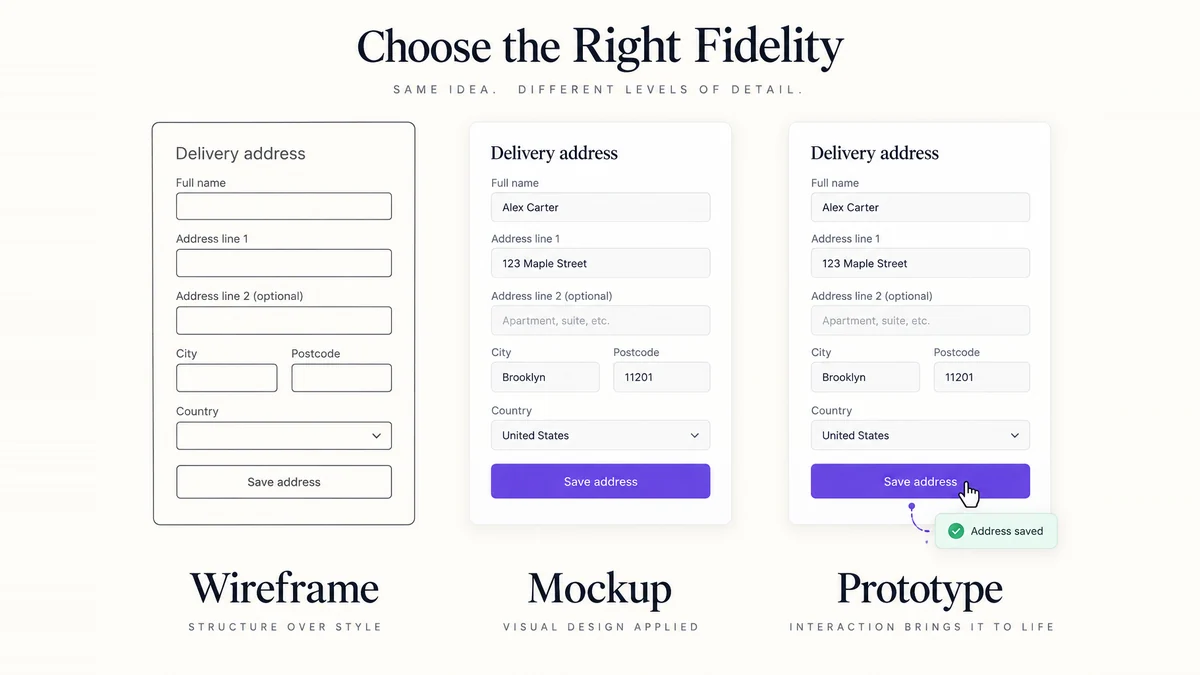
Build three states for the agency example: Northstar with an unposted comment; the switcher showing Northstar and Riverton with their roles; and Riverton after a successful switch. Add an interrupted path for a revoked permission or a failed network request. In Pixso, place the persistent context label in each frame and connect the choices so a reviewer can test the transition rather than judge isolated screenshots.
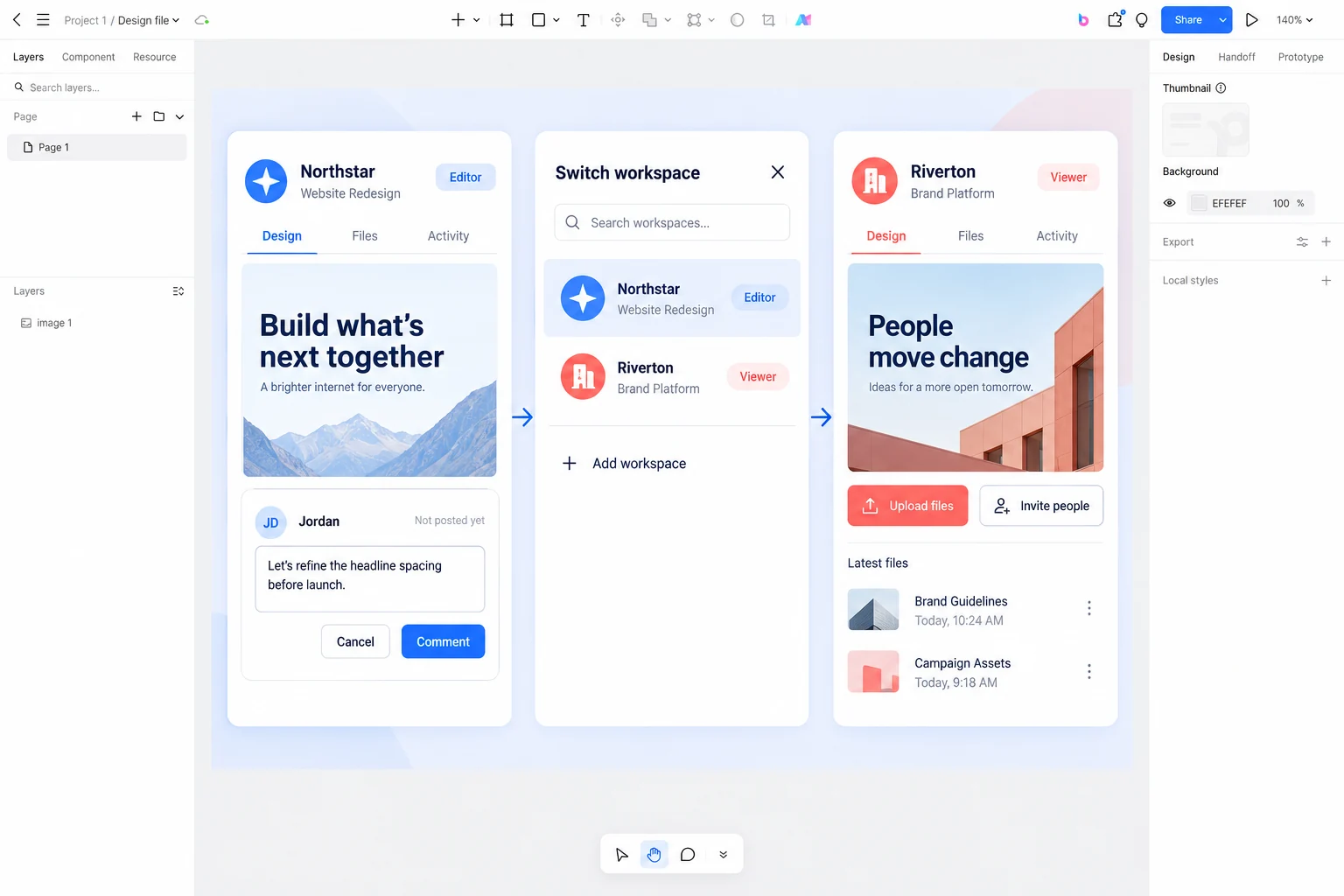
Ask a reviewer to post a comment for Northstar, switch to Riverton, and invite a colleague there. Do not tell them that the client names are similar. Watch whether they can locate the active context at each step, notice the unposted comment, and predict which workspace receives the invitation. The design passes when the next action has an unmistakable destination and interrupted work has an honest recovery path.
A good switcher does not merely move between lists. It preserves the user’s mental model of identity, destination and unfinished work across a boundary where mistakes can be costly.