Scott
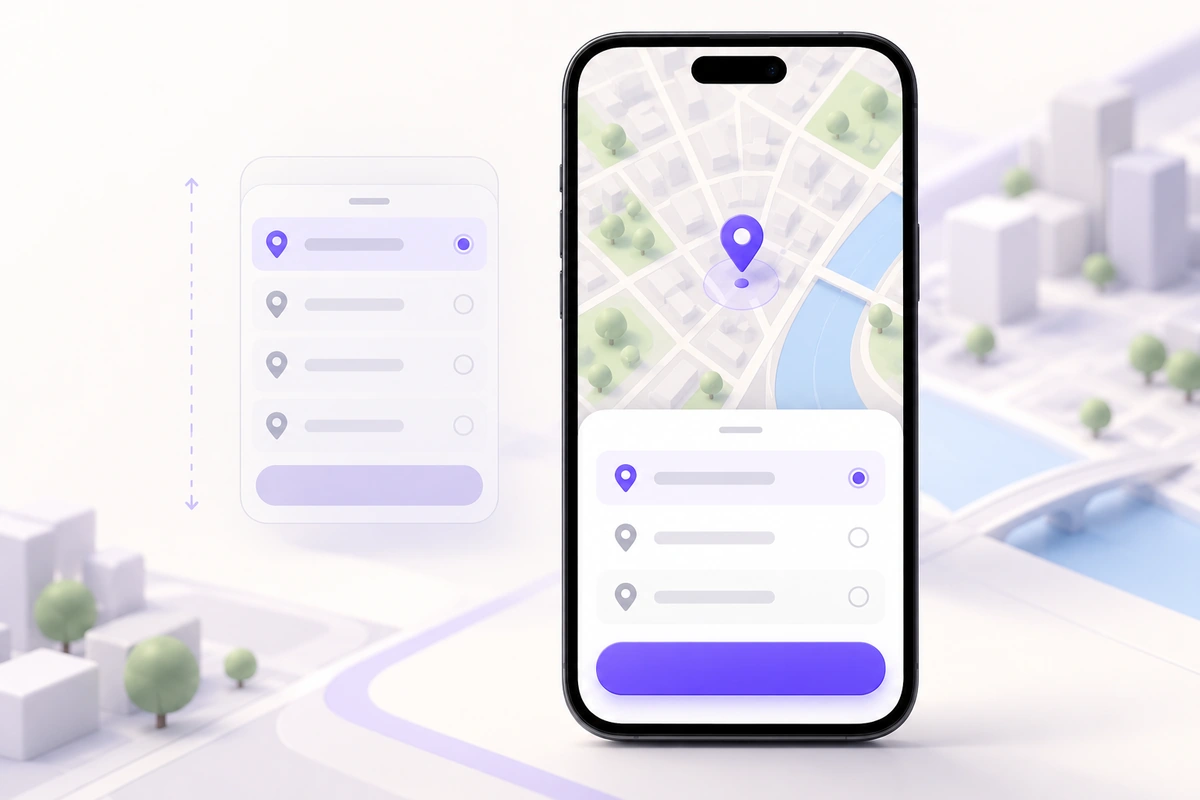
A bottom sheet brings a short task up from the lower edge of a mobile screen while keeping its context visible. It works well for choosing a pickup point, adjusting a few filters, or inspecting a place. Choose whether the background remains interactive, size the sheet around its content, and define what closing it does to an unfinished choice. Those decisions matter more than the rounded top corners.
This guide follows a pickup-location selector for an order. The customer opens a map, compares nearby locations, selects one, and returns to the order summary. In Pixso’s UI design workspace, you can lay out that sequence with the map, sheet, and selection visible together, then review the result before building the interaction.
Decide whether the map remains available
A sheet that leaves the map usable is useful for exploring. The customer can pan the map while a small place summary remains near the bottom. A modal sheet is useful for a bounded decision: the customer chooses a pickup location, then confirms or cancels before returning to the order.
The Material Android documentation distinguishes standard and modal bottom sheets. A modal sheet has a scrim; a standard one allows work with the surrounding content. Do not combine the appearance of one with the behavior of the other.
Use a modal sheet for this example. Give it the heading “Choose pickup location,” a close button, a search field, location rows, and a “Use this location” action. The map provides context behind the scrim but cannot be panned until the sheet closes. If map exploration is essential to choosing, use a standard sheet instead and make selecting a map pin update the visible place.
A bottom sheet is a placement choice, not a reason to squeeze every task into an overlay. A long address form, identity check, and payment step together deserve a page. The guide to choosing an overlay explains how the task determines the interaction model.
Choose useful heights, not arbitrary percentages
Start with enough height to show the heading, search field, at least a complete location row, and the primary action. A clipped first row makes it difficult to judge what the sheet offers. A sheet occupying nearly the whole screen without needing the space hides the map for little benefit.
For a short list, use a content-sized opening height. For a longer list, let the sheet expand and scroll. Keep the heading and close control stable; allow the location list to scroll inside the remaining area. Place the action above the device’s safe area so a system gesture region does not cover it.
| Situation | Sheet presentation | What stays available |
|---|---|---|
| Three nearby locations | Compact sheet showing complete rows | Heading, close control, choice and confirmation |
| Many matching locations | Expanded sheet with a scrollable list | Search and confirmation stay reachable |
| Short viewport or enlarged text | Nearly full-height sheet or a dedicated picker screen | Readable labels and usable controls, rather than a fixed visual proportion |
A drag handle can suggest expansion, but it cannot be the only route to more content. Provide a clear way to expand or make the full list reachable through ordinary scrolling. Preserve one understandable scroll direction: dragging the sheet and scrolling its list should not unpredictably fight for the same gesture.
Keep a draft choice until the customer confirms
Suppose the order currently uses Central Station. The customer opens the sheet and selects Riverside Store. Highlight Riverside in the sheet, but keep Central Station as the order’s saved location until “Use this location” succeeds. Closing the sheet cancels the draft choice.
This distinction prevents a common surprise: tapping a row changes the order even though the visible confirmation button suggests otherwise. If the product intentionally commits immediately, remove the redundant confirmation step and make that behavior obvious. Do not mix the two models.
Show enough information to choose: location name, address, and relevant collection availability. Distance can help, but only if the location source is known. “Nearest” is misleading when location access was denied or the search area changed. In that case, label results by the searched area and let the customer enter another place.
When a location cannot accept the order, explain the reason in its row. “Collection unavailable today” gives a reason to choose another place. A greyed-out name without an explanation looks like a rendering problem. Preserve the customer’s search while they compare alternatives.
Design the sheet with the keyboard open
The search field changes the available space. Open the keyboard in the layout review, expand the sheet if necessary, and keep the field and useful results visible above it. Do not shrink the type to preserve a desktop-like composition.
Separate the act of dismissing the keyboard from abandoning the picker. A person may close the keyboard to see more results and still intend to choose a location. On a native platform, follow its back and keyboard conventions; on the web, define the behavior explicitly instead of assuming that an outside tap always means Cancel.
Search results must belong to the current query. If “River” finishes after the customer has changed the text to “Central,” the older response must not replace the Central results. While a search is running, keep the query visible. A failed search should offer retry without erasing it; a successful search with no matches should suggest changing the place name or area.
Keep the confirmation action close to the task, but do not let a fixed footer cover the last row. Include bottom padding in the scrolling area and inspect the actual smallest viewport. If the keyboard leaves too little room for a meaningful choice, a dedicated full-height search state is clearer than a tiny scrolling slit.
Make dismissal predictable and accessible
In this example, the close button and an allowed outside-tap dismissal both cancel the draft pickup choice. Reopening the sheet shows the order’s current location. If the order had none, reopening shows no selection. A swipe gesture may offer an additional dismissal route, but the visible close control remains available.
For a web modal, the WAI-ARIA dialog pattern calls for focus inside the dialog, an inert background, and a logical focus destination on close. A scrim alone does not provide those behaviors. Give the dialog a meaningful name and ensure keyboard users can reach its controls.
When confirmation fails, keep the picker open with the draft choice and an explanation near the action. Do not close it and leave the order summary unchanged without a message. If confirmation succeeds, close the sheet, show the new location in the summary, and return focus to the location-editing control or the next logical step.
Build the pickup decision in Pixso
Create the order summary, open picker, selected draft, and confirmed summary as separate frames. Use the same three locations throughout: Central Station, Riverside Store, and Market Square. Keep Central Station in the original summary while Riverside is selected in the draft frame. This makes the difference between selection and commitment visible.
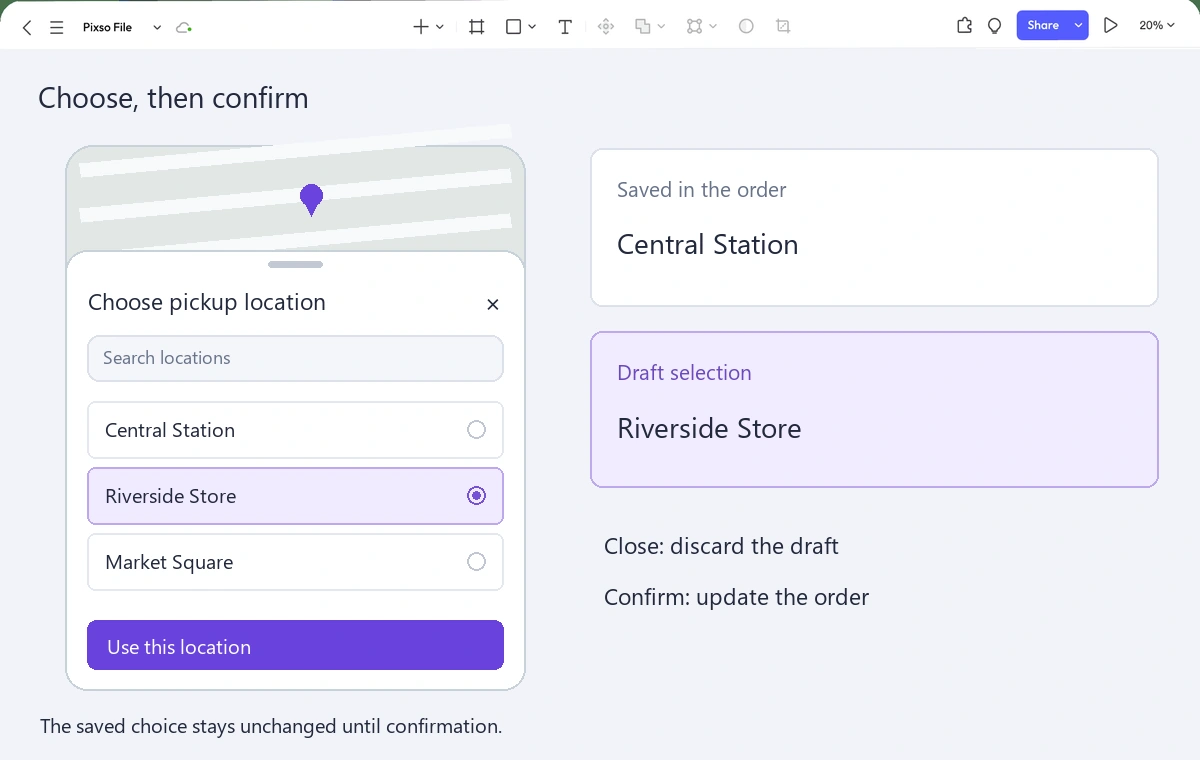
Use Auto Layout to explore longer addresses and larger labels. Add an expanded search frame with the keyboard occupying the lower part of the viewport, and a confirmation-failure frame that retains Riverside. Connect the main actions in the prototype, and place short notes beside the frames for focus return, dismissal, and the saved-versus-draft rule.
Ask a reviewer to change the location, close the picker without confirming, and reopen it. Then ask them to complete the change. The order summary should make both outcomes understandable. A bottom sheet earns its place when the customer can finish this small task without losing track of the larger one.