Scott
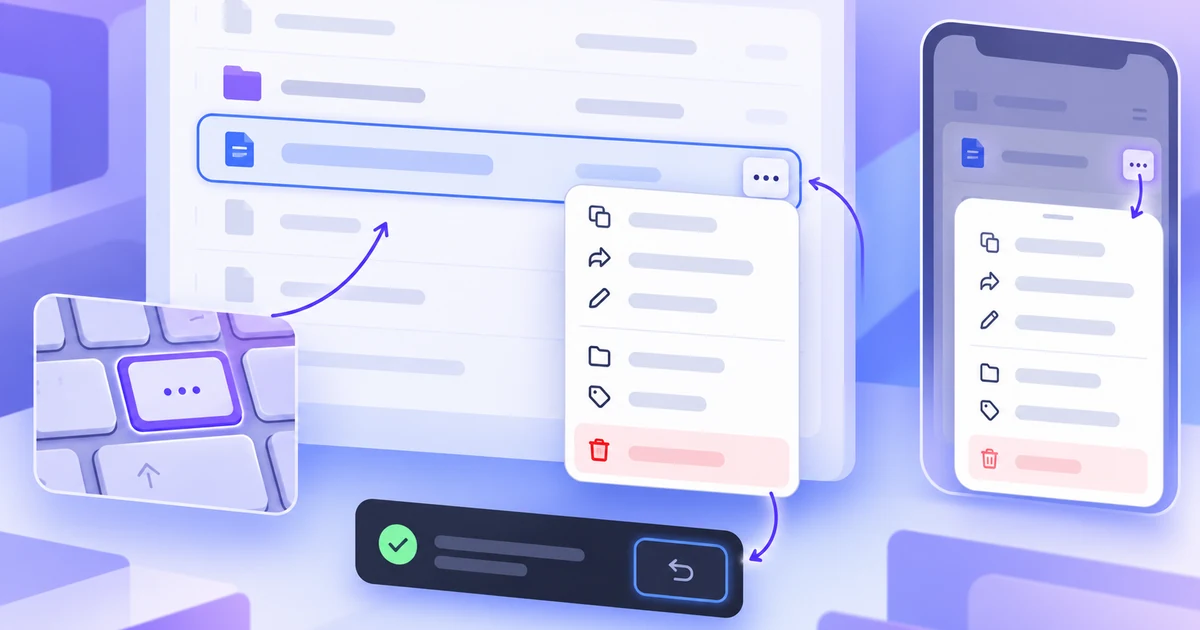
A context menu is useful when an item has secondary actions that are relevant to that item but would distract from the primary task if they were always visible. Use it for actions such as rename, duplicate, move, copy link, or view details. Keep the item’s main action visible, expose the menu with a clear trigger, and provide a touch and keyboard path that does not depend on a right-click.
For a file list, for example, the row can open the file while an overflow button reveals actions for that file. A UI design collaboration workspace in Pixso lets a team compare the trigger, menu states, and recovery path on connected screens before implementation. The menu is successful when people can predict what it applies to, choose an action, and recover from a mistake without guessing.
Choose the job before the surface
Start with the action and its object, not with a three-dot icon. Write one sentence for the contract: “On this file row, the menu exposes actions that change or share this file.” Then check whether the action is truly contextual.
- Contextual: the action applies to the item next to the trigger, such as renaming one file or copying its link.
- Occasional: people need it sometimes, but showing it beside every row would compete with the primary action.
- Bounded: the action can be completed in a short menu or moves to a clearly named follow-up screen.
Do not hide a destination or a required task simply because the menu looks tidy. If users must check notifications, switch workspaces, or complete the next step in a flow, use a persistent navigation pattern or an explicit page. The mobile navigation patterns guide covers that global-versus-contextual distinction; this article focuses on actions attached to one object.
Make the trigger discoverable without stealing attention
Place the trigger in the same row or object that it controls. A button beside the file name makes the relationship visible; a single menu in the page header does not tell someone which file it affects. Keep the primary action and the contextual trigger visually distinct, and do not make the entire row open a menu when it is also clickable.
Use a visible label when the meaning of the icon is uncertain. An overflow icon can work for a familiar file row, but its accessible name should identify the object, such as “More actions for Q3 brief.” The label should remain stable as the menu opens and closes. Do not rely on hover text to explain an action that someone must discover to complete the task.
For touch layouts, the trigger needs a comfortable target and enough separation from the row’s primary action. If the row is narrow, use an explicit “More” button or an action sheet rather than requiring a precise long press. A long press can be an additional shortcut, but it should not be the only route.
Organize actions by risk and frequency
List the safest, most frequent actions first and separate them from actions that change ownership, access, or data. People scan menus; they rarely read every item as a paragraph. Keep labels short, specific, and parallel.
| Group | Action | Why it belongs there |
|---|---|---|
| Common | Rename | Frequent, reversible change to the current file. |
| Common | Duplicate | Creates a new copy without changing the original. |
| Share | Copy link | Provides a link to the same file and keeps the row context. |
| Organize | Move to folder | Opens a bounded follow-up task with the destination visible. |
| Risky | Archive file | Changes visibility; show its recovery route before or after the action. |
Use dividers or group labels when they reduce scanning effort, not to turn a five-item menu into a miniature settings page. Put a destructive action last and style it clearly with words, not color alone. “Delete file” is more predictable than “Remove,” especially when “Remove from folder” is a different operation.
Disable an action only when the reason is understandable and the item cannot be changed in the current context. If a user lacks permission, say “Rename unavailable: you have view access” in an accessible description or offer a route to request access. A disabled icon with no explanation makes the menu feel broken.
Design placement for pointer, touch, and keyboard input
Right-click is one pointer gesture, not a complete interaction model. Provide the same actions from the visible trigger, and make the keyboard route explicit. The surface should stay associated with its object as the viewport changes.
- Pointer: open the menu from the row trigger or the item’s context gesture. Keep it inside the viewport, and close it when focus or pointer interaction moves to an unrelated surface.
- Touch: open from an accessible overflow button or a documented long press. If the menu would be too small near the edge, adapt it to a bottom sheet or full-width action list while retaining the same labels and order.
- Keyboard: move focus to the menu or its first item, expose the current item, allow arrow-key movement where the chosen menu pattern calls for it, close on Escape, and return focus to the trigger when the menu closes.
Test the trigger in all four corners of a scrollable panel. A menu that is positioned against the document instead of the scrolling container can appear detached from its row. Test zoom, long labels, right-to-left text where supported, and a viewport that is shorter than the menu. Do not let a menu cover the only visible confirmation of which item is selected.
Show state, permission, and recovery
The menu itself is only one state. A complete design explains what happens before the action, while it is running, and when the result is uncertain. This matters most for actions that change a file’s location, sharing, or visibility.
| State | What the person should understand | Useful response |
|---|---|---|
| Default | Which object owns the menu and which actions are available. | Stable trigger label and grouped actions. |
| Opening or loading | Whether the requested menu is still being prepared. | Preserve the row identity; do not show actions for another item. |
| Permission-limited | Why an action cannot be used here. | Explain the limitation or offer the next valid route. |
| Success | What changed and where the object can be found now. | Inline confirmation or a scoped toast with a meaningful link. |
| Failure or timeout | Whether the change happened and what can be retried. | Keep the object context, check ambiguous results, and retry only the failed action. |
For a fictional design-file example, selecting “Move to folder” opens a compact destination picker. After the move succeeds, the row can say “Moved to Research” and offer “Undo move” for a defined period. If the request times out, do not immediately present a second destructive or duplicating action. Reconcile the current location first, then show whether retry is safe.
When an action cannot be undone, make the consequence clear before commitment. A confirmation should name the file and the effect, not ask an abstract “Are you sure?” The delete-confirmation UX guide covers the deeper choice between undo, review, and a dialog for destructive actions.
Prototype the complete flow in Pixso
Build the menu as a small component set rather than as one screenshot. Create a default row, an open menu, a focused menu item, a permission-limited action, a narrow-screen fallback, and the success and failure responses. Keep the same file name and action labels across the screens so a reviewer can judge the behavior instead of reconciling inconsistent copy.
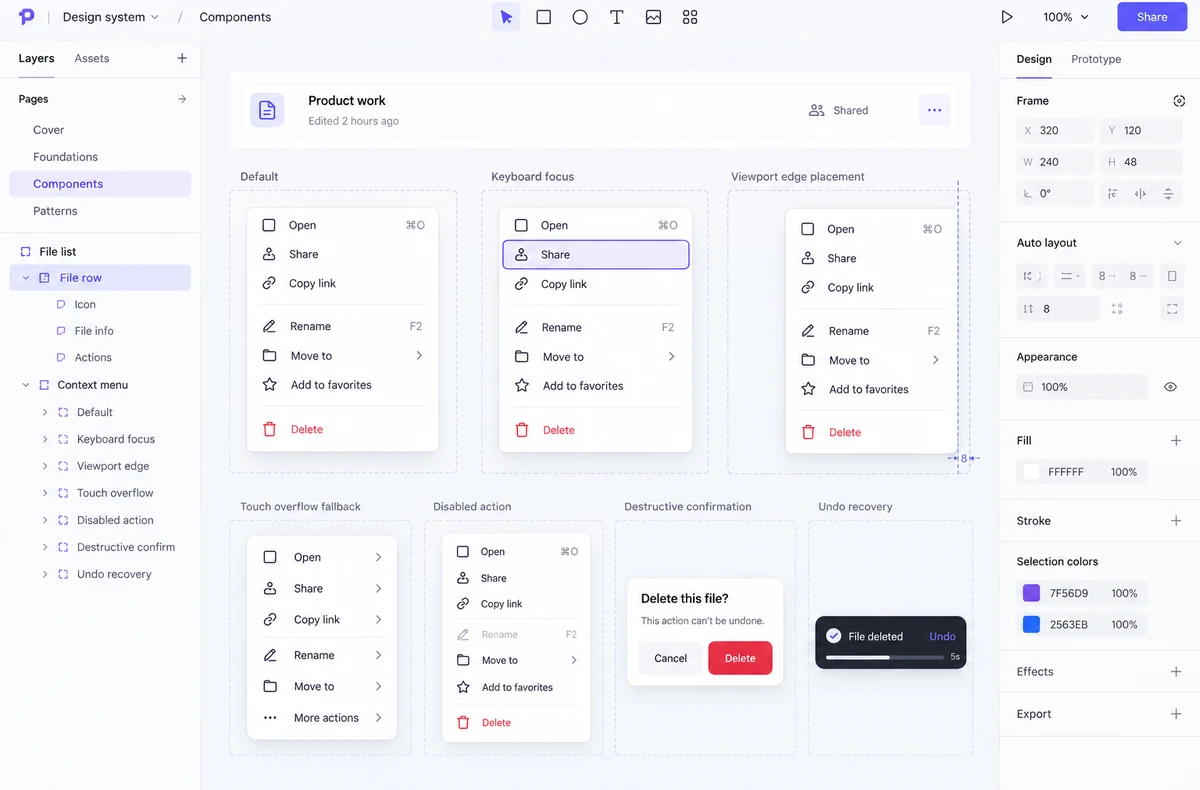
Place behavior notes beside the component: what opens it, where focus starts, which dismissal routes are supported, how it adapts at an edge, and what happens if the operation fails. Use variants for the states that are truly shared; split a component when it starts to combine unrelated semantics such as a menu, a listbox, and a dialog.
Ask a reviewer to complete one task without explanation: “Move the Q3 brief to the Research folder, then recover if you changed your mind.” Watch whether they can identify the file, find the trigger without a right-click, choose the correct action, and locate the recovery path. Repeat with keyboard-only input and a narrow viewport. A polished menu that fails this task is not ready for handoff.
A context menu is not a storage drawer
Keep a context menu small enough to scan and specific enough to the object that opened it. When actions multiply, first revisit the object model and primary flow. Move stable destinations into navigation, move long settings into a page, and use a dialog only when a consequential decision needs contained attention. The tooltip, popover, and dialog comparison can help classify a surface that has grown beyond a simple menu.
A dependable context-menu UX makes the relationship, action, state, and recovery visible. Give secondary actions a discoverable trigger, order them by task and risk, support pointer, touch, and keyboard input, and design the result as carefully as the menu. Then review the complete interaction in Pixso before developers build it.