Scott
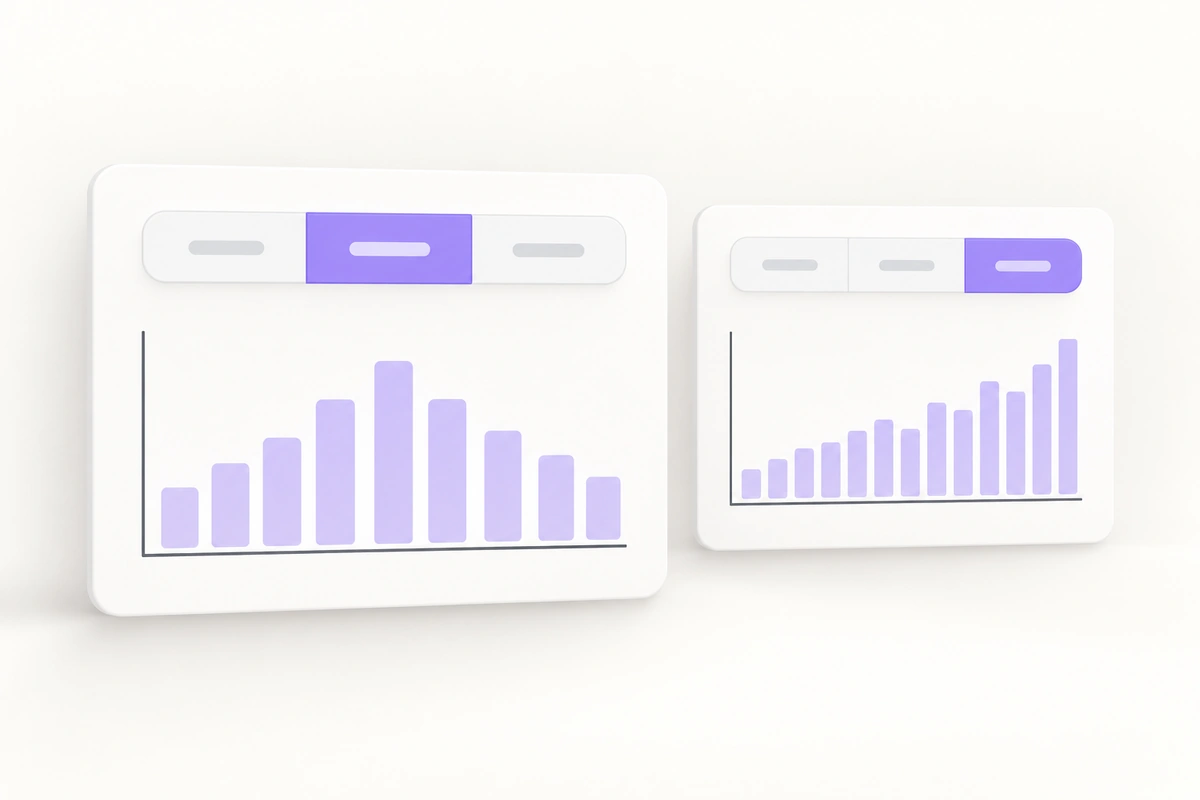
A segmented control keeps a short set of related choices visible and shows which one is selected. Use it when people frequently switch a value within the same context, such as a chart’s time range. For a single-choice control, selecting another segment replaces the previous selection; it should not unexpectedly navigate away or submit a form.
Consider a store’s sales chart with Day, Week, and Month options. The chart stays in place while its period changes. Designing that relationship in a UI design workspace helps you judge the control alongside the dates, totals, and chart it affects, rather than polishing three disconnected buttons.
Use segments for a short, visible decision
The important property is the relationship between the choices. Day, Week, and Month answer the same question: “Which period should this chart show?” Export, Settings, and Refresh do different jobs and should not become segments merely because their buttons fit in one row.
Fluent’s iOS guidance describes segmented controls as mutually exclusive choices within one context. Platform conventions are broader: Apple’s guidance also covers macOS controls with multiple selection or momentary actions. The design here deliberately uses a single-choice range selector.
A rounded container does not decide the behavior. If the row switches independent panels, such as Sales, Inventory, and Customers, consider the tabs pattern. If it chooses among many saved reporting periods, a labelled dropdown or searchable selector may be easier to use. Prefer visible radio choices when each option needs an explanation.
Make Day, Week, and Month mean something precise
A compact label can conceal an important ambiguity. “Week” might mean the current calendar week or the previous seven days. It might even mean that a year of data is grouped into weekly totals. Decide which interpretation the product needs before drawing the selected state.
For this example, the reporting date is 14 May. The three choices select calendar periods, using the store’s reporting time zone. Each selection updates the date caption and the chart together:
| Selected segment | Visible date caption | Chart grouping |
|---|---|---|
| Day | 14 May | Sales by hour |
| Week | 11–17 May | Sales by day |
| Month | 1–31 May | Sales by day |
The caption makes the chosen period concrete without lengthening every segment. Put “Reporting time: London” beside the chart if readers work across time zones. Define the week’s starting day deliberately; a translated label alone does not establish a regional calendar convention.
Because 14 May is still in progress, later hours and dates have no results yet. Leave future positions unfilled rather than drawing zero sales. Mark the total as “Sales so far” so a partial month is not mistaken for a completed one. These details matter more than whether the selected segment slides or fades.
Separate selecting a range from saving a setting
In the chart, a choice should take effect immediately. Someone comparing Day and Week should not have to select Week and then press Apply. Keep the control near the chart heading, and update only the chart and its related summary. The store, currency, and any independent product filter remain unchanged.
Inside a report-configuration form, the same-looking control may instead collect a value for later submission. Choosing Month changes the draft report period; the form’s Save action commits it. Say “Default report period” in the field label and keep the form’s existing save behavior. Do not silently save this one field while neighboring fields remain unsaved.
Selecting the current value should leave it selected. Repeatedly pressing Week is not an instruction to clear the range or refresh the request. If refreshing data is useful, provide a separate, clearly named action. This keeps selection predictable and avoids making one segment do two jobs.
Show selection and keyboard focus separately
The selected segment needs a persistent visual cue: for example, a filled surface with clear label contrast. Give keyboard focus its own outline. Hover can provide feedback, but it must not replace the selected appearance or make an unselected segment look checked.
For a web implementation of this single-choice value, discuss native radio inputs with the developer. The WAI-ARIA radio-group pattern describes a labelled group with at most one checked option. In its standard non-toolbar interaction, arrow keys move to and select another option; Tab moves into or out of the group. Do not copy a tabs implementation solely to obtain the pill-shaped styling.
In the design, show Week selected with focus on Week, then Week selected after focus leaves the group. The selected fill should remain in both. The group’s accessible name can be “Sales chart period”; repeating “Selected” inside every visible label is unnecessary. A prototype demonstrates the intended response, while keyboard and assistive-technology behavior must be checked in the implemented control.
Keep the selected label and chart results in agreement
Suppose Day is visible and the reader selects Month. Select Month immediately, change the caption to 1–31 May, and show “Loading monthly sales” within the chart area. Keep that area’s height stable. Leaving Day’s values under the Month caption would make the interface display a plausible but incorrect result.
If the reader chooses Week before Month finishes loading, Week becomes the requested period. A late Month response must not replace the Week chart. Describe this as a simple handoff rule: only results for the currently selected range can appear. The implementation can decide how to cancel or disregard outdated requests.
When the request fails, retain the intended Month selection and show “Monthly sales couldn’t load” with Retry inside the chart. Preserve the other range choices. If the request succeeds with no sales, show “No sales in this period.” Failure and a genuine zero-sales period should never share the same empty chart message.
Protect the labels on a narrow screen
Day, Week, and Month can usually share equal-width segments comfortably. Test the control inside the real chart card, including its padding, rather than against the full device width. Put the date caption on its own line if it competes with the selector.
Use realistic translated labels and larger text before accepting the layout. Remove unnecessary icons and excess horizontal padding before abbreviating meaningful words. A row of “D / W / M” saves space but makes the reader interpret the control. Do not shrink its text or touch areas just to keep an attractive desktop proportion.
If the product later adds Quarter, Year, Custom, and several presets, reconsider the component. A labelled range selector can preserve clear wording when the set no longer fits. Wrapping one segmented control onto two rows makes its grouping and selection harder to read. Keep the same date meaning when changing the small-screen presentation.
Build the complete chart decision in Pixso
In Pixso, start with one sales-chart card containing the title, date caption, total, and three segments. Use Auto Layout to explore spacing and label-length changes, and reusable components to keep the segment structure consistent. Keep the example’s calendar dates visible; “Option 1” would hide the range ambiguity you need to resolve.
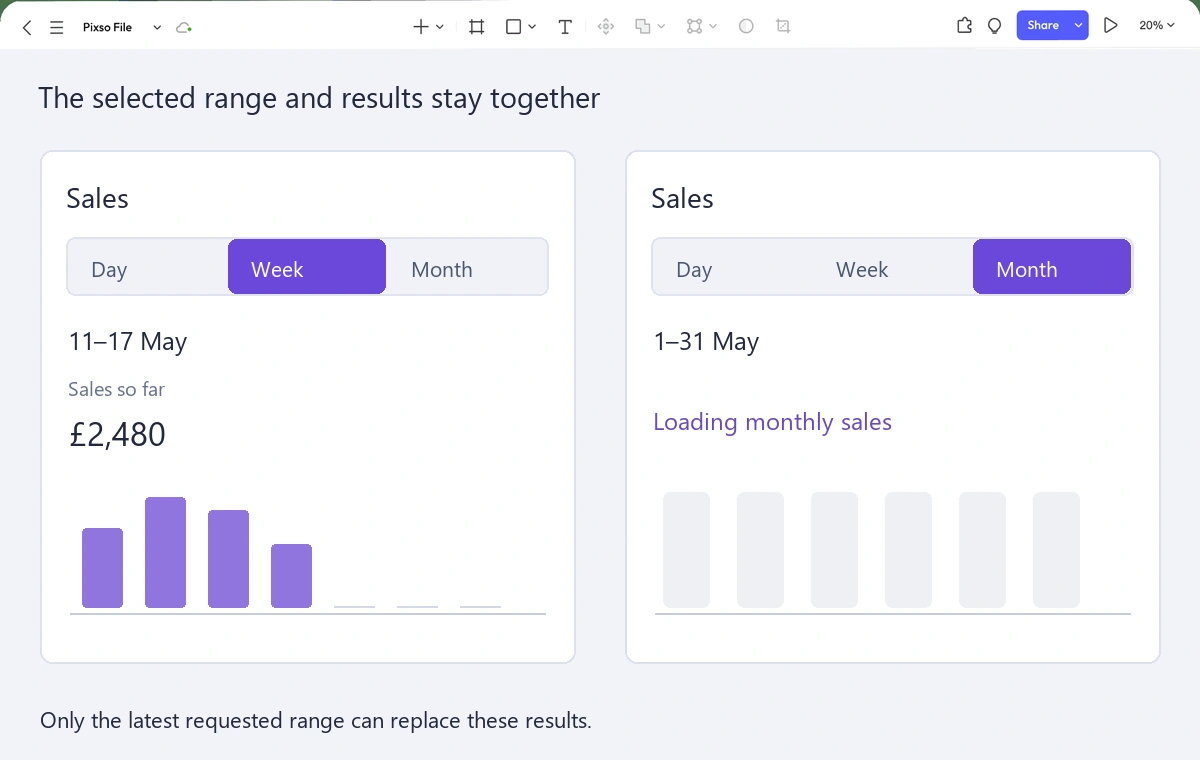
Place a Week view beside a monthly loading view and a completed Month view. Add the focused Week segment where reviewers can compare its outline with the ordinary selected appearance. Keep the control in the same position across the frames so the transition communicates a change of period, not a change of page.
Review one practical journey: “Compare today’s sales with this week, then open the month.” Follow it with a slow response and a failed request. Ask the reviewer which dates the chart represents at each step. If they can answer from the selection and caption, the component is doing its job; if they need to infer it from the graph’s shape, fix that relationship before refining the animation.

![[NEW] How to unblur images & sharpen portrait photos with AI](https://pixso.net/assets/media/unblur-images-9181e03d97cfd9712007-77af57af1809dcce.webp)