Scott
Use tabs when people need to switch between related views of the same object without leaving its context. Keep the labels visible, make the selected view unmistakable, and preserve useful work when someone switches away. Tabs are a poor choice when readers need to compare two sections at once or complete them in a required order.
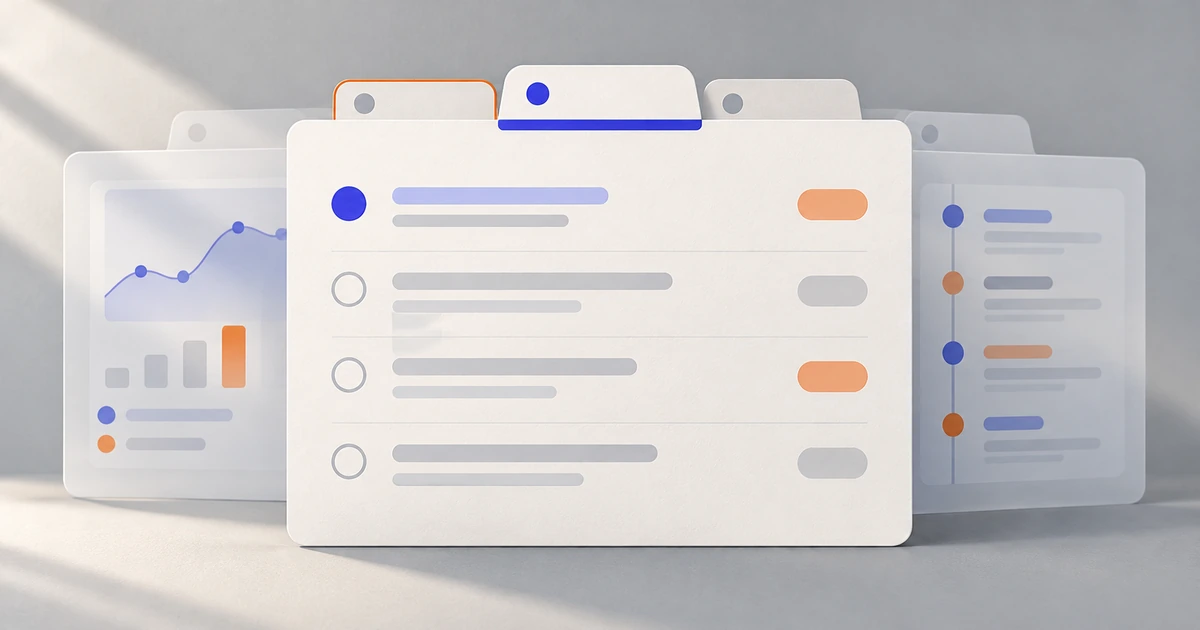
Consider a project workspace with three views: Overview, Tasks and Activity. All belong to the same project, but each answers a different question. This is a local decision within the broader navigation design of the product: the project stays in place while its content changes.
Start with the relationship between the views
In this example, Overview explains the project goal and current status. Tasks contains the work to complete. Activity records changes and discussions. A person can enter any view directly; reading Overview is not a prerequisite for opening Tasks. That independence is what makes the grouping useful.
Do not add Create, Review and Publish to the same row. Those labels describe actions or stages, not alternative views. If publishing depends on finishing a review, the interface needs to communicate that sequence. A tab row would imply that the stages are interchangeable and could hide the reason someone cannot proceed.
Keep shared project information above the tabs: the project name, access settings and a compact status. Put view-specific actions inside the relevant panel. “Add task” belongs with Tasks; placing it beside the project name makes it look available in Overview and Activity too. This separation gives the row a stable purpose instead of turning it into a mixture of navigation and commands.
Tabs also introduce a visibility cost. If a project manager must compare the project deadline with individual task dates, show the deadline near the task list or offer a summary alongside it. Repeatedly switching between Overview and Tasks to remember a date is not an efficient comparison.
Make the selected view clear before adding decoration
Choose labels that predict what appears. “Tasks” is more useful than “Manage,” because Manage could include people, billing or settings. Keep grammatical form and specificity consistent across the row. Overview, Tasks and Activity work together; Overview, Manage tasks and Everything else do not.
The selected tab should feel attached to its panel. An underline, a filled shape or a contrasting border can establish that connection. Use a persistent cue that survives hover and does not depend only on a subtle color difference. Keep the other tabs legible; inactive does not mean disabled.
If you show a count beside Tasks, define its meaning. A changing “12” might mean all tasks, open tasks or tasks assigned to the current person. In this workspace, use “Tasks” without a badge and put “12 open tasks” inside the panel. Add a badge later only if that information helps people decide which view to open. Do not decorate every tab with a number just to make the row look balanced.
Separate keyboard focus from the selected tab
The W3C tabs pattern distinguishes moving focus from activating a panel. In a horizontal row, Left and Right Arrow move between tabs. With manual activation, Enter or Space selects the focused tab. Automatic activation is appropriate when panels appear without noticeable delay; otherwise, navigating the row can become slow. The selected tab uses aria-selected="true". Each tab identifies its panel with aria-controls, and each panel is labelled by its tab. These relationships belong in the implemented component as well as its visual design.
For this workspace, choose manual activation because Activity may need to fetch more information. Imagine Tasks is open and the keyboard focus moves to Activity. Tasks must keep its selected indicator and content. Activity gets a separate focus outline. Only activation changes the panel. If both states use the same purple underline, the user cannot tell what is open and what is merely ready to open.
Draw this combined state explicitly: Tasks selected, Activity focused. Also draw Activity selected and focused after activation. A single “active tab” component variant does not explain both situations. Review the distinction on light and dark surfaces if the product supports both, keeping the underlying behavior consistent.
Keep loading and failure inside the chosen view
Once Activity is activated, select it immediately and show its loading state in the panel. Leaving the Tasks table visible under a selected Activity tab creates a false match between label and content. Keep the project header and tab row available while the request runs so people can switch elsewhere.
Give the loading panel roughly the same working area as the content it replaces. A tiny spinner can collapse the workspace and move controls around; an oversized skeleton can imply rows that never arrive. A simple activity placeholder and a short “Loading activity” message are sufficient for this example.
If the request fails, explain that failure within Activity and offer a retry there. “No activity yet” is not an error message: it claims the request succeeded and found no events. Likewise, a permission restriction needs its own explanation. Do not disable the whole tab row because one panel is unavailable.
| Situation in the workspace | What the panel should show | What remains available |
|---|---|---|
| Activity is loading | A loading state under the selected Activity tab | The project header and other tabs |
| The activity request fails | A brief error and a retry action | Overview and Tasks, without losing their state |
| The project has no events | A genuine empty state explaining what will appear here | Normal navigation and relevant project actions |
| A task draft is unfinished | The draft when the person returns to Tasks | A clear way to save or discard it |
Switch the view without discarding the work
Suppose someone starts adding a task, then opens Overview to confirm the deadline. Returning to Tasks should restore the unfinished title and due date. Switching views is not a request to discard input. The same reasoning applies to a useful filter or position in a long task list.
Decide which state belongs to the current project and which persists more broadly. A task draft belongs to this project. A preferred list density may apply across projects. Accidentally carrying a project-specific filter into a different project can make work appear missing. Record these boundaries alongside the interaction, not as a generic instruction to “remember everything.”
If preservation is not possible, make that constraint visible before the loss happens. A confirmation should describe the consequence, such as “Discard the unfinished task?”, with distinct choices to keep editing or discard. Do not show it on every tab switch. A warning that appears without unsaved work teaches people to dismiss the very message that matters.
For shareable project views, define a direct URL for the selected view and the expected Back behavior with the implementation team. A link to Activity should open Activity, not make the recipient hunt through Overview. Whether every tab switch adds a browser-history entry is a separate decision; avoid surprising loops through a long sequence of incidental switches.
Keep the choices usable on a narrow screen
First try the three labels at realistic mobile widths and with larger text. Remove decorative icons or excessive spacing before shortening meaningful names. Do not shrink the type until the row fits: fitting all three labels is not useful if they become difficult to read or tap.
A single horizontally scrolling row can preserve visible choices when longer localized labels overflow. Make the continuation discoverable, keep the selected tab in view, and avoid requiring a precise swipe just to reach the last option. Test the longest labels rather than assuming that a short English row represents every language.
When there are too many views for a useful row, reconsider the grouping. A clearly labelled view selector can be a better small-screen alternative if the options form one coherent set. Its current value must remain visible, and choosing a view should preserve the same project state as desktop. Wrapping tabs onto several rows usually weakens the visual relationship between the selected label and its panel.
Design the complete workspace in Pixso
Build Overview, Tasks and Activity as three views of the same example project in Pixso. Keep the shared header in the same position and change only the relevant panel and selected state. Add the focused-but-not-selected Activity tab beside the Tasks view so reviewers can see the distinction without guessing from a hover effect.

Use one concrete review task: add a task, check the project deadline in Overview, then return and finish the draft. Next, open Activity on a slow connection. These routes expose lost input, misleading selection and layout movement more effectively than judging the tab strip in isolation. The design communicates the intended behavior; keyboard operation and panel relationships also need verification in the built interface.
Keep the handoff focused on the decisions that affect that journey: what each view contains, when selection changes, what survives a switch and how the row adapts. Good tabs make a workspace feel like one place with several useful views, rather than several pages that repeatedly forget where the user was.