Scott
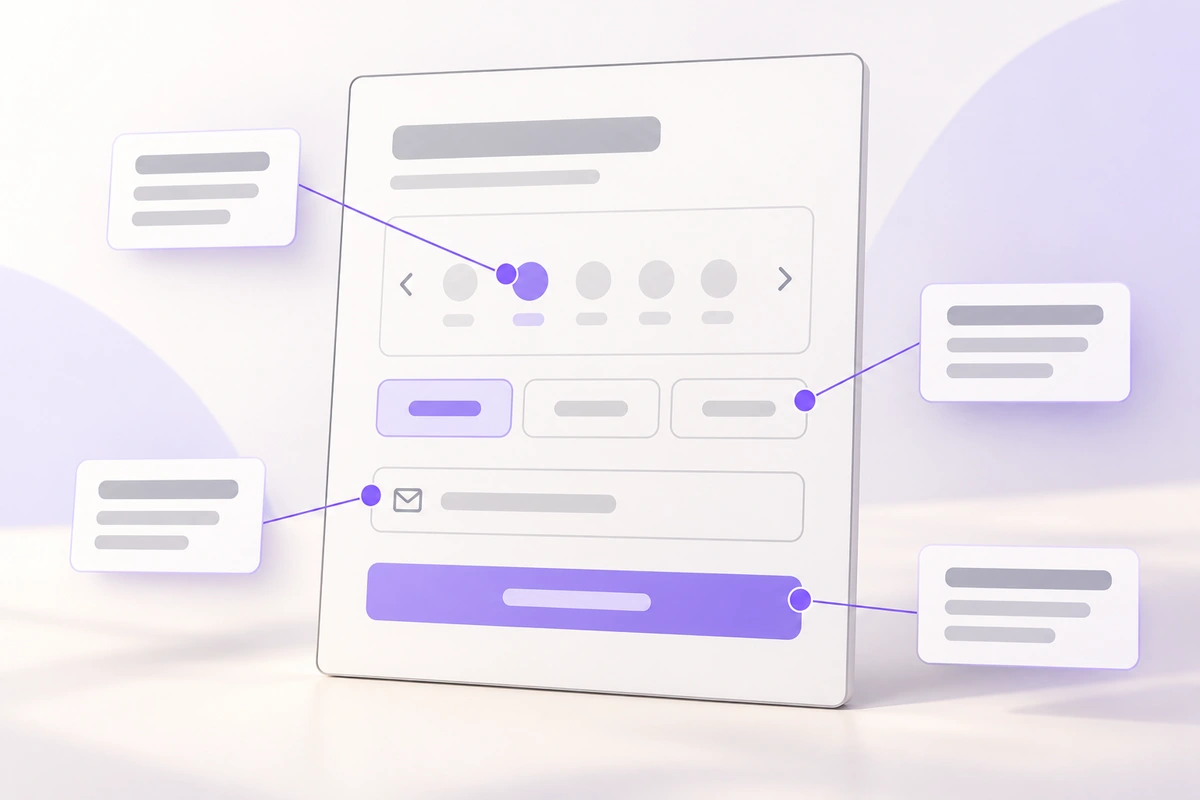
Wireframe annotations explain the behavior a static screen cannot show. Place a numbered marker beside the relevant control, then write a short note describing its starting state, what triggers a change, and what happens next. A useful annotation answers a question someone would otherwise have to ask: whether a time is already selected, when an error appears, or whether continuing actually completes a booking.
Keep these notes beside the screen they describe. When the uncertainty is about moving between screens rather than interpreting one screen, use Pixso’s prototyping tools to demonstrate the route. The annotation explains the rule; the interaction lets a reviewer experience its consequence.
Annotate decisions that the drawing leaves open
A label reading “Email” already tells the reviewer what the field contains. A note saying “Email field” adds nothing. A note saying “Required when continuing; preserve the other entries if it is empty” explains behavior that the rectangle and label cannot express.
Start with the questions raised by the actual screen. Which values are defaults? Which controls affect each other? What can be selected? What causes an error, and where does the person go afterward? Describe the decisions relevant to this task, without turning every pixel into a specification.
Separate interface wording from instructions to the team. The screen might say “Choose a time,” while its annotation says “No time is selected initially.” Put the first phrase inside the interface and the second outside it. Otherwise a reviewer may mistake a design instruction for copy the customer will see.
An annotated booking wireframe: six notes, one task
Consider an example appointment screen for a 30-minute design consultation. It contains a service summary, a date selector showing 14 May, three time options, an email field, and a “Review booking” button. The person’s task is to choose an appointment and check the details before confirming it.
The time options are 10:00, 11:00, and 14:00. The last is unavailable. Initially, no time is selected and the email field is empty. The following notes make that starting point and the main dependencies explicit.
| Marker and location | Annotation | Question it resolves |
|---|---|---|
| 01 · Service summary | This appointment is a 30-minute design consultation. Its duration cannot be changed on this screen. | Is “30 minutes” a setting or information? |
| 02 · Date and time heading | 14 May is selected in this example. Show the available times for the selected date in the studio’s local time, identified beside the choices. | Which date and timezone do the times belong to? |
| 03 · Time options | Start with no selected time. Allow one selection. Show unavailable 14:00 as unavailable and prevent selection; choosing 11:00 replaces an earlier 10:00 selection. | Can multiple appointments be chosen? |
| 04 · Email | Require an email address when continuing. If it is empty, stay on this screen and display “Enter your email address” beside the field. Keep the other entries. | When does the empty-field error appear? |
| 05 · Date selector | When the date changes, clear the selected time and show the new date’s availability. Keep the email entry. Ask the person to choose a time again. | What survives a change of date? |
| 06 · Review booking | If the required entries are present, open the booking summary. Otherwise show the relevant field messages here. Continuing does not confirm the appointment. | Does this action make the booking? |
If the service offers different appointment lengths, add that choice and explain its effect on availability. Decide whether a time survives a date change before the screen reaches implementation; a familiar calendar layout does not answer that question.
Write a trigger and an observable result
“Update the form” is too vague for note 05. It could mean keeping the old time, choosing the first available time, or clearing every field. “When the date changes, clear the selected time and keep the email” narrows the interpretation to an observable result.
A reliable sentence pattern is when this happens, change this, and preserve that. You do not need all three parts in every note. Use the preservation clause when it prevents a costly misunderstanding, such as losing contact details during a correction.
Error notes need equally concrete wording. Name the condition, message, and recovery. For a missing time, use “Choose an appointment time”; for an empty email, use “Enter your email address.” An error symbol alone does not explain the problem. W3C’s guidance on identifying input errors requires detected errors to identify the affected item and describe the error in text.
Show one error state next to the initial wireframe when message placement matters. For this form, specify that a failed attempt moves keyboard focus to the first invalid field. That is a design decision to carry into implementation and test there; a colored box in a static drawing cannot demonstrate it.
Place notes where people can follow them
Put numbered markers just outside the controls rather than over labels, values, or touch targets. Keep the notes in a column beside the frame, following the screen’s reading order. A short connector can clarify an ambiguous target, but six lines crossing the form make the annotation harder to read than the interface.
Reuse a marker number when a note applies to the same control in a second state. Note 04 should still refer to Email in the error wireframe. Stable numbers let someone say “The recovery in 04 is unclear” without describing a coordinate on the canvas.
Keep notes outside the screen frame if they are not meant to appear in the prototype. Before sharing an exported image, include the note column and check the text at its actual reading size. If the entire sheet needs heavy zooming, split it into an overview and one enlarged interaction detail instead of shrinking the notes.
Choose between an annotation, a prototype, and a comment
Use an annotation for a rule the team needs to retain. Use a prototype for a sequence someone needs to try. Use a comment for a question or discussion that still needs a decision.
In the booking example, “Changing the date clears the time” belongs in a lasting note. Whether people notice the cleared selection is a good question for an interactive review. “Should we keep the time if it is available on both dates?” is a discussion, not an agreed rule.
Once that discussion is resolved, update the note and affected screens. Do not leave the approved behavior buried in a comment thread while the wireframe still shows the previous decision. For a broader choice between deliverables, the wireframe, mockup, and prototype comparison explains which questions each can answer.
Build the annotated booking screen in Pixso
Create the booking screen in a Pixso design file with readable labels, time options, an email field, and the review action. Add a column of text notes beside the frame and draw small numbered markers to connect the six rules to their controls. Use ordinary design objects for the annotations, so their wording and placement remain easy to edit.
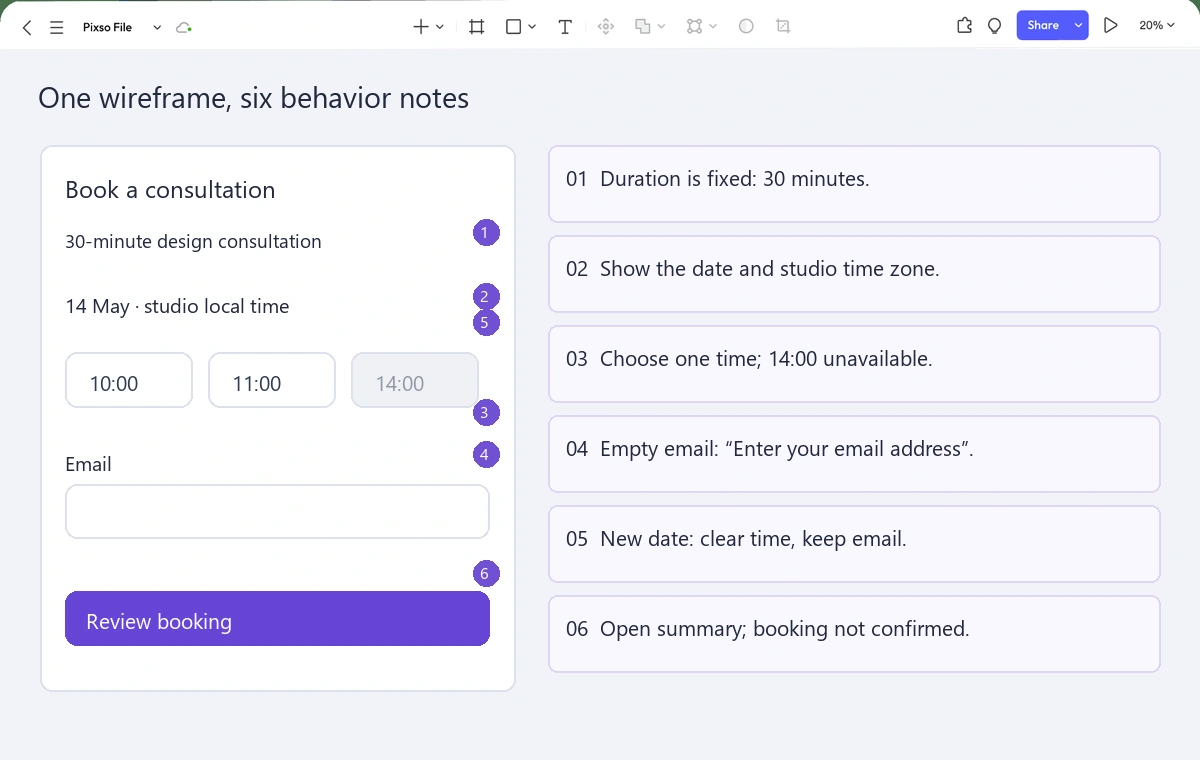
Duplicate the screen to show an empty-email error and a changed-date state. In the changed-date version, leave the email visible but remove the selected time. This makes note 05 inspectable without requiring a reviewer to imagine the result.
For a focused prototype, connect “Review booking” on a completed version of the form to a summary frame. Show the consultation, date, time, and email there, with a separate confirmation action. Pixso supports linked screens and contextual comments; the screen designs and written rules still determine what this particular booking flow means.
Build an annotated wireframe in Pixso →
Review the change that is easiest to misunderstand
Ask a colleague to read the wireframe without a spoken tour: “You chose 10:00 and entered your email. Now you change the date. What remains, and what must you choose again?” If the answer is not clear from the screen and note 05, improve that pair before adding more documentation.
The point of the numbered sheet is to make that answer available when you are not in the room. Six precise notes attached to the right controls are more useful than a page of general advice that could describe any form.
![[Detailed Review] UI VS UX](https://pixso.net/assets/media/core-of-ui-ux-19d28f0203322729.webp)