Scott
An empty state should explain why content is missing and offer the next useful action. A new project needs a way to create its first file; a search with no matches needs a way to adjust the query; a failed request needs recovery. Treating all three as “Nothing here” leaves the user to diagnose the problem.
Start with what the application knows. If a request is still running, show progress. If it failed, keep the error separate from a genuinely empty collection. A zero-result screen should appear only after the relevant query has completed successfully.
The patterns below cover file areas, search, dashboards and shared workspaces, from the message and recovery action to the state logic needed at handoff. They complement navigation bar design and the confirmation patterns in popup UI design.

Start with the user’s next job
Before choosing an icon or writing a sentence, identify the job the person was trying to complete. “No files” can mean that the team has not created a file, that a filter hides every file, that an import is still running, or that the user cannot access the files. Those states require different explanations and different actions.
Write the answer as a short state statement:
“This project has no files yet. A member who can edit the project can create its first file.”
This sentence separates the visible condition from the recommended action. It also exposes assumptions that need checking. If the user only searched for “mobile,” the right explanation is “No items match this search,” not “Your workspace is empty.”
Create a small state record before designing the component:
| Field | Question to answer |
|---|---|
| Scope | Which collection, project, or filter is empty? |
| Cause | Is it first use, no match, failure, loading, or access? |
| Evidence | What can the interface safely know? |
| Next job | What would move the task forward? |
| Recovery | Can the user undo, retry, broaden, request, or create? |
The record becomes useful handoff material. It prevents the visual design from making a claim that the product cannot support.
Use four different patterns instead of one generic blank
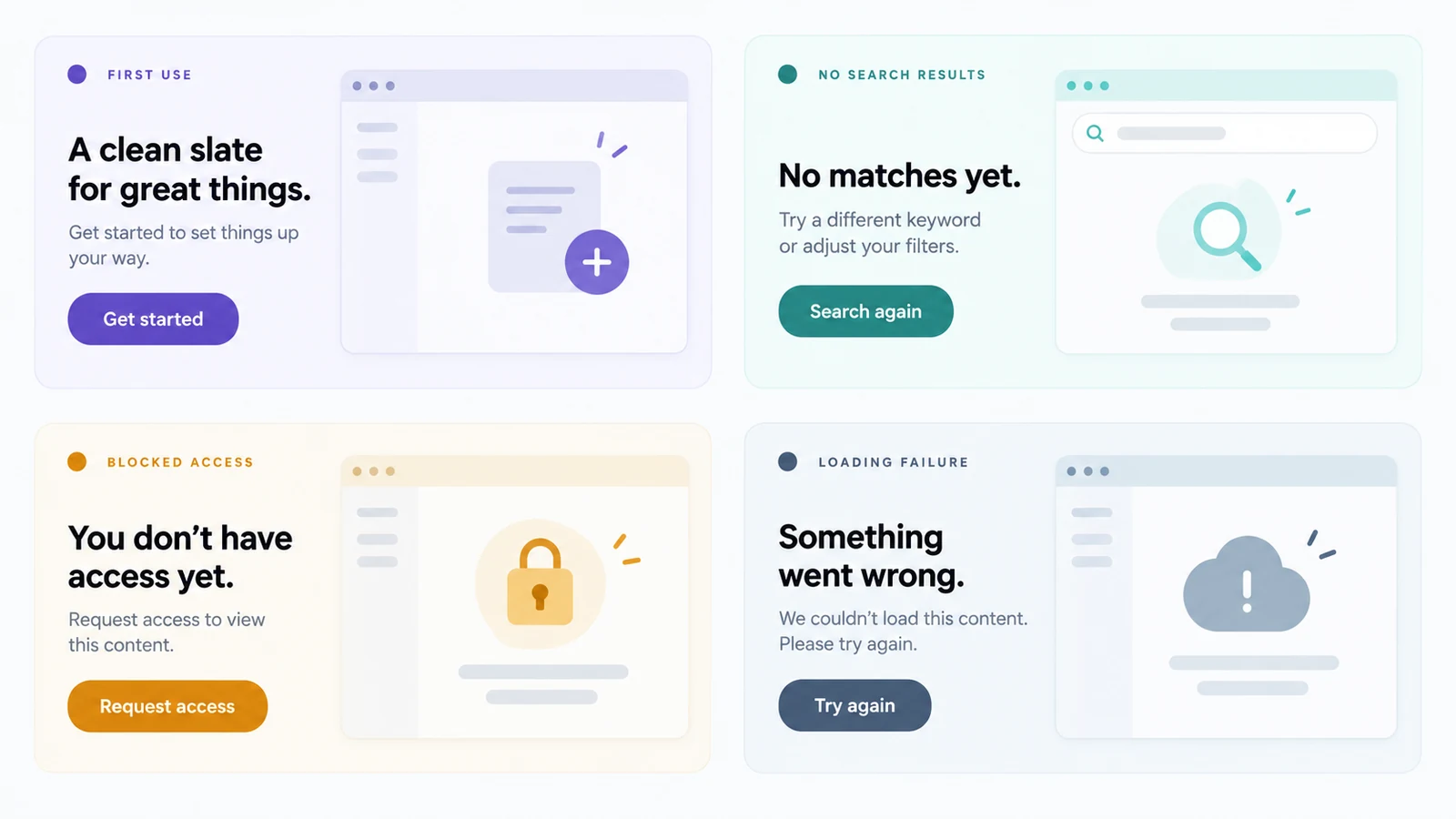
First-use state
The collection is genuinely new. Explain its purpose in one sentence and offer the smallest action that creates value. A project board might say “Track decisions and owners here” and provide “Create a board.” Avoid presenting a long tutorial before the user can try the feature. If a template is helpful, make it a secondary choice rather than the only route.
No-results state
The collection has data, but the current query or filter has no matches. Keep the query visible, describe the condition precisely, and offer a reversible action such as “Clear filters” or “Search all projects.” Do not show a “Create” button unless creating an item is actually relevant to the query. A person searching for an existing invoice should not be pushed toward creating a duplicate.
Completed or intentionally empty state
Some empty states are positive. An inbox with no outstanding review tasks may need a quiet confirmation, not a call to action. The message should state the scope and the time boundary if one exists: “No open review requests in this project.” If another task is available, place it as a low-emphasis link so the completion still feels complete.
Blocked or error state
The interface cannot retrieve the expected content or the current user is not allowed to view it. Keep these causes separate. A failed request can offer “Try again”; a verified permission restriction can offer “Request access” when the product supports that route. Preserve the query and entered data. When the product cannot reveal whether a resource exists, use the approved neutral message instead of confirming its name or contents.
These patterns should have distinct visual and semantic states. A spinner, a no-result illustration, and an access lock may share a component shell, but they should not share the same message or button hierarchy.
Write one clear recovery action
The primary action should describe a verb the person understands in this context: “Create project,” “Clear filters,” “Retry,” “Request access,” or “Import files.” Keep it close to the explanation and preserve the current location after the action. If the action opens a new flow, state that in the label rather than hiding it behind “Continue.”
Use secondary actions for safe alternatives: “View all projects,” “Learn how permissions work,” or “Contact an administrator.” Do not give equal visual weight to five possible routes. Too many choices turn a helpful empty state into a decision screen.
Button labels should remain specific when translated or read by a screen reader. A label such as “Do it” gives no useful context outside the surrounding artwork. For spacing and type choices, keep the component consistent with the product’s established UI design principles and do not shrink body text just to fit a decorative panel.
Preserve context when filters and search are involved
Search and filter states are where empty-state errors cause the most wasted work. Show the active filter chips or query above the message, and make the reset action obvious. If a date range is active, repeat it in human-readable language instead of relying on a hidden control state.
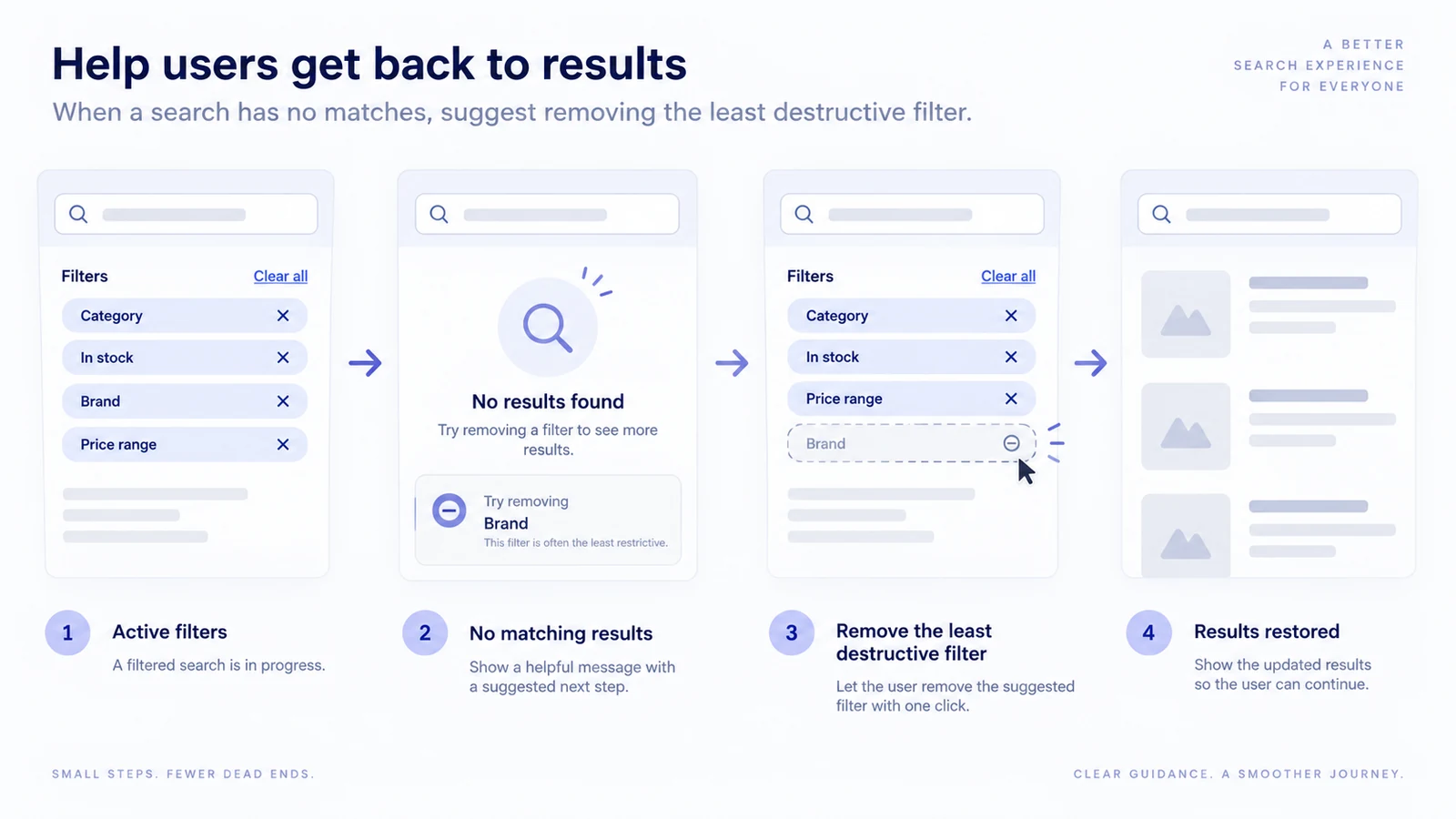
When several filters are active, show exactly what the recovery action changes. If removing the Archived filter will reveal relevant results, “Remove Archived filter” is clearer than “Reset.” If the application cannot know which filter caused the empty result, let the person remove individual filters or clear them all. Do not imply a particular change will restore results without checking it. Keep the saved-view name visible so “no results in this view” remains distinct from “no items in the workspace.”
For tables, maintain the column headers when the body is empty. The headers orient the user and show what kind of data will appear. In a dashboard, keep the time range and metric name visible, then explain whether the value is zero, unavailable, or not collected. A blank chart and a zero-valued chart are not interchangeable.
Treat permission states as a different conversation
Permission-related emptiness needs careful language. “You have no projects” is misleading when the user simply lacks access. State the boundary without exposing private information: “You don’t have access to a project in this view” can be followed by “Request access” if that action exists. Include the owner or policy explanation only when the product can display it accurately.
The same principle applies to file areas and collaboration tools. A shared folder may be empty for one member and populated for another. Design the component so it can display role-specific actions without changing the page’s structure. For upload areas, pair the empty state with the actual constraints and the recovery path; the file upload UI design patterns are a useful adjacent reference.
Make the component resilient to real content
Empty states are often designed with a two-line English message and tested only at one width. Add longer translated strings, a missing optional description, a disabled action, and a narrow mobile viewport to the component review. Check that the illustration cannot push the primary action below the fold on a short screen.
The component should also handle a partial state. A list may contain some cards while one request fails, or the first page may be empty while a background import is still processing. In those cases, use an inline status near the affected scope instead of replacing the whole page with an empty panel. Preserve the successful content and tell the user what is still changing.
For team dashboards, decide whether an empty metric is zero, not applicable, pending, or unavailable. The dashboard UI examples provide useful context for hierarchy, but the state definitions must come from the product’s data contract. Never turn a missing value into a reassuring zero merely to make a card look finished.
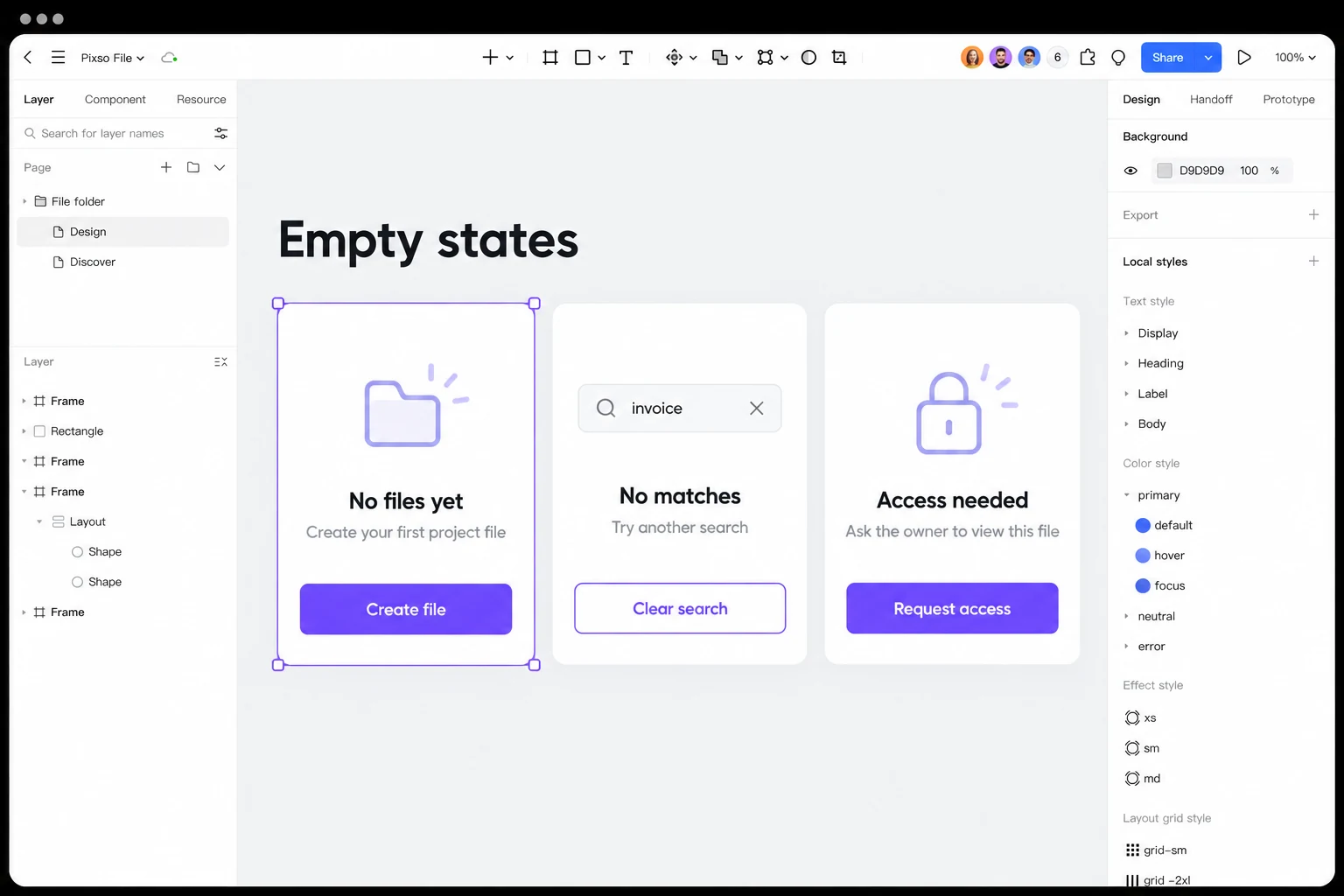
Build three empty states in the same Pixso file: a new project with no files, a search with no matches and a file the reviewer cannot access. Keep their layout consistent, but give each one a different explanation and action. Compare the cards at a narrow width, then ask a teammate to identify what happened and what to do next. This catches a generic message or misleading button before the component reaches handoff.
Annotate states for design-to-development handoff
Document the state name, trigger, visible copy, action, analytics event, and return behaviour. A simple table is usually enough:
| State | Trigger | Primary action | After action |
|---|---|---|---|
first-use | Collection has no records and user can create | Create project | Open the new draft |
no-results | The completed query returns zero matching records | Remove the selected filter or clear search | Keep other criteria, rerun the query and show its actual result |
blocked | User lacks permission | Request access | Show request status without losing context |
load-error | Request failed | Retry | Keep query and filters unchanged |
For an in-place search update, expose the result message to assistive technology without moving focus away from the search control. A concise message such as “No results for invoice” can use an appropriate status mechanism; making the entire results panel a live region may produce repeated announcements. Reserve focus changes for interactions that actually change context, such as opening a dialog. Record the behavior alongside the message and action name. The W3C guidance on status messages explains the distinction.
Validate the message with realistic scenarios
Test the same component with a new user, a returning user, a user with a saved filter, a user with restricted access, and a user on a slow connection. Ask each person what they think happened and what they would do next. If two scenarios produce the same visual but different explanations, make the state difference explicit in the data and content model.
Review the edge cases that are easy to miss:
- A retry succeeds but the page still has the old error message.
- A search query contains characters that are escaped or truncated.
- A translated action wraps to three lines and changes the button width.
- A user loses permission while the empty state is open.
- A collection is empty because an import is still running.
- The action is unavailable to a read-only member.
Capture these cases in the same design file and link the final component to its implementation notes. A consistent workflow is easier to maintain than a collection of isolated screenshots; design-to-code handoff offers a related way to record states and decisions.
Try the component with three failure cases
Before handoff, run the same query while the connection is slow, after a request fails and with a filter that genuinely returns no matches. The screen should identify each condition correctly and retain the query throughout recovery. Then repeat the no-results case as a read-only member: a “Create” button should appear only if that person can actually create the relevant object. These cases reveal whether the message follows the product state or merely fills an empty container.